
In the previous quickstart, you created a Project Kick-Off meeting page in Confluence.
In this quickstart, you let Meetical AI join the meeting. It writes the summary, decisions and action items into the Confluence page for you.
Before you start
-
You already have a meeting page created with Meetical.
-
The calendar event has a video meeting link, for example, Google Meet, Microsoft Teams, or Zoom.
-
Meetical AI is enabled for your site.
-
Inform participants that an AI meeting assistant may join, listen, and generate notes.
1. Invite the AI notetaker
-
Open the Project Kick-Off event in your Meetical Calendar.
-
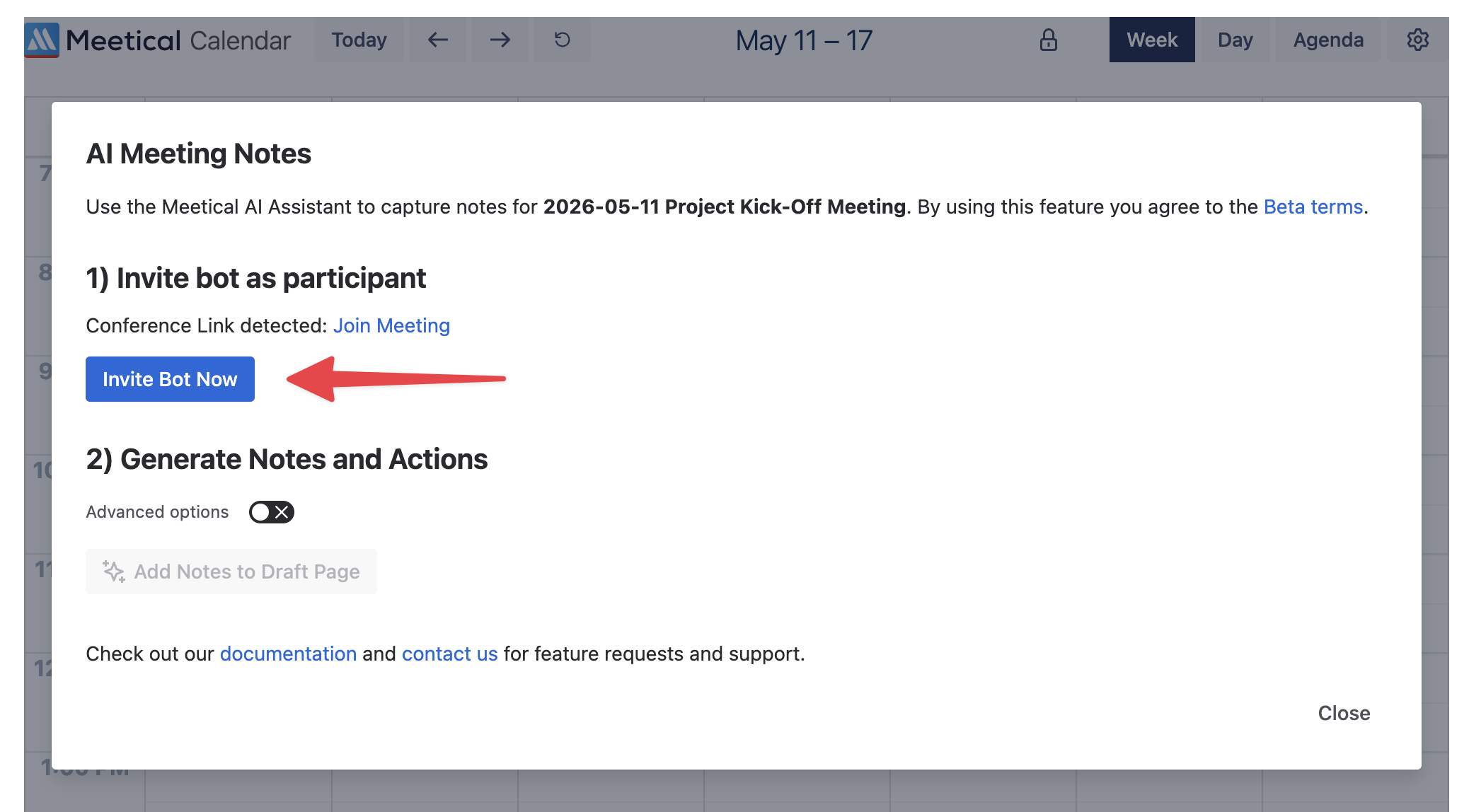
Click AI Meeting Notes and invite the AI notetaker.
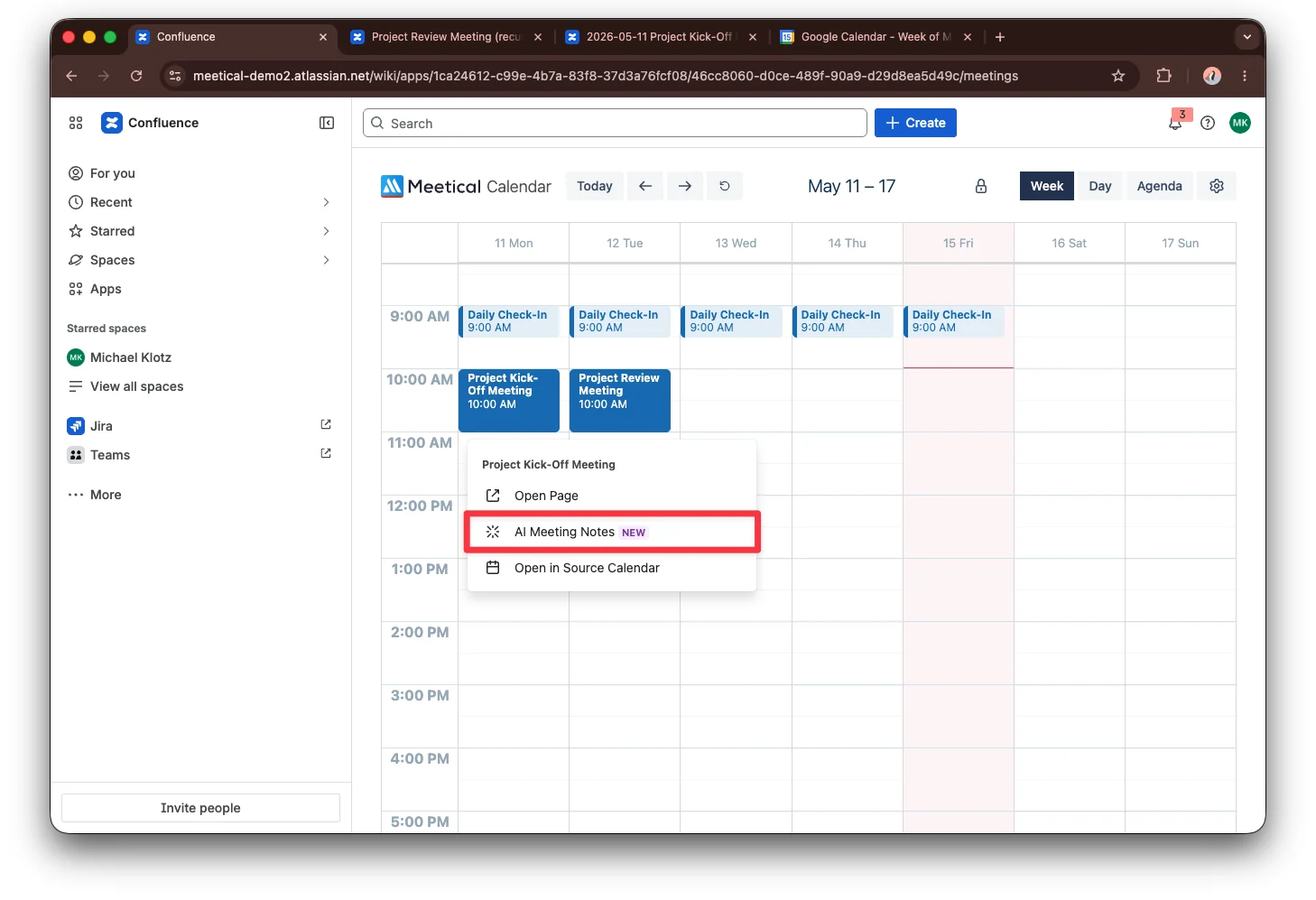
You can also invite it from the page itself: in the row below the page title, click Meetical and open the AI Notes tab.
Next time, switch on the AI notetaker when you create the page, or in the Series Settings of a recurring meeting. Then you can skip this step completely.
2. Hold your meeting
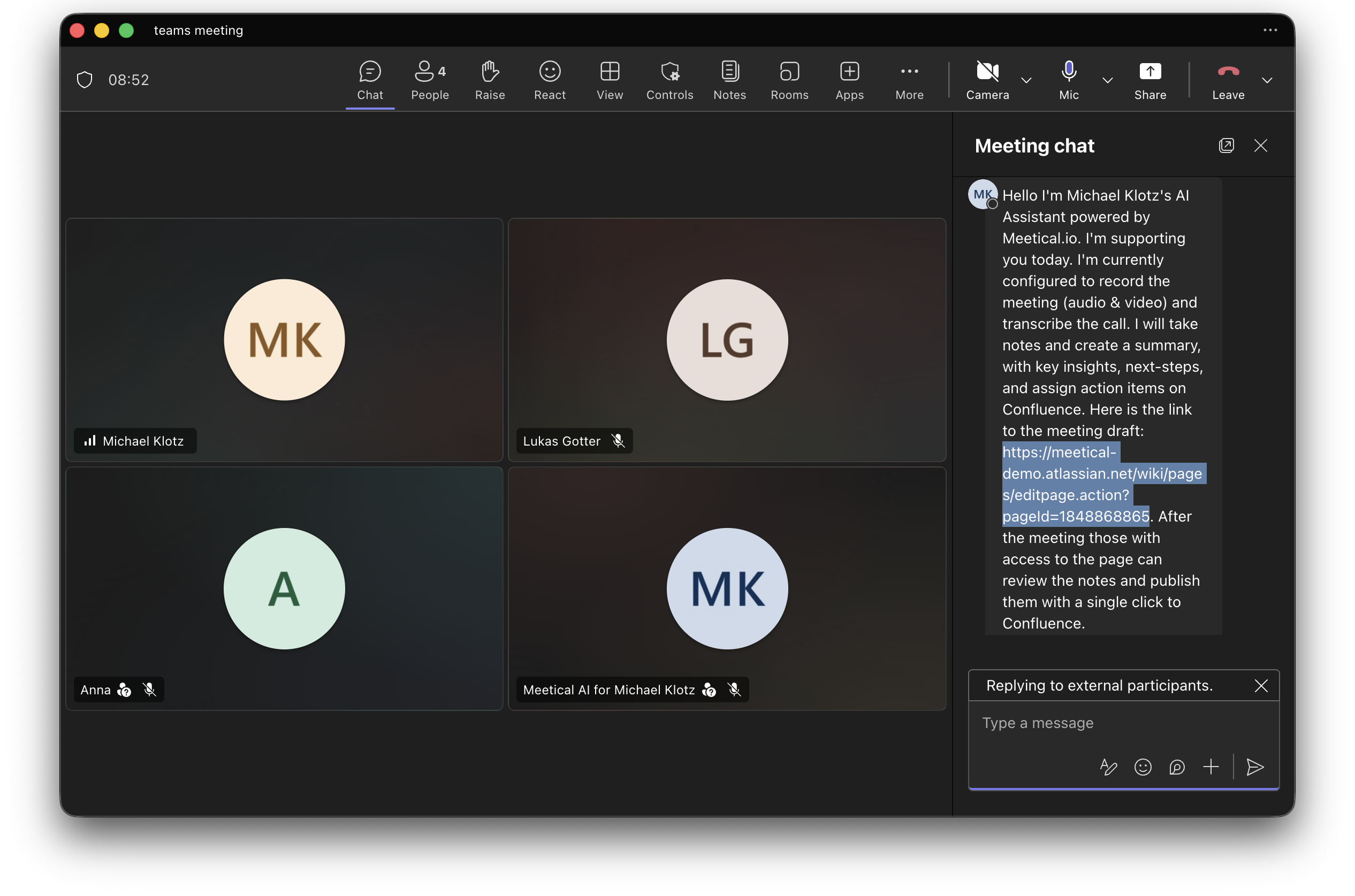
Start the meeting as usual. The notetaker joins like a regular participant and posts a short message in the meeting chat with a link to the notes page.
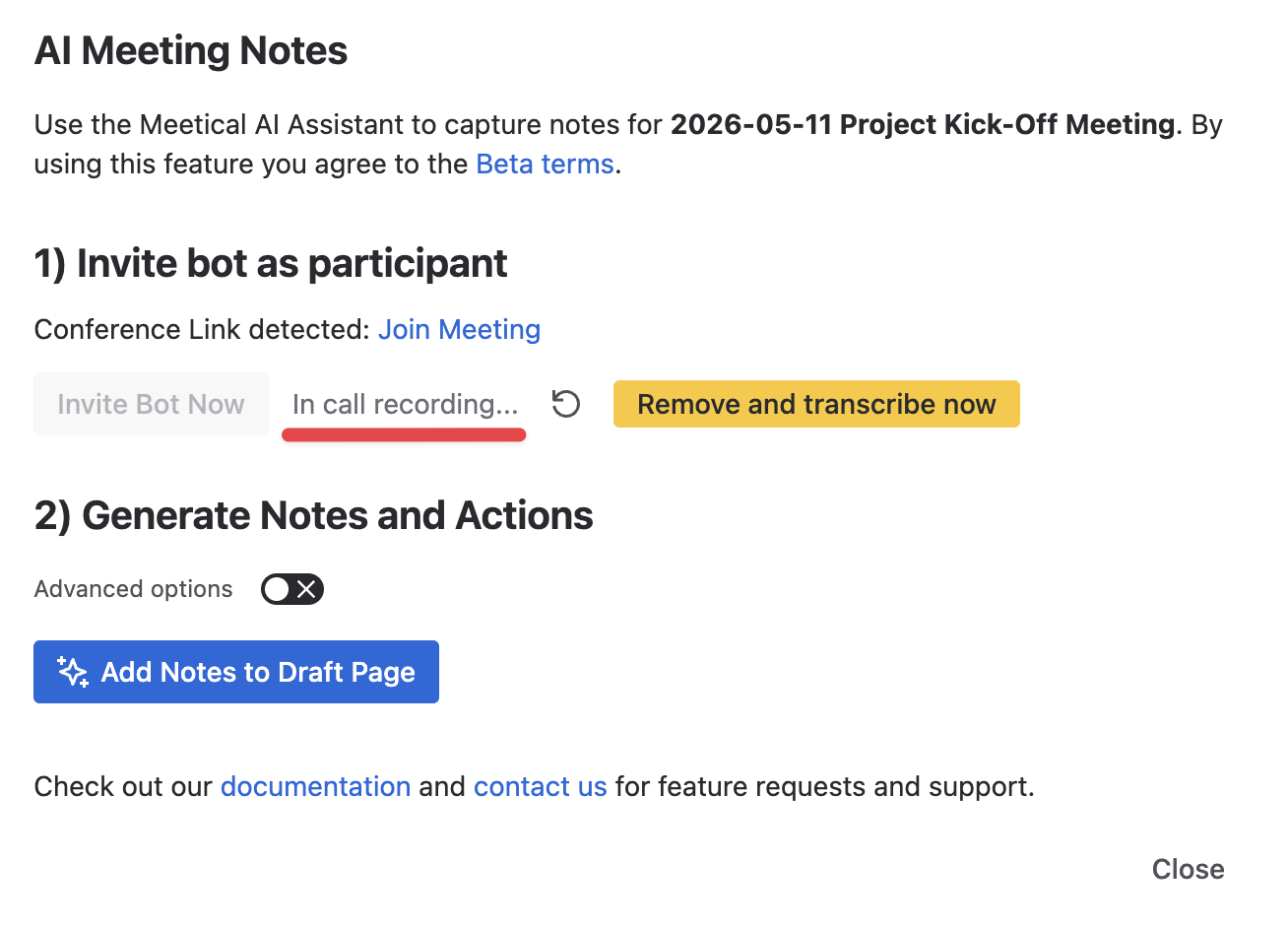
The AI Notes tab shows the notetaker's status, for example In call recording. When the online meeting ends, the notetaker leaves automatically. You can also remove it from the call at any time.
3. Review and publish the notes
After the meeting, Meetical writes the notes onto a draft of your page automatically and sends you an email with a link to it. There is nothing to click in between.
-
Open the draft from the email, or from the AI Notes tab, where it says Notes are on the page draft.
-
Review the summary, decisions and action items.
-
Publish the page.
Screenshots to add: the "your notes are ready" email with the link to the draft, and the AI Notes tab showing Notes are on the page draft.
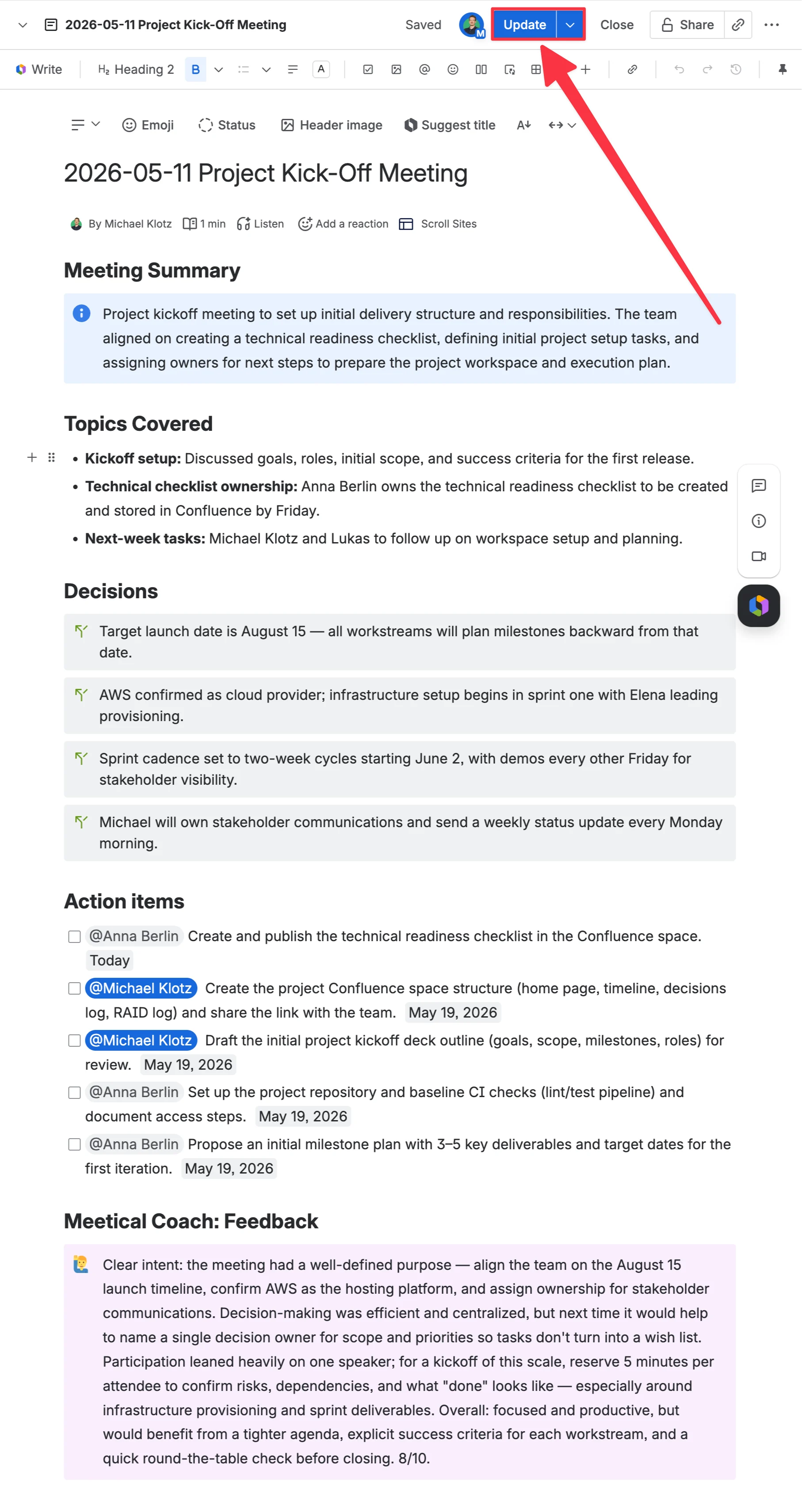
On a Live Page there is no draft: the notes appear on the page directly.
Want the notes in another language or with a different template? See Generate AI meeting notes again.
Well done! You created your first AI Meeting Notes with Meetical AI.
Tips for better AI notes
-
Publish a clear agenda on the Confluence page and walk through it at the start of the meeting. (Note: current page content is not included in Meetical’s context yet).
-
Say decisions, actions and owners out loud during the meeting.
-
Mention the bot as “Meetical Bot” to make sure certain actions, decisions, or insights are included in your notes; especially helpful in longer meetings or complex discussions,
-
Review AI output before publishing the page and using the notes it as the official meeting minutes.
If you notice any inaccurate AI notes, please reach out to support. We can enable AI debug mode and investigate the issue. Custom AI templates, an organization-wide glossary, and improved context options are also on the roadmap.
Next step
Now that you have created your meeting notes page for a single meeting, take a look at this guide on how to create pages automatically for recurring meetings.