
In this guide we create a recurring meeting structure so every review meeting is automatically organized.
In the quickstart, you created your first one-off meeting page for a Project Kick-off meeting. Now the project moves on, and your team runs a recurring Project Review meeting.
Before you start
-
Meetical Meetings is installed in Confluence.
-
Your Google Calendar or Microsoft 365 calendar is connected to Meetical.
-
You have a Confluence space where the Project Review Meeting notes should be created.
Step 1 - Create the recurring calendar event
-
Open your Google or Outlook Calendar.
-
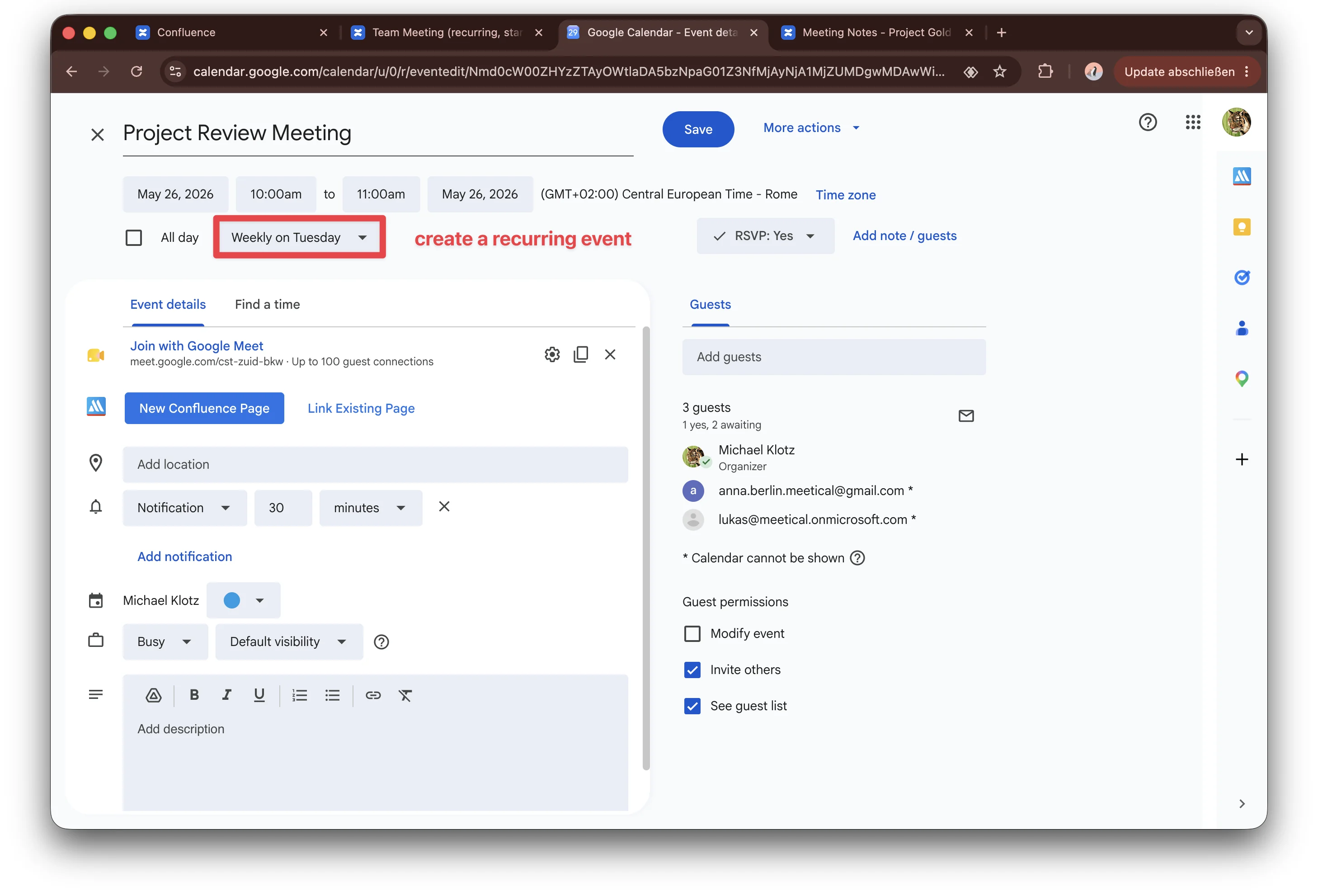
Create a recurring event called Project Review Meeting.
-
Add the participants and optionally a video meeting link.
Step 2 - Create the recurring meeting page
You can also create the page from Google Calendar with the Chrome Extension or from Outlook with the Outlook Add-in. The result is the same: a Confluence page linked to the calendar event.
-
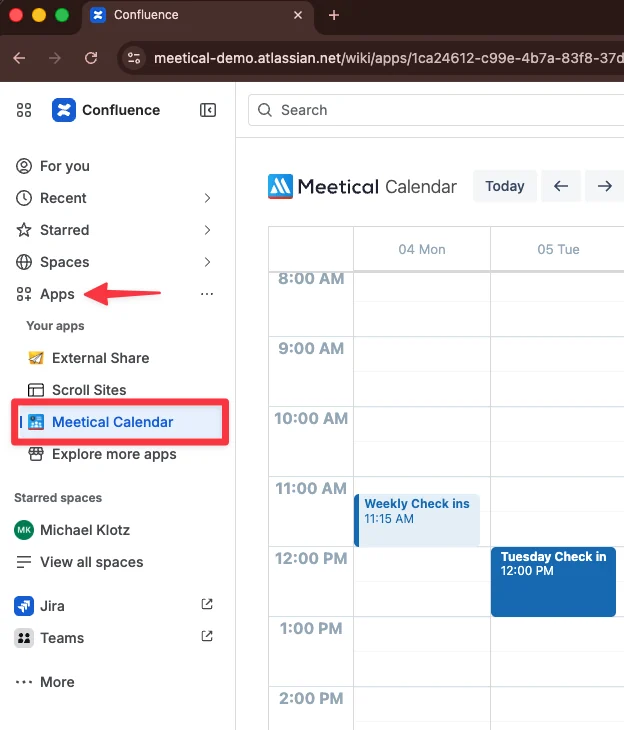
Go to the Meetical Calendar in Confluence: Left sidebar → Apps → Meetical Calendar.
-
Click on the event of the Project Review Meeting and click Create New Page.
-
Choose the target Confluence space, optionally choose the parent page, and select your preferred template.
-
Enable auto-create to let Meetical create pages for future meetings automatically.
-
Click Create Page.
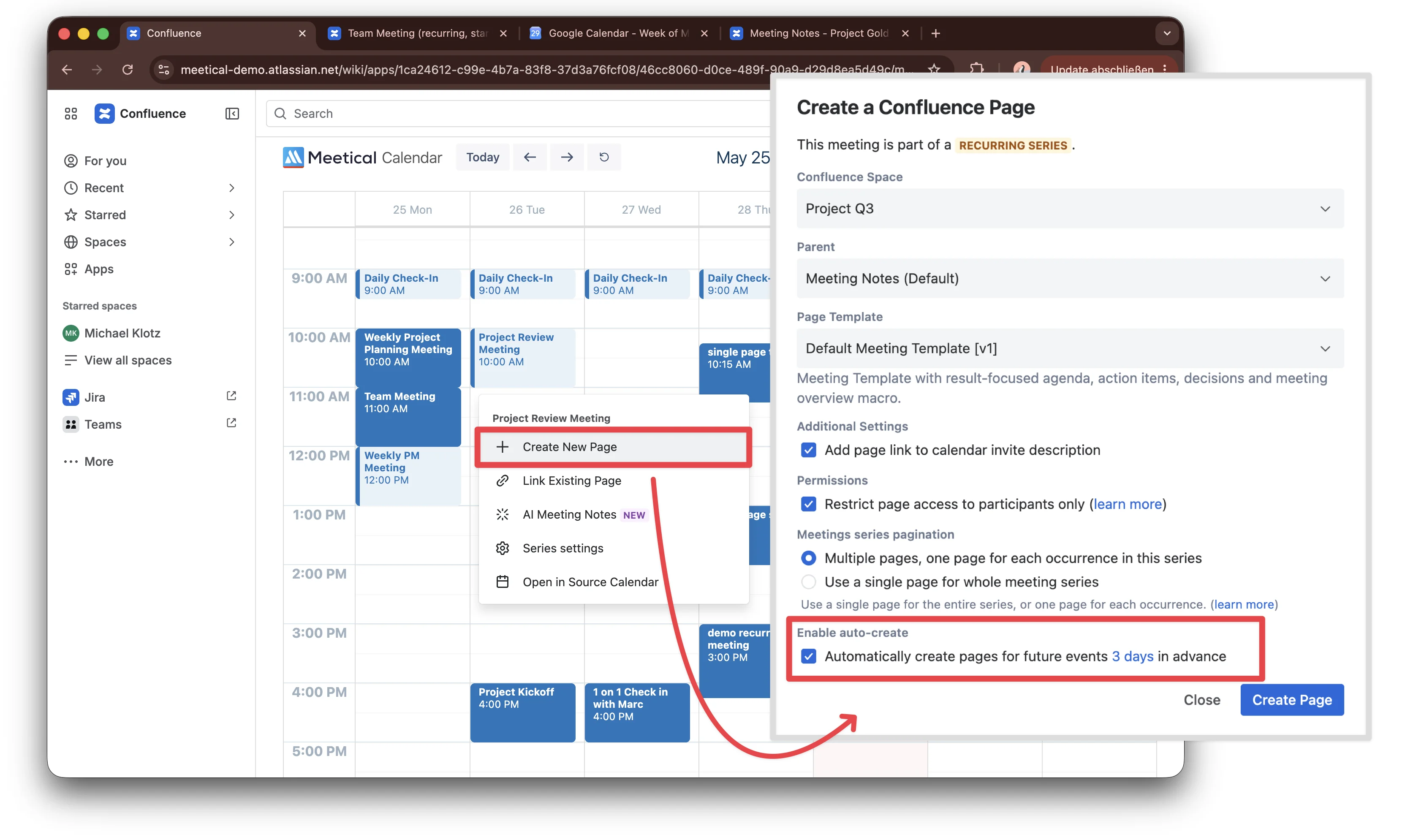
You can update the automation settings at any time and also create the page manually if you need it earlier than the automation would create it.
Step 3 - Review the meeting series structure
You can configure the automation to have all notes for a series on one single page or a page for each occurrence organized under a parent page. Multiple pages are recommended for regular status meetings with comprehensive notes and multiple action items, whereas a single page can be a good fit for 1-on-1s and similar meetings where notes are shorter and easier to manage in one place. Read more about this in Meeting Series Pagination.
Page Creation
For our review meeting, we used a multi-page approach. Our meeting pages are now organized under a common parent page. In addition, Meetical now automatically creates new meeting pages in advance, this can be changed in the Series Settings.
Page Order
Every consecutive meeting page is chronologically ordered under the same parent page.
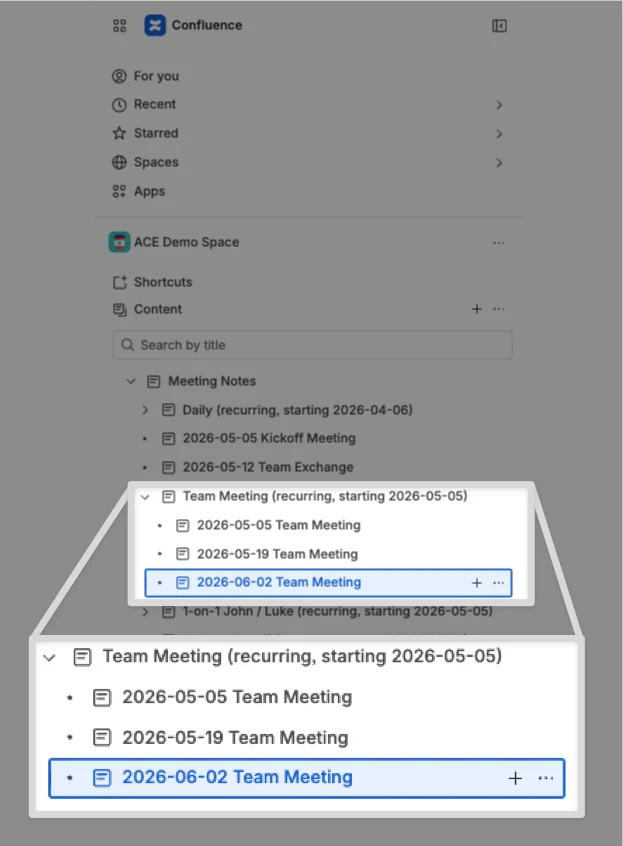
Currently, each new page is created at the bottom of the page tree, following Confluence’s standard behavior. We are considering changing this so new pages are created at the top instead. Let us know if this would be helpful for your workflow.
Find your pages
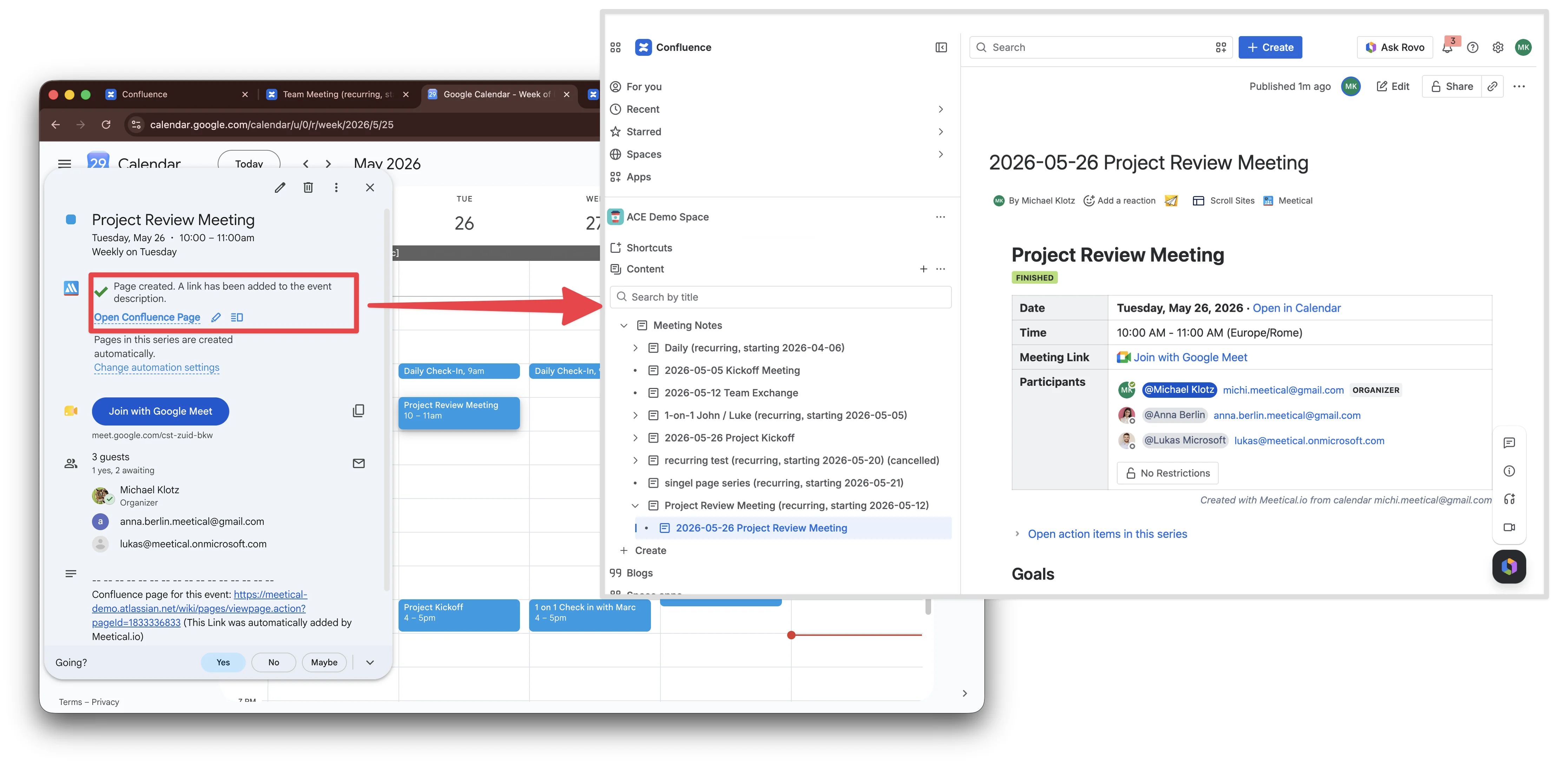
You can open any meeting page:
-
directly from the event in your Google or Outlook calendar if the user installed the calendar extension,
-
from the Meetical calendar,
-
or from the link in the event description if the user is on mobile or doesn’t have the calendar extension installed.
Pages are, of course, also indexed and searchable via the standard Confluence search.
Who can access the page
Every person invited to the meeting and with permissions granted to the space can access the page. In addition, you can restrict access to participants only to ensure only Confluence users who are invited to the meeting have access to the page. For more details see Apply Page Restrictions to Meeting Notes.
Advanced Task Report
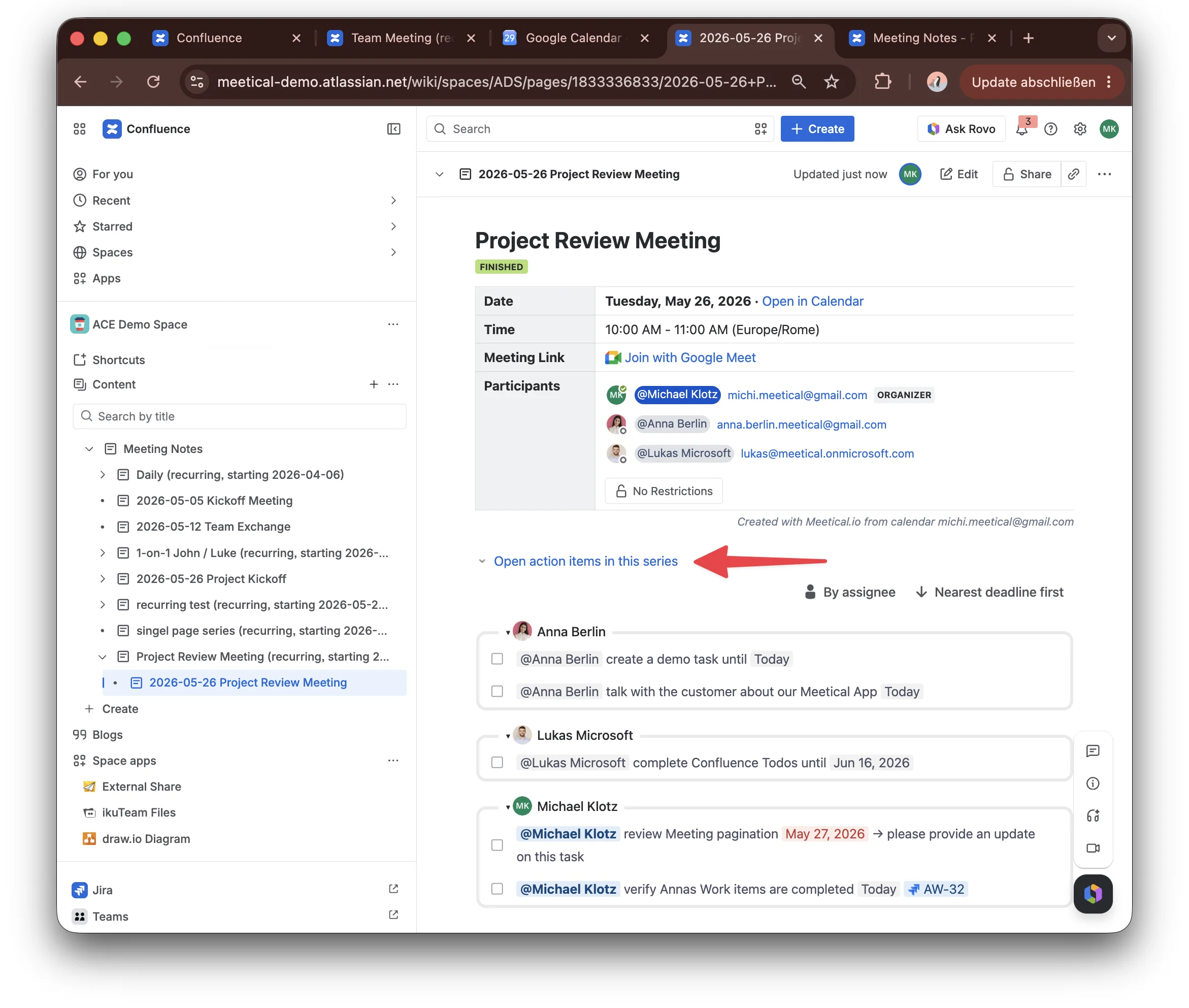
An Advanced Task Report is a macro included in Meetical. It can be used standalone and is integrated in the meeting overview macro. The macro shows a report of all open tasks in this meeting series to have a clearer overview and place to handle Confluence tasks. The Advanced Task Report is interactive, you can even add a comment to any task. Read more on that in this guide Advanced Task Report for Confluence.
Next step
Continue to automatically generate notes with Meetical AI, or learn more on how to automate page creation for recurring meetings.