
Find answers to common questions about Meetical Meetings, Meetical AI, recurring meeting automations, templates, permissions, and licensing.
General and Licensing
Do all meeting participants need to install Meetical?
No. Only users who want to create meeting pages from their calendar need to connect Meetical or use the calendar extension. Other participants can open the Confluence page through the link added to the calendar event, if they have access to the page.
Do I need to be a Confluence admin to install Meetical?
Yes. A Confluence admin must install Meetical once for the Confluence site. Non-admin users can request the app from the Atlassian Marketplace, but an admin needs to approve and install it.
Can I use Meetical across multiple Confluence sites with the same Conlfuence accoount?
No. Meetical is installed and configured only for one site at a time for a given Confluence account.
You can switch between sites in the Meetical configuration under Choose Confluence Site.
Note that also automations for recurring meetings only run for the currently connected site.
Reach out to support and let us know if you would like to have multi-site support in the future.
What is the best starting point for Confluence admins and power users?
Start with the Admin Guides. They explain installation, configuration, calendar connections, templates, automations, and rollout options for your Confluence site.
How much does Meetical Meetings for Confluence cost?
Pricing depends on the number of licensed Confluence users on your site. You can calculate the current price on the Atlassian Marketplace.
Is there a free version?
Meetical Meetings is free for Confluence sites with fewer than 10 users. Larger sites can start with a free 30-day trial before purchasing.
Can we pay for only a subset of users?
Atlassian Marketplace apps are licensed based on the total number of licensed users on the Confluence site, not only the users who actively use the app. For larger rollouts, pilots, or special cases, contact Meetical Support to discuss available options.
Can we buy a yearly license?
Yes. Yearly billing is available through Atlassian. To use yearly billing for Meetical, your Atlassian product licenses usually need to be on yearly billing as well.
Yearly billing usually gives you two months free compared with monthly billing. If you have questions about billing or purchasing, please contact Meetical Support.
Do you offer discounts for large Confluence instances?
Yes, in some cases. If only a small part of a large Confluence instance will use Meetical at first, we can discuss pilot, rollout, or custom options for larger organizations. Please contact Meetical Support to discuss your use case.
Do you sponsor licenses for Atlassian Solution Partners?
If you are an Atlassian Solution Partner, please contact Meetical Support. We can discuss partner licenses for internal usage, demos, and reseller-related questions.
What happens to our meeting pages if we stop using Meetical?
Your Confluence pages remain in Confluence. The regular text, tables, action items, and page content stay available. Some Meetical metadata is displayed through Meetical macros; if the app is uninstalled, those macros may no longer render the metadata.
Calendar, Meeting Pages, and Templates
Can I move meeting pages to a different location?
Yes. You can move single meeting pages and recurring meeting pages to a different location in Confluence. Meetical stores meeting data on the page, so the macros should continue to work after the move.
Can I disable the Confluence page link in the calendar event description?
Yes. When creating a page manually, uncheck the option to add the page link to the calendar event description. To change the default behavior for your user, open Meetical configuration and disable “Add Confluence page link to Calendar event”.
Why is my template not showing up?
Make sure the Confluence template has the label meetical-template. Meetical only shows templates with this label in the meeting template dropdown.
Is the browser extension only for Google users?
No. Google Calendar users get the full calendar integration. Microsoft 365 users can still use the extension popup, page search, and task-management features in Chrome or other Chromium-based browsers such as Microsoft Edge.
Can I use the Meetical REST API for my own scripts?
Meetical does not currently provide public API documentation for general use. If you need API access for a specific automation or integration, contact Meetical Support so we can help you use a stable API version.
Recurring Meetings and Automations
When will my recurring meeting page be created?
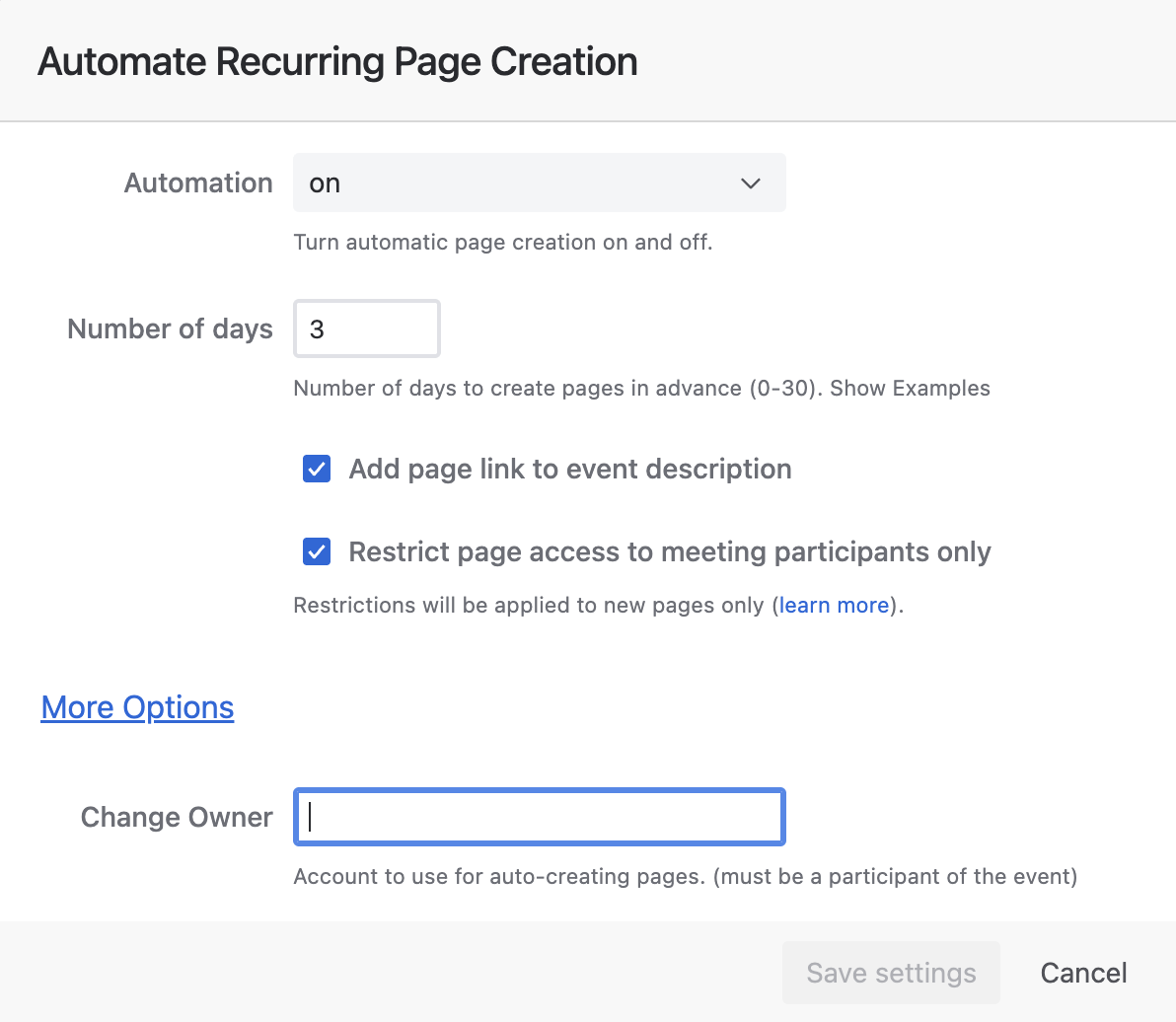
You can configure how many days before a meeting Meetical should create the page.
Meetical creates these pages automatically in the background. A scheduler runs regularly and checks which meeting pages are due to be created.
If you set the value to 0 days, the page is created on the day of the event.
How often are automations triggered?
Automations usually run within a time window before the meeting, based on the number of days you configured. They are not triggered at one exact fixed minute.
Meetical checks automation rules regularly, usually every couple of hours or more often, depending on the number of active automations.
If you need a page earlier, you can create it manually from Meetical Calendar or from the Google Calendar / Outlook extension.
What can I do if an automation is not triggered?
First, sign in to app.meetical.io and check that your calendar connection is still active. Then verify that the meeting series still has an automation owner and that automation is enabled on the series page. Temporary API issues can delay automations; you can also check the Meetical status page and the Atlassian status page.
If no issues appear on the status pages, please immediately contact support.
How can I change the meeting series automation owner?
The automation owner is usually the user who created the first page in the meeting series. You can change the owner from the automation settings on the meeting series page or from the internal Meetical Calendar if you click “More options."
There is no option to change the owner of a meeting series in the series setting of either the Outlook add-in or Chrome extension.
Can I change an existing meeting series from multiple pages to a single page?
Yes. You can change the series pagination setting from the internal Meetical Calendar or from the calendar extensions. Existing subpages remain linked to their original meeting occurrences, while future events follow the updated setting.
Can I switch back from a single page to one page per meeting?
Yes. You can switch between pagination modes. After changing the setting, allow a short delay for links and meeting metadata to update.
Meetical AI
Note: During Beta, the feature is also called “AI Meeting Notes” or “Meetical AI Bot”.
What does Meetical AI Bot do?
Today, it helps organizations automatically create structured Confluence pages for meetings, using templates to capture agendas, notes, action items, and decisions. It can also join meetings as a bot to generate AI-powered summaries and highlight key points.
In the future, it will be able to ingest recordings and transcripts from platforms like Zoom, Teams, and Google Meet—so every meeting, live or recorded, can automatically become a structured Confluence page with summaries, decisions, and action items.
How can I join the Beta?
-
Open the internal Meetical Calendar in Confluence
-
Click on any meeting → click “AI Meeting Notes”
-
Join the public beta
What features are available in the beta?
This feature is currently in BETA , but Meetical customers can already use it in production.
The Meetical AI beta currently includes:
-
A meeting bot that can join online meetings and create a transcript
-
Support for Zoom, Microsoft Teams, and Google Meet; Webex is available on request
-
AI-generated Confluence pages with summaries, decisions, and action items
-
Confluence action items assigned to meeting participants, including due dates
-
The option to choose the output language for generated notes and actions
-
The option to include the full meeting transcript for reference
-
The option to opt out of video recording by contacting Meetical Support
-
The ability to review, edit, and publish the generated notes in Confluence
-
The ability to start AI Meeting Notes from a calendar event or from any Confluence page
Some additional features, such as auto-joining recurring meeting series, video recording links, fine-tuning generated pages, in-meeting commands, chat with transcript, and custom promptlets are still experimental, under refinement, or planned.
What languages are supported?
Below is the full list of supported languages. Languages shown in bold generally provide the highest-quality results, as they are better represented in the training data. All other listed languages are also supported, but the output quality may vary.
-
The bot that joins meetings and transcribes calls supports Bulgarian, Catalan, Chinese, Croatian, Czech, Danish, Dutch, English, Estonian, Finnish, French, German, Swiss-German, Greek, Hebrew, Hindi, Hungarian, Indonesian, Italian, Japanese, Korean, Latvian, Lithuanian, Malay, Norwegian, Polish, Portuguese, Romanian, Russian, Slovak, Spanish, Swedish, Thai, Turkish, Ukrainian, Vietnamese;
-
Generate pages and action items can be in Albanian, Amharic, Arabic, Armenian, Bengali, Bosnian, Bulgarian, Burmese, Catalan, Chinese, Croatian, Czech, Danish, Dutch, Estonian, Finnish, French, Georgian, German, Greek, Gujarati, Hebrew, Hindi, Hungarian, Icelandic, Indonesian, Italian, Japanese, Kannada, Kazakh, Korean, Latvian, Lithuanian, Macedonian, Malay, Malayalam, Marathi, Mongolian, Norwegian, Persian, Polish, Portuguese, Punjabi, Romanian, Russian, Serbian, Slovak, Slovenian, Somali, Spanish, Swahili, Swedish, Tagalog, Tamil, Telugu, Thai, Turkish, Ukrainian, Urdu, and Vietnamese.
Your language is not supported? Contact us and we’ll check if we can add it!
Can you record an in-person meeting with Meetical AI?
Currently our system does not distinguish between multiple people speaking from the same audio stream, such as multiple participants joining together from a conference room or shared device.
Meetical AI can technically be used to record in-person meetings, but we do not recommend it, as the audio quality may be lower and the generated notes may be less accurate because of missing speaker recognition.
Please reach out if you want this feature on the roadmap.
Are meetings recorded via video?
Video recording is on by default.
Please reach out to support to opt out of video on your instance. Soon, you’ll have the option to manage this by yourself.
This might change in the future, and we’re working on allowing you to include the recording on the Confluence page.
How does the bot join the meeting?
The bot joins the meeting like a regular external participant.
If the meeting is open to everyone, the bot can join automatically without approval. If the meeting is restricted, the organizer must admit the bot before it can join.
Does Meetical AI post messages in the meeting chat?
Yes, Meetical AI posts a message in the meeting chat to inform participants about its role and capabilities. If a Confluence page is already linked to the meeting, the message also includes an edit link to that Confluence page for easy access.
Do I need to get consent from participants to use the bot? What are best practices?
Practical best practice for meeting bots with Confluence
Do you need explicit consent to allow the bot to transcribe the meeting? Note: This is no legal advice and the topic quickly becomes complex because multiple jurisdictions may be relevant.
Even where the law might not strictly require express explicit consent, the lowest-risk approach is:
-
Tell participants before the meeting invite or at the beginning:
-
"This meeting will be recorded by an AI assistant."
-
-
Explain what the bot does:
-
records audio (and video, if you enabled it on your site),
-
creates a transcript,
-
-
State the purpose: Generates transcript and meeting documentation in Confluence.
-
Explain how long recordings will be retained. (TBD, immediately after processing or 1 week)
-
Offer an opportunity to object and in worst case remove the bot from the call.
More questions?
-
Reach out to us: Meetical Support.
Permissions, Participants, and Page Restrictions
Can Meetical restrict meeting pages to participants only?
Yes. Use the Meetical Page Restrictions macro and choose the participants-only option. Meetical then applies Confluence page restrictions based on the internal participants of the calendar event.
Do participants get view and edit access?
Participants can get access through Confluence page restrictions, but they still need the required Confluence permissions in the space. Meetical cannot give a user more access than the space itself allows.
Are external participants included in page restrictions?
No. Page restrictions can only be applied to users who exist in Confluence and have access to the relevant space. External participants without a Confluence account are not added automatically. You could also add a guest account or share the page as a public page or use apps like External Share.
What happens if participants are added or removed in the calendar event?
Meetical can update page restrictions when participants are added or removed from the calendar event. The update can take a little time, especially for Microsoft 365 calendars.
What happens if I add a participant with the attendee list macro?
If you add an additional participant through the attendee list macro, Meetical can also add that participant to the page restrictions, as long as the participant can be matched to a Confluence user.
What happens if one meeting in a series has an extra participant?
The extra participant is added to the specific meeting occurrence and to the series master page where needed, but they do not automatically get access to other meeting occurrences in the series.
What if I am the only internal participant?
Then the page can be restricted to you only. Meetical always keeps the page creator or editor included so they do not accidentally lock themselves out.
Who can change restrictions with the Meetical macro?
For a single meeting page, a user needs access to the page. For a recurring meeting series, the user usually needs to be part of the series participant list or be the event owner.
Can I use page restrictions in my own templates?
Yes. Add the Meetical Page Restrictions macro to your Confluence template and label the template with meetical-template. When the template is used for meeting pages, Meetical can apply the configured restriction behavior.
What is the difference between the attendee list and the generated participant list?
The attendee list is a live macro for published pages and shows participant and RSVP information. The generated participant list is used in templates and is replaced with a regular Confluence table when the meeting page is created.
Need more help?
If you still have questions or need help with your setup, please contact Meetical Support.