NEW: Meetical AI Notetaker captures what matters in your meetings and turns conversations into structured, actionable outcomes. It can automatically create meeting summaries, record decisions and assign action items. It uses native macros and integrates seamlessly.
Important notice: Meetical AI is currently in early access and is expected to be public in the coming weeks (October 2026). Fair use policy applies. Get started for free today and enable this feature.
Please contact us for onboarding and early access offers.
Meetical AI includes:
-
An AI Notetaker that joins your meetings as a regular participant in Microsoft Teams, Google Meet and Zoom. Webex and Slack Huddles are available on request.
-
AI-powered meeting notes that use the meeting transcript and Notetaker input to populate Confluence with structured summaries, decisions, and @-assigned action items — ready for you to review and publish to both Jira and Confluence.
-
Seamless Meetical Automations integration. Configure your meeting series once, and Meetical can automatically create the Confluence agenda page and schedule the AI Notetaker for each meeting.
-
More to come. Meetical AI is evolving beyond note-taking to help teams prepare for meetings, keep track of decisions and commitments, and follow through on the work that comes out of every conversation.
Here is how it works:
After joining a meeting as a virtual participant, Meetical AI transcribes the discussion and uses AI to generate a clear summary of what was discussed. It can identify key decisions, extract tasks and action items, and assign them to the right people based on the meeting context. This helps reduce manual note-taking, improves documentation quality, and makes it easier for teams to keep track of responsibilities and follow-up tasks.
Because the notes are added directly to your connected Confluence page, meeting outcomes are documented in one central place where they can be reviewed, edited, and shared with the team. This makes Meetical AI especially useful for keeping meeting documentation consistent, actionable, and easy to access later.
Make sure you enabled Meetical AI features before you proceed.
Step 1 - Schedule the AI Notetaker
If you already have a Meeting page created, skip to Step 2. 🙂
In Atlassian Confluence:
-
In the left-hand navigation, select Apps.
-
Click the Meetical Calendar.
-
Enable the Meetical AI notetaker: in the create-page dialog of the Meetical Calendar, tick AI Notetaker.
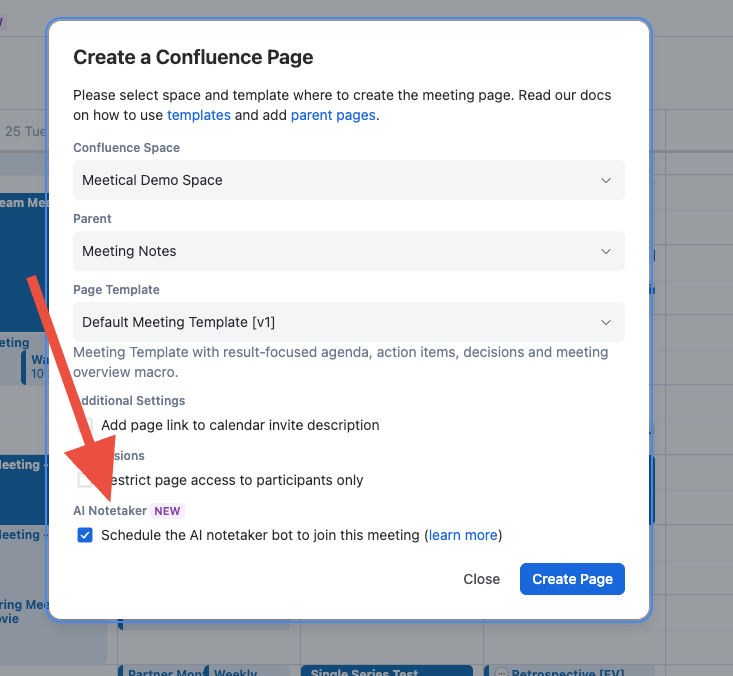
The page gets created and you can fine-tune the note settings or simply confirm them.
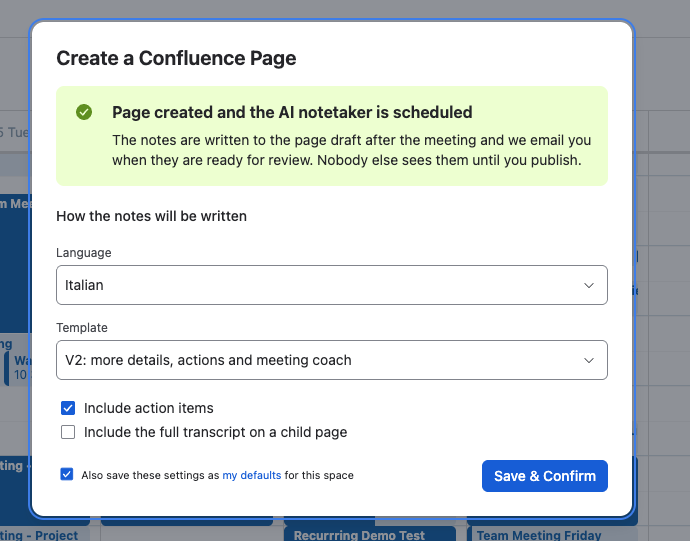
That’s it! Now the notetaker will join like a regular participant when the meeting starts and the notes will be generated when the call ends.
If you reschedule the meeting, the Notetaker will also be rescheduled. And if you create a page for a Meeting in progress, the Notetaker starts immediately.
You will get an email with a link to the draft page where you can review and publish the notes immediately when the meeting ends.
Step 1B: Invite the Notetaker from an existing Meeting Page
If you already have a meeting page and want to invite the notetaker quickly, follow this section.
Since the AI Notetaker option is not yet available in the Outlook Add-in and Google Extension this option is the current default for existing pages or pages created with the Extensions.
We’ll update both clients soon to have feature parity.
In the row below the page title, click Meetical and open the AI Notes tab. The Meetical button is there on every Confluence page.
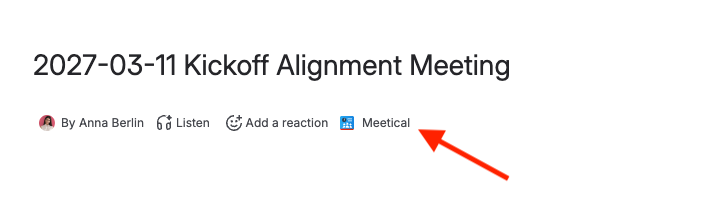
Click to show how to invite the Meetical Notetaker from any page
In the AI Notes tab of the Meetical button, click Invite Bot.
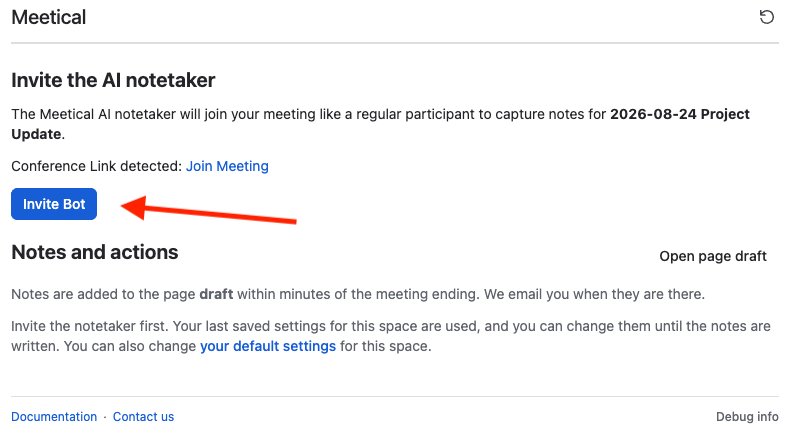
After you invite the bot, it will join immediately if the meeting already started, or scheduled at the time when the meeting starts.

Step 2 - Admit the Notetaker to your meeting
The notetaker joins Microsoft Teams, Zoom and Google Meet. Webex and Slack Huddles are available on request.
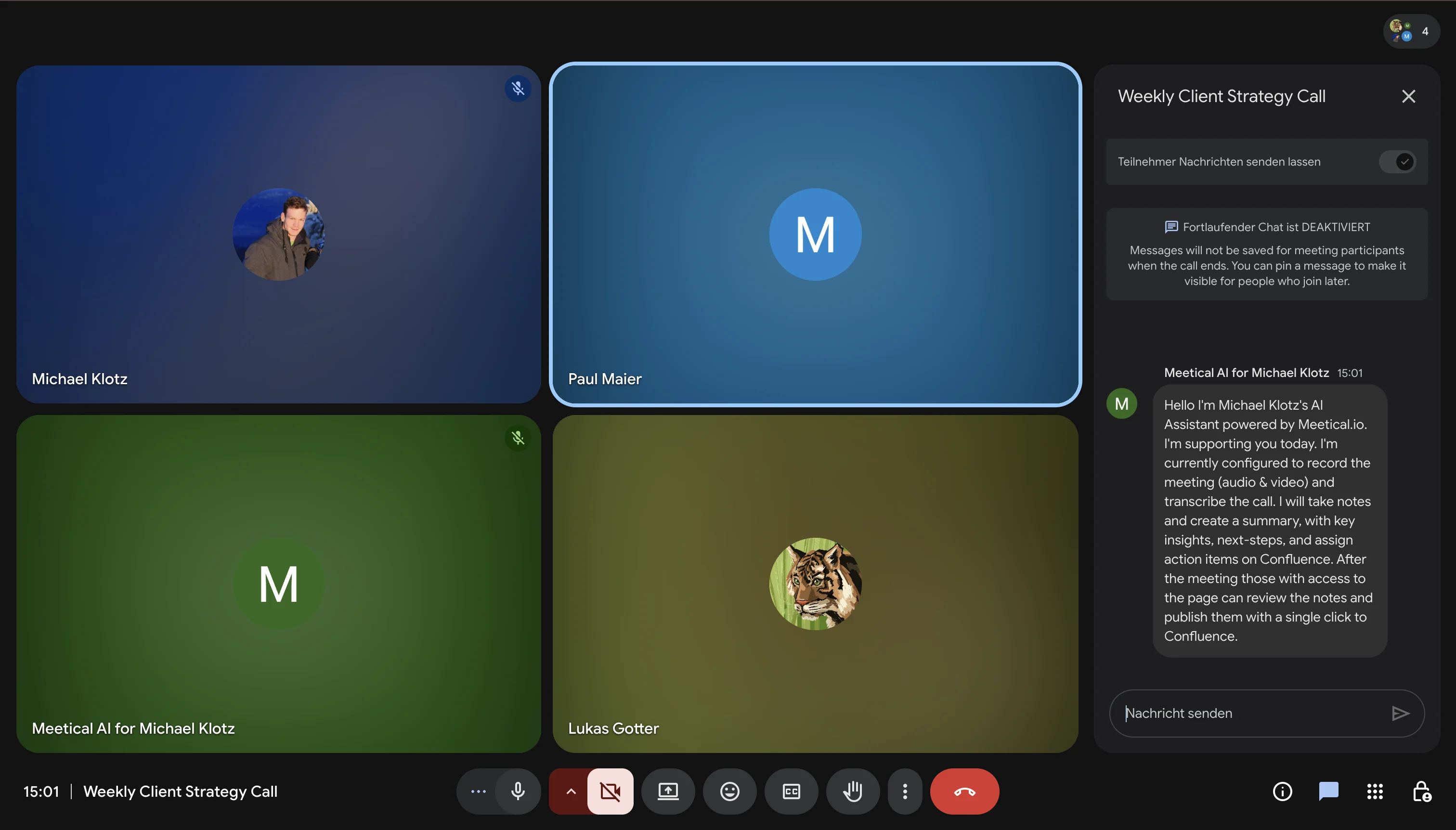
After joining, the Meetical AI bot posts a short message in the meeting chat to introduce itself. If a Confluence page is already linked to the meeting, this message also includes a link to that page.
You can remove the notetaker at any time; otherwise it leaves when the meeting ends.
What the AI Notes tab tells you
The AI Notes tab shows the status of the notetaker for this meeting, and warns you when something needs your attention:
-
One notetaker per meeting. If a colleague has already invited the notetaker, the tab shows who did, read-only, and Meetical does not send a second one into the same call.
-
Waiting room. If the notetaker waits in the waiting room, admit it from your meeting.
-
Meeting link changed. If the meeting link changes before the meeting, the scheduled notetaker moves to the new link. If the change comes too late, for example while the notetaker is already joining or waiting, the tab warns you and asks you to reset the notetaker.
-
Meeting not in your calendar. If the meeting is not in your own calendar, the tab says so instead of showing an error.
Screenshots to add: the AI Notes tab with a colleague's notetaker shown read-only, and the warning after a late change of the meeting link.
Step 3 - Review and Publish the Notes
In the row below the page title, click Meetical and open the AI Notes tab.
When the Meeting ends, or when you remove the Notetaker from the call, after a couple of minutes you get an Email from the Meetical Team to inform you that your notes are ready!
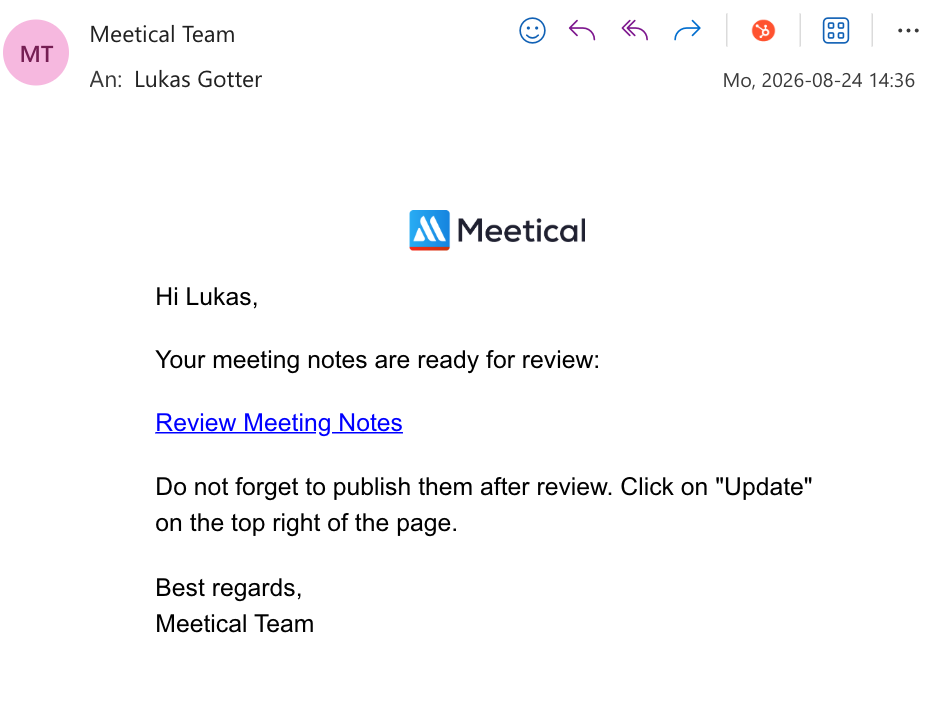
The link will open the Draft Page with the Notes added. Nothing on the page will be replaced, so your notes and your agenda stays in place.
To generate the notes again, for example in a different language or with a different template, see Generate AI meeting notes again. This works while the recording is still kept. Confluence admins choose how long recordings are kept in Meetical Admin → Data Protection.
Step 4 - Publish the page
Click on Update the page to make the changes appear for everyone on your team.
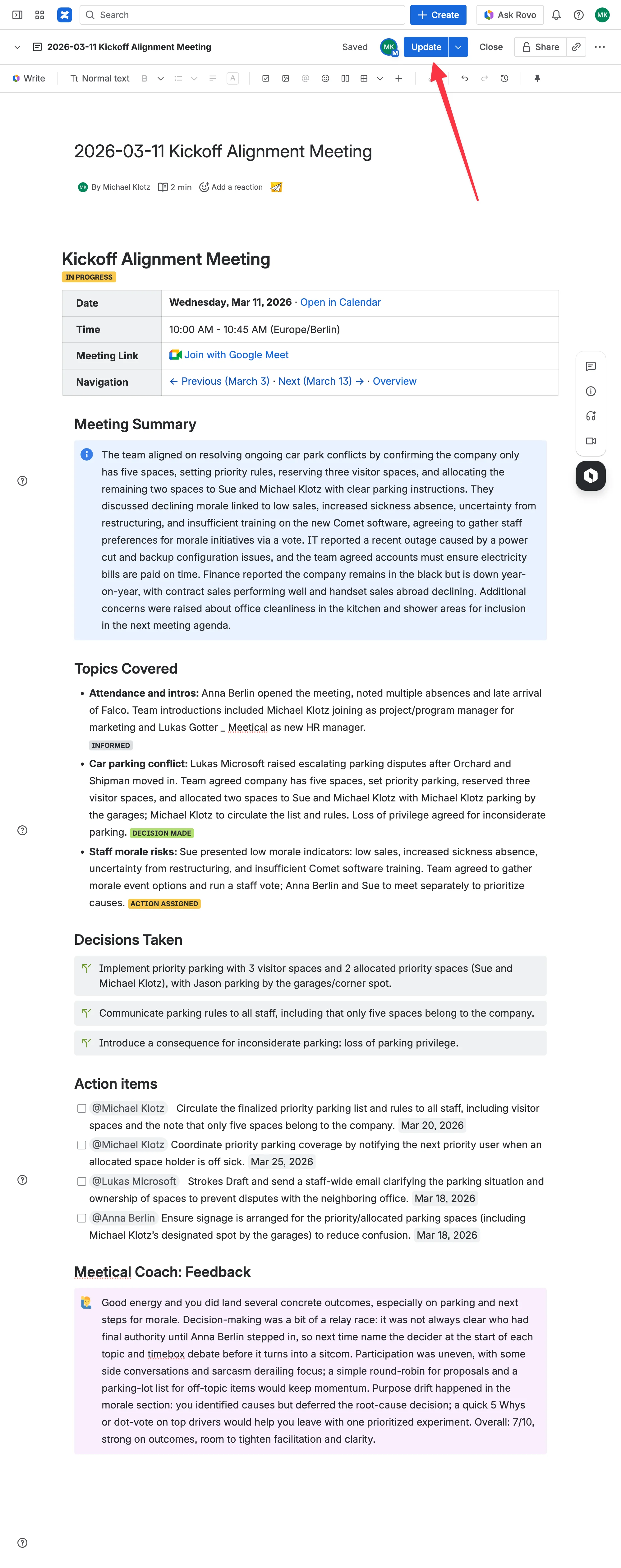
As you can see in the example screenshot, the generated Confluence page now includes:
-
a meeting summary (concise and results-driven)
-
the topics covered (including colored labels for 'action assigned' or 'blockers' identified)
-
decisions that were made
-
and most importantly, action items directly assigned to participants with determined due dates.
Additionally, with the template we used in this example, Meetical AI provides meeting feedback through the Meetical Coach section, highlighting facilitation insights and suggestions to improve future meetings. Think of it like a Scrum Master writing this section of your meeting!
And this is only the start! Our goal is to create the best AI meeting assistant that integrates with Confluence and Jira in 2026. And we go beyond that: We strive for full workflow automations with our AI agent features.
Join Meetical AI Early Access today and let Meetical AI save you 30 minutes per meeting while driving momentum and accountability (as early adopters report!) and help us shape the future of meeting productivity!
Don’t have an event for the meeting on your calendar? You can also start the Meetical AI Notetaker from any Confluence page!
Fully automate the workflow for Recurring Meetings
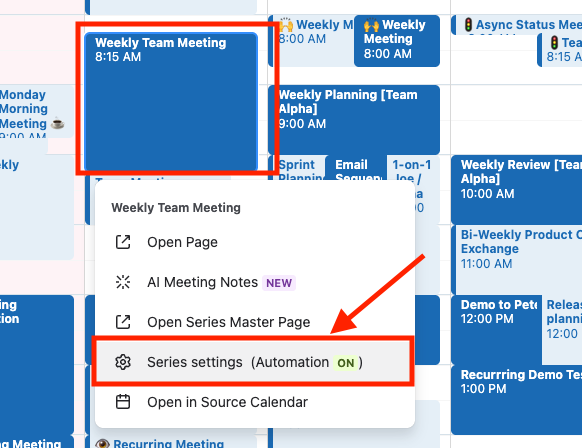
You can enable automations to create a meeting agenda for every occurrence and schedule the Notetaker.
To change the AI notes settings for an existing series, open the series in the Meetical Calendar and choose “Series Settings”.