
All configuration options explained
All options of a meeting series live in its Series Settings. Open any meeting of the series in the Meetical Calendar and choose Series settings, see How to configure the automation settings.
The Series Settings have three tabs:
-
Automation: options a) to d), f) and g)
-
Agenda Template: option e)
-
AI Notes: option h)
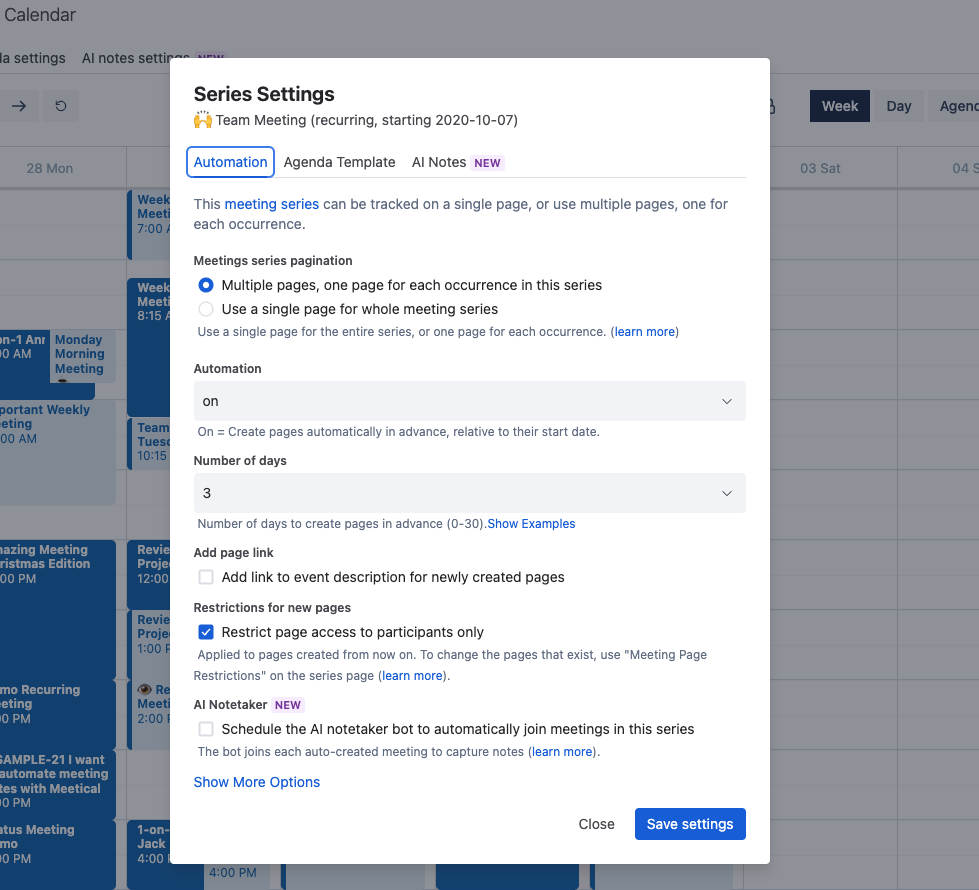
Below, you’ll find an overview of all available configuration options and what each one does:
a) Automatically create pages for future events
Turn this option ON if Meetical should create future meeting pages automatically. Turn it OFF if you want to create pages manually.
You can also choose how many days before the meeting the page should be created.
-
0 creates the page on the day of the event.
-
1 creates the page one day before the event.
-
7 creates the page one week before the event.
Meetical creates these pages automatically in the background. A scheduler runs regularly and checks which meeting pages are due to be created.
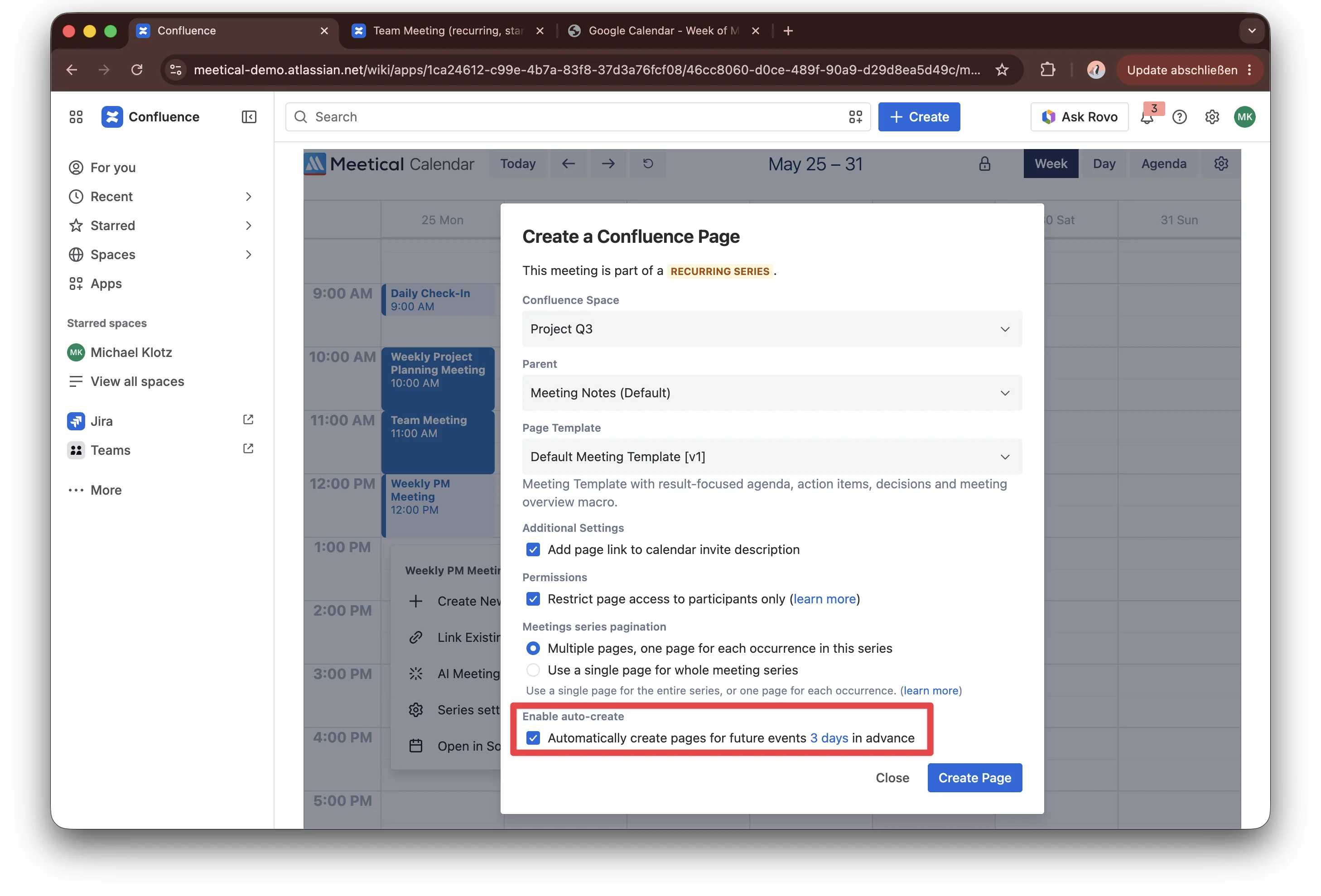
Learn more about auto-create for recurring meetings.
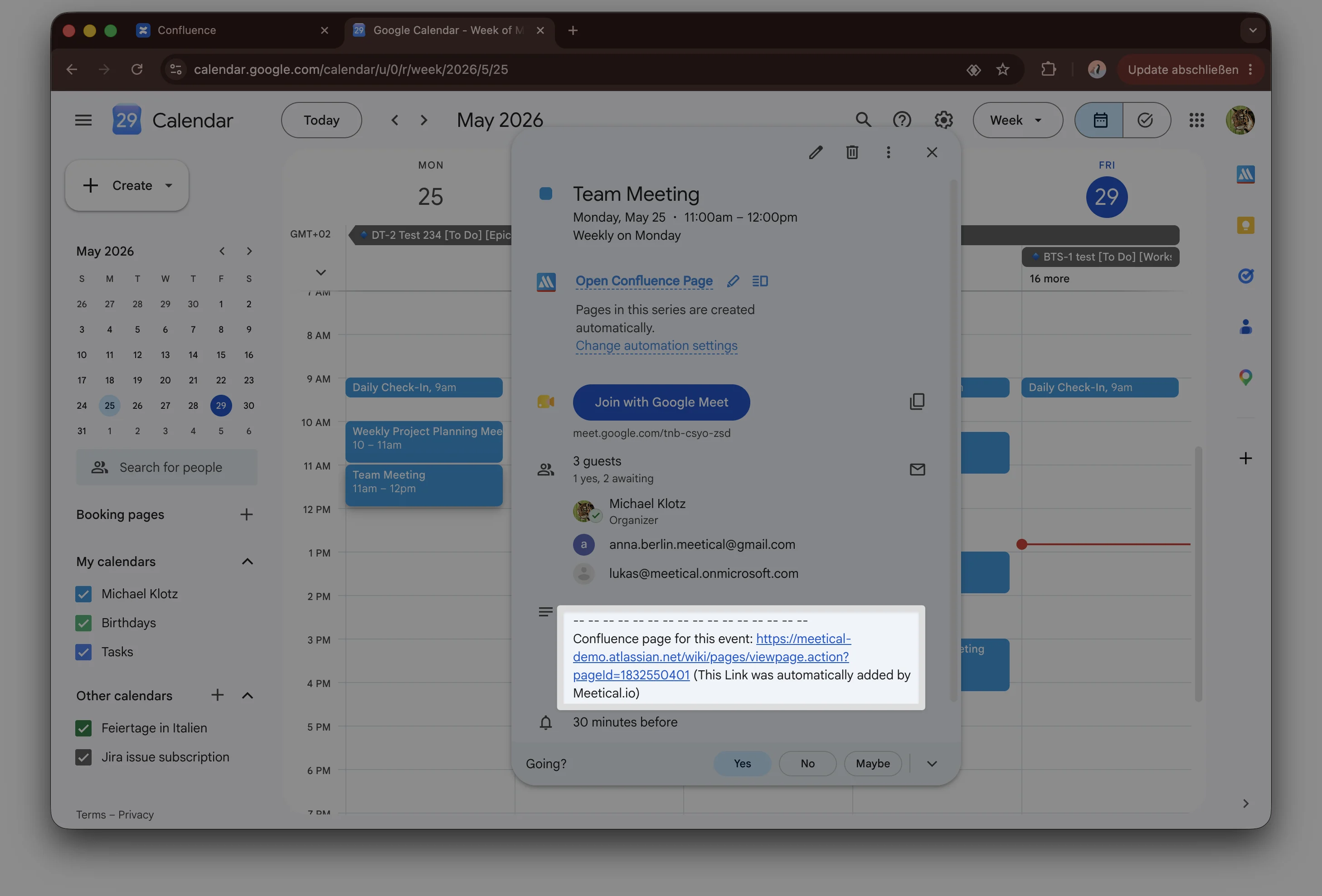
b) Add page link to calendar invite description
This adds a link to the Confluence meeting page to the calendar event description (Google or Outlook) when the page is created.
Use this if you want participants to find the meeting page directly from the calendar invite.
c) Restrict page access to participants only
This restricts each created meeting page to the participants of the calendar event.
Participants must be Confluence users with access to the space where the parent page is located. This allows Meetical to match their email addresses to Confluence users. Their RSVP status is also synced to the meeting page in Confluence.
For more details, see Page Restrictions and Permissions.
d) Meeting Series Pagination
Meeting Series Pagination controls whether a recurring meeting uses one page for the whole series or one page per meeting event.
Use multiple pages if each meeting should have its own notes, decisions, and action items.
Use a single page if the whole series should stay on one shared page, for example, for lightweight 1-on-1s or small recurring check-ins.
Learn more in Meeting Series Pagination.
e) Change the template for newly created pages
Open the Agenda Template tab in the Series Settings and choose the template that new pages in this series should use. Pages that already exist keep their content.
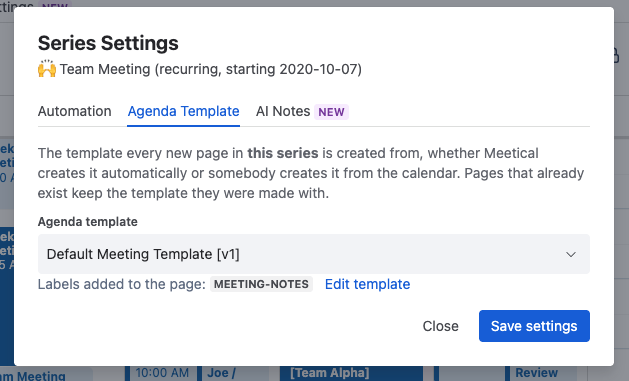
This replaces the former Change Sub Page Template macro on the parent page of the series.
f) Schedule the AI notetaker to join meetings in this series
When the AI Notetaker option is activated, the AI notetaker will automatically join the meeting. Note that the schedule is activated when a new meeting page gets created (both manually or auto-create). We recommend you also turn on auto-create when using this setting.

-
Only one notetaker joins a call. If a colleague has already sent a notetaker to the same meeting, Meetical does not send a second one.
-
A series that is grouped under another series follows the notetaker setting of that series.
Learn more about the Meetical AI notetaker.
g) Change owner of the meeting series
The series owner is the account which should be used to run the auto-create. It should match the email of the Atlassian account to use and should also match the email of the organizer or an invitee.
The automation owner is usually the user who created the first page in the meeting series. Meetical creates the pages in this series in the name of the owner for this series. You can change the owner on the Automation tab of the Series Settings, under Change Owner.
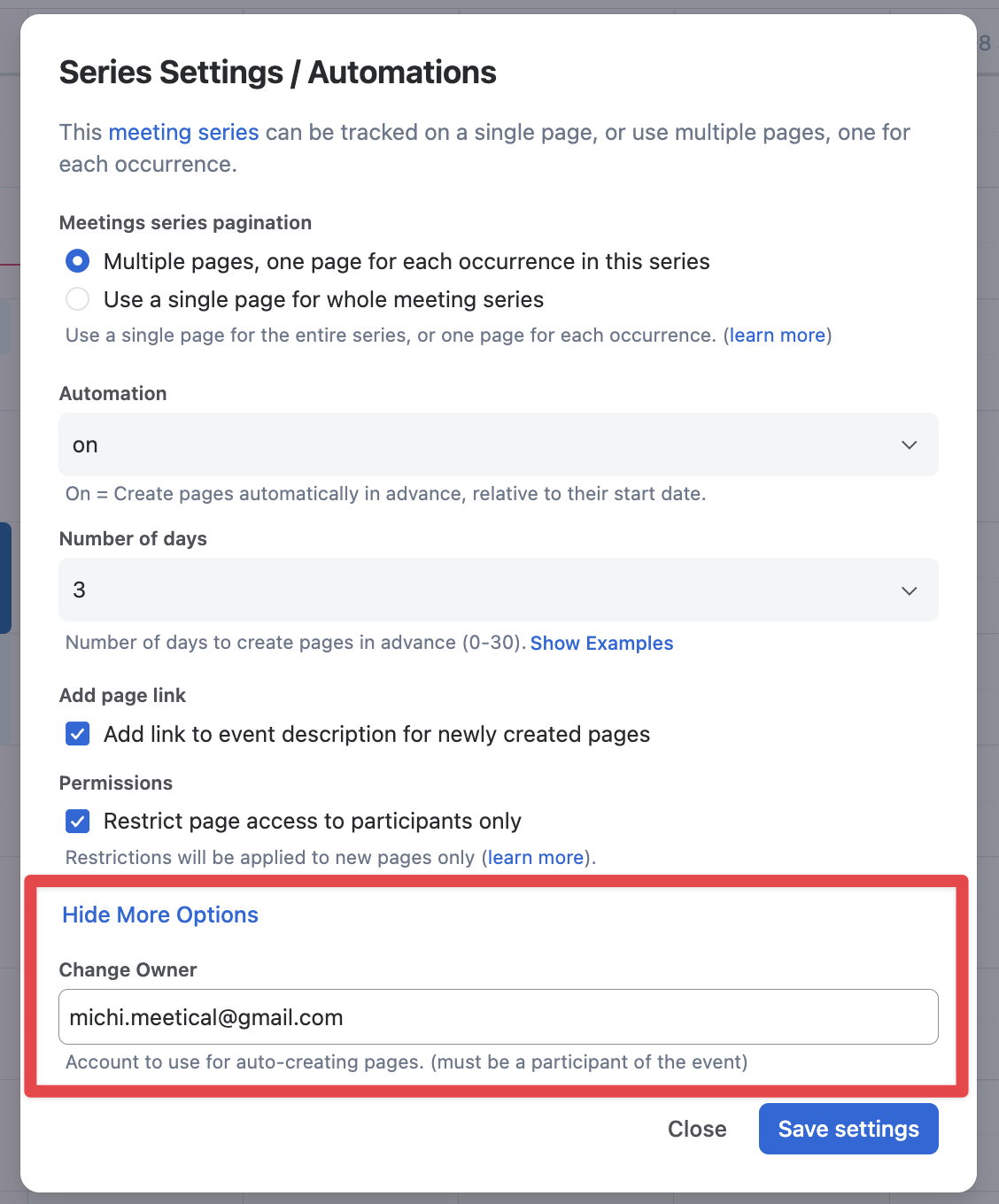
Differences in upper and lower case in the owner email do not matter. But if you changed the email address associated with your calendar, or your organization changed its domain, you need to update the owner email manually in all your automations to match your new email address. Reach out to us if this is not feasible for you.
h) AI notes for every meeting in this series
The AI Notes tab sets how the AI notetaker writes the notes for every meeting in this series:
-
Output language: the language of the notes, independent of the language spoken in the meeting.
-
Template: the structure of the notes.
-
Identify tasks and assign them to participants: turns action items into Confluence tasks.
-
Include the full transcript on a child page.
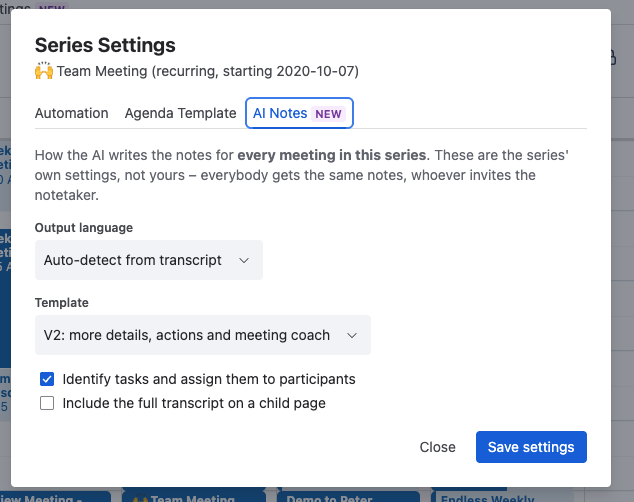
These settings take priority over your personal AI notes settings in the Meetical Calendar. After the notetaker has been in a meeting, Meetical writes the notes onto the meeting page automatically, and you get an email when they are ready. To generate them again with other settings, see Generate AI meeting notes again.
Need help? Contact support@meetical.io.