
In this guide you will learn how to configure your automation settings for your recurring meeting series.
Meeting series automations can be activated when you create your first occurrence page but can be configured and enabled or disabled any time.
Before you start
Configure the automation settings
You can configure recurring meeting automation settings from several places:
-
from Apps → Meetical Calendar in Confluence
-
from the Chrome Extension for Google Calendar
-
from the Outlook Add-in for Microsoft 365
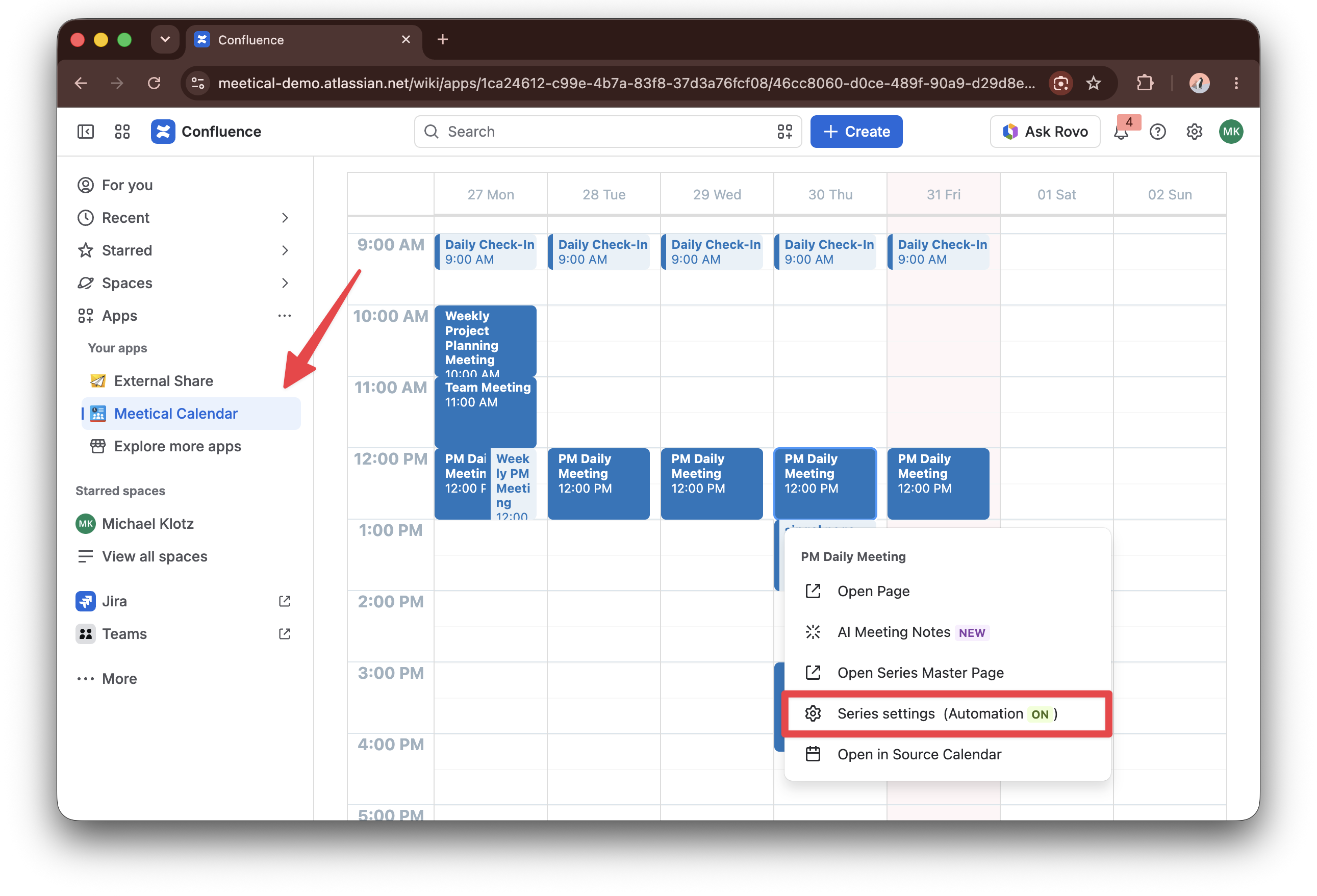
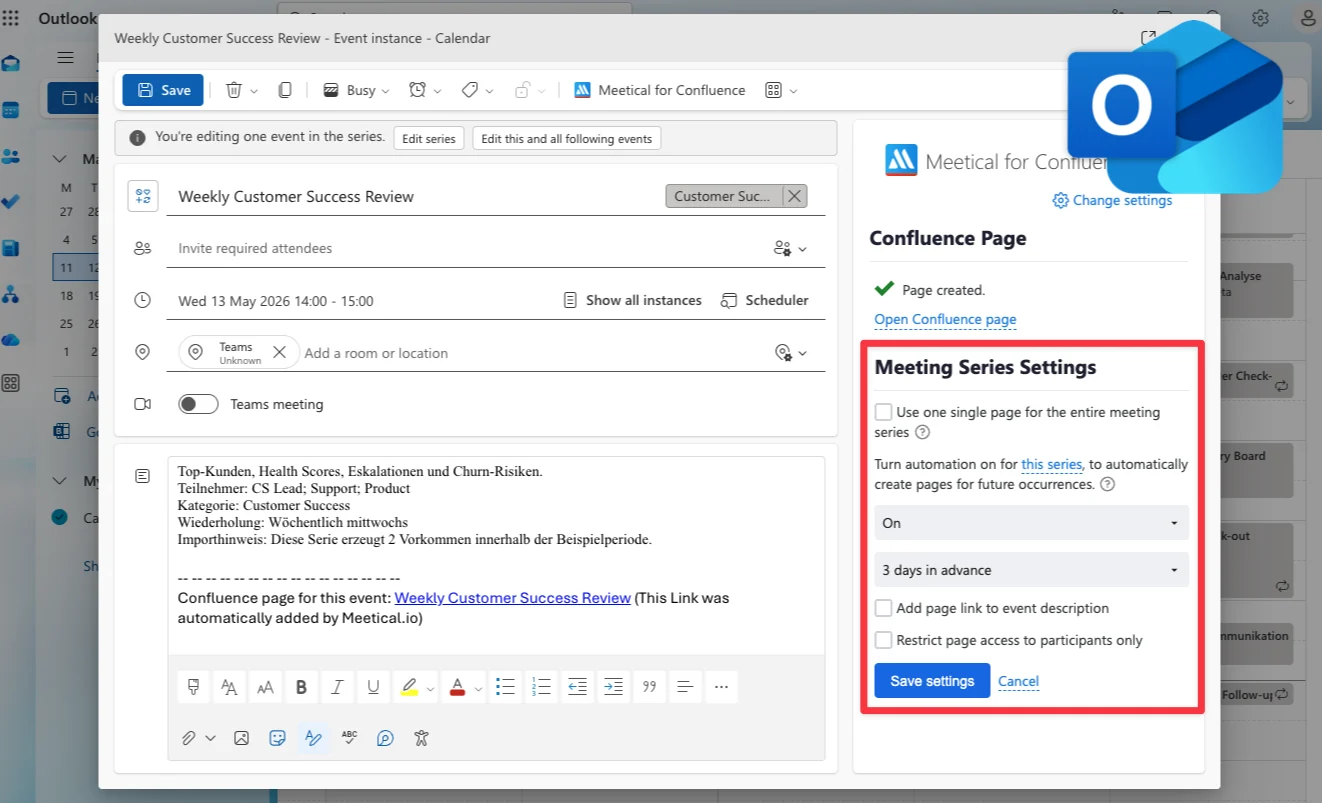
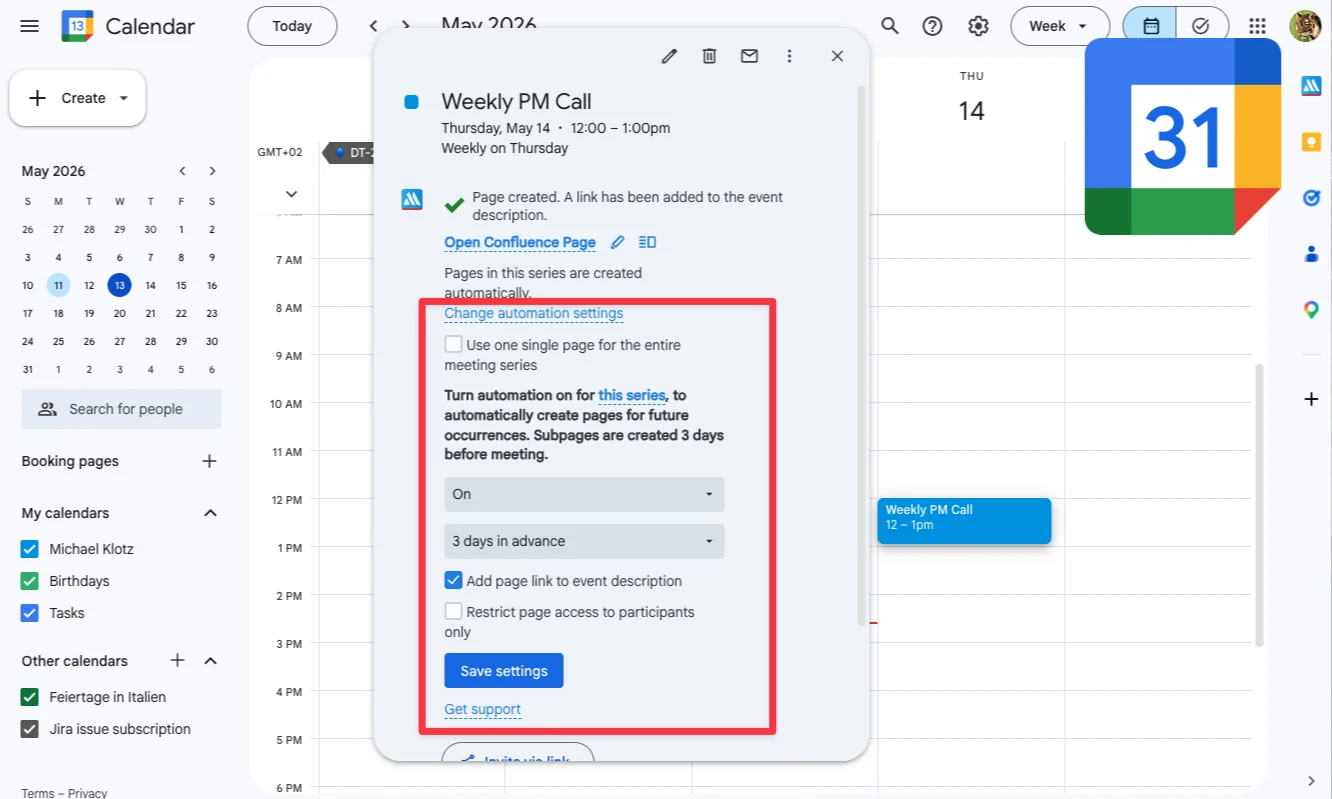
Note that not all automation settings can be configured yet through the calendar extensions. e.g. AI Notetaker is missing. And one automation setting can only be configured from the meeting series master page (change template). We’re working on integrating everything, thanks for your patience.
Step 1 - Open any occurrence of the series in your Meetical Calendar
In this guide we’ll use the internal calendar to configure the automation settings.
Open any occurrence of the series in your Google Calendar and click Change automation settings.
Step 2 - Change the automation settings
Turn automatic page creation on or off or choose how many days before the meeting the next page should be created.
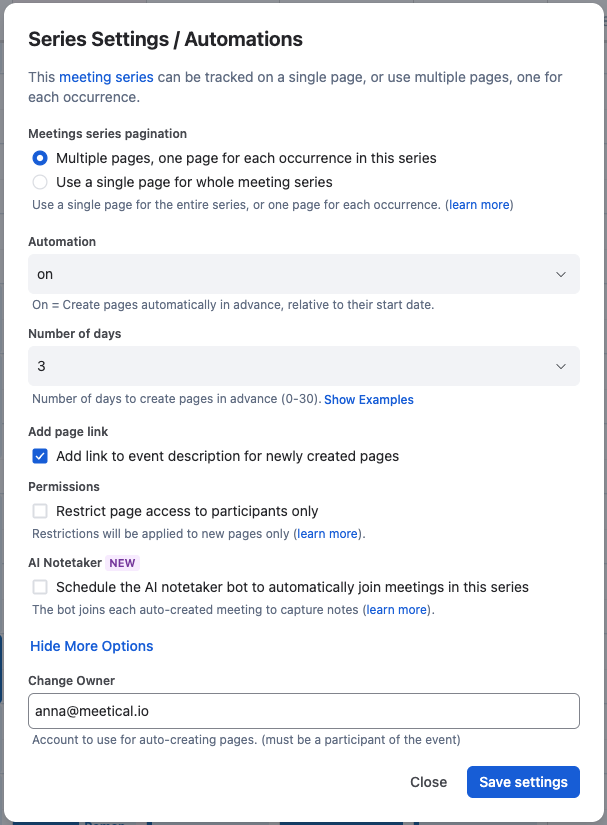
You can also enable additional options, such as adding the page link to the calendar invite or restrict page access to meeting participants.
You can also change the owner of the meeting series in the “more options” dropdown.
In the section below you will find a detailed explanation of all the configuration options.
Step 3 - Save the changes and open your meeting page
Click Save to apply the automation settings.
Your settings will be applied to the next page that you create for the series. You can open an occurrence and click “create page” to verify the settings or wait for auto-create to create the page for you.
When the next meeting page is created, you can find and open it from:
-
the Chrome extension or the Outlook add-in of the corresponding event.
-
the link in the event description in your personal calendar.
-
the corresponding event in Meetical Calendar.
-
below the meeting series parent page in Confluence.
Read more about all the available options in All Meetical Automation Options explained