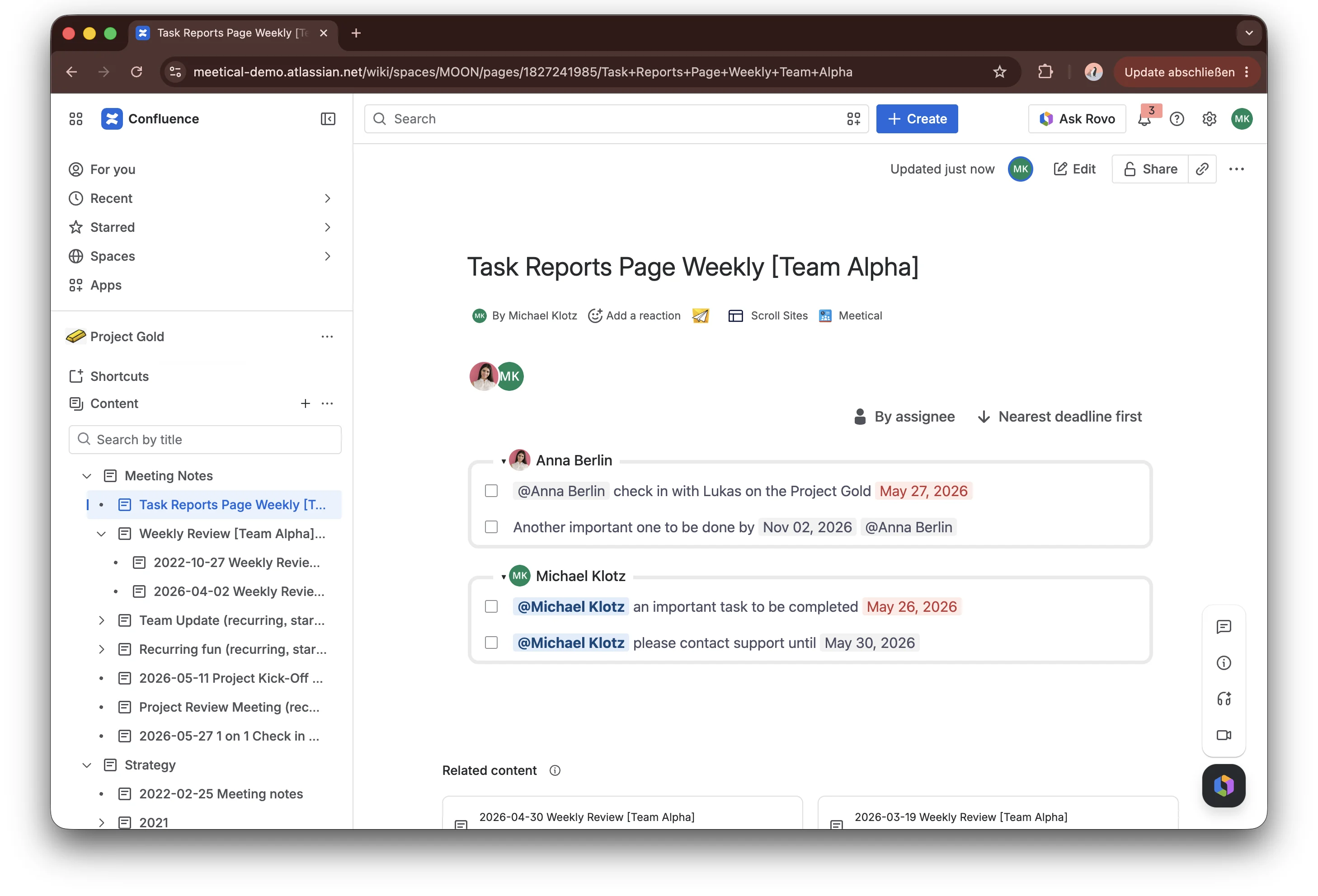
This guide shows how to add the Advanced Task Reports macro to a Confluence page.
This macro is built into the Meetical App and lets you create sophisticated Task Reports directly on any page. If you want to use this macro on a Jira Dashboard instead, see Task Reports for Jira.
How to create your first Advanced Task Report
Step 1 - Add Task Reports on your page
Open the Confluence page where you want to show tasks. Type /Advanced Task Report and select the macro.
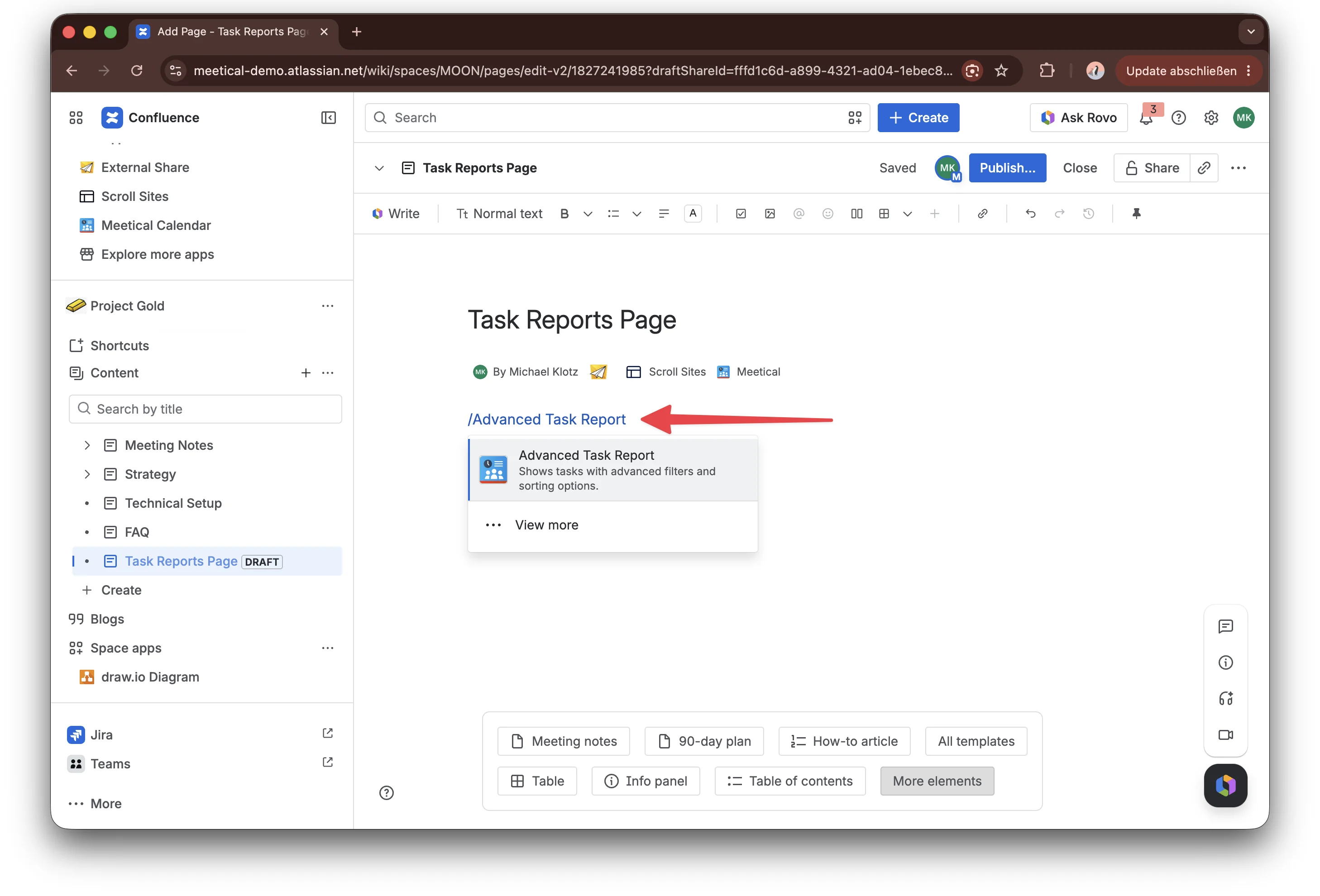
Step 2 - Configure the report
A configuration window appears to choose which tasks the report should show.
Select or search for the users whose tasks you want to include, then choose the Confluence space where the tasks should be searched.
Click Save.
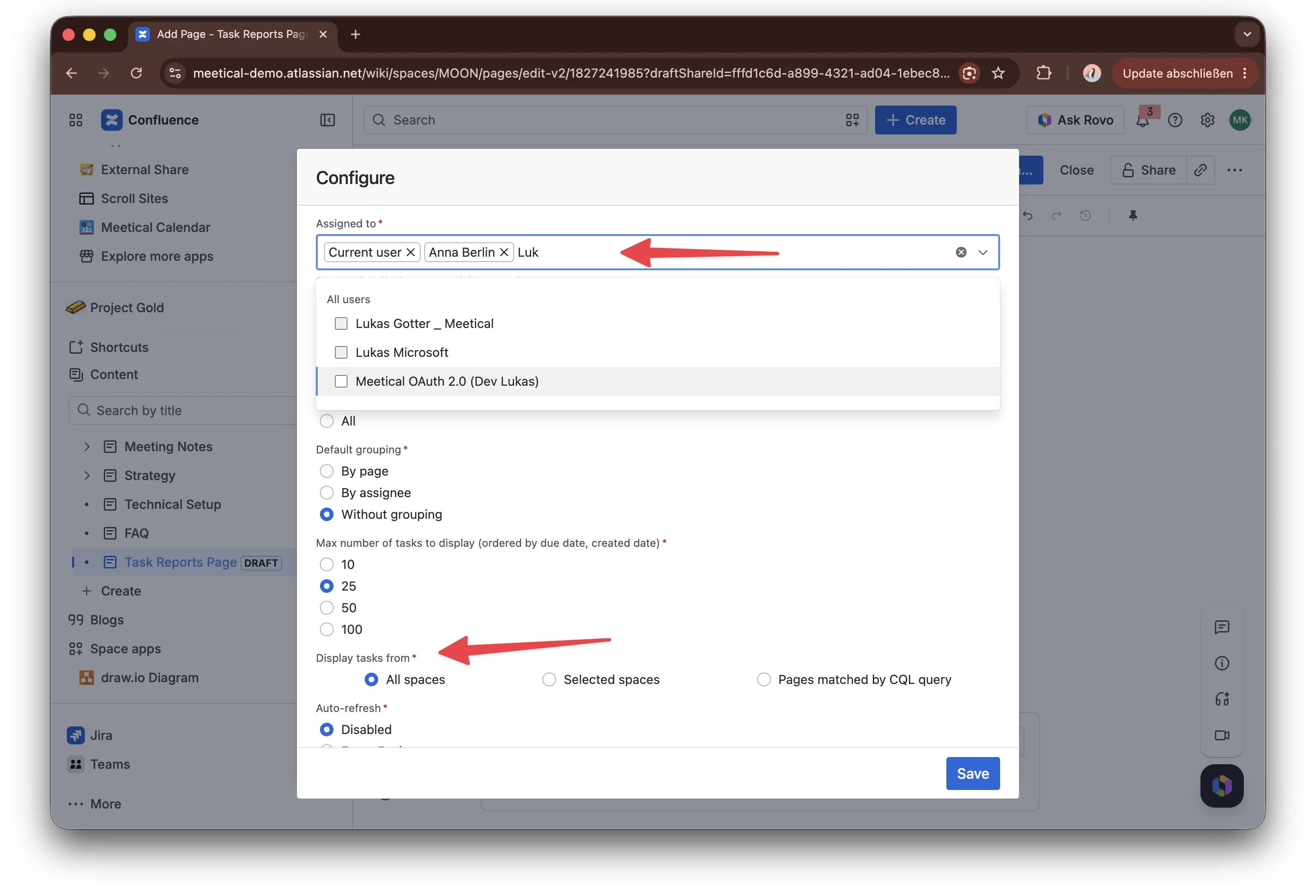
Several additional options are available to configure your report:
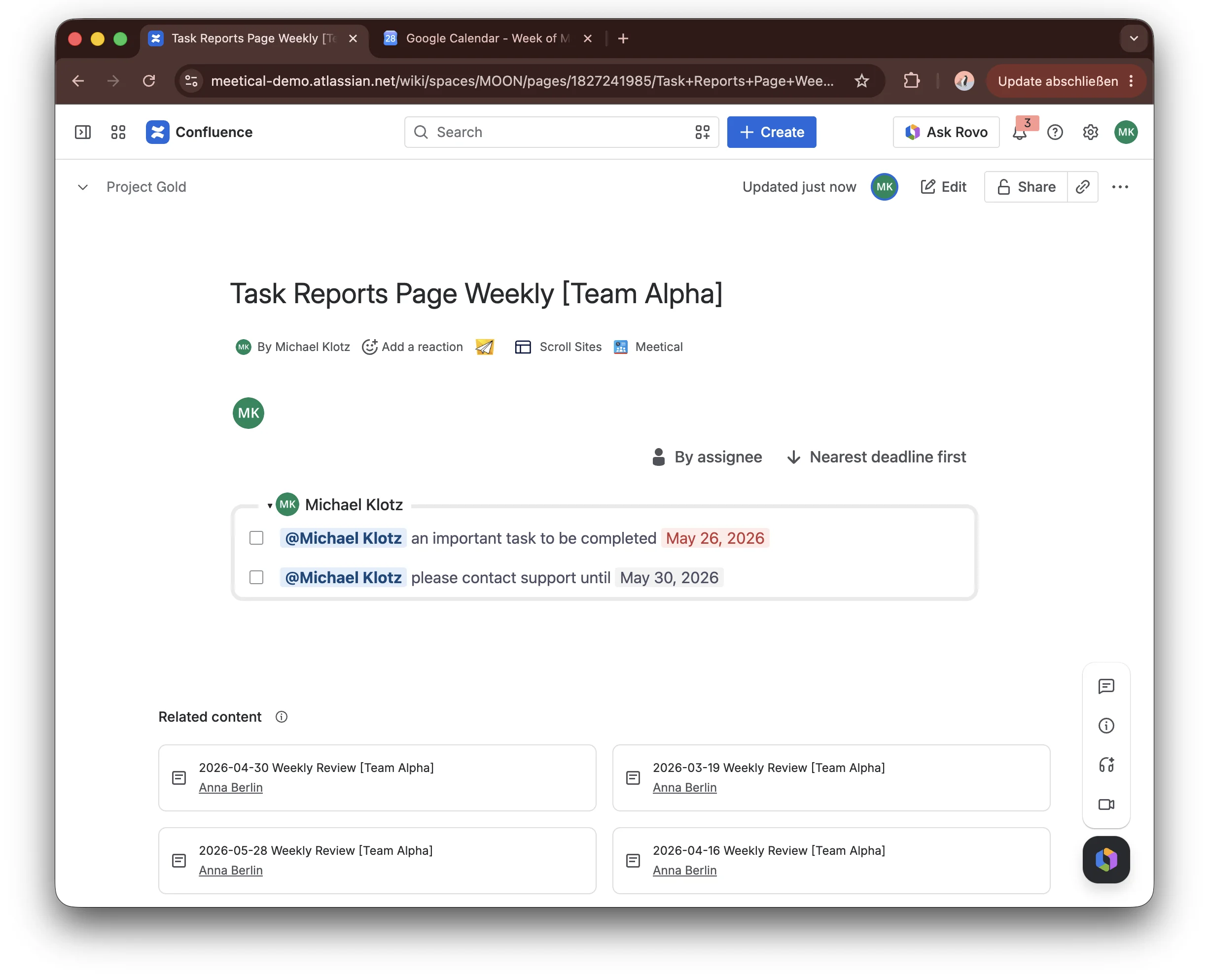
Select the current user
As a Power User or Admin, you can select Current user to create one report that works for everyone. Each person who views the page will only see the tasks assigned to them.
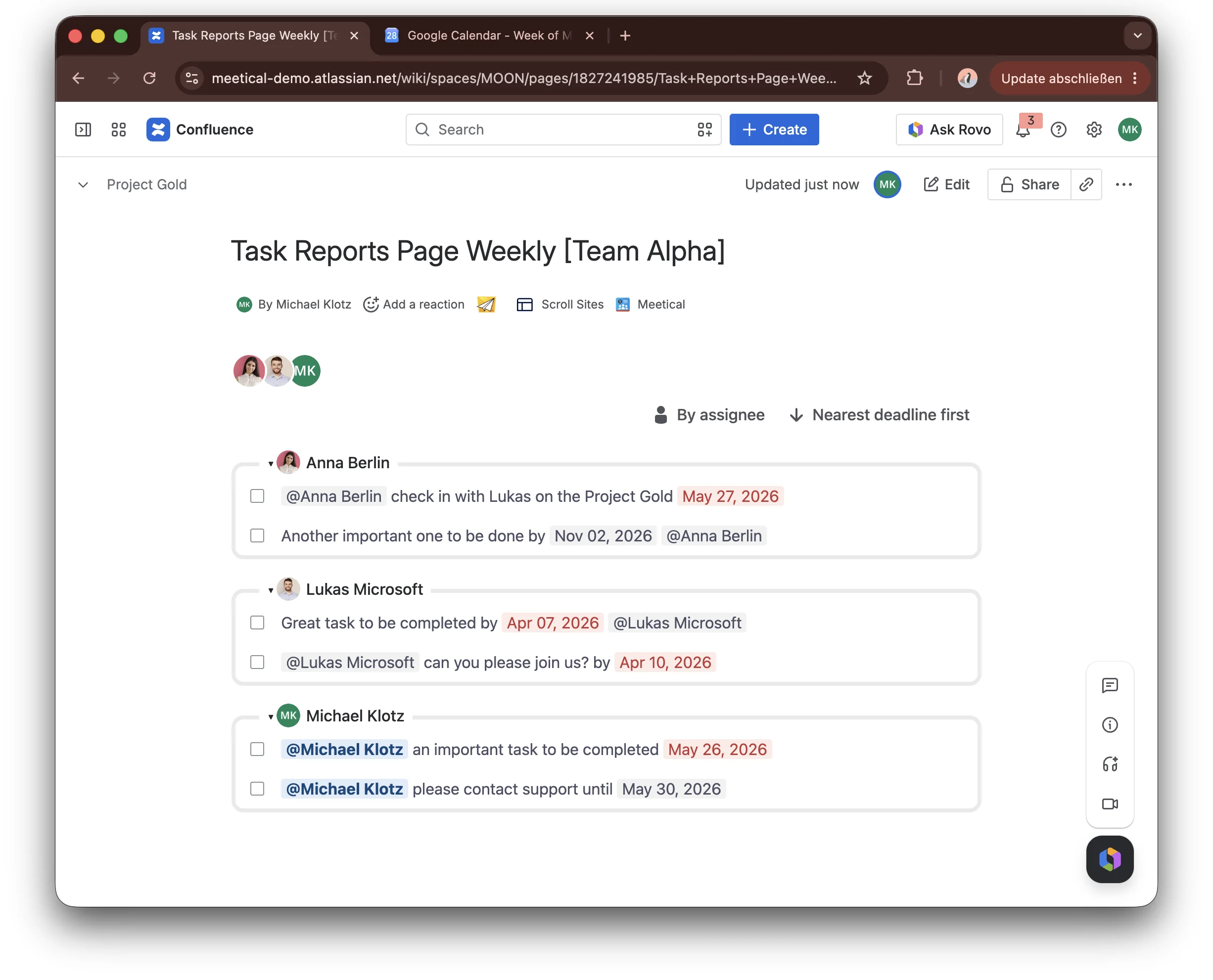
Group the tasks
You can also change how tasks are grouped. Group tasks by assignee to see who is responsible, by page to see where the tasks come from, or use no grouping for a simple task list.
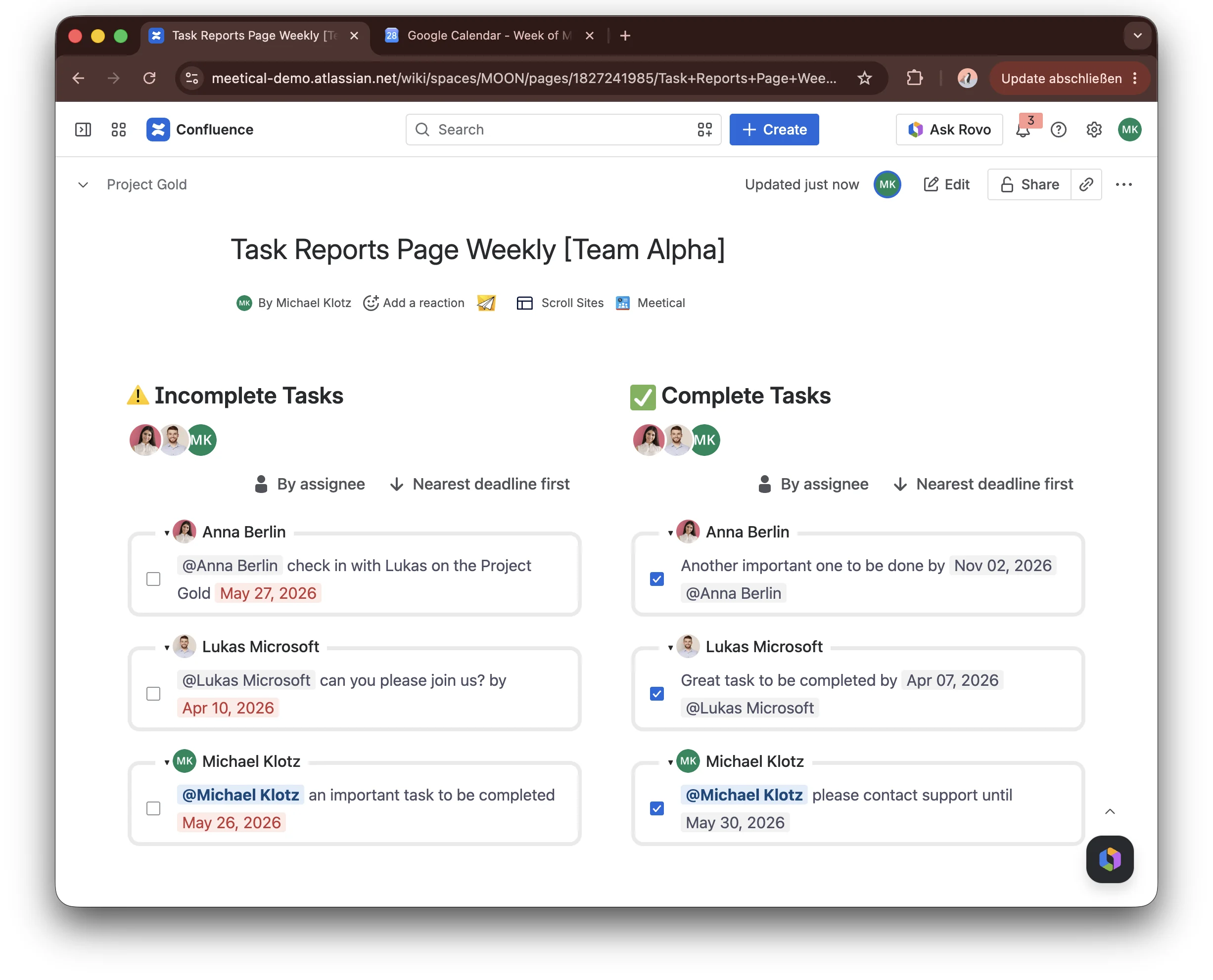
Show complete and incomplete tasks
Choose whether the report should show incomplete or complete tasks. You can also add two reports side by side in a column layout, with incomplete tasks on the left and completed tasks on the right.
Step 3 - Publish your report
Publish or update the page. The report is now live and shows the tasks that match your settings.
The report also works on Live Docs, where you don't have to update the page.
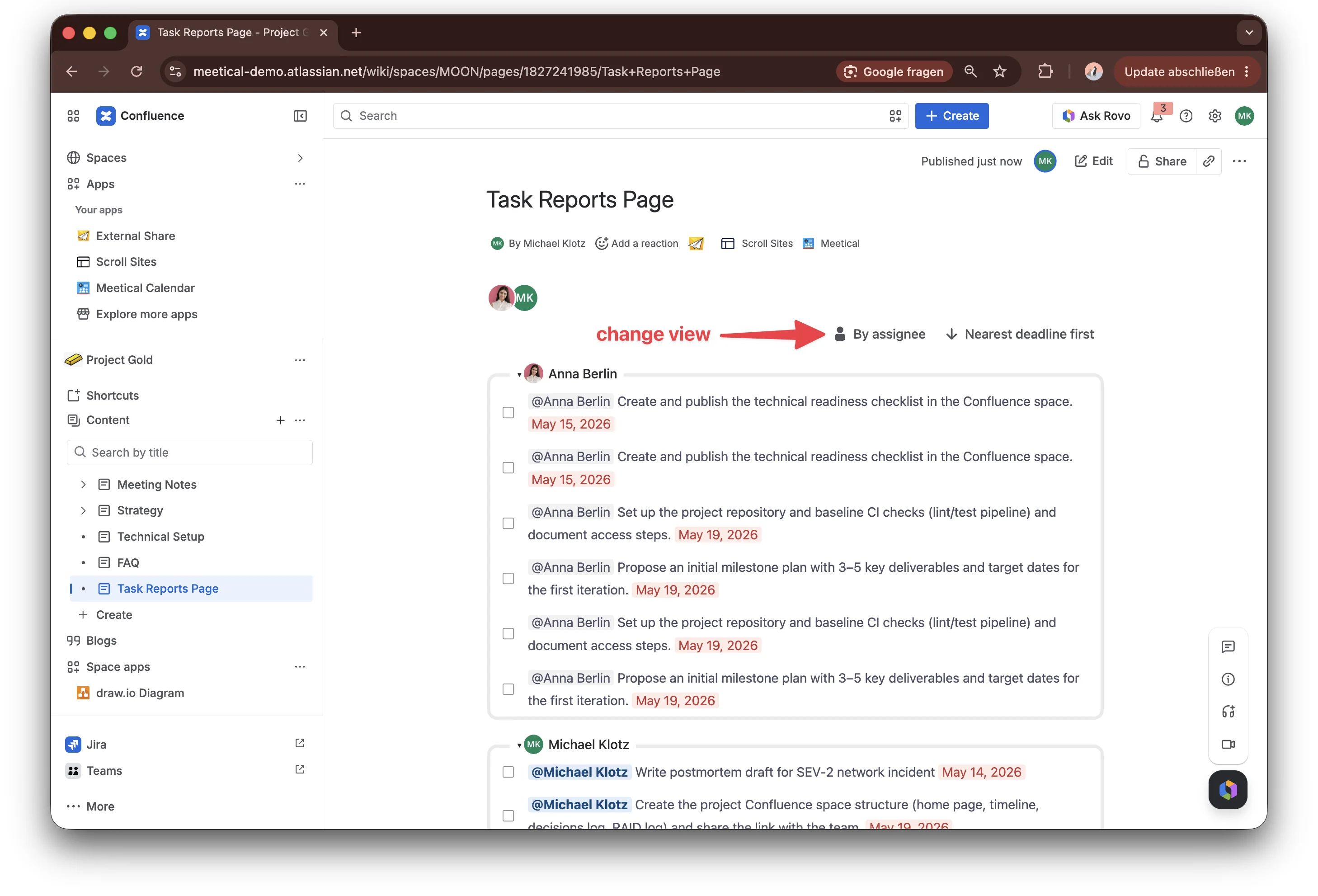
You can change the view of the report by clicking on the grouping icon. Group the report by assignee, by page, or without grouping to just show all tasks.
Step 4 - Interact with the report
Tasks can be checked off directly in the report, with or without a comment. Any update is written back to the Confluence page where the task is located.
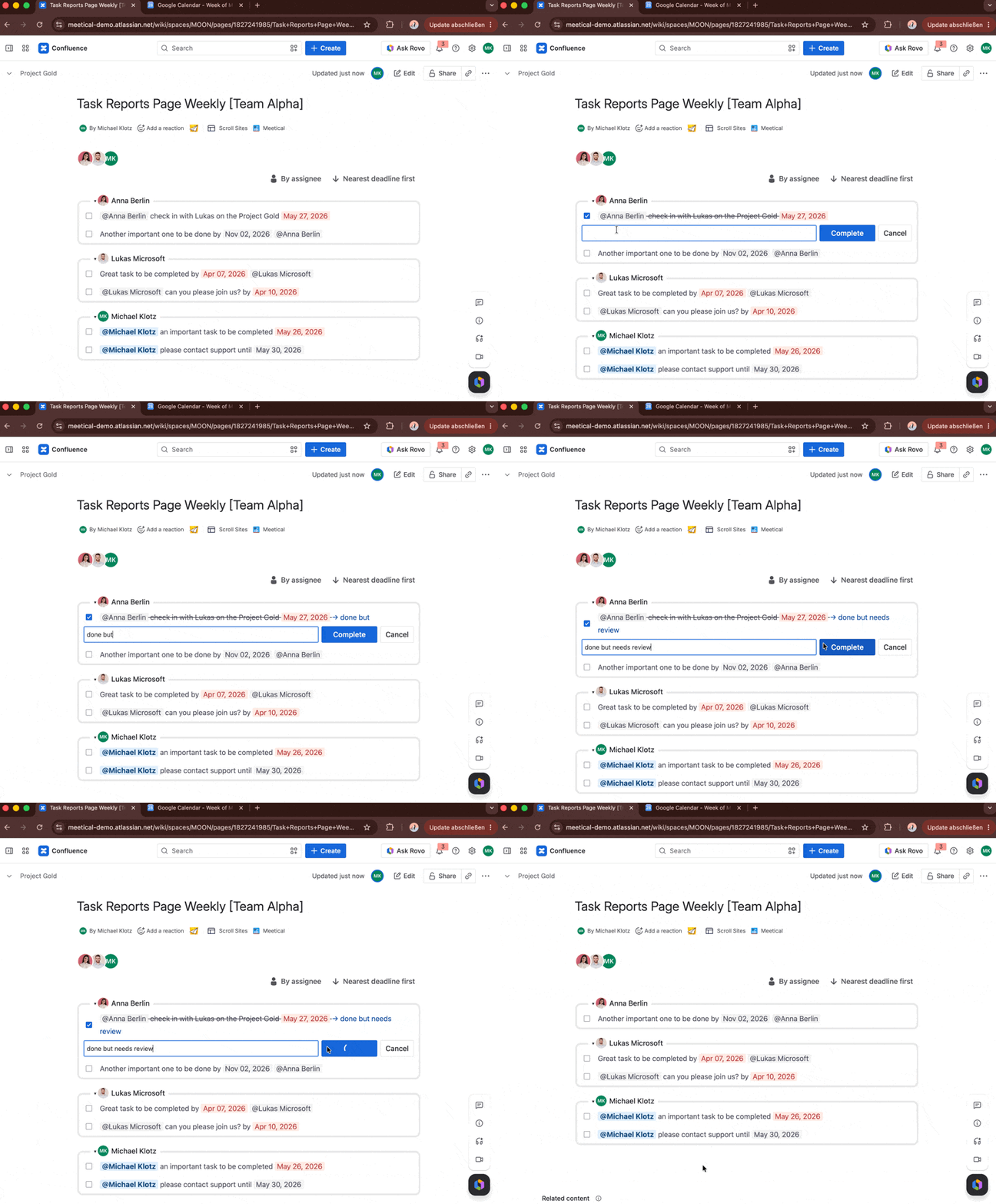
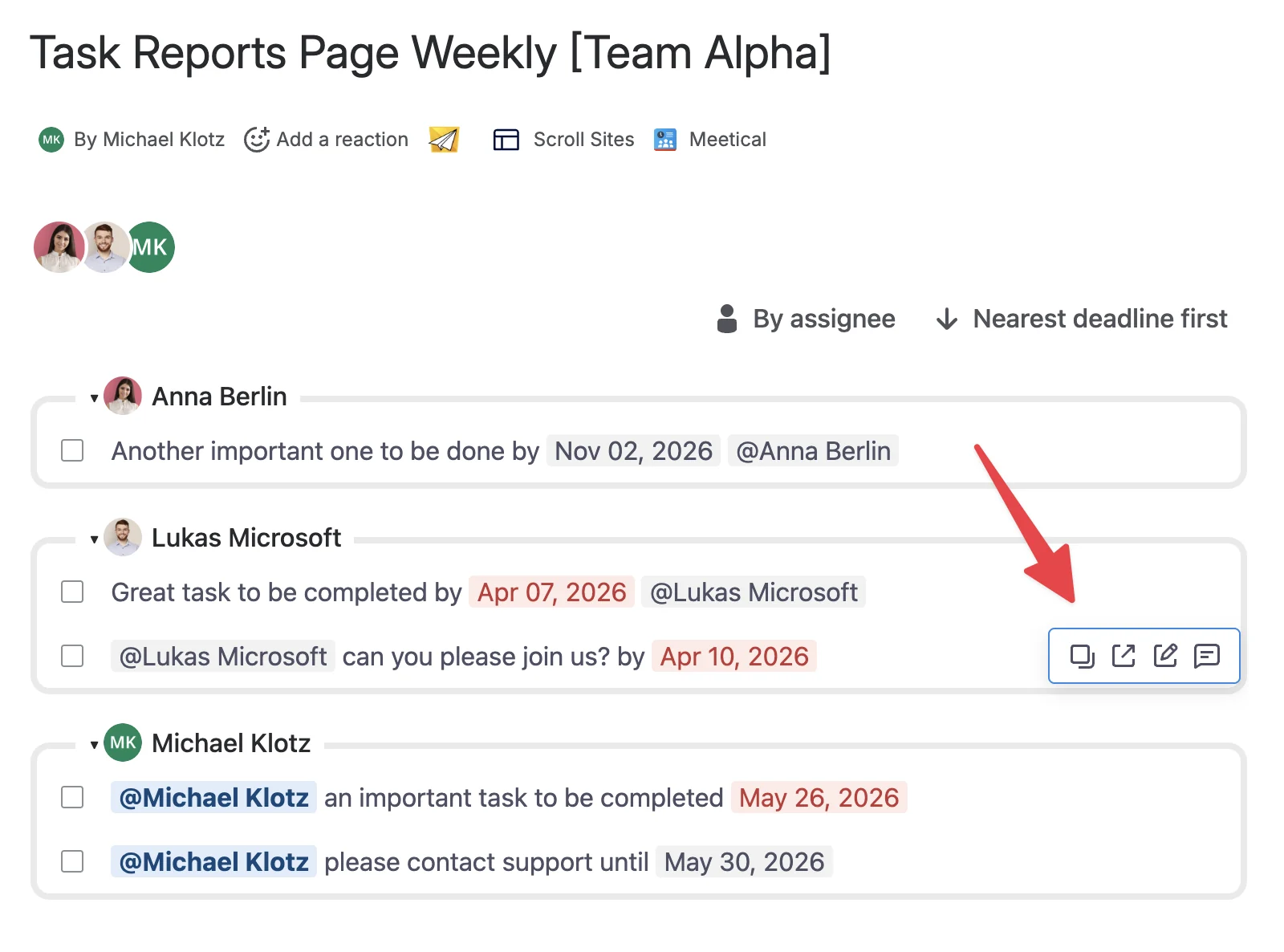
If you hover over a task, the quick actions appear.
You can leave a comment or an update without completing the task, open the linked page, edit the page directly, or copy the page link.
Extra - Display all tasks from child pages from a parent page
You can also show tasks from all child pages below one parent page. This is useful for recurring meeting notes, where each meeting page is created under the same meeting series parent. Learn more about meeting series automation here.
Step 1 - Find the parent page
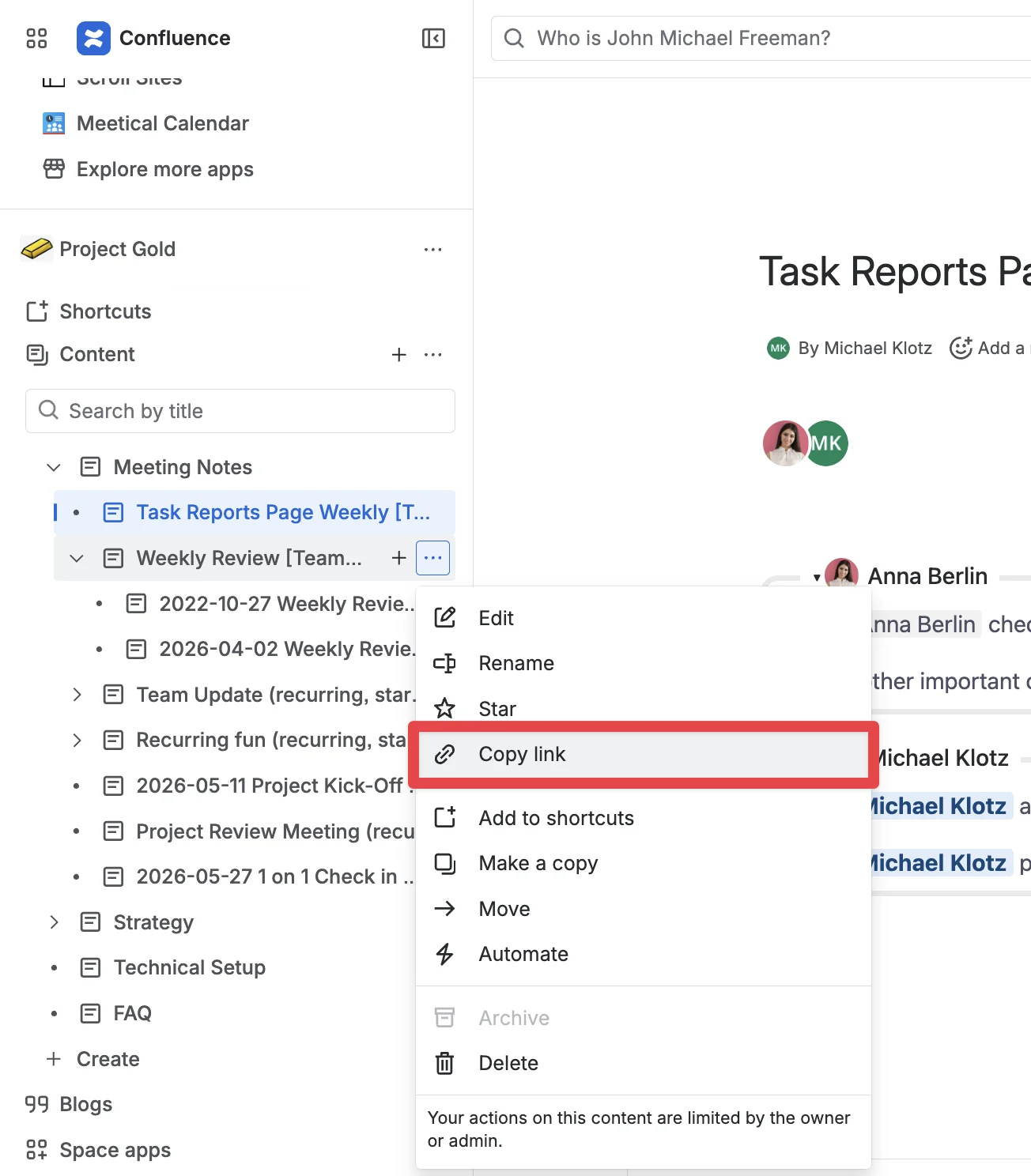
Open the parent page that contains the child pages you want to include. In this example, the parent page is Weekly Review.
Copy the page link from the sidebar.
Step 2 - Find the page ID
Paste the link into a text editor. Find the number after /pages/. This number is the page ID.
Example:
https://meetical-demo.atlassian.net/wiki/spaces/MOON/pages/834928742/…..
In this example, the page ID is 834928742.
Step 3 - Configure the Task Report with CQL search
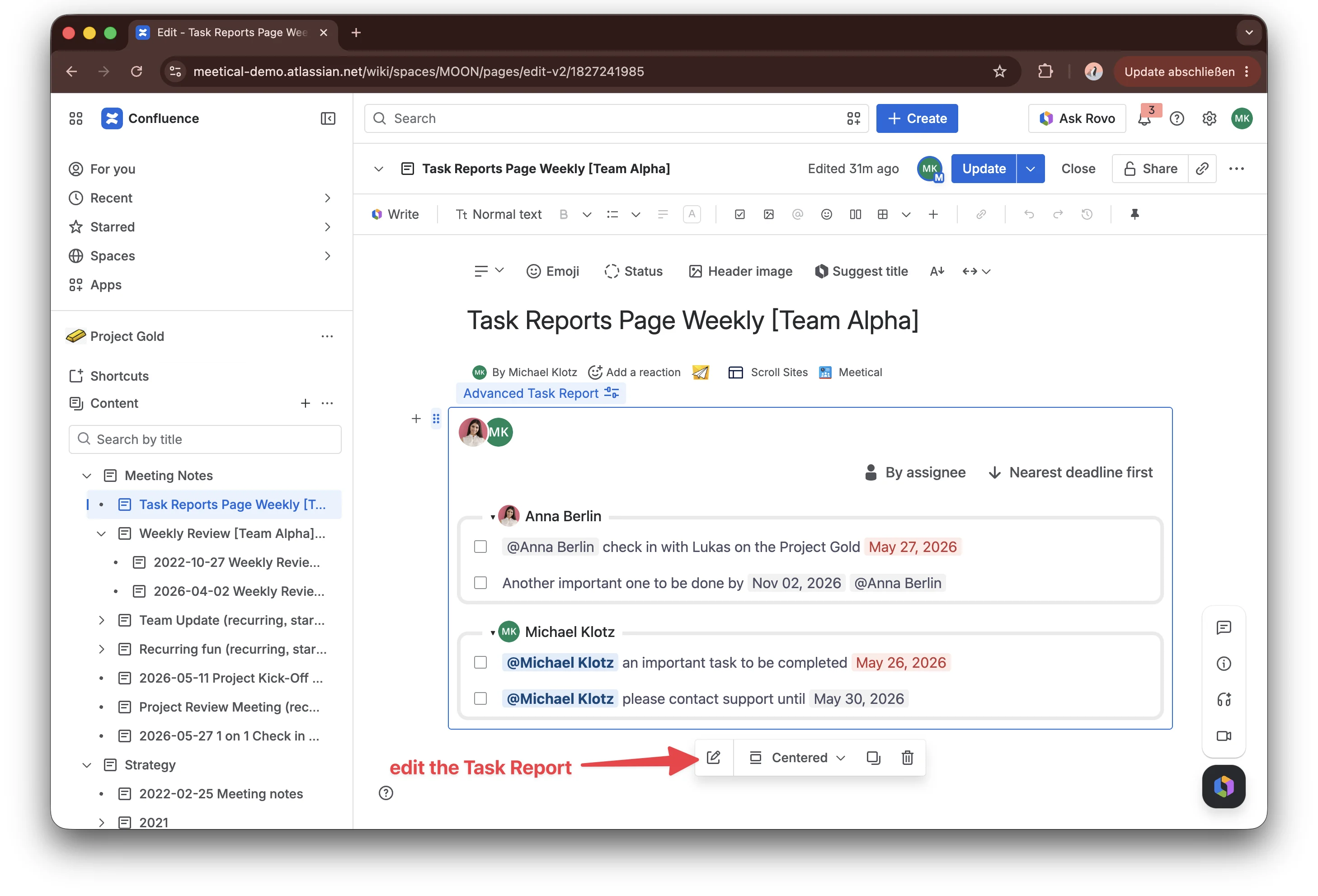
Open the macro configuration again by clicking the edit icon.
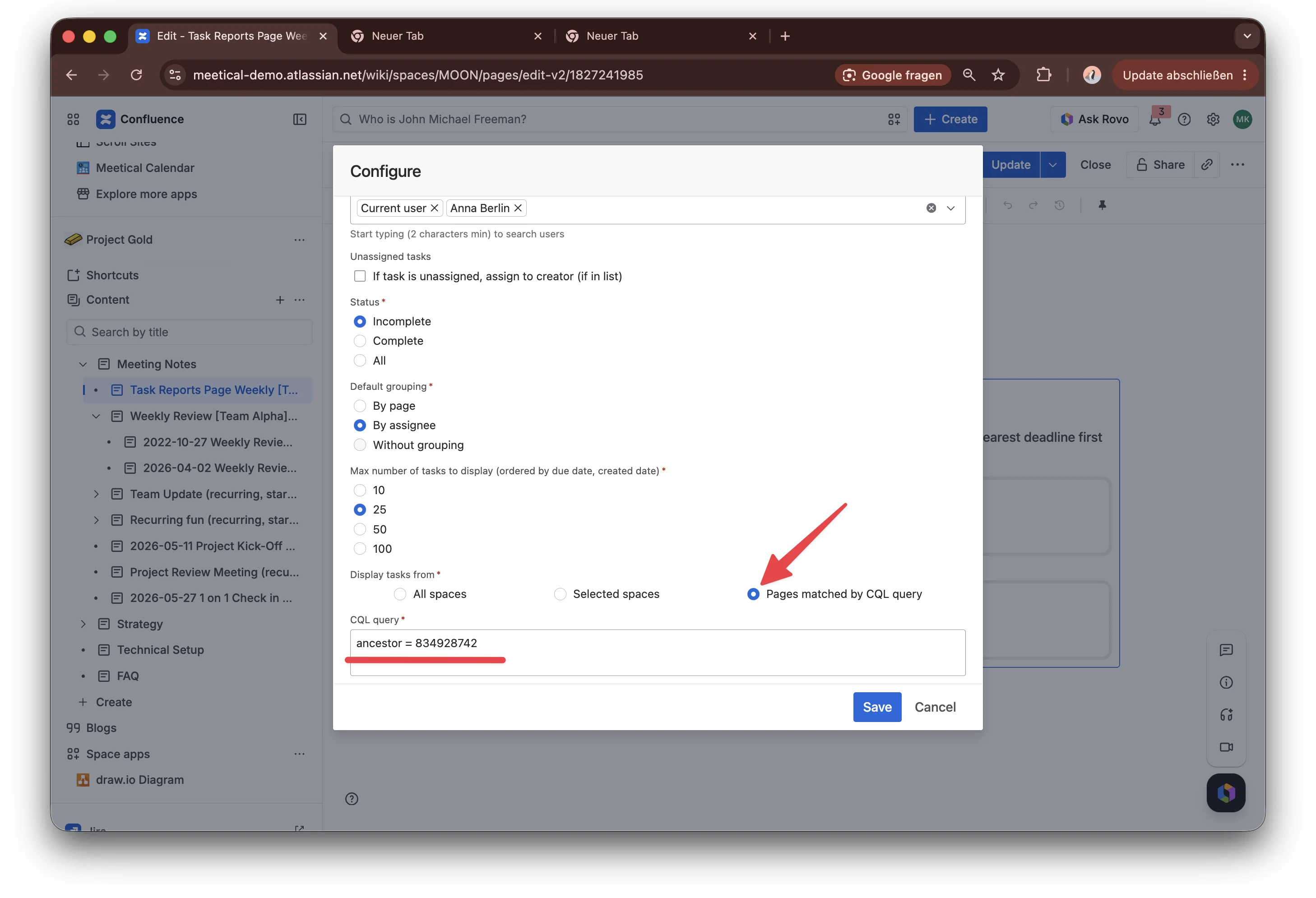
Select Pages matched by CQL query.
Enter this CQL query:
ancestor = <page_ID>
Replace <page_ID> with your page ID, then click Save.
The report now shows only tasks from pages below this parent page.