
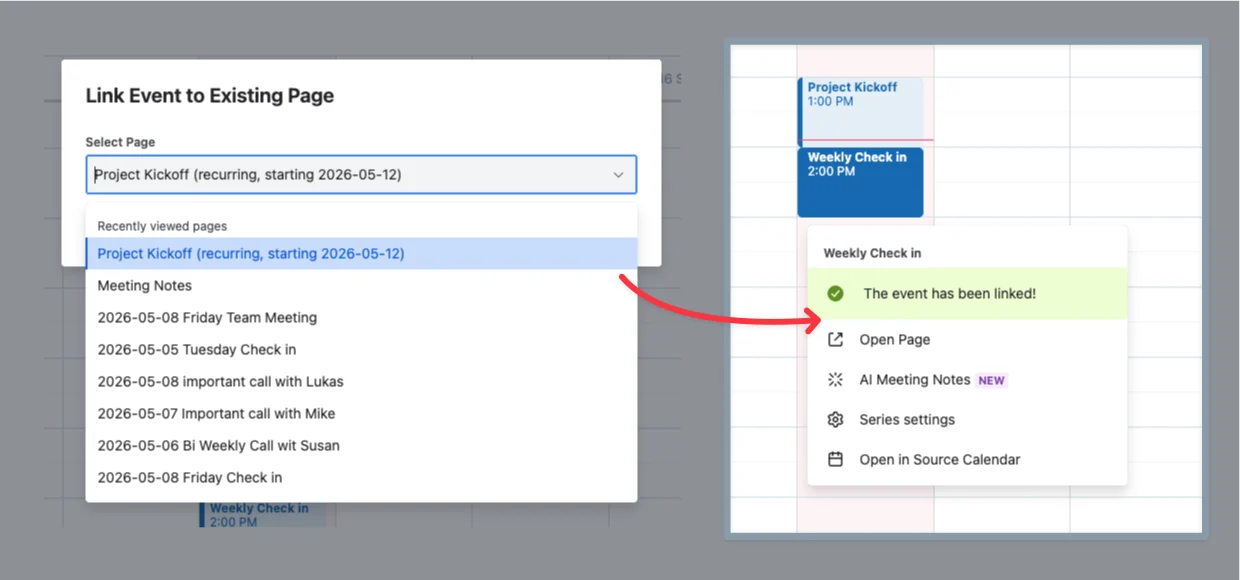
This feature allows you to link meetings/events to existing Confluence pages.
Why link existing pages to your calendar with Meetical?
-
You already prepared a page/agenda, and now you're inviting your team to discuss this page.
-
You already have a meeting series running, and now you start to use Meetical for this series to automatically link, enhance, and automate your meeting notes.
-
You already have a meeting series running, and you want to link an additional one-time event to the series.
-
You want to link multiple meeting series to the same page or parent.
The linked page gets a macro on top, and date, time and participants are synced into it from your calendar event.
You can use the Link Page feature from the Meetical Calendar and the Chrome extension. Support in the Outlook add-in is coming soon.
What the dialog shows before you link
When you choose a page in Link Event to Existing Page, the Meetical Calendar Page checks right away what linking will do:
-
If the event and the page cannot be combined, you see This event cannot be linked to this page with the reason, before you press Link.
-
If the page is not a Meetical page yet, you choose its settings under Additional Settings: automatic page creation, one page for the whole series or one page per meeting, access for participants only, and the page link in the calendar invite. You can also invite the AI notetaker here.
-
If you link a series to the parent page of another series that has a page per meeting, you see Group this series under an existing series. The grouped series follows the automatic page creation and AI notetaker settings of that series, and the dialog shows whether they are on or off.
After linking, the dialog tells you if a step around the link did not work out. The link itself stays in place:
-
Event linked, but no AI notetaker was scheduled
-
Event linked, but the calendar entry was not updated: the page link could not be added to the calendar invite, for example because it is someone else's invitation or your calendar is connected without write access. Add the link by hand, or open the page from the Meetical Calendar.
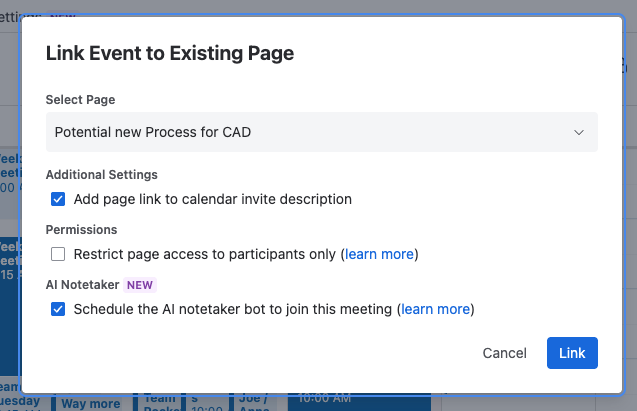
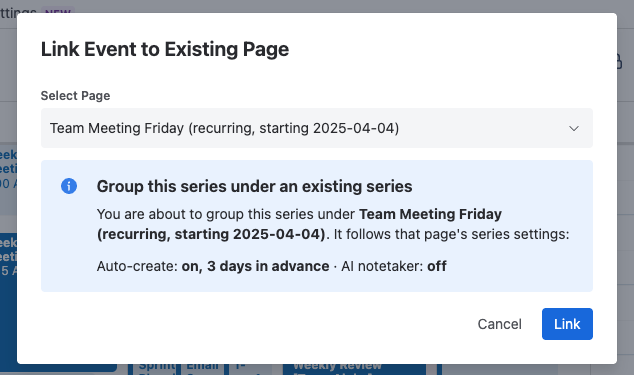
Linking a One-Time Event to an Existing Confluence Page
You can link any one-time event on your calendar to an existing page.
This will transform a regular Confluence page into a Meetical-enhanced Confluence page.
If the page is not yet linked to any event, then the page will be turned into a Meetical page.
-
The page title is updated to reflect the date and event title.
-
The Meeting Overview Macro is placed on top of the page.
-
The content of your existing page will be preserved and placed under the macro.
If the page is already linked to another event, then the page will get linked in addition to the "primary" event. You'll see that reflected in the "Open in Calendar" link you see on the Meeting Overview Macro. You can unlink that additional event if needed (see below).
Link multiple Meeting Series to the same parent page
Imagine you have a weekly meeting on Tuesday at 10am and another on Friday at 3pm: two separate series in your calendar.
To link both series to the same Meetical parent page, create the page for the first series (1), then use the Meetical Calendar to link an occurrence of the second series (2) to that parent page. The dialog offers to group the second series under the first.
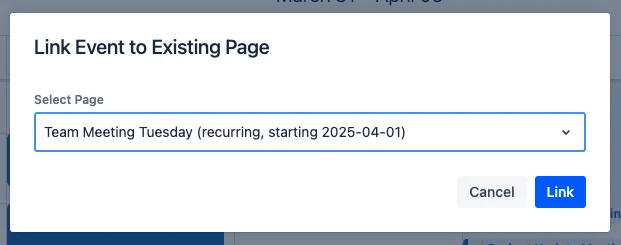
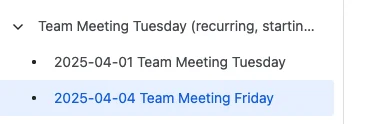
Both series will use the automation settings defined on the parent page!
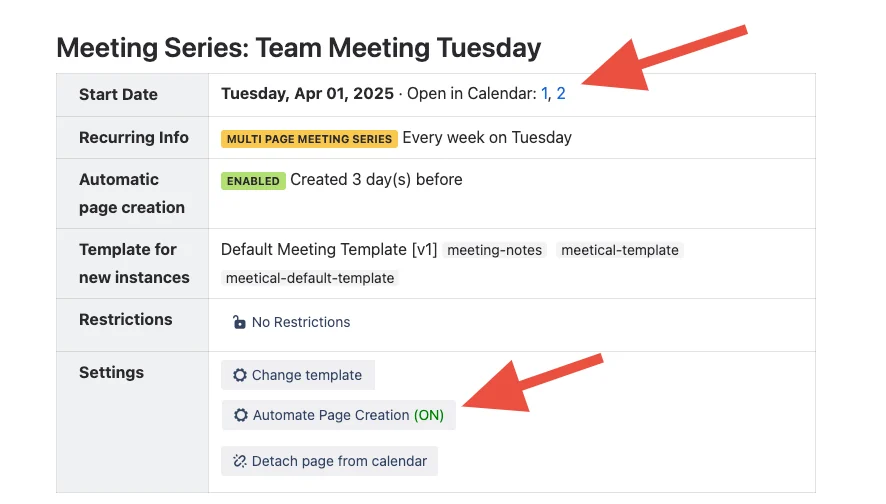
If you want to add an additional one-off meeting to that series, you can also do so by simply creating the page as usual and choosing the parent page as parent in the create-page dialogue.
Please reach out to support for questions and feedback.
Linking additional Pages to a Meetical Series (Single Page)
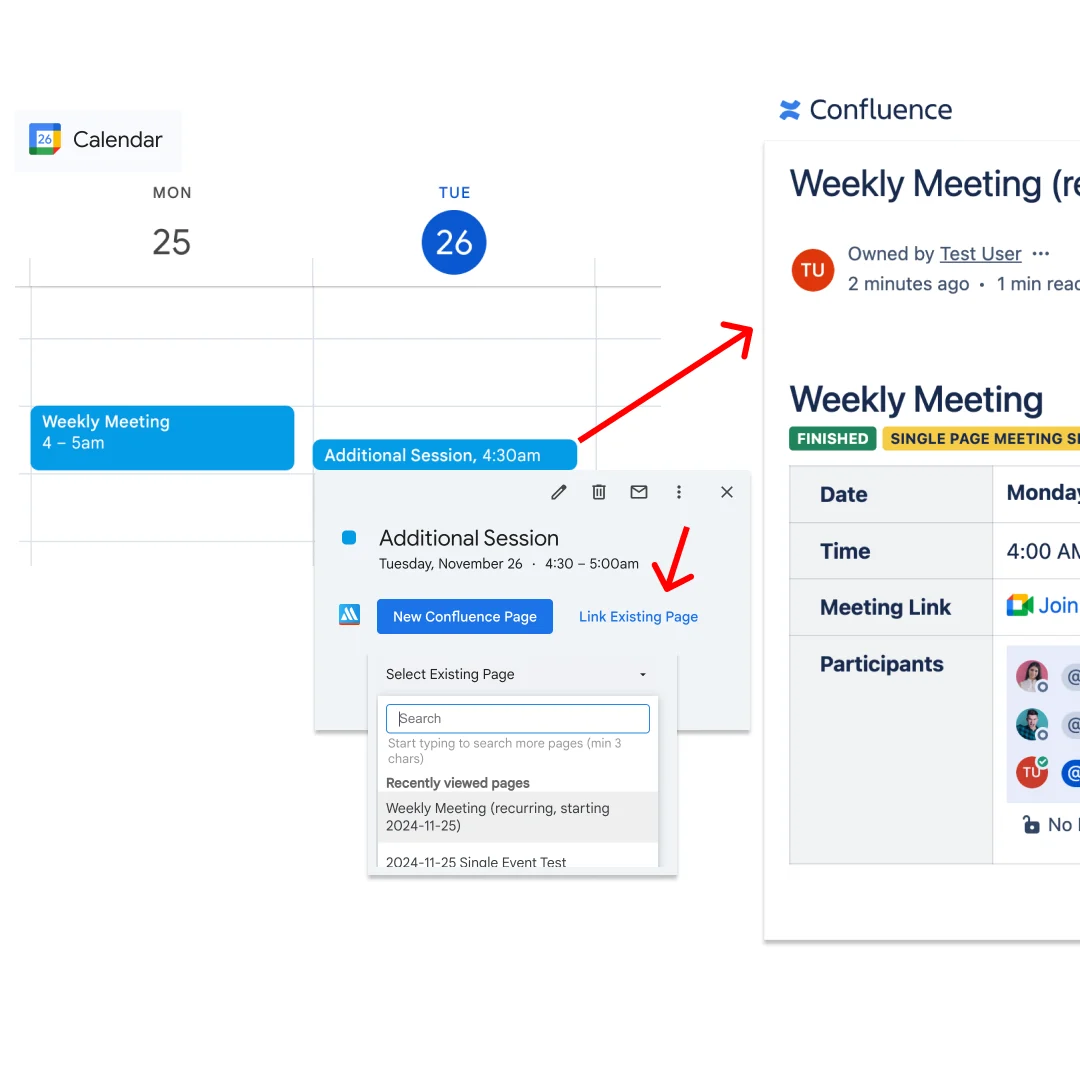
Imagine a weekly project meeting, but now you schedule an additional one-off session, and you want to have everything on the same page. Then you can simply link that additional meeting to the same page.
This is also very useful for 1-on-1 meetings; if you schedule an additional performance review, then you can link that event to the same Series Single Page.
To link a whole additional series to the same page, simply choose an occurrence and link it to that page. This way you can link two independent meeting series to the same Meetical page in Confluence.
Outlook Add-in
This feature is fully implemented in the Meetical Calendar and Meetical Chrome Extension.
Support for the Meetical Outlook Add-in is in the pipeline.
Unlinking events and detaching a series
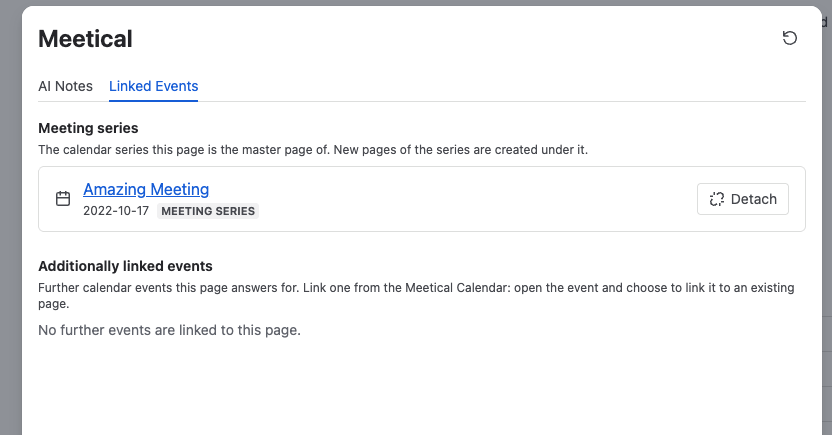
To unlink an additional event from a page: in the row below the page title, click Meetical and open the Linked Events tab. On the parent page of a meeting series you can also detach the series from its calendar event, and re-attach it, in the same tab. Only the series owner, its participants and Confluence admins can make these changes.
Note: The former Unlink Page option in the three-dot menu of the page has been replaced by this tab.
Continue existing series with Meetical
If you already have a recurring meeting series in Google Calendar or Outlook, you can continue using the same calendar event and let Meetical create the Confluence pages from now on.
-
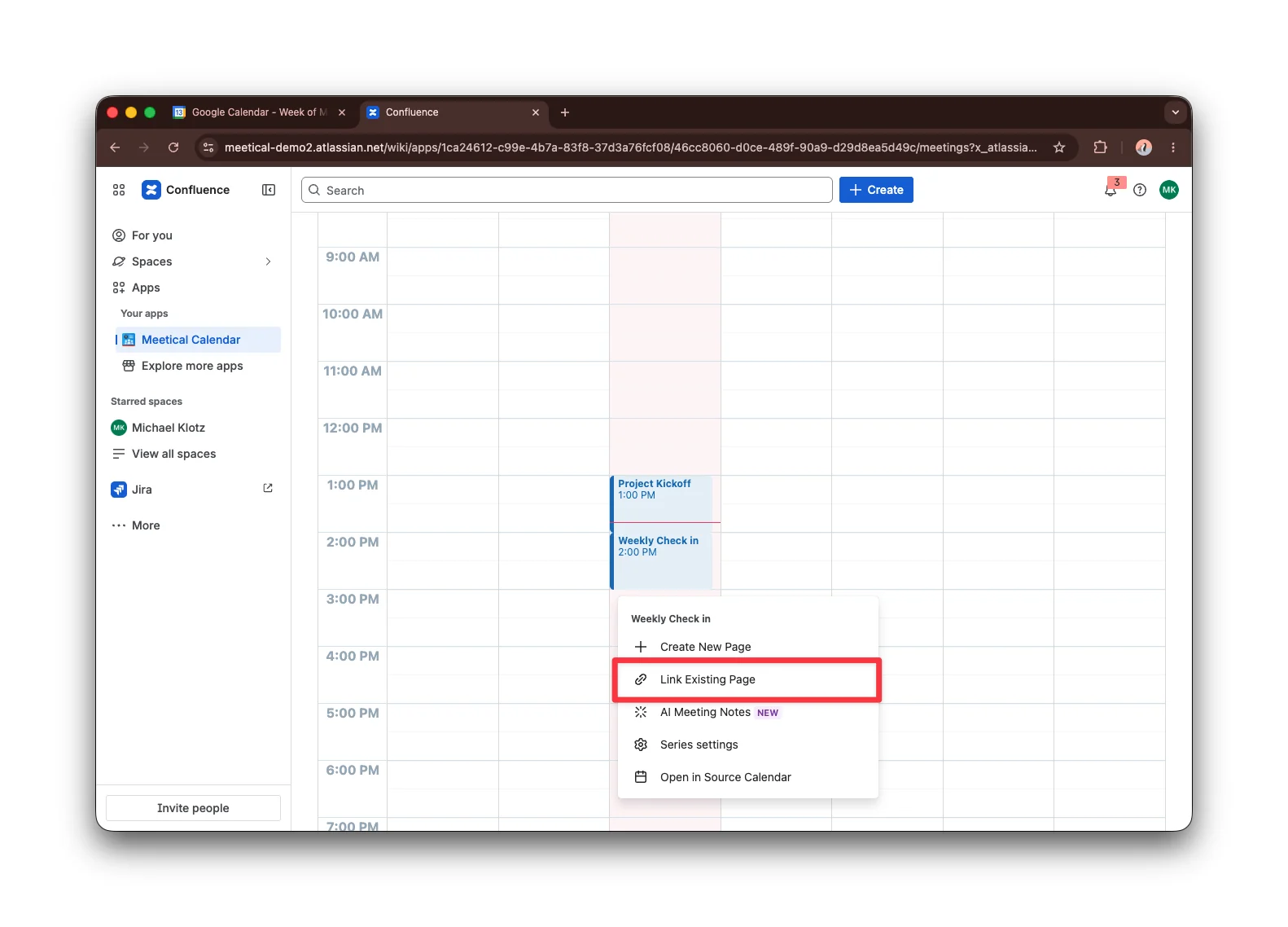
Open one occurrence of the existing series in the Meetical Calendar.
-
Use Link Page to connect the series to the existing Confluence page that should become the series parent page.
-
Open the Series Settings of the series in the Meetical Calendar and customize your automation settings.
Future occurrences in the existing series will then get their Confluence pages automatically under the linked parent page.
Let us know your questions and feedback!