
In this guide we are going to create a Confluence meeting page directly from Google Calendar with the Meetical Chrome extension.
Make sure you:
-
Have installed the Meetical Meetings for Confluence app.
-
Have installed the Meetical Chrome extension for Google Calendar from the Chrome Web Store. The extension supports Chrome only. See the setup guide.
-
Have signed in to Meetical with your Atlassian account. On Atlassian’s sign-in screen, you pick the Confluence site where Meetical is installed. That site becomes your Meetical site.
After completing the setup, follow these steps to create your first page:
Create a calendar event
-
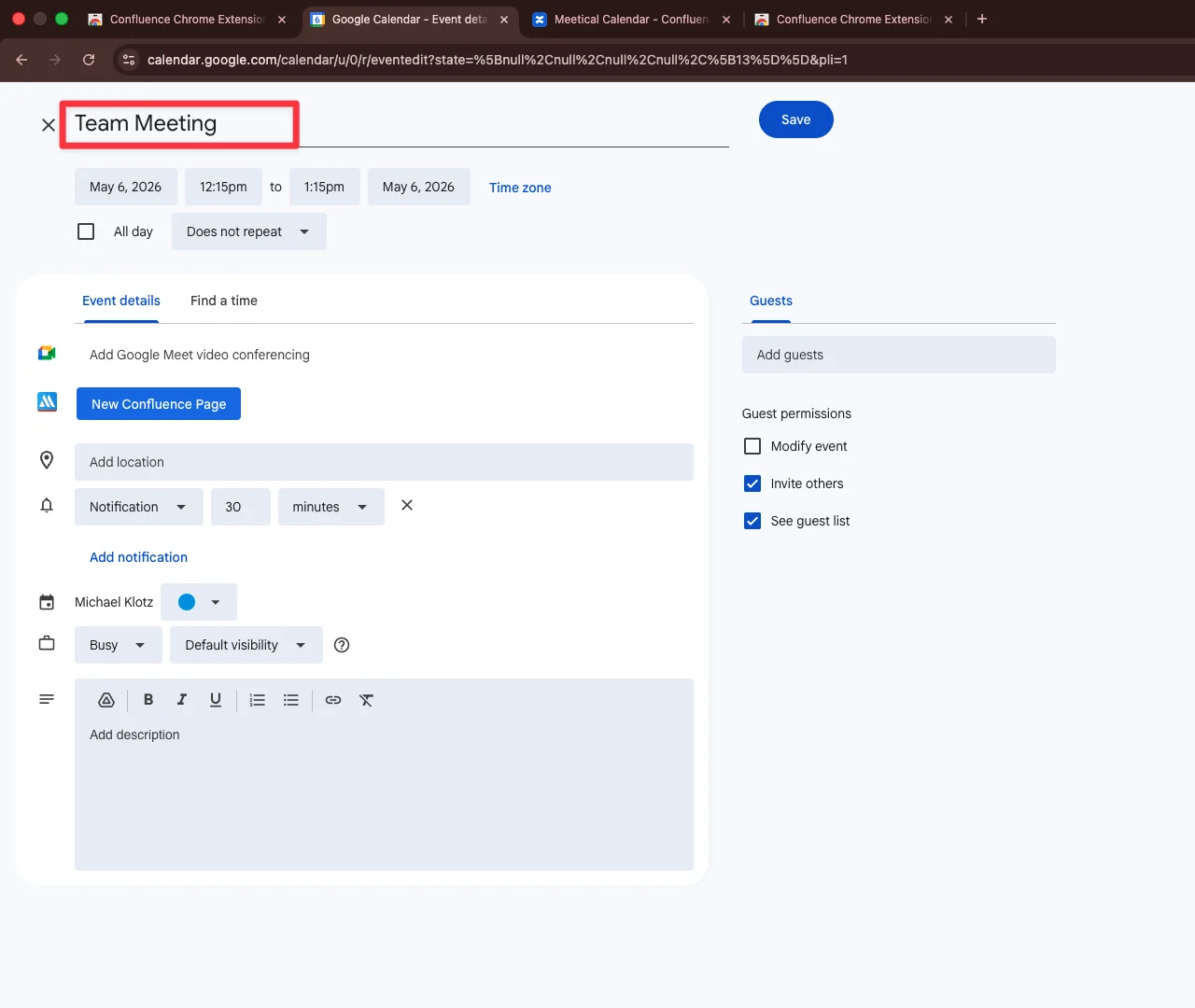
Open your Google Calendar in Chrome and create a new calendar event.
-
Enter a title for your Meeting
Create the Confluence page
-
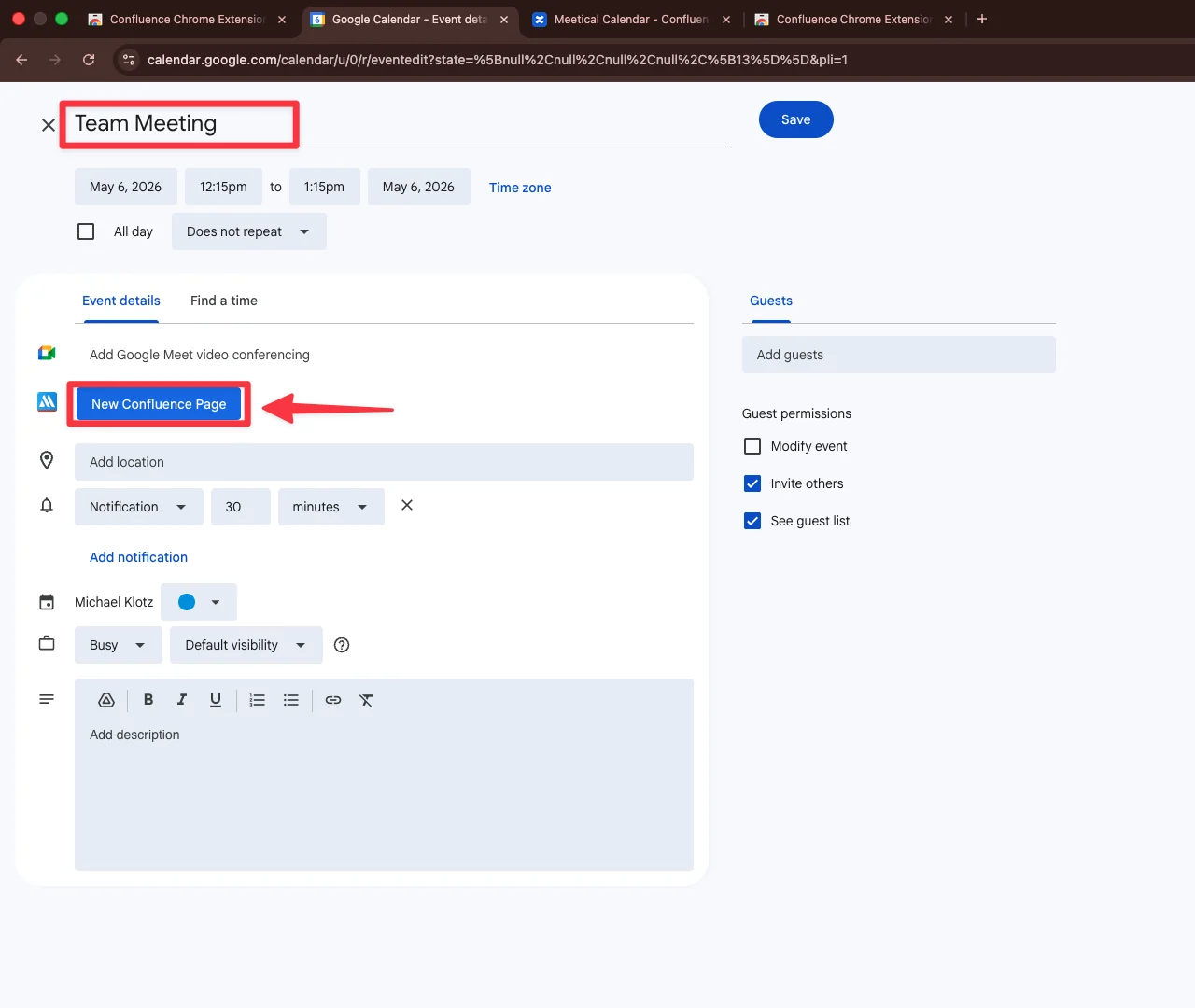
Click 'New Confluence Page.'
Choose where the page should be created
-
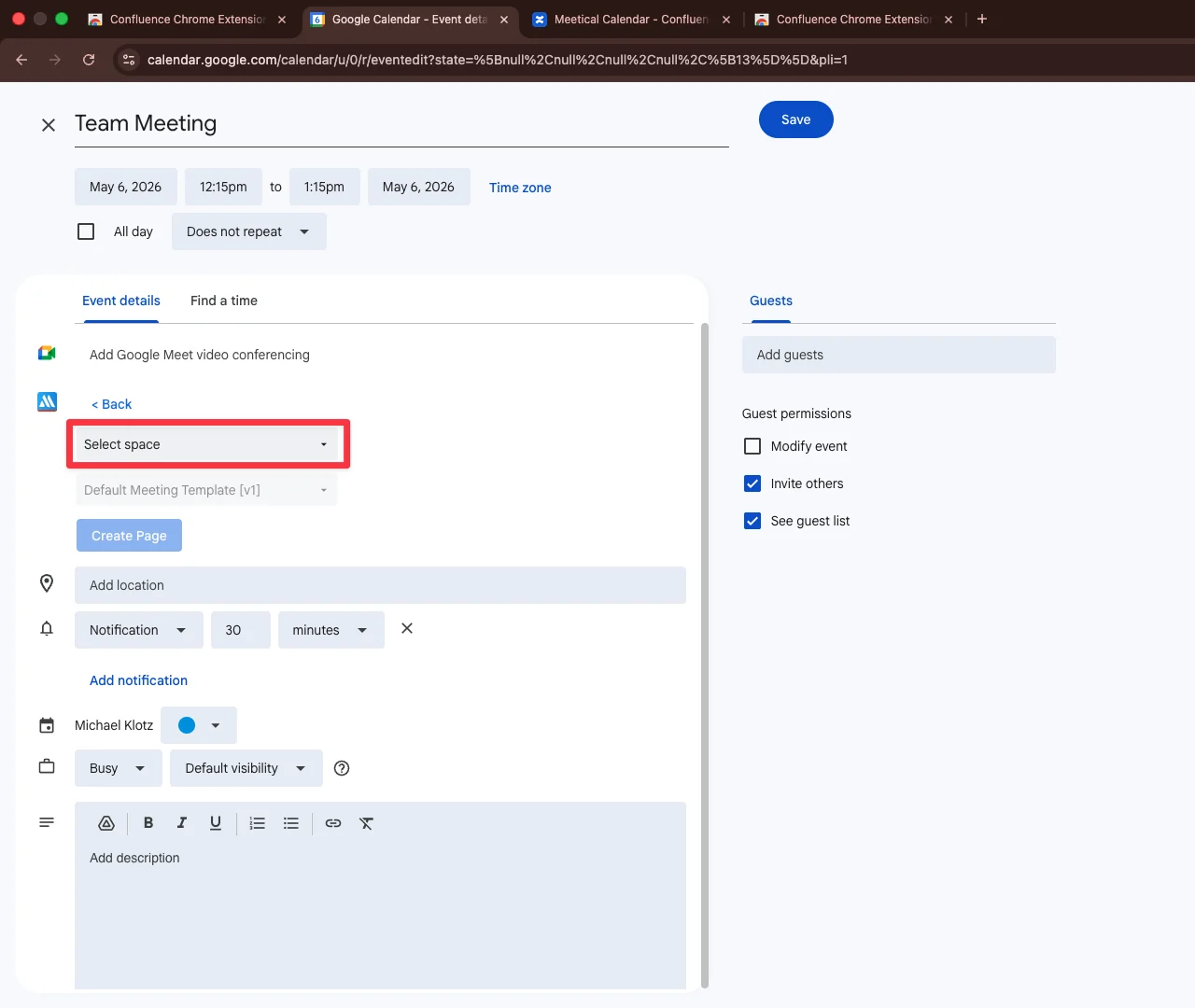
Next, pick the Confluence Space you wish to create your page in.
-
Optionally, choose a template. You can use custom page templates or use the default template.
-
Click the next dropdown to choose which parent/index page you would like to house this meeting page in.
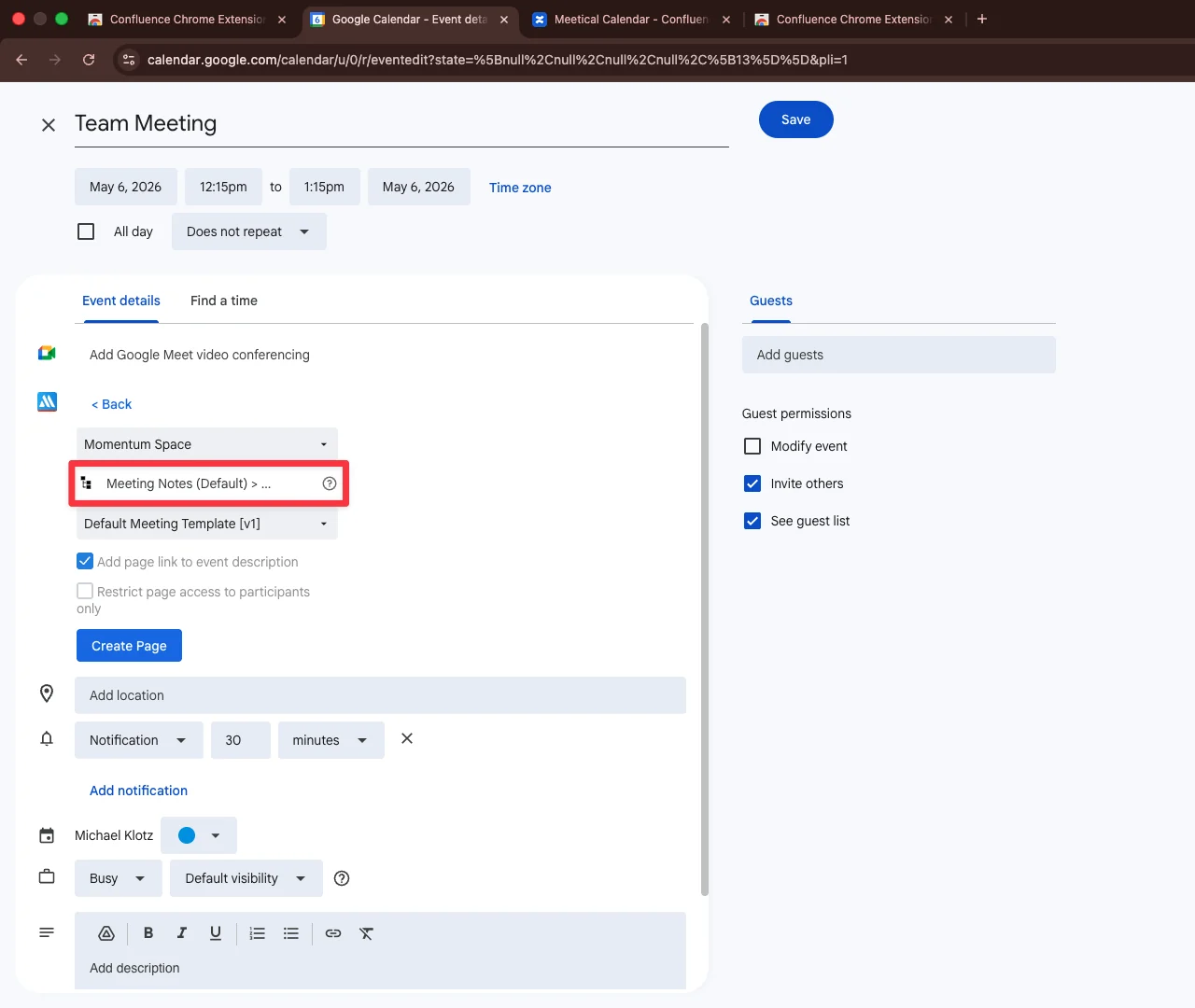
For more information on creating a parent/index page, please follow this guide.
Create and save the meeting page
-
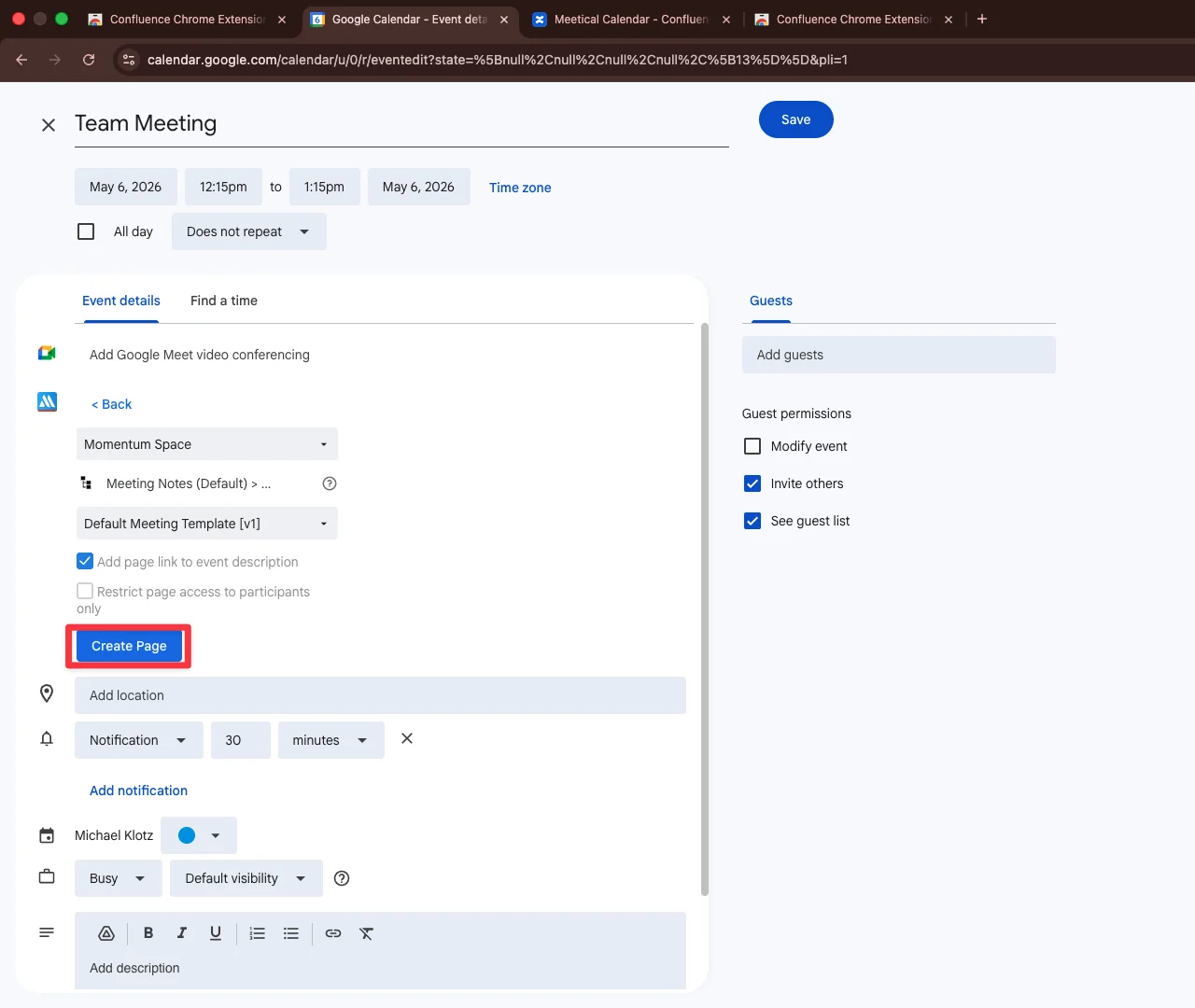
Click 'Create Page'
-
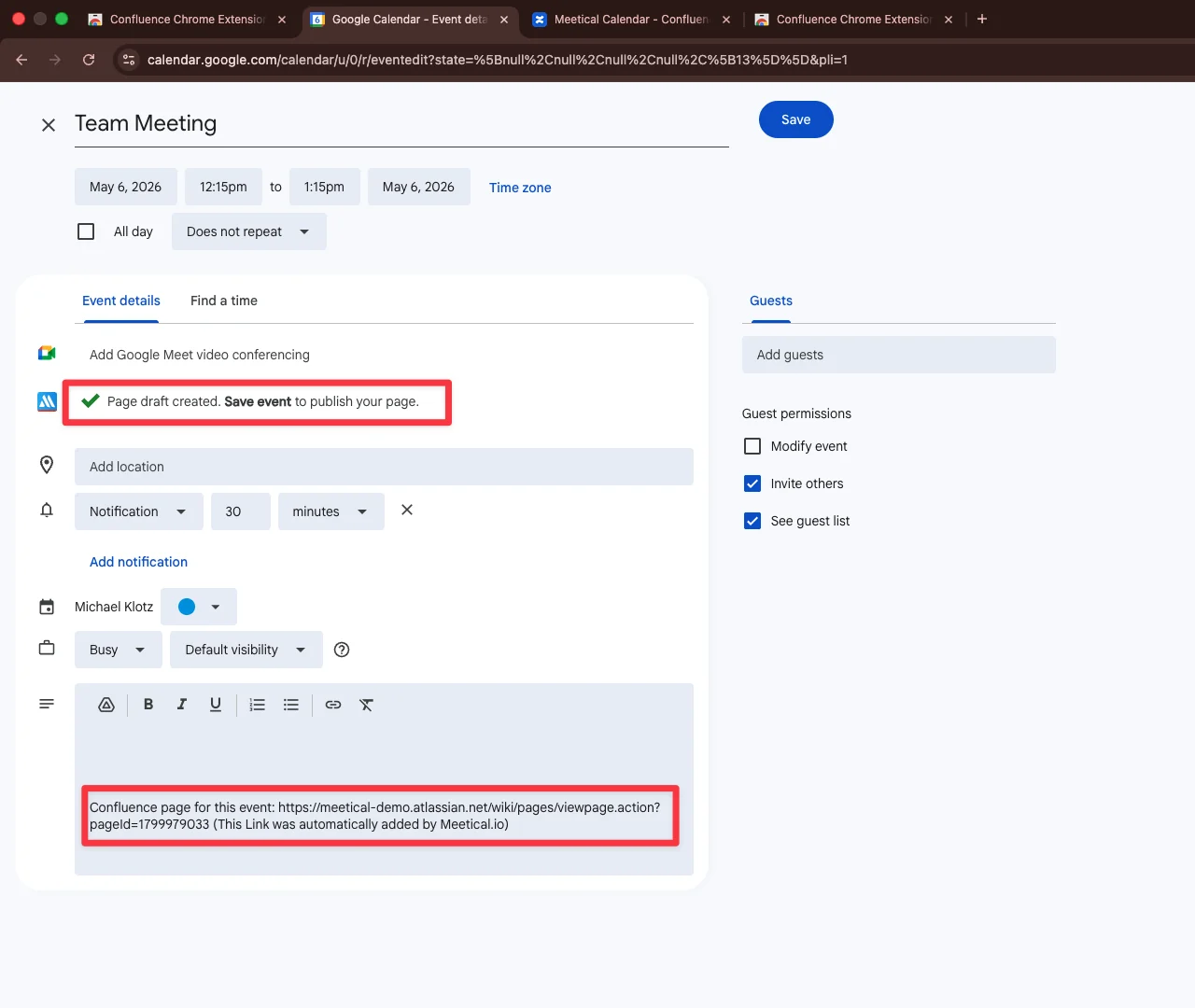
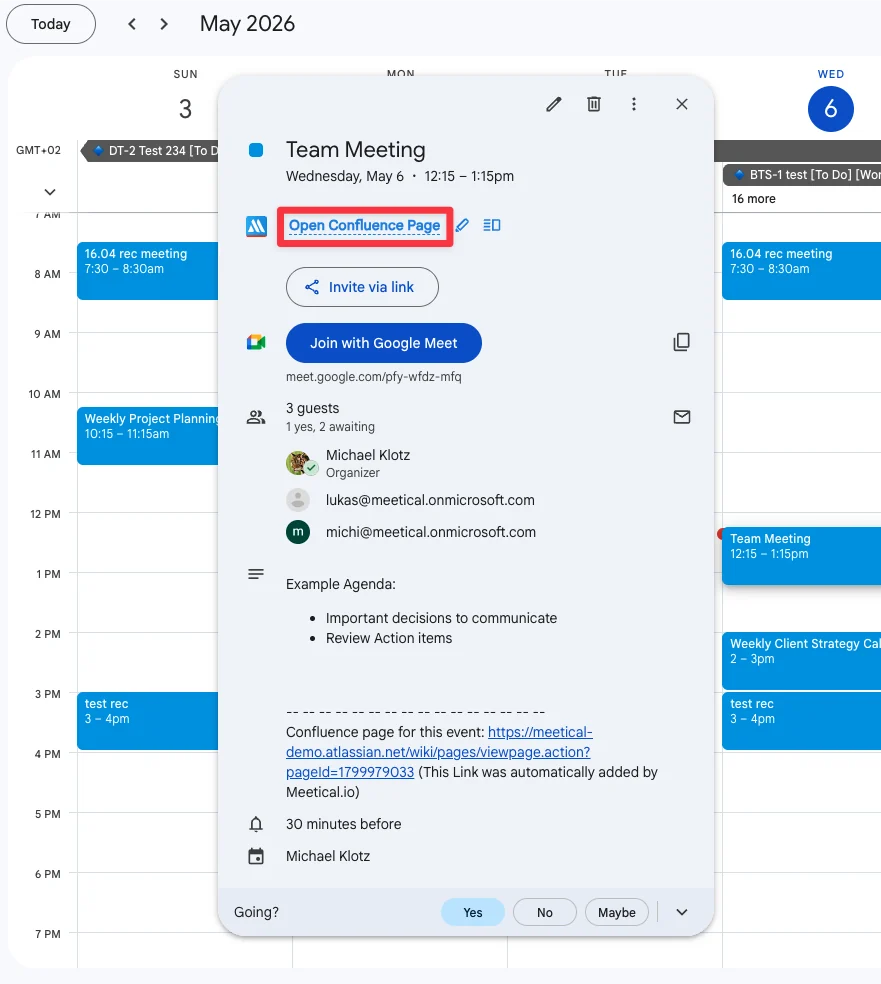
A page has been created! A link to the meeting page was also added in the description.
-
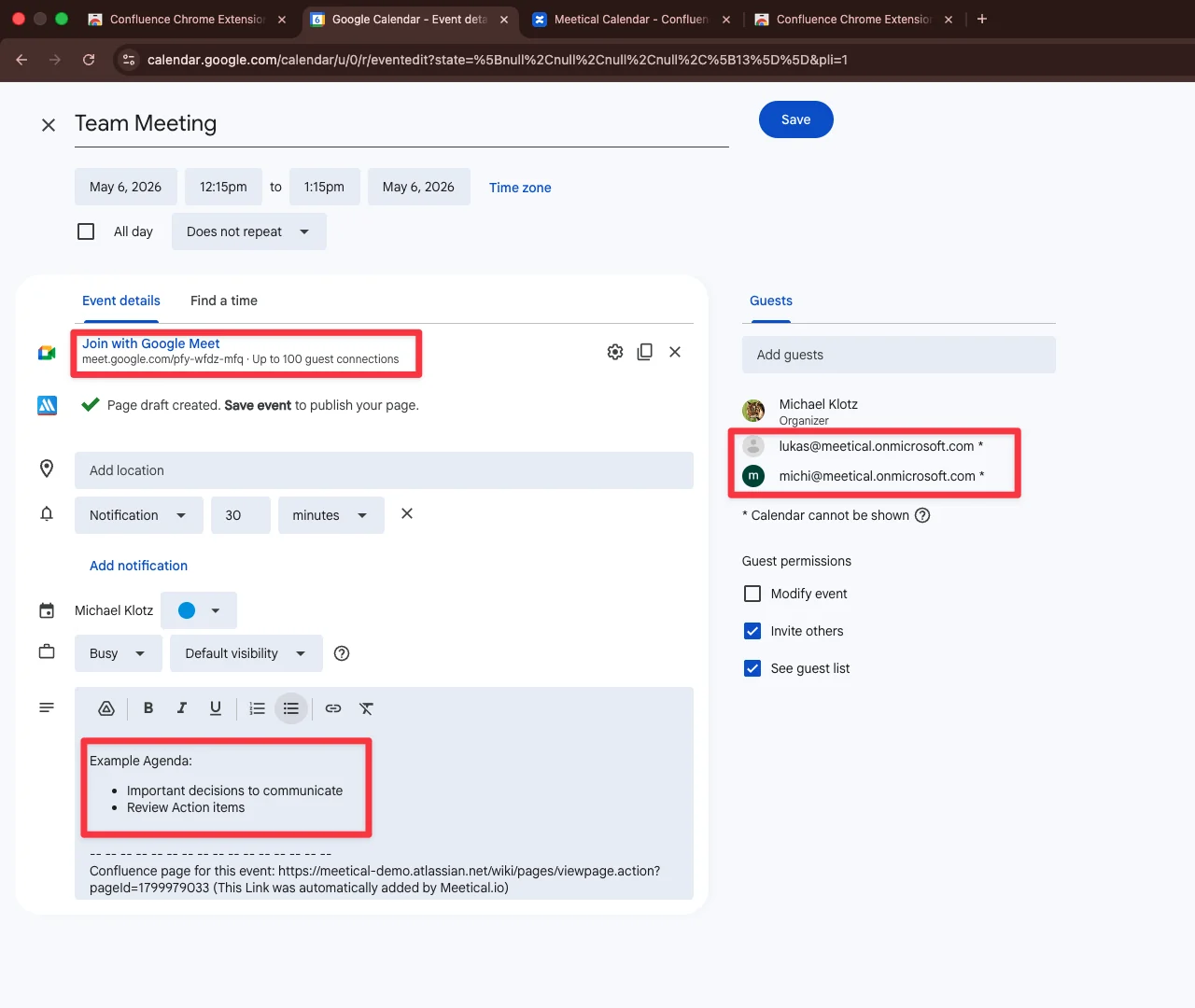
You can also continue to add the meeting's location, agenda, attendees, and other relevant information. All of which will be imported into the meeting page via Confluence macros.
-
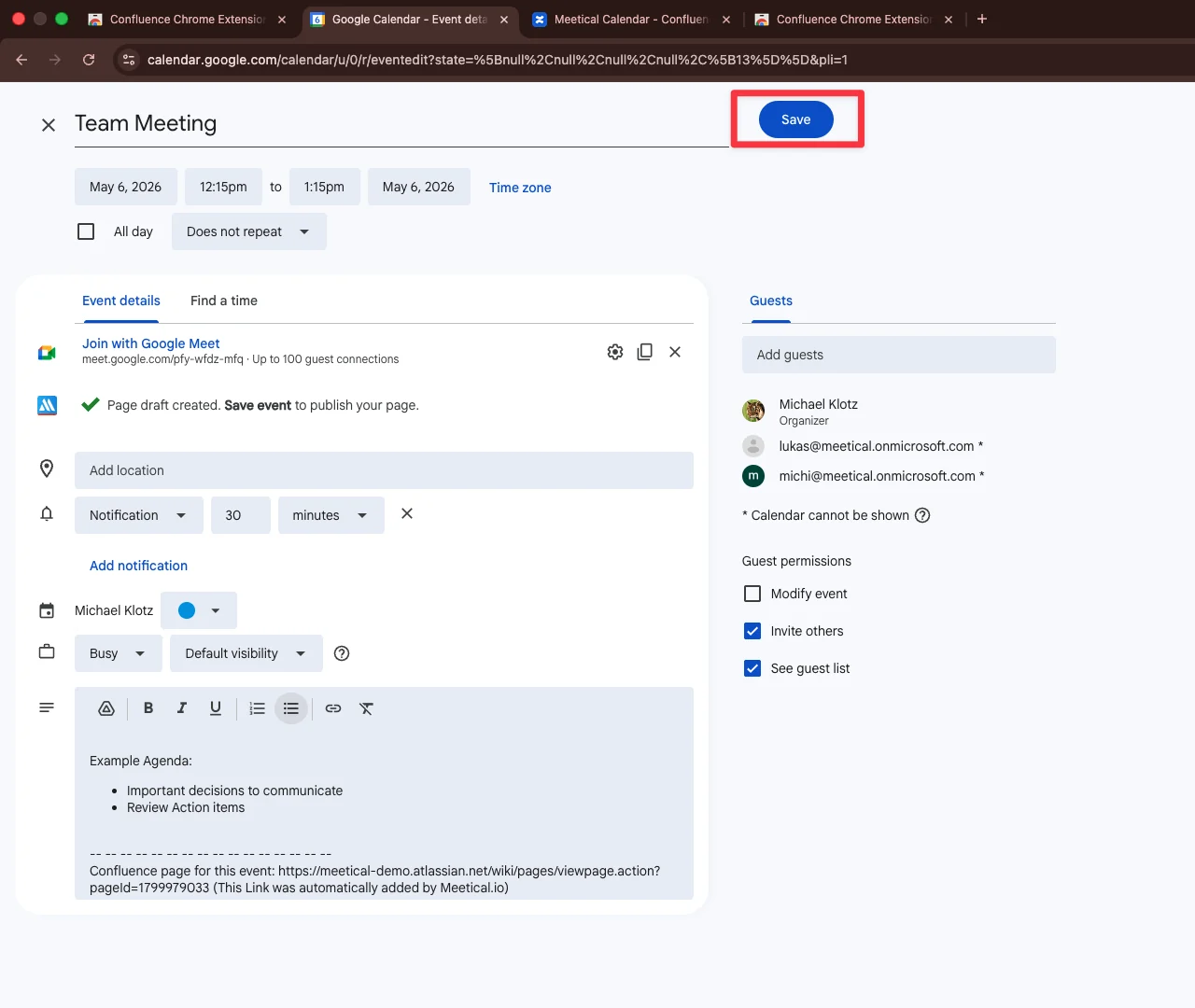
Click 'Save' when you're done.
-
Now you can access your meeting page right from your Google Calendar.
Prepare your Confluence meeting page
-
Open up your new Confluence meeting page and add goals, tasks, discussion topics, and anything else that will help you prepare for your meeting.
Explore more features of Meetical for Confluence
-
Change the meeting description, location or date and time on your calendar and see how the Confluence page gets automatically updated for you.
-
Invite your colleagues to the meeting and see how their attendance RSVP status gets automatically updated once they confirm or decline.
-
Create meeting pages for recurring meetings and discover how they get automatically structured for you.
Note that changes to location, date, time, etc. are automatically updated on the page. Even the attendee RSVP status will get updated. Try to update the event description or location and see it in action.
Feedback and questions are very welcome. Reach out to us at support@meetical.io.