
In this guide, we are going to set up the Meetical Chrome extension so you can create Confluence meeting pages directly from Google Calendar.
Before you start
Make sure you:
-
Have installed the Meetical Meetings for Confluence app.
-
Use Google Calendar in Chrome. The extension supports Chrome only.
Then install the Meetical Chrome extension from the Chrome Web Store.
Install the Chrome extension
-
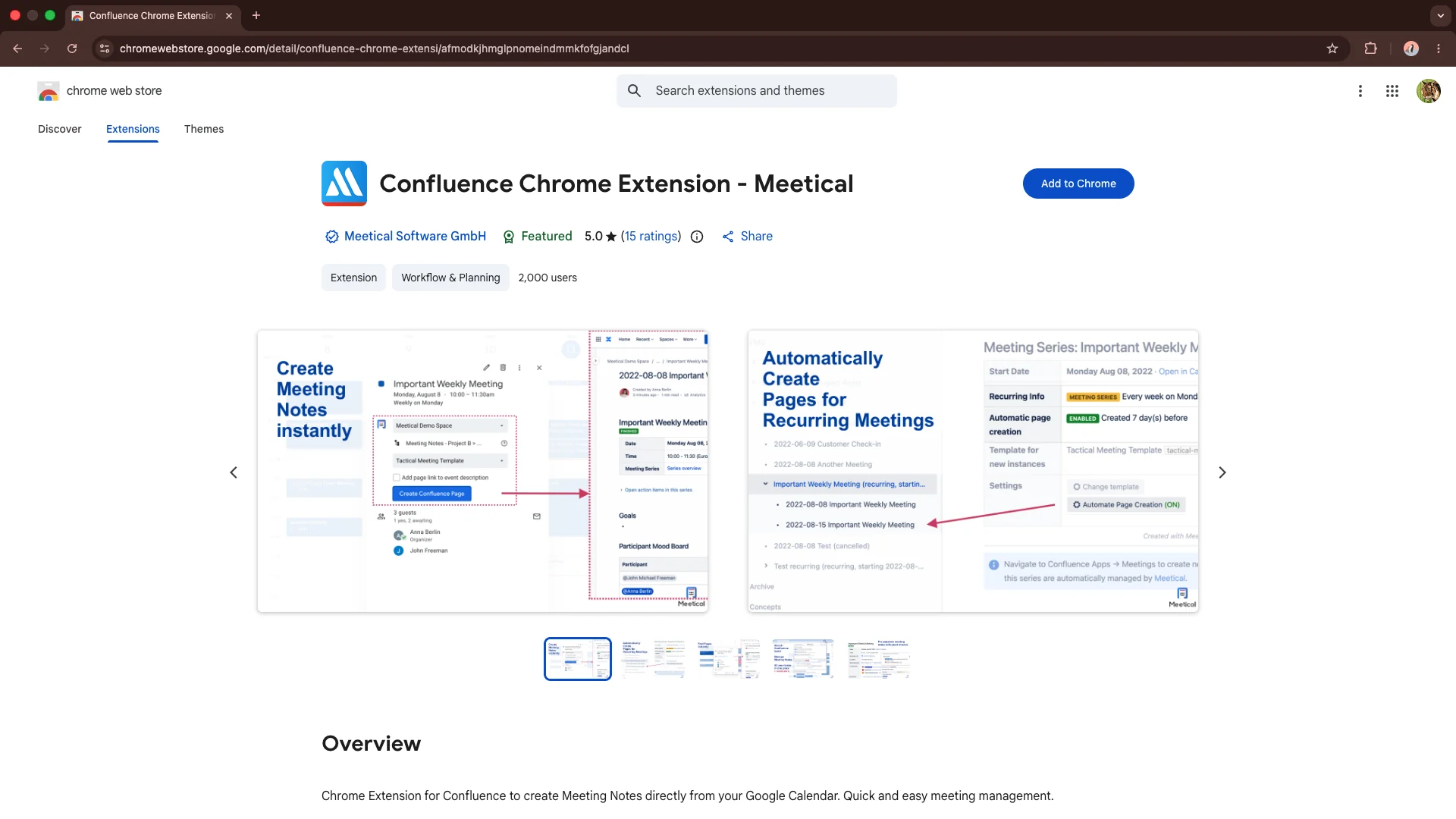
Open the Meetical Chrome extension page in the Chrome Web Store.
-
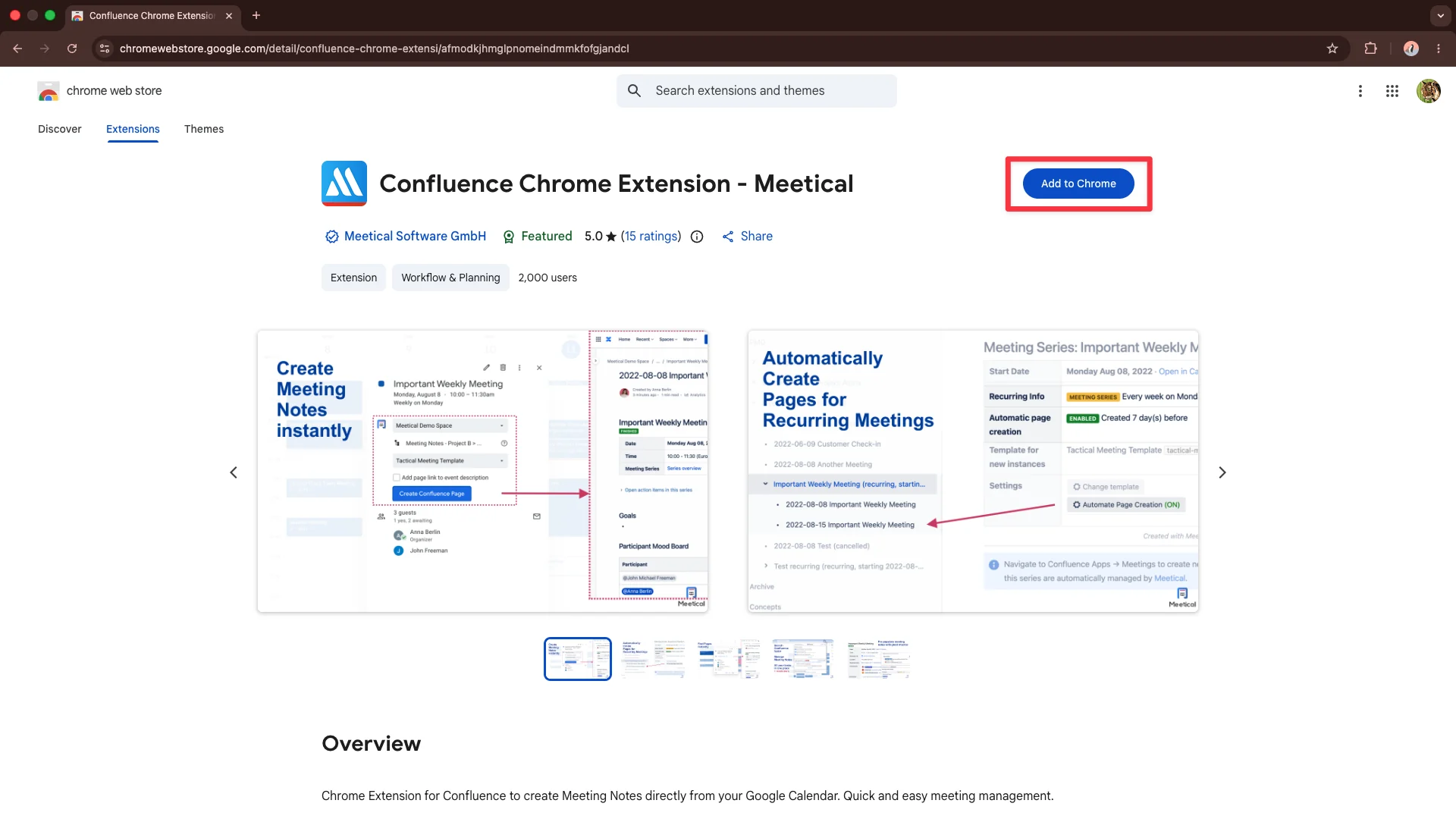
Click Add to Chrome to start the installation.
-
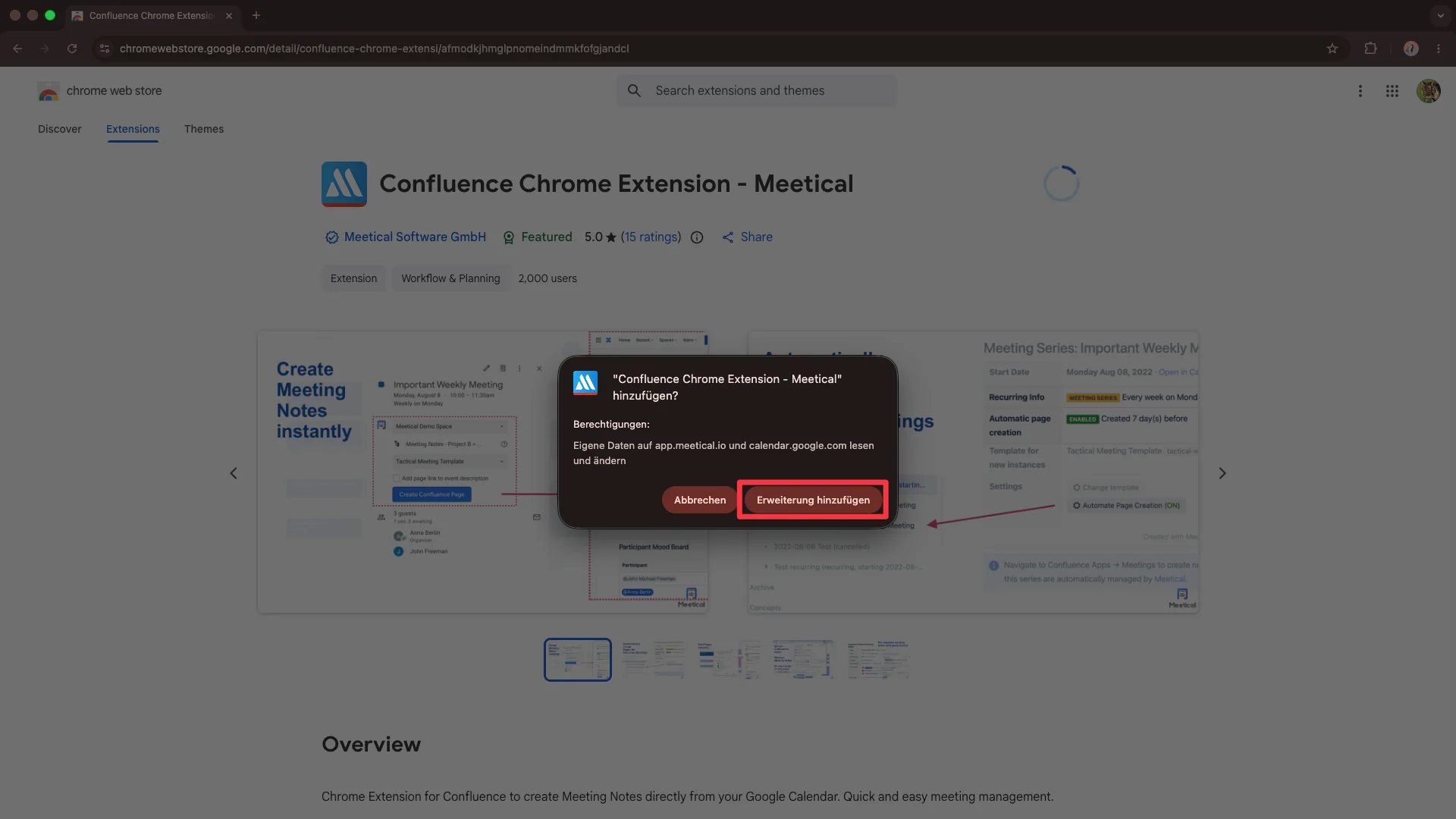
Confirm the browser prompt by clicking Add extension.
-
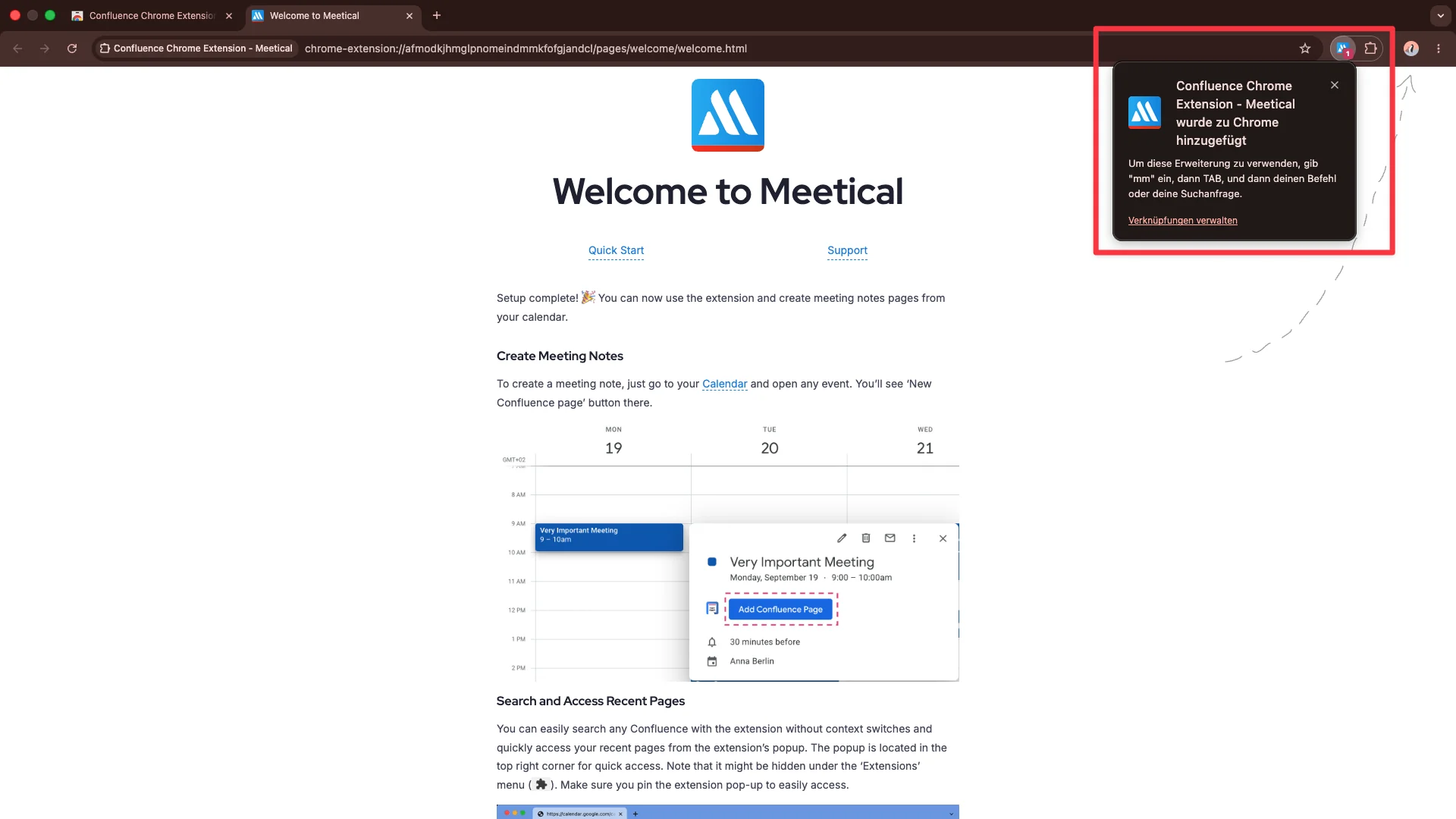
The extension is now installed and ready to use in Google Calendar.
Connect Google Calendar with Confluence
-
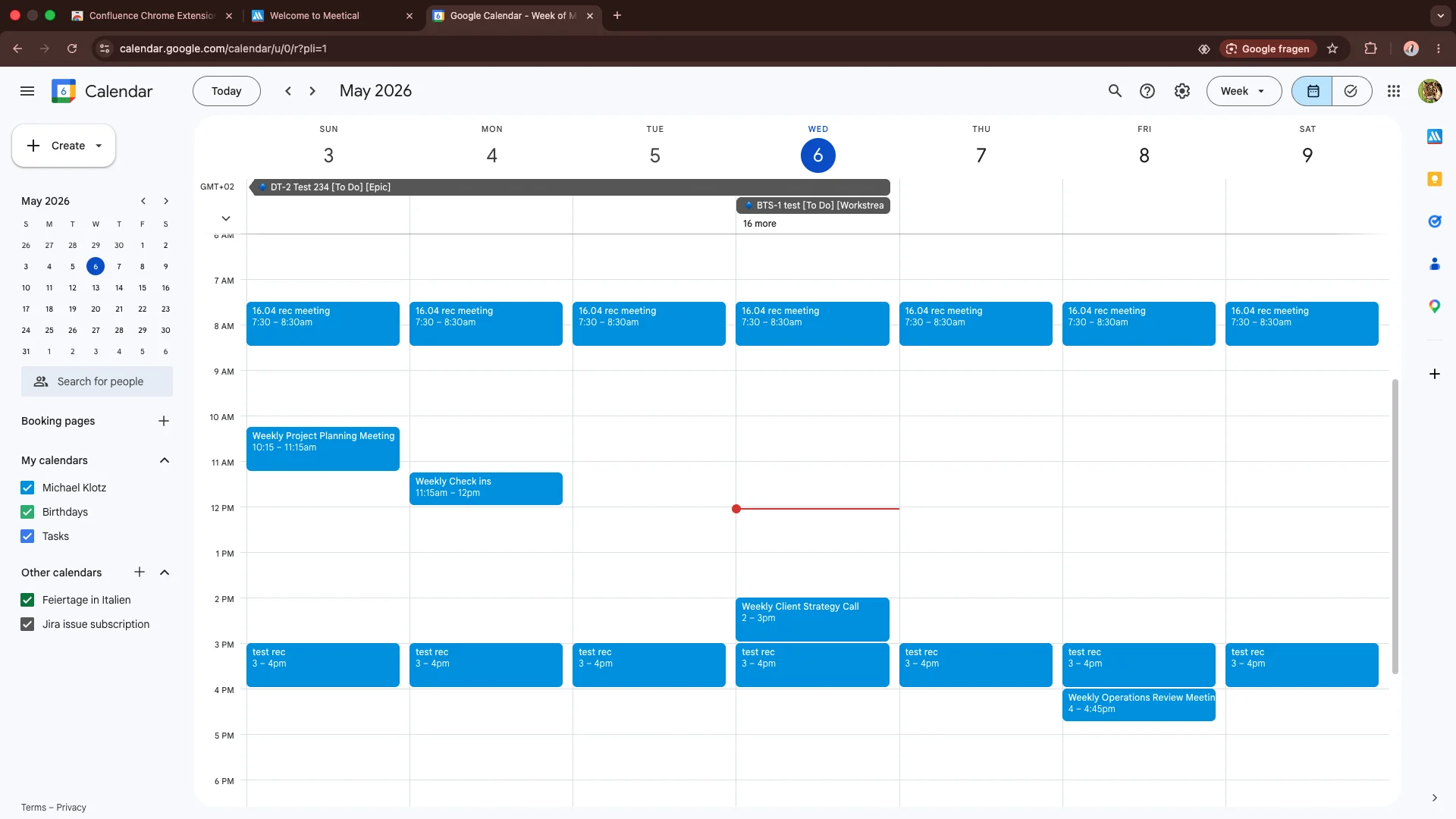
Open Google Calendar and sign in with your Google account. This is your sign-in to Google Calendar, not to Meetical.
-
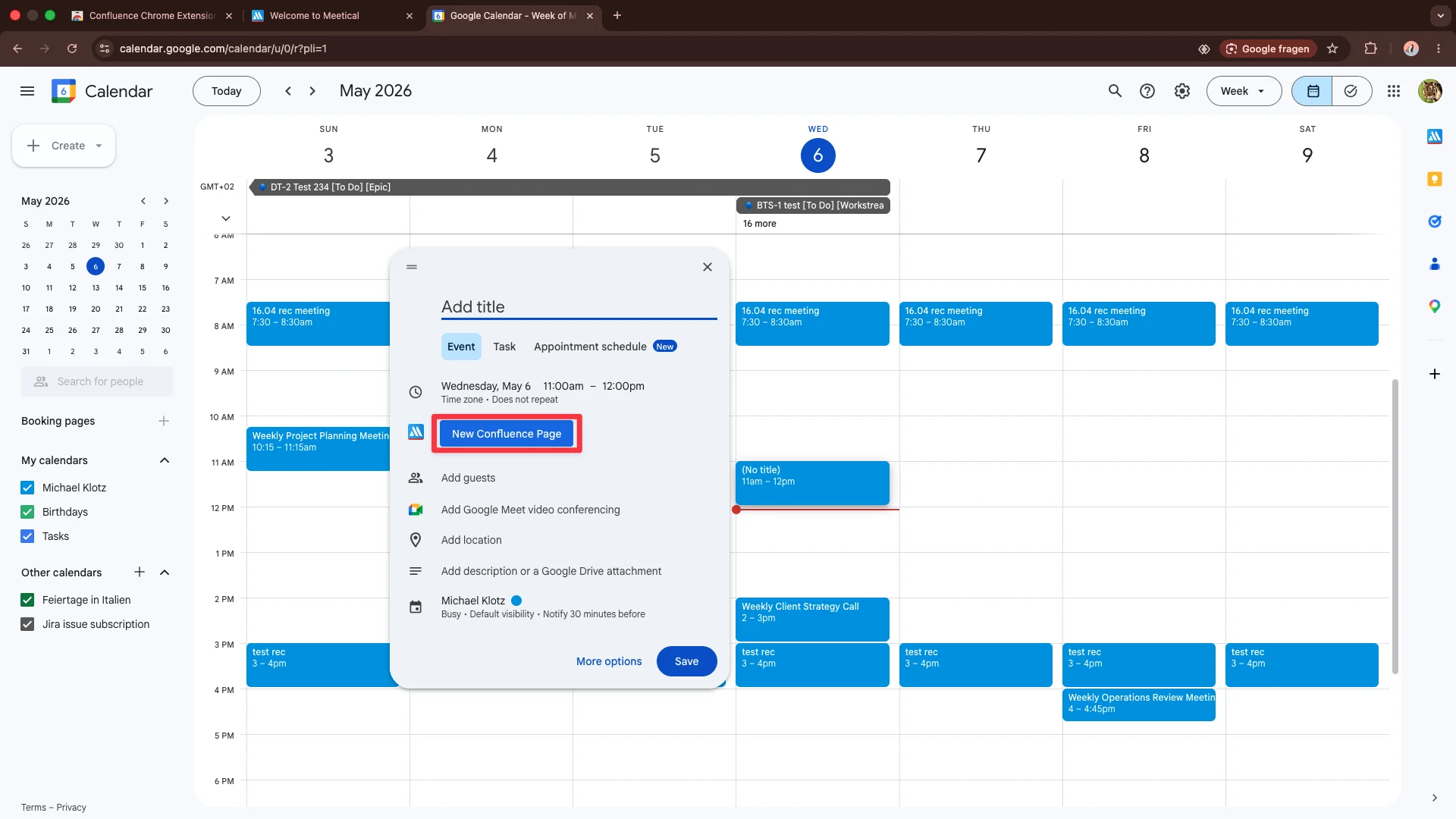
Create a new calendar event and click Login to sign in to Meetical from the Chrome extension.
-
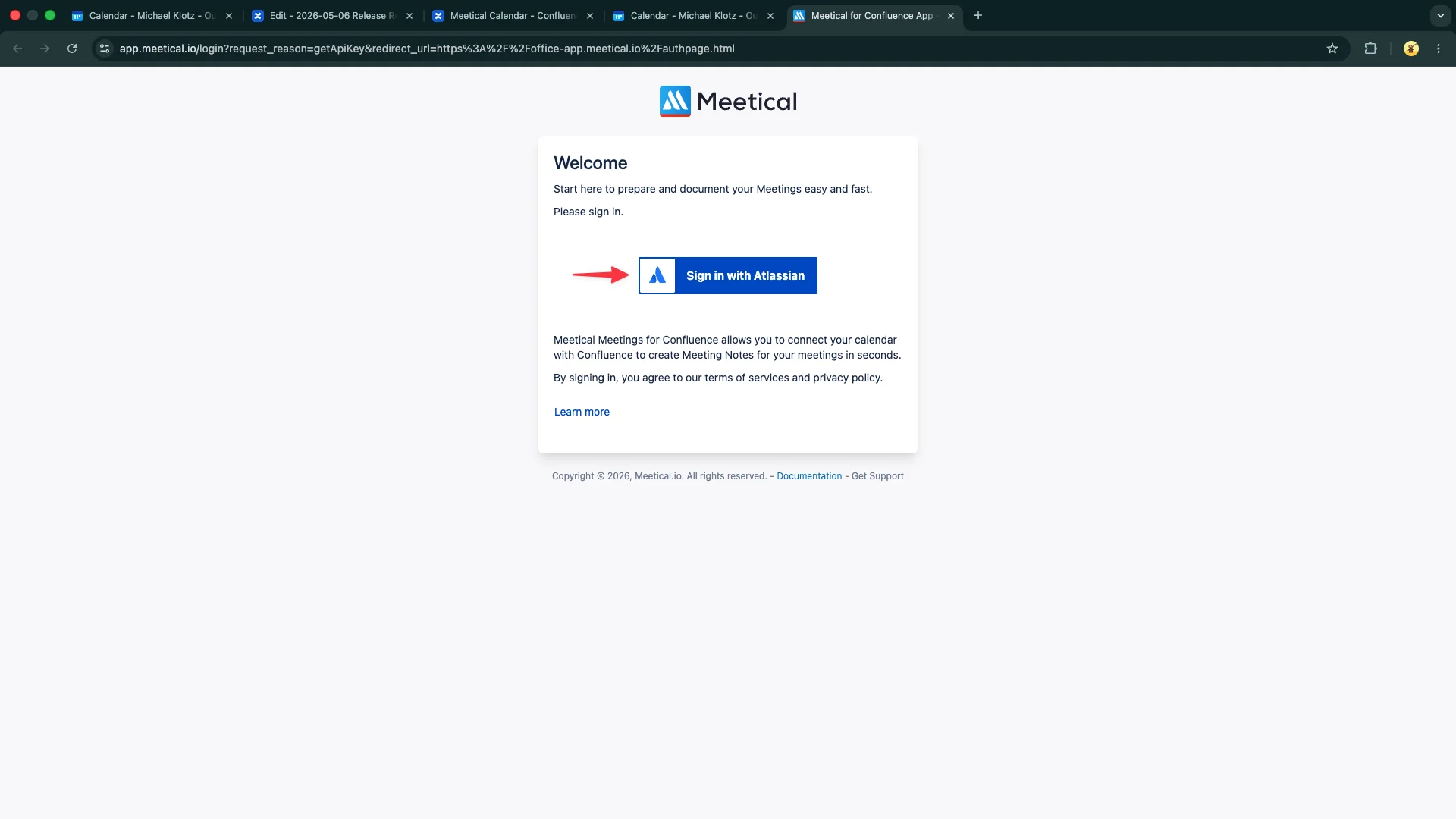
Sign in with your Atlassian account. On Atlassian’s sign-in screen, pick the Confluence site where Meetical is installed and click Accept. The site you pick becomes your Meetical site. One Meetical account works with one site.
-
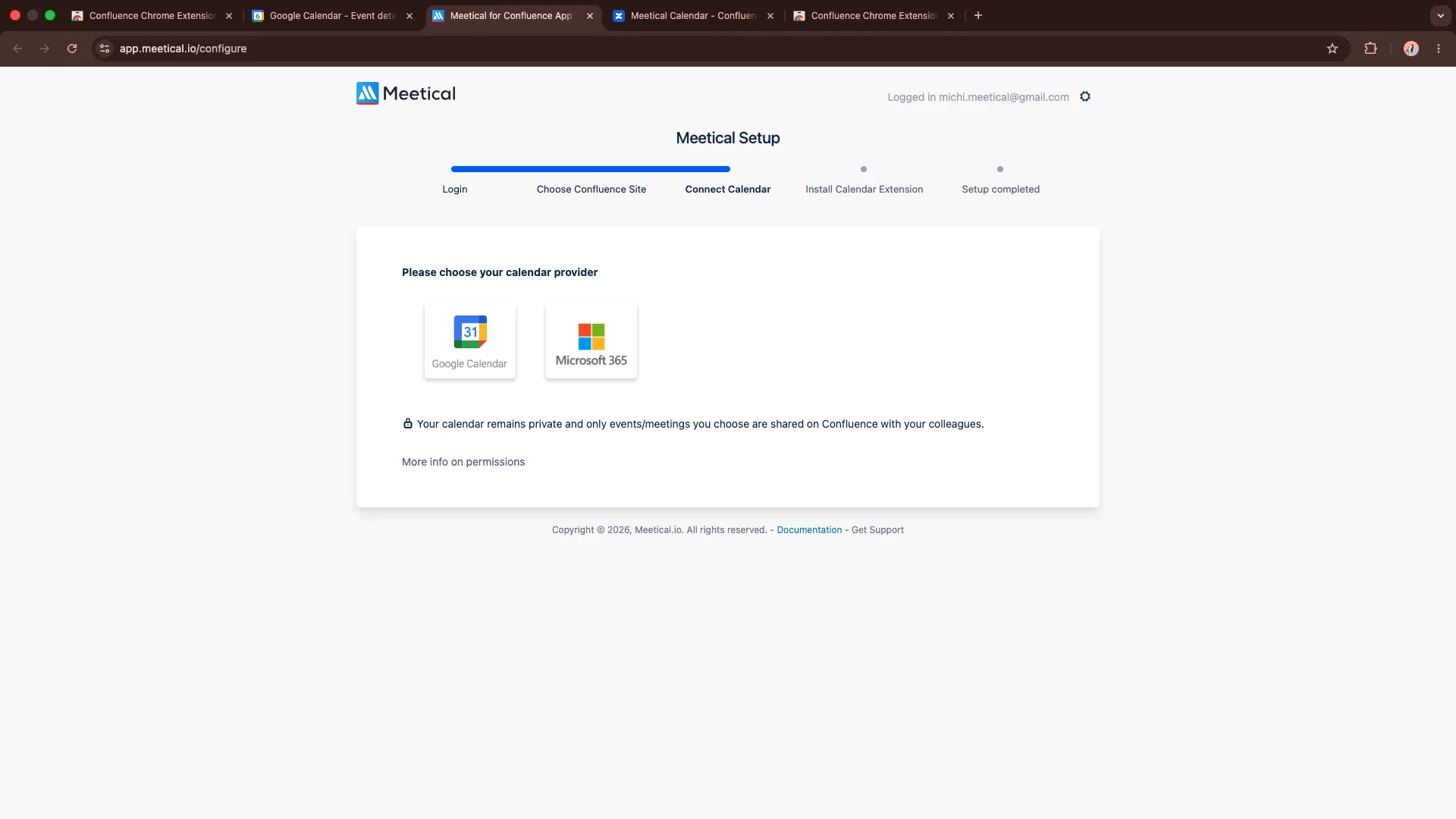
Follow the Meetical onboarding steps to complete the setup.
-
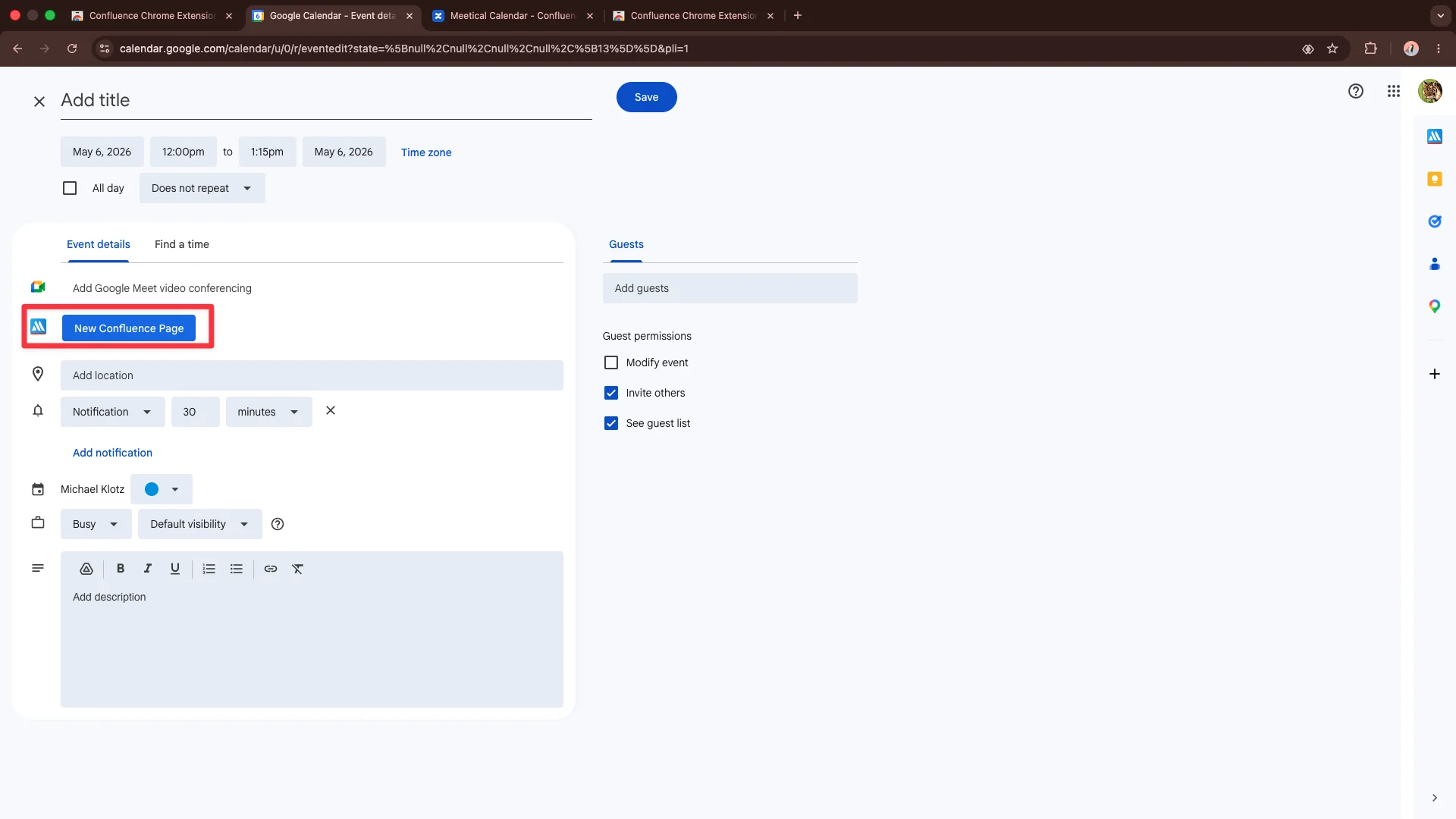
Once the setup is complete, you can create a New Confluence Page from Google Calendar.
Next step
You have successfully set up the Meetical Chrome extension.
Check out this tutorial next:
Thank you for reading this guide. If you have any questions, please contact us at support@meetical.io.