
Learn how to install, set up, and use the Meetical Outlook add-in to create Confluence meeting pages directly from the Microsoft Outlook Calendar.
Already installed? Then, use the Outlook add-in to create a meeting page.
Meetical provides a Calendar Add-In to create and manage Confluence Meeting Notes directly in Microsoft Outlook
Supported Outlook Versions (Web and Desktop):
-
Outlook 2013 or later
-
Outlook 2016 or later
-
Outlook 2016 or later for Mac (now supported!)
-
Outlook on the Web
Get the Outlook Add-in on the Microsoft Store -> Confluence Meeting Notes Outlook Add-in
Please note: As an alternative to the official Microsoft AppSource store, you can install the add-in as a custom add-in. Please reach out to support.
After you install the calendar add-in to the web calendar, it will also appear on Outlook desktop (and vice versa).
How to install the Outlook Add-in
In this guide we use the Outlook Web Calendar.
-
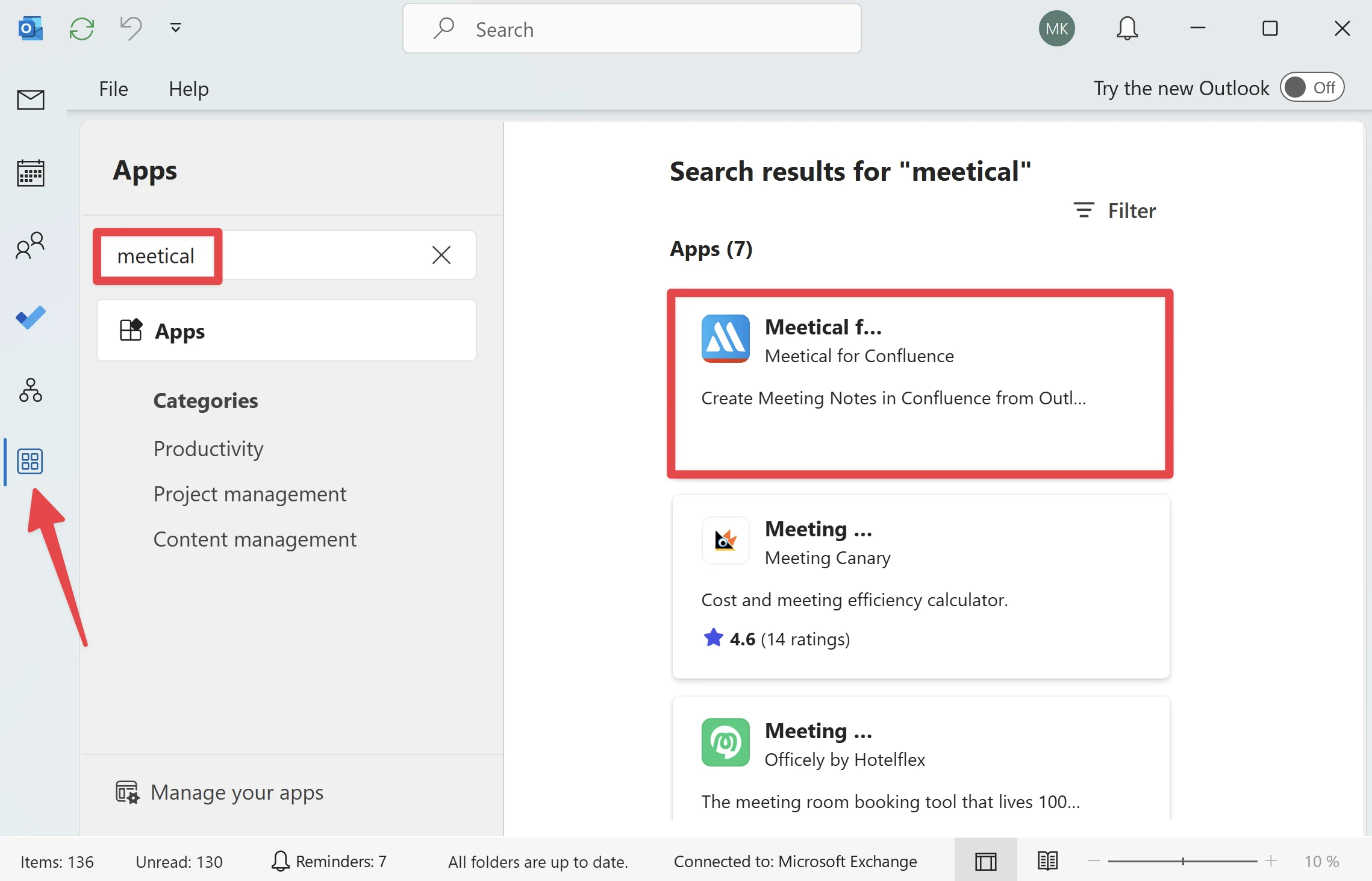
On Outlook Desktop, click the management icon and search for “Meetical”
-
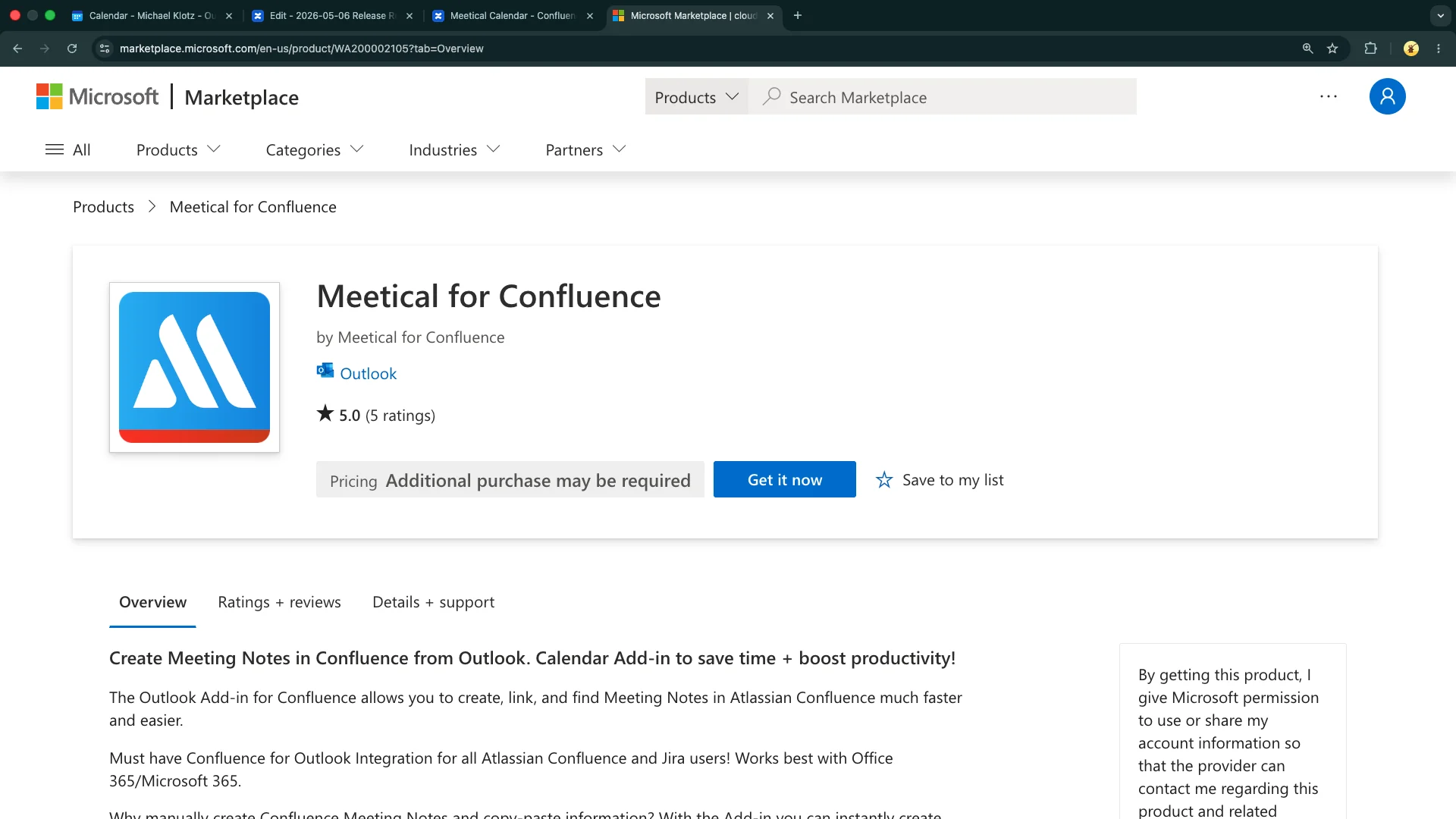
Or find Meetical in the Microsoft AppSource Store:
-
Search for 'Meetical' in the integrated Add-in Store
-
You can also find the add-in here: https://appsource.microsoft.com/en-us/product/office/WA200002105
-
-
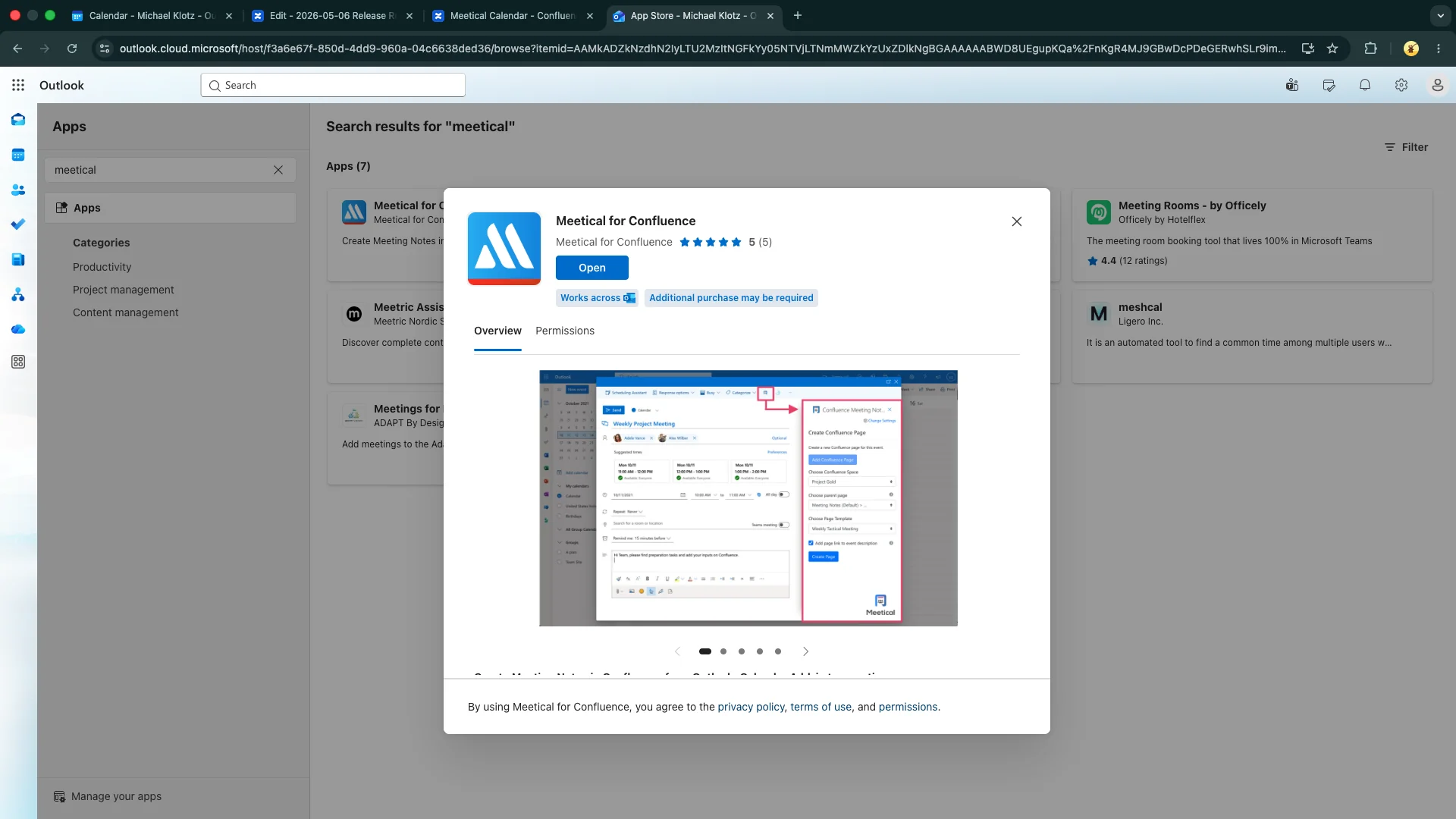
The Outlook Calendar add-in was successfully installed.
Login to Meetical through the add-in
-
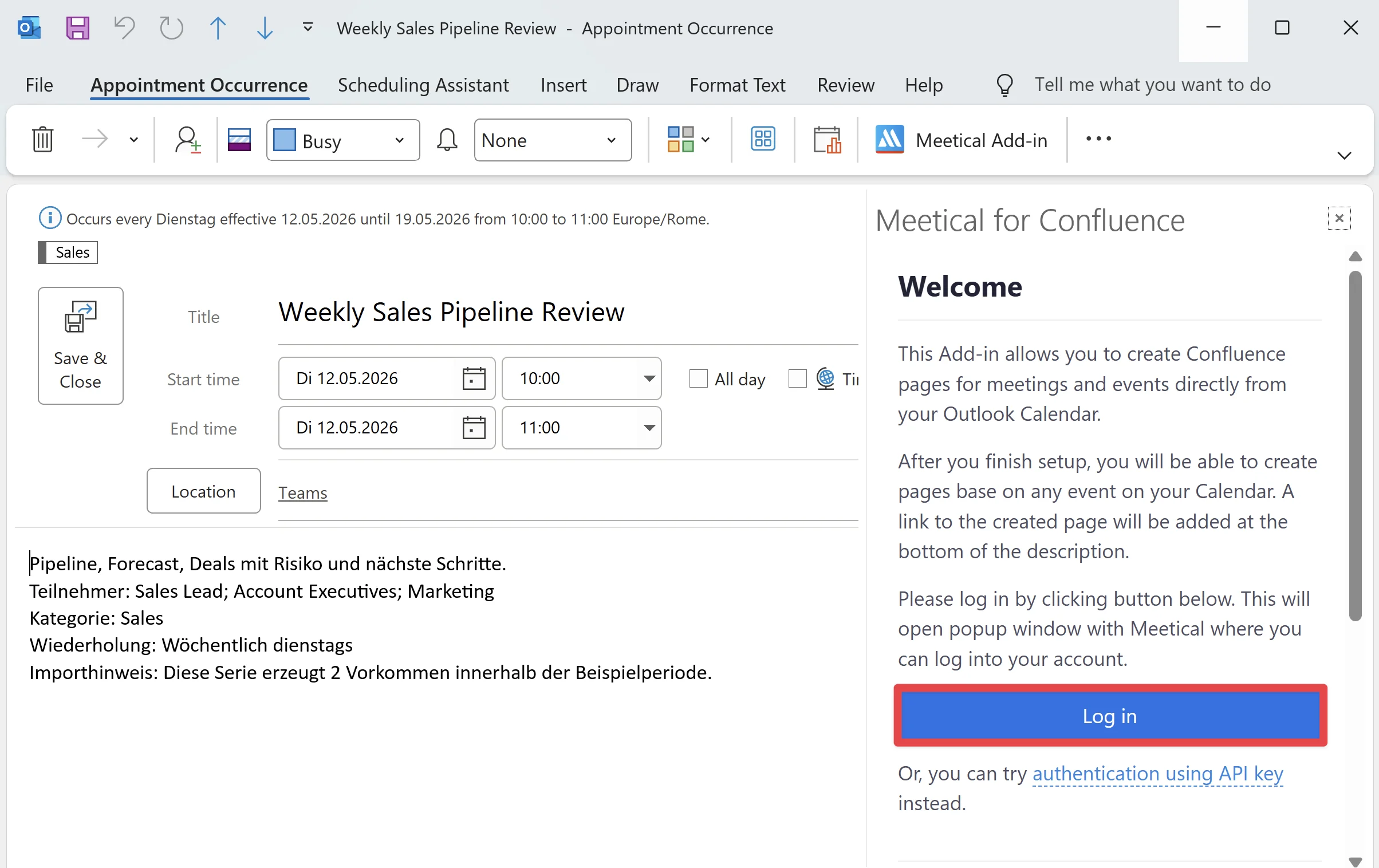
Click the Meetical add-in on any event editor and click on “Log in”.
Make sure you have completed your first-time setup in Confluence before proceeding.
-
Sign in to your Atlassian Account
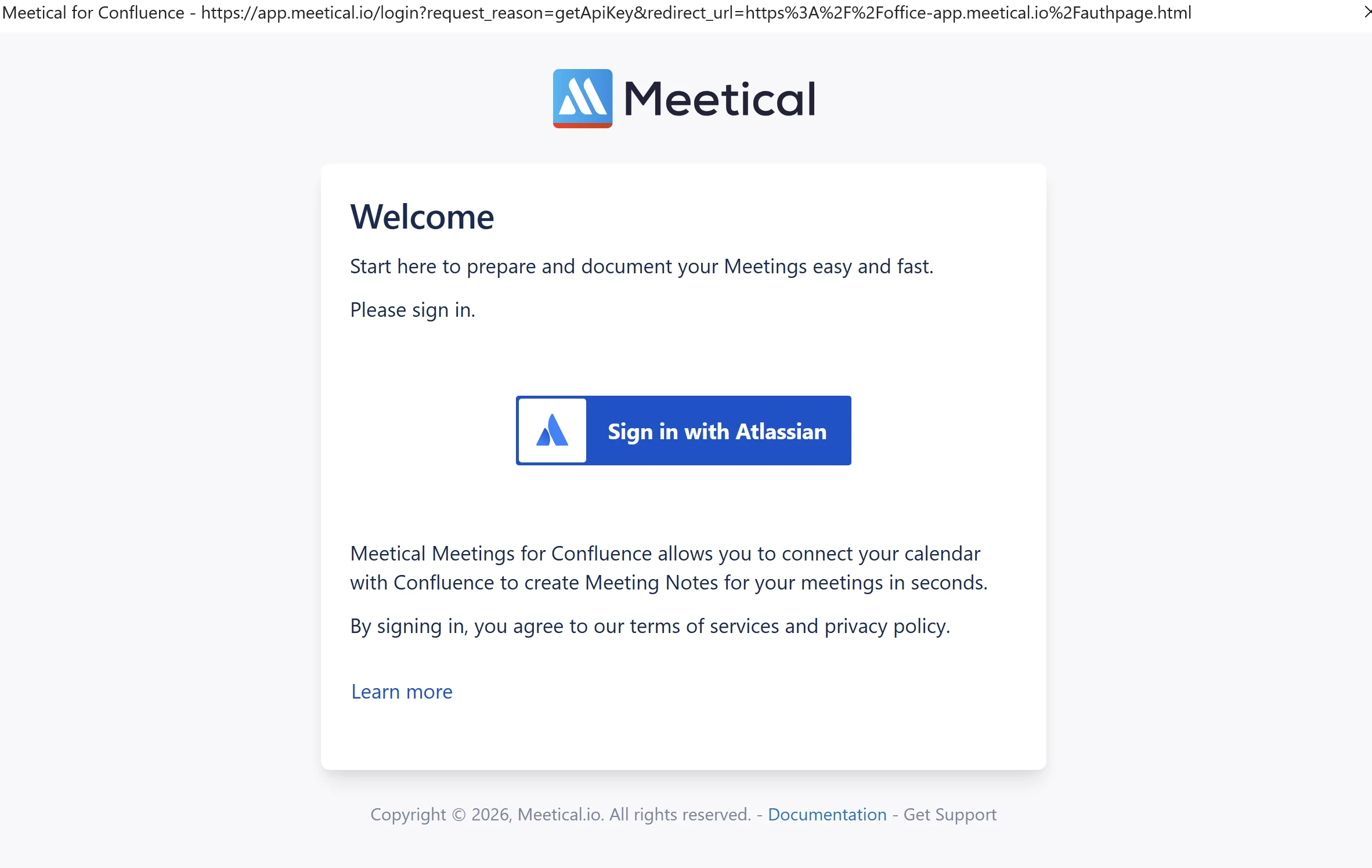
-
Choose your instance and click on “Accept”
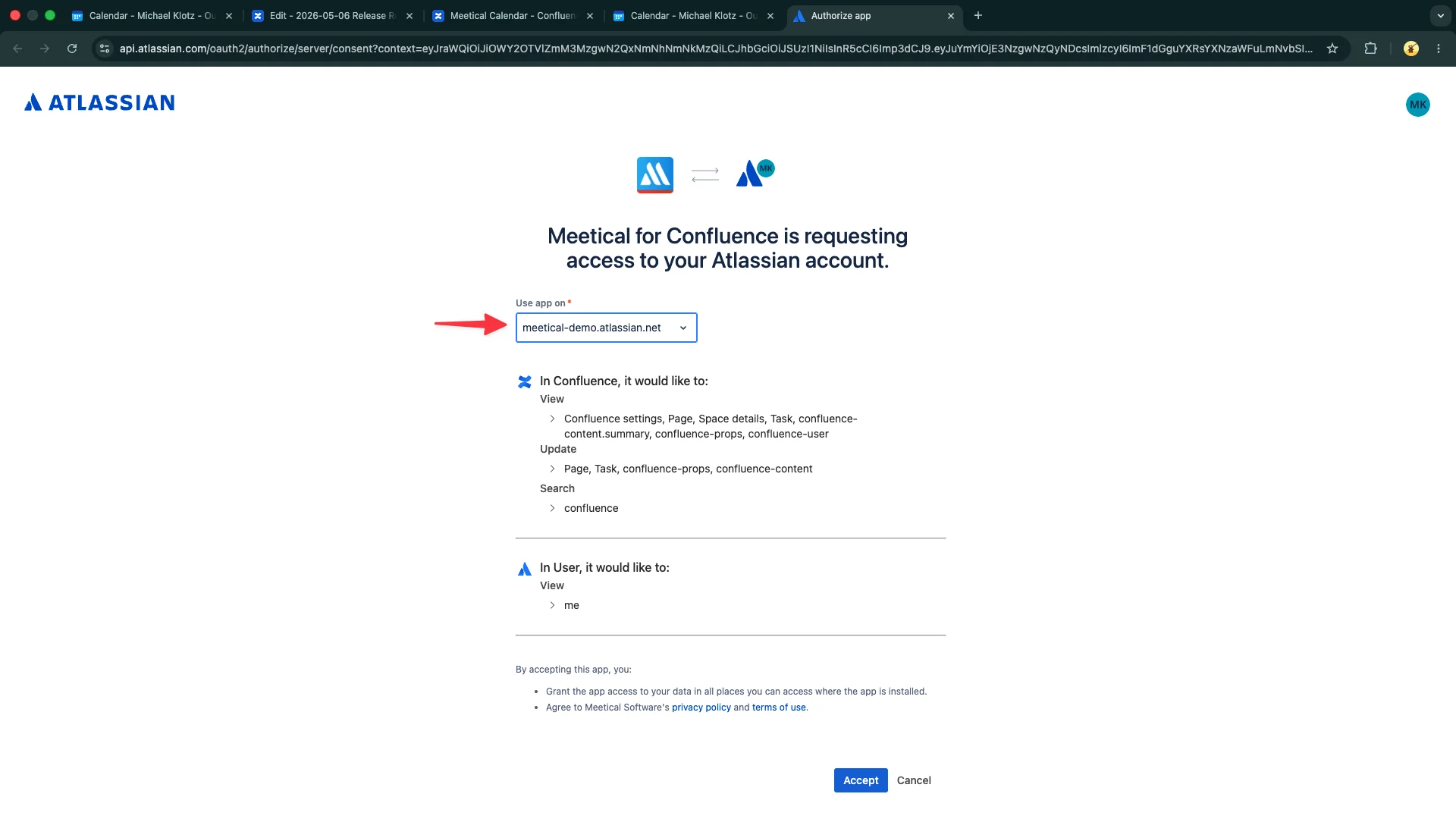
6. Congrats! You’ve successfully installed and set up the Meetical Outlook Calendar Add-in.
The calendar add-in should now show the "Add Confluence Page" section and be ready to use.
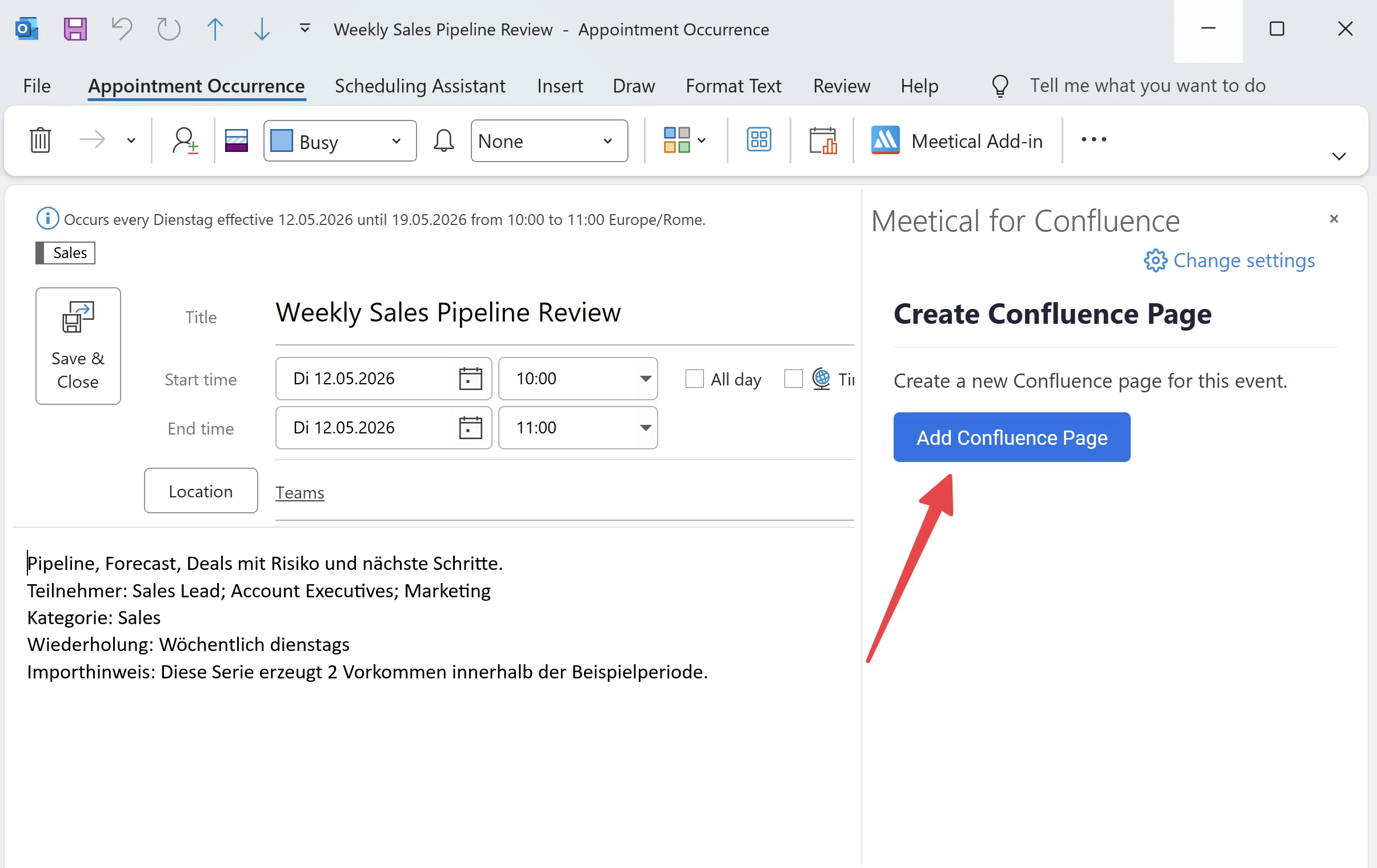
Check out this guide on how to use the Outlook add-in to create a Confluence meeting page from Outlook.
For questions and feedback, please contact support.