
If you decide to stop using Meetical Meetings, here is an uninstallation guide.
If you have feedback or questions, please contact us via our Support Portal. Your honest feedback is helping us a lot, and if there is anything we've fallen short on, please give us a chance to make it right for you. Thank you.
If you want to get rid of the Meetical button to create Confluence pages in your Google Calendar or in Outlook, follow this guide.
1) Uninstall Meetical Chrome extension.
To uninstall the Meetical for Confluence Chrome extension, simply navigate to "Extensions" -> "Manage Extensions" and click on "Remove.” This should be it.
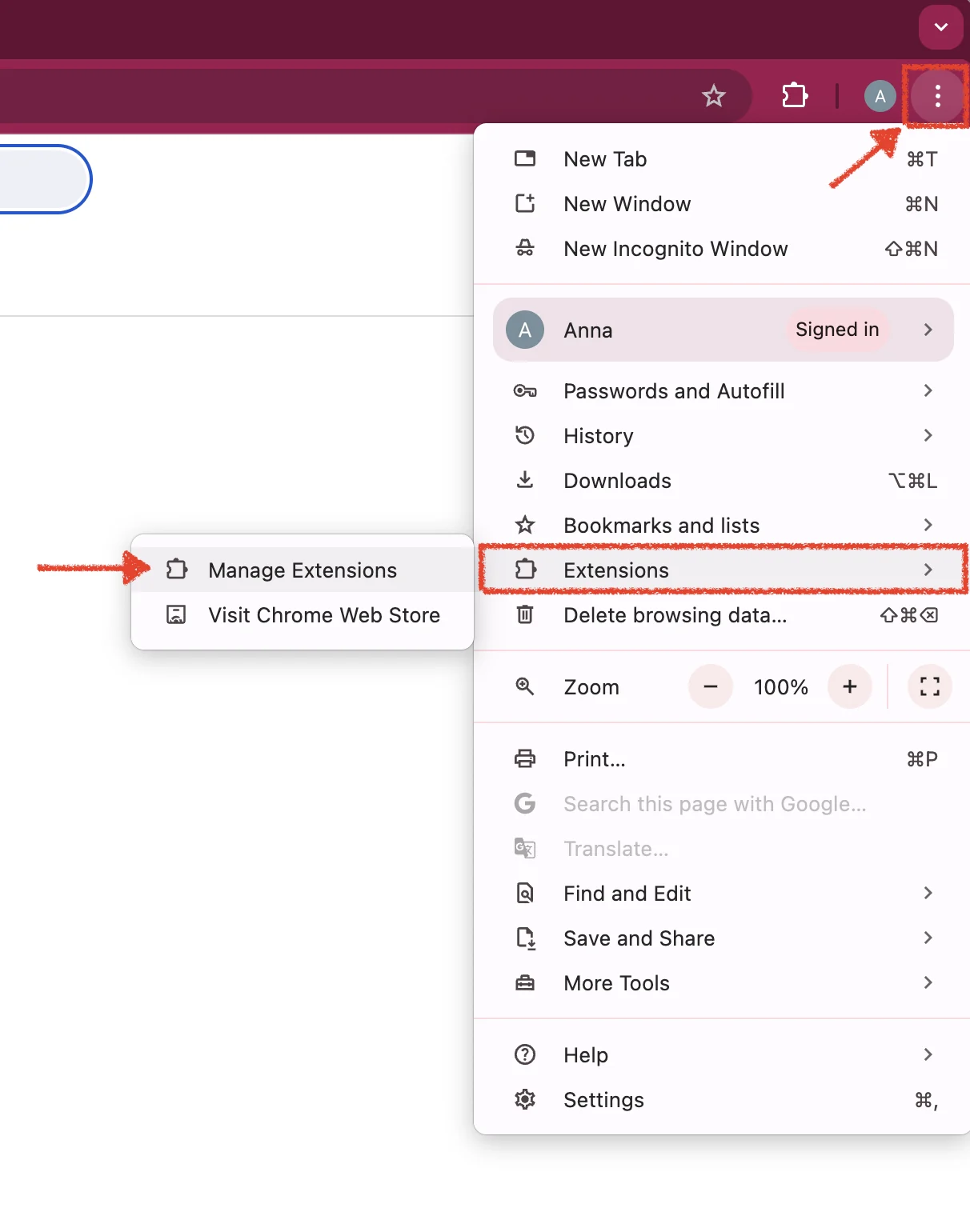
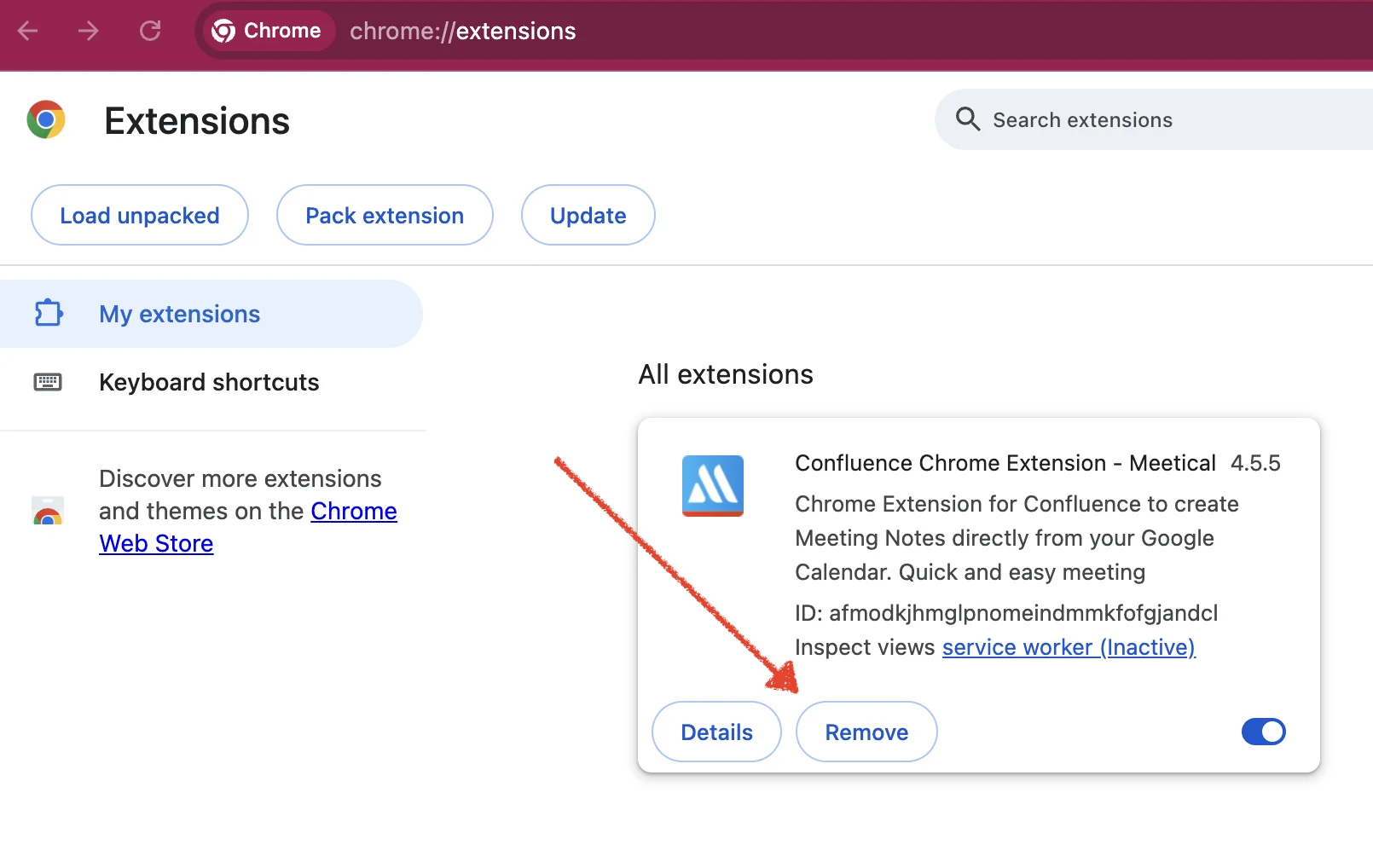
Important: Google Workspace Admins can install and roll out extensions for the whole organization. If your Google Workspace admin did install the extension for you, then please contact them so they remove it for you and/or your entire organization.
2) Uninstall Meetical Outlook Add-in
To uninstall the Outlook add-in, the simplest way is to follow this link: https://aka.ms/olksideload
Then go to "My add-ins,” find "Confluence Meeting Notes," and remove the add-in.
Alternatively, do a quick Internet search for "How to uninstall Outlook Add-in,” because Microsoft is constantly changing how things work.
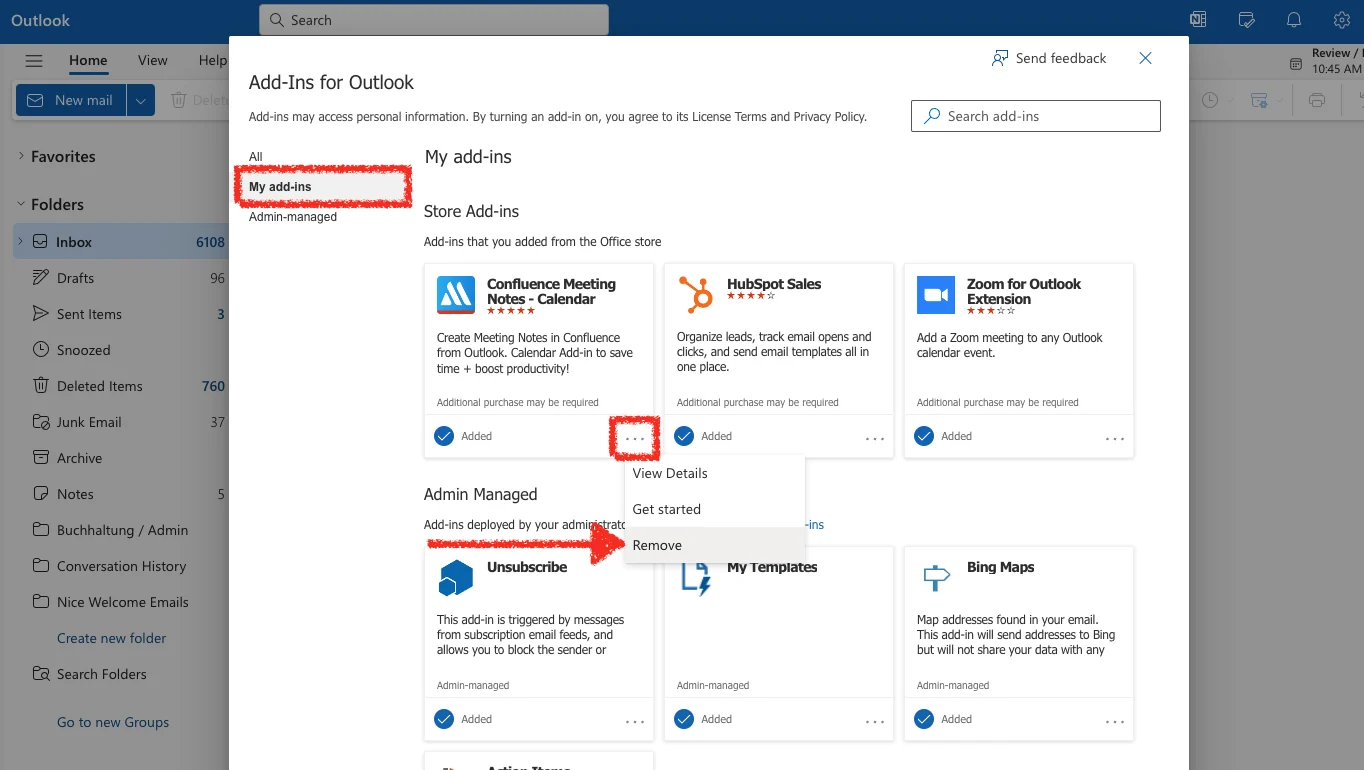
Important: If your Office Admin did install the Outlook Add-in for you, please contact them so they can remove it for you and/or your entire organization.
3) Uninstall the Meetical Meetings for Confluence app.
If you want to stop using Meetical altogether, you need to be a Confluence admin to stop your trial/subscription and remove the app from your Confluence instance. Please note that macros on meeting pages will stop working. And you won't be able to create any pages. All automations will stop working.
To uninstall the app, navigate to "Apps" -> "Manage Apps” -> “Meetical Calendar." First, stop your trial/subscription. Then, click on "uninstall" to completely remove the app. Please note that we will retain authentication and preferences for your users for some time but will then automatically clean them up. Currently, we don't remove users from our CMS. If you want us to unsubscribe your entire organization from any communication, please contact support.
Please note that you have to manually delete any templates that you created specifically for Meetical. Navigate to Global Templates and check if you need to clean up some templates. In addition, there might be additional space templates that need to be removed.
Thanks for using or trying our solution in the first place; we hope to see you again one day and are always open for feedback and questions.