
When you connect your Microsoft 365 (Outlook) calendar to Meetical, Microsoft asks you to allow Meetical to:
-
Have full access to your calendars (
Calendars.ReadWrite), so Meetical can read your meetings and add the link to each meeting's Confluence page to the calendar event. -
Maintain access to data you have given it access to (
offline_access), so Meetical keeps your calendar in sync without asking you to sign in again.
Meetical asks for nothing else: no access to mail, contacts, files or other people's data.
Microsoft's approval screens may also list View users' basic profile. Microsoft adds this line itself; Meetical doesn't request or use it.
Error messages the end users might see
Your organization's Microsoft Entra settings decide whether you may allow this yourself. If you may not, you will see one of these:
-
"Need admin approval"
-
"Approval required", with a field to enter a reason and a Request approval button
-
An error such as AADSTS90097 or AADSTS65001
In all of these cases, an IT administrator has to approve Meetical once for your organization. Share this page with them, or send them the approval link https://app.meetical.io/auth/microsoft/admin-consent.

Approve Meetical for your organization
Any of the options below works. Option 1 is the quickest. Approving needs one of these Entra roles: Global Administrator, Cloud Application Administrator or Application Administrator.
Option 1 (recommended): Approve Meetical for your organization with one link
An administrator opens one link and approves Meetical for everyone. You don't need a Meetical account, access to Confluence or a connected calendar for this.
-
Open https://app.meetical.io/auth/microsoft/admin-consent. A Meetical page says what Meetical asks for and who can approve it. Click Continue to Microsoft.
-
Sign in with your Microsoft 365 administrator account.
-
Microsoft shows Meetical for Confluence and the permissions it asks for on behalf of your organization. Check them and click Accept.
-
A short Meetical page confirms that Meetical is approved for your organization. You can close it.
Meetical is a verified publisher in Microsoft Entra, so Microsoft's screen shows the verified publisher badge next to Meetical's name.
Screenshot to add: Microsoft's approval screen for Meetical for Confluence, with the verified publisher badge and the permissions requested for the organization.
If you sign in with an account that has none of the roles above, Microsoft can't approve Meetical and the Meetical page tells you so. Sign in with an administrator account, or forward the link to your administrator.
Find the link in Meetical Admin
Confluence administrators find the same link in Meetical and can send it to their Microsoft 365 administrator:
-
Go to Confluence administration → Apps → Meetical Admin.
-
Open the Calendars tab and choose Microsoft 365.
-
Open Approve Meetical for your Microsoft 365 organization and copy the link.
The Calendars tab also shows who on your site has connected their calendar, whose connection stopped working, and why, for example Blocked by your organization's policy. Approving Meetical fixes these blocks for everyone at once.
Screenshot to add: the Calendars tab in Meetical Admin with the Approve Meetical for your Microsoft 365 organization panel open, showing the link and its copy button.
Everyone in your organization can now connect Meetical without being asked for approval.
Option 2: Connect your own calendar as an administrator
-
In Meetical, start the calendar setup at https://app.meetical.io and choose Microsoft.
-
Sign in with your administrator account.
-
On Microsoft's permission prompt, tick Consent on behalf of your organization and click Accept.
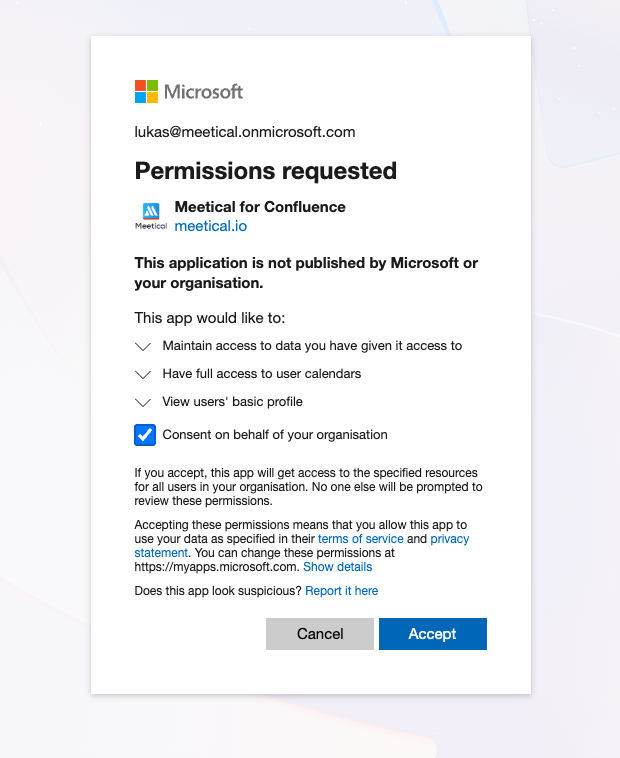
Everyone in your organization can now connect Meetical without being asked for approval. Note that the checkbox is only shown to administrators.
Option 3: Grant admin consent for the Meetical Enterprise application
Meetical only appears in your Entra admin center once it has been approved or someone in your organization has successfully connected it. A blocked connection attempt does not add it. If you can't find it, use Option 1 instead.
-
Sign in to Azure Portal at https://portal.azure.com/ or Microsoft Entra admin center at https://entra.microsoft.com/ (both allow you to control Enterprise Apps)
-
Go to Enterprise applications
-
Open Meetical for Confluence (Application ID 08a715ef-abc1-42d1-8ef3-4a872b383efe)

-
Open Permissions and click Grant admin consent for <your organization>.
-
Sign in, check the permissions and click Accept.

Option 4: let users request approval
With the admin consent workflow, users who are not allowed to approve Meetical themselves can send a request to selected reviewers instead of hitting a dead end.
-
Go to Entra ID → Enterprise apps → Consent and permissions → Admin consent settings.
-
Set Users can request admin consent to apps they are unable to consent to to Yes.
-
Add at least one reviewer (users, groups or roles) who may approve requests.
-
Set Selected users will receive email notifications for requests to Yes, then Save.

Without a reviewer, users still see Request approval, but sending the request fails with AADSTS90097. Make sure at least one reviewer is selected.
The admin consent workflow applies to all apps in your tenant, not just Meetical. Please align with your security team before turning it on.
Users then see Approval required, enter a reason and click Request approval:
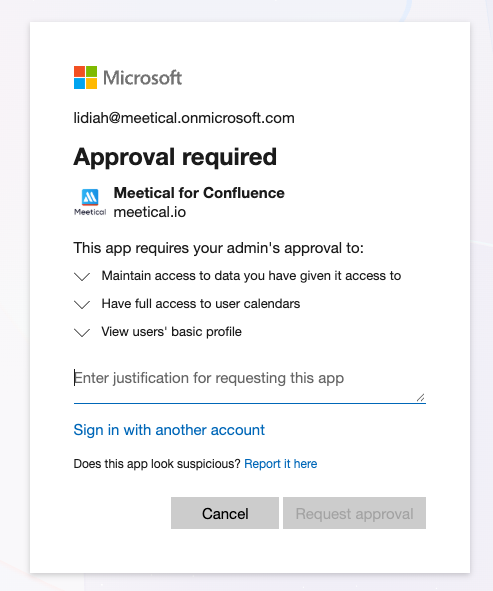
Reviewers get an email. To approve the request:
-
Go to Enterprise apps → Admin consent requests. The request is listed under My Pending.
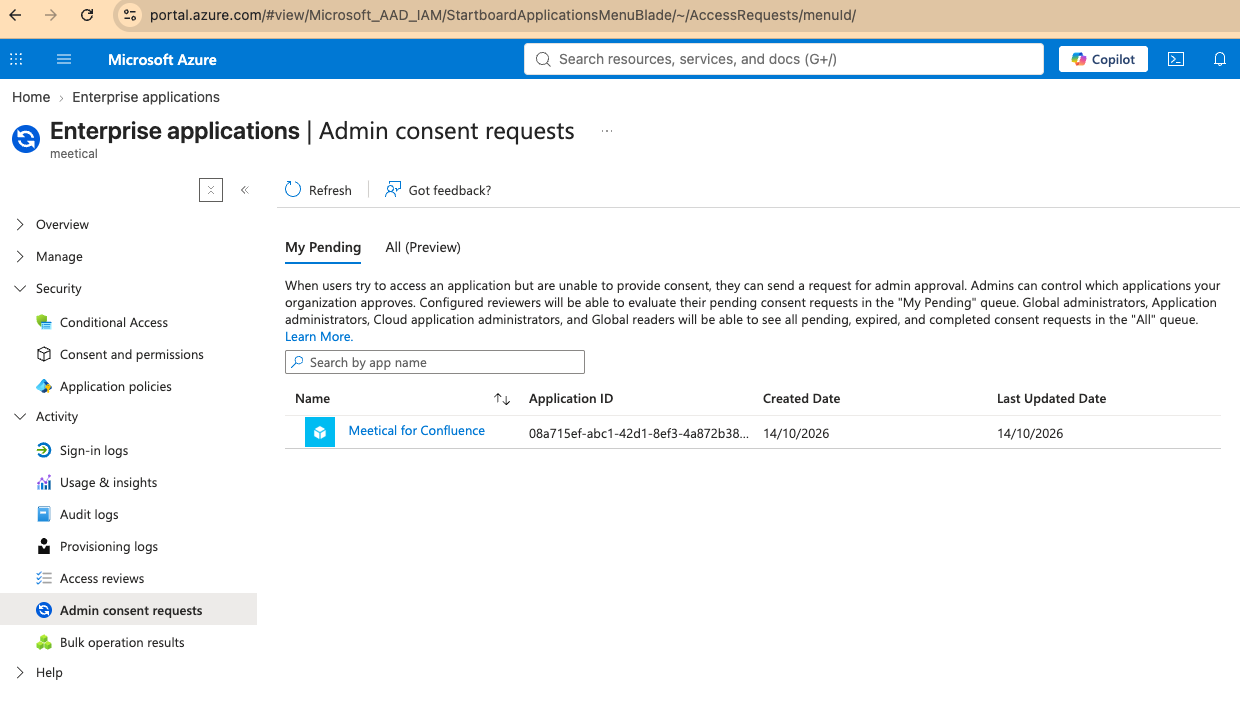
-
Open Meetical for Confluence and click Review permissions and consent.
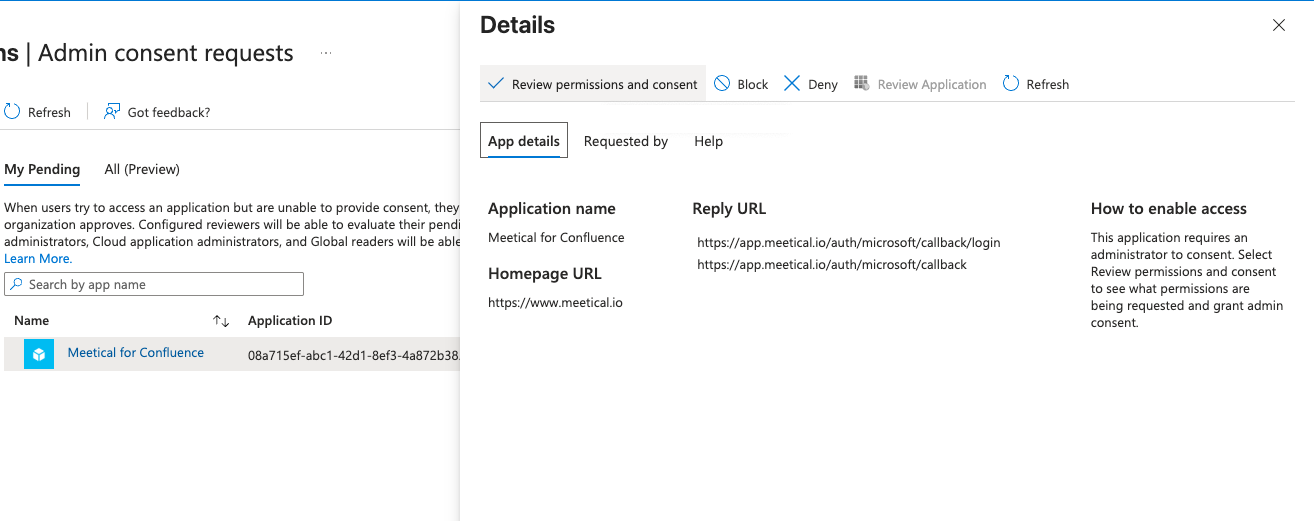
-
Check the permissions and click Accept.
Approving a request approves Meetical for the whole organization, as in the other options.
Option 5: let people approve Meetical themselves
Meetical is a verified publisher, so instead of approving it for everyone at once you can let each person approve it when they connect their calendar. Microsoft allows this only for apps from verified publishers that ask for permissions you have classified as low impact.
-
Go to Entra ID → Enterprise apps → Consent and permissions → User consent settings.
-
Choose Allow user consent for apps from verified publishers, for selected permissions and click Save.
-
Open Permission classifications, click Add permissions, choose Microsoft Graph and add
Calendars.ReadWrite,offline_accessandprofile(the View users' basic profile line). Click Add permissions.
Screenshot to add: User consent settings with Allow user consent for apps from verified publishers, for selected permissions selected, and Permission classifications listing the three permissions.
These settings apply to every app from a verified publisher that asks only for permissions you classified as low impact, not just Meetical. Please align with your security team. If your organization doesn't want people to approve apps themselves, use Option 1.
People then see Microsoft's usual permission prompt with the verified publisher badge and can click Accept themselves.
Only allow selected users (optional)
After approving Meetical, you can limit it to specific people:
-
Go to Enterprise apps → Meetical for Confluence → Properties.
-
Set Assignment required? to Yes and click Save.
-
Open Users and groups, click Add user/group, and add the people or groups who may use Meetical.
Everyone else gets a message that they are not assigned to the application (error AADSTS50105).
Troubleshooting
-
Find the exact reason for an error. Microsoft's error page shows a Correlation ID and a Timestamp. An administrator can look these up under Entra ID → Monitoring & health → Sign-in logs, filter by the correlation ID, and see the failure reason in the entry's details.
-
AADSTS90097 or AADSTS65001 (consent required): Meetical hasn't been approved for your organization yet. Use one of the options under Approve Meetical for your organization.
-
AADSTS90097 right after clicking Request approval: the admin consent workflow is on, but no reviewer is selected. Add at least one reviewer (Option 4, step 3).
-
AADSTS50105 (user not assigned): Assignment required? is on and the user isn't in Users and groups. Add them, or set it back to No.
-
Still stuck? Contact Meetical support and include the correlation ID and timestamp from the error page.