
This guide describes Meetical Admin, the Meetical admin panel in Confluence: where to find it, what each tab does, and which settings apply to the whole site versus a single user. It is written for Confluence site administrators and solution partners. For installation, rollout and the browser extension, see the Installation and Power User Guide.
Overview
Where to find Meetical Admin
Open Confluence Settings (the gear icon on the top right next to your user account icon), then under Apps choose “Meetical Admin”. Confluence also lists a Getting started entry for Meetical, which is a short first-run page that links into Meetical Admin.
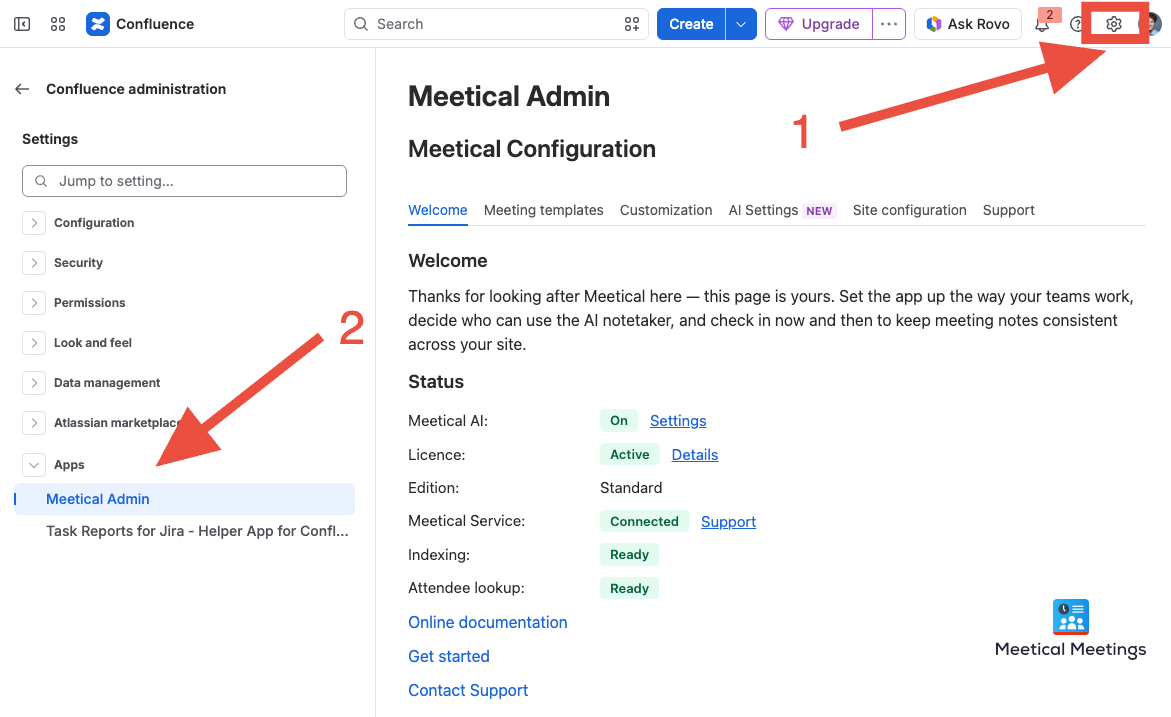
The tabs
-
Welcome: the status of Meetical on your site.
-
Calendars: who has a calendar connected, whose connection stopped and why.
-
Templates: every template users are offered when they create a meeting page.
-
Parent pages: where new meeting pages go in each space.
-
AI Settings: Meetical AI on or off, who can use it, default note settings and included minutes.
-
Data Protection: what the notetaker records, how long it is kept and where the data is.
-
Site: your site and its licence.
-
Support: diagnostics to copy into a support request.
Who can change settings
Only Confluence site administrators can view Meetical Admin and change a setting. Meetical checks this on the server for every admin action, not only in the Confluence menu. Each admin sees and manages their own site only.
Site-wide versus per-user settings
Meetical has three levels of configuration. Understanding them avoids most support questions.
|
Level |
Set by |
Where |
Examples |
|---|---|---|---|
|
Site |
Confluence admin |
Meetical Admin: AI Settings, Data Protection and Templates tabs |
Meetical AI on or off, who may use the AI notetaker, default note settings, how long recordings are kept, audio only or audio and video, global meeting templates |
|
Space and organisation, label driven |
Anyone who can edit the page |
Labels on pages and templates, shown on the Templates and Parent pages tabs |
Preferred parent pages, preferred templates, defaults per space |
|
User |
Each user (own settings); the series owner, its participants and Confluence admins (per-series automation) |
Meetical Calendar, Create page and Agenda settings, AI notes settings |
Calendar connection, page location, per-space note preferences, per-series automation, ai-preferences |
Site defaults never override a choice a user has already made. A per-series setting wins over a user's space setting, which wins over the site default. There is currently no way to force an org-wide setting on all users. If your organization needs that, tell us via the support portal.
Welcome tab and site status
The first tab shows a status overview of your Meetical installation. Each row links to the tab where you can act on it. The tab also links to the online documentation, the Getting started page and Meetical support.
|
Row |
Values |
What it means |
|---|---|---|
|
Meetical AI |
On / Off |
The site-wide AI switch, see AI Settings. A warning banner appears while it is off. |
|
Licence |
Active / Inactive / Not reported |
Licence status as reported by Atlassian, with details on the Site tab. "Not reported" usually means the app was installed moments ago. |
|
Edition |
Standard / Advanced |
The Marketplace edition your site is on. |
|
Meetical Service |
Connected / Not connected |
Whether the app has registered with the Meetical backend. If not connected, see Support. |
|
Calendars |
N connected, N not working |
How many people have a working calendar connection, and how many connections Meetical has given up on. Details on the Calendars tab. |
|
Indexing |
Ready / Not indexed |
Whether Confluence has indexed Meetical's page properties. Without it, meeting reports and parent page lookups return nothing. Errors here are many times related to an outage of Confluence itself. |
|
Attendee lookup |
Ready / Not ready |
Whether the email-to-user cache is populated. It is needed to map calendar attendees to Confluence users for @mentions and watchers. |
Screenshot to add: the Welcome tab with the eight tabs across the top (Welcome, Calendars, Templates, Parent pages, AI Settings, Data Protection, Site, Support) and the Status block with its rows Meetical AI, Licence, Edition, Meetical Service, Calendars, Indexing and Attendee lookup.
Calendars tab
Meetical only works for people whose calendar is connected. This tab shows who on your site has a calendar connected, whose connection stopped working and why, and how to fix the most common cause for everyone at once. It is for Confluence admins only and shows your own site only.
Microsoft 365 or Google
A switch at the top shows one provider at a time, with the number of people on each. It opens on the provider your site mostly uses. The other one is a click away.
Fix it for everyone
Many organizations only let IT approve apps. People then cannot connect their calendar, and only an administrator of your calendar platform can change that. The tab gives you the link to send them:
-
Approve Meetical for your Microsoft 365 organization. Opening the link approves Meetical once for everyone. Your Microsoft 365 administrator does not need a Meetical account or to connect their own calendar. If a Conditional Access policy blocks Meetical (code AADSTS53003), approving is not enough: the policy has to allow Meetical.
-
Allow Meetical in Google Workspace. The link shows Meetical's client ID and how to add Meetical as a trusted app. Each person then confirms access to their own calendar once.
Use Open if you are that administrator yourself, or Copy link to forward it. The box opens by itself while people are blocked by policy or nobody is connected yet. Each provider also links to its setup guide.
Connection states
Four tiles count the people in each state. Click a tile to list them.
|
Tile |
What it means |
|---|---|
|
Connected |
The calendar is connected and syncing with Meetical. |
|
Suspended |
The sync ran into a problem and Meetical is retrying by itself. Most recover without anyone doing anything. If someone stays here for days, ask them to connect their calendar again. |
|
Not working |
Meetical has given up until the person connects their calendar again. Policy blocks come first, because approving Meetical fixes them for everyone at once. |
|
Not connected |
People with a Meetical account on your site but no calendar connected: their connection stopped a while ago, or they never connected one. A connection your organization blocked never reaches Meetical, so those people are here too. If many people are here, a block is the likely reason. |
For Suspended and Not working, the list says what happened:
-
Blocked by your organization's policy
-
Needs to reconnect
-
Account disabled or left
-
Meetical lost access to Confluence
-
Calendar notifications couldn't be renewed
-
Page creation failed
-
Timeout or rate limit
-
Other error
The error code from Microsoft or Google is shown next to it, along with the date it started.
People
People are listed by name, as Confluence shows them to you, with their account ID. No email addresses are shown. The Owns automations tag marks people whose calendar Meetical uses to create meeting pages for others. If their connection breaks, those pages stop too, so fix theirs first.
Screenshot to add: the Calendars tab with the Microsoft 365 / Google switch, the open "Approve Meetical for your Microsoft 365 organization" box with its Open and Copy link buttons, the four tiles Connected, Suspended, Not working and Not connected, and the list below with a person's name, a cause such as "Blocked by your organization's policy" and the Owns automations tag.
Templates tab
This tab shows, in one list, every template users are offered when they create a meeting page:
-
Meetical's included templates, labelled Sys. Those already installed as global templates are checked.
-
Your organization's global templates that carry the label
meetical-template. -
A space's templates. Pick a space under Show space templates of. Spaces that use Meetical are listed first.
For each template you see:
-
the name and a description preview, with the full description on hover,
-
the labels it will put on meeting pages created from it,
-
for Meetical's templates, a status: Installed or Not created ,
-
a default lozenge if it carries the default template label,
-
an Edit button that opens the template in the Confluence template editor.
Manage global templates opens the Confluence page where you edit or delete global templates. For more on space templates, see the Templates docs section.
Installing Meetical's templates
-
Tick the templates you want, or use Select all.
-
Click Create N templates. They are created as global templates, so they are available in every space.
-
Use Refresh to re-read the current state after editing templates in Confluence.
Screenshot to add: the Templates tab with the "When do your own templates take over?" box, the one list with Meetical's templates (Sys label, installed ones checked) and the organization's own templates (labels, default lozenge, Edit), the toolbar with Select all, Refresh and Manage global templates, and the "Show space templates of" space picker.
Which templates are offered to users
Until at least one template carries the label meetical-default-template, users are offered all included templates. From the moment a default is set, only templates labelled meetical-template or meetical-default-template are offered. This lets you take over the template list completely with your own templates.
The tab warns you when:
-
No default template is set. Users are still offered Meetical's included templates next to yours.
-
Multiple default templates exist. The first by name is used. Remove the label from the others.
-
A space has several templates but no default. New meeting pages in that space pre-select the global default, or Meetical's included default if there is none.
-
A space has several default templates. The first by name is used.
Create custom org templates
-
Create a global template, or a space template in that space's settings, the way you create any Confluence template.
-
Add the label
meetical-template. Meetical offers it from then on, and it appears in the list. -
Add any other labels the meeting pages should carry. A meeting page gets its template's labels, except
meetical-templateandmeetical-default-template, which only mark the template. Every meeting page also getsmeeting-notes, which is how a space's Meeting Notes overview and task report find them.
How defaults work
-
meetical-default-templatepre-selects a template for everyone. -
A space template with that label takes priority inside its space, so teams can define their own default.
-
One default per scope. With several, the first by name is used.
-
People can still pick another template when they create a page.
Read the full guide on customising Meetical templates.
Parent pages tab
This tab shows where new meeting pages are created in each space. Parent pages are set with Confluence labels, not in the app: add a label to a page and Meetical picks it up. This keeps the configuration in Confluence, visible to everyone, and lets space owners manage their own structure.
All Meetical labels at a glance. The template labels are covered on the Templates tab.
|
Label |
Put it on |
Effect |
|---|---|---|
|
|
A page |
Offers the page as a preferred location for new meeting notes in that space. |
|
|
A page |
Makes the page the default location for new meeting notes in that space. One per space. |
|
|
A template |
Offers the template when users create a meeting page. |
|
|
A template |
Pre-selects the template and switches the template list to labelled templates only. One per scope. |
Parent pages by space
The tab lists every page on the site that carries one of the two parent labels, grouped by space, with a status per space:
-
Default set : exactly one default parent.
-
No default parent : several preferred parents but no default. The first by title is used.
-
N default parents : more than one default. Remove the extra label.
-
Only parent, in use : a single labelled page, used as the location.
Click Refresh after changing labels. Without any label, meeting pages go under the space's "Meeting Notes" page. Meetical creates it on first use and labels it meetical-default-parent. See structuring spaces with multiple parent pages.
Who these settings belong to
Labels are org-wide: a labelled parent page or template applies to everyone using that space. Each person also has their own settings on the Create page, Agenda and AI notes tabs of Meetical. Those start from the labels and apply to that person only.
Screenshot to add: the Parent pages tab with the two label rows meetical-parent and meetical-default-parent, the "Where do meeting pages go?" box, and the overview of labelled pages grouped by space with their status lozenges.
AI Settings tab
This tab controls Meetical AI, the meeting notetaker that joins calls and writes notes into the meeting page. Everything here applies to the whole site.
Enable AI
The Enable AI toggle is the site master switch. While it is off, nobody on the site can invite the notetaker, and the other controls on this tab are disabled. Switching it on or off is recorded with the account that made the change.
Before enabling AI on a larger site, contact support to get an early access quote. The notetaker announces itself in the call, but participants and external guests should know in advance.
Who can use it
-
Everyone on the site. Anyone who can see a meeting page can invite the notetaker.
-
Selected groups and people. Only members of the allow list can. Everyone else sees the notetaker as unavailable.
The choice is shown even while Meetical AI is off, so you can see that access can be restricted before you switch it on.
Allow list
Shown when Meetical AI is on and "Selected groups and people" is chosen.
-
Type at least two characters to search. Confluence groups are listed before people.
-
Add a group or a person. Each entry shows its type and a Remove action.
-
There is no deny list. To exclude someone, take them out of the listed groups or remove them.
-
Group membership is cached for five minutes, so a change in a Confluence group can take up to five minutes to apply.
-
An empty allow list means nobody can use Meetical AI. The tab warns you in that case.
Screenshot to add: the top of the AI Settings tab with the Enable AI toggle switched on, Who can use it set to "Selected groups & people", and the allow list with a group and a person.
Default note settings
These are the site defaults for AI notes. They apply to users who have not chosen their own settings, and to meeting series without their own settings.
|
Setting |
What it does |
|---|---|
|
Output language |
Language of the generated notes, independent of the language spoken in the meeting. |
|
Template |
The note structure the AI produces, for example a general summary or a structured meeting record. |
|
Identify tasks and assign them to participants |
Extracts action items and assigns them to attendees as Confluence tasks. |
|
Include the full transcript on a child page |
Creates a published transcript sub-page under the meeting page. |
|
Pre-select the AI notetaker when creating a page |
Ticks the notetaker option by default in the create page dialog. Users can still untick it. |
Save default note settings stores them. Reset to Meetical defaults removes the site defaults after a confirmation. Parent page and template remain label driven and are not part of these defaults.
Allowance
Notetaker minutes included per month shows the AI notetaker minutes your site gets each month. It is set by Meetical. Use Request a change next to it to ask for more. See also Usage and credits.
Screenshot to add: the lower part of the AI Settings tab with the default note settings and their Save default note settings button, and the Allowance section (Set by Meetical) showing the notetaker minutes included per month and the Request a change link.
Data Protection tab
This tab explains how Meetical handles your meetings' data, written so you can forward it as it is: to your data protection officer, a works council or a procurement questionnaire. A data processing agreement (DPA) is available on request, through the link on the tab.
Each section says whose it is. Set by you means you change it here. Set by Meetical means Meetical changes it on request, with the Request a change link next to it.
Recordings (set by you)
|
Setting |
Choices |
|---|---|
|
What is recorded |
Audio only or Audio and video. The notes are written from the audio. Video is only kept as part of the recording. |
|
Recording kept |
For a number of hours after the meeting, from 1 to 720 hours. The default is 72 hours. Until then the notes can be generated again, for example in another language. Until the notes are written. The recording is deleted as soon as the notes are on the page, and the notes can then not be generated again. Meetings without notes are deleted after the number of hours you set. |
Deleting removes the audio, the video and the transcript. The notetaker says how long the recording is kept in the meeting chat when it joins, and the notes panel on the meeting page shows until when it is kept. Changes apply to notetakers sent from then on. Click Save recording settings to store them.
Where the data is (set by Meetical)
|
Data |
Where |
|---|---|
|
Recordings |
Recorded, transcribed and stored by Meetical's recording provider in your site's region: EU (Frankfurt) or US (Oregon). Japan and more regions are planned. |
|
AI processing |
Notes are generated by our AI provider, in the US. The tab names the provider. API data is not used for training. The provider may keep requests for up to 30 days for abuse monitoring. |
|
Meeting notes |
In Confluence. Written to the meeting page as a draft and kept like any other page. |
|
Transcript |
On request only. Added to Confluence as a child page when someone asks for it. |
Troubleshooting data (set by Meetical)
AI debug mode shows as an On or Off label. When it is on, Meetical keeps the transcript of each notes run for troubleshooting, and clears it together with the recording. When it is off, Meetical keeps no copy of transcripts or notes. It is normally off.
Copy as text
Copy as text opens the whole tab as a plain-text summary with your site and the date, ready to paste into an email to your data protection officer or works council.
Screenshot to add: the Data Protection tab with Recordings (Set by you: What is recorded, Recording kept with the hours field, Save recording settings), Where the data is (Set by Meetical: Recordings, AI processing, Meeting notes, Transcript), Troubleshooting data with the AI debug mode label, and the Copy as text button.
Site tab
This tab is read-only. It shows which site this is and the licence Atlassian reports. AI access and the included minutes are on the AI Settings tab; recording settings and data location are on the Data Protection tab.
This site
Site URL, Cloud ID, Forge environment, and since when Meetical is set up on the site. Include them in support requests. If Meetical has not created configuration for the site yet, the tab says so. That is normal until someone has used the app.
Licence
Status, edition and its source, licence type, billing period, support entitlement number (SEN), the trial or subscription end date, and when Atlassian last reported it. The licence comes from Atlassian and is managed in Atlassian Administration. On monthly billing, the subscription end date is simply the next renewal. If Atlassian has not reported a licence, the tab says so. That is expected on development and staging installations, and does not by itself mean the site is unlicensed.
Support tab and troubleshooting
Support details
Something not working? Click Support details to generate a plain-text summary of your site configuration, licence, connection state, indexing and attendee lookup. Copy it and paste it into your support request. It answers most of what we would otherwise have to ask, and it contains no meeting content.
Connection to the Meetical backend
The tab shows the backend URL, whether the app is connected, and when it last checked in, plus the site URL, Cloud ID and Confluence base URL Meetical has recorded. A warning appears when the check-in is stale or when the recorded site URL differs from the current one, which happens after a site rename.
Indexing and attendee lookup
The status of Confluence's page property index, and of the attendee lookup with the number of cached people and when it was last updated.
Advanced actions
Expand Advanced for repair actions. All are safe to run except the last one.
|
Action |
Use it when |
|---|---|
|
Property check |
Indexing shows "Not indexed". Runs a search against the Confluence property index and reports the result. |
|
Send system token |
Meetical Service shows "Not connected". Re-registers the installation with the backend. |
|
Refresh attendee lookup |
Attendees are not recognised as Confluence users. Rebuilds the email cache in the background. |
|
Clear lookup |
Only on request from support. Removes all cached emails and asks for confirmation. Attendee matching stops working until the cache is rebuilt. |
Usage and credits
Meetical AI is in Early Access, pricing is currently instance per instance. Some monthly usage for AI notes and advanced automations is included with the existing STANDARD edition, more usage will be available with the ADVANCED version. Extra non-expiring credits can be bought directly with us off-marketplace. Contact us
The notetaker minutes included per month for your site are shown on the AI Settings tab.