In the previous quickstarts, Meetical created a page for your Project Kick-off Meeting in Confluence and Meetical AI generated notes and action items.
Now you make those tasks visible where the team already manages work with Task Reports. So project managers and team leads see open Confluence action items from meetings without searching through every meeting page.
Before you start
-
Task Reports for Jira is installed and available on your Jira site.
-
Your meeting notes contain Confluence tasks, ideally with assignees and due dates.
-
You have permission to edit or create a Jira dashboard.
1. Create or open a Jira dashboard
-
Open Jira and go to Dashboards.
-
Create a new dashboard for the project, for example Customer Portal Rollout.
-
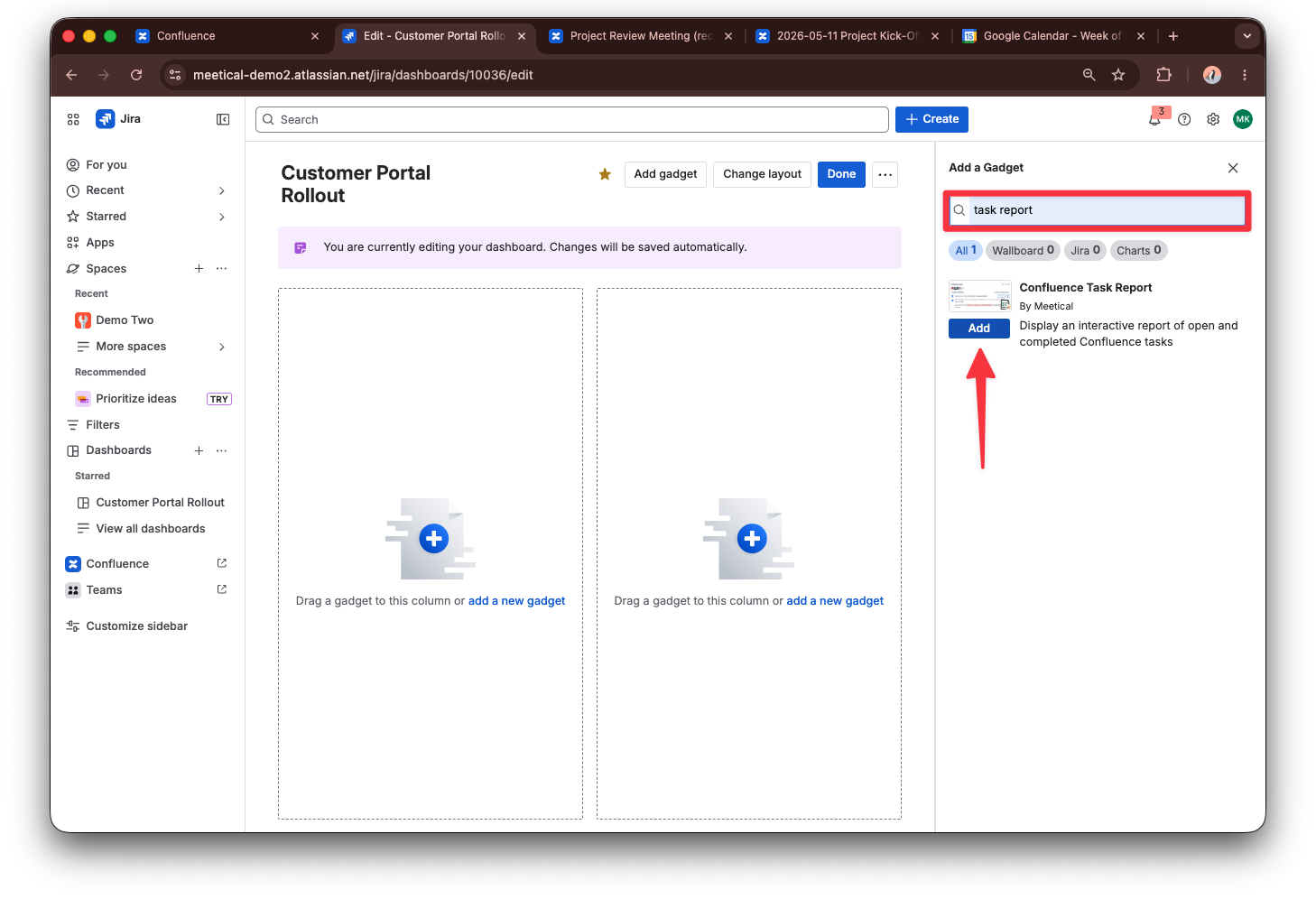
Add a gadget and search for Task Report.
2. Configure the Task Report
-
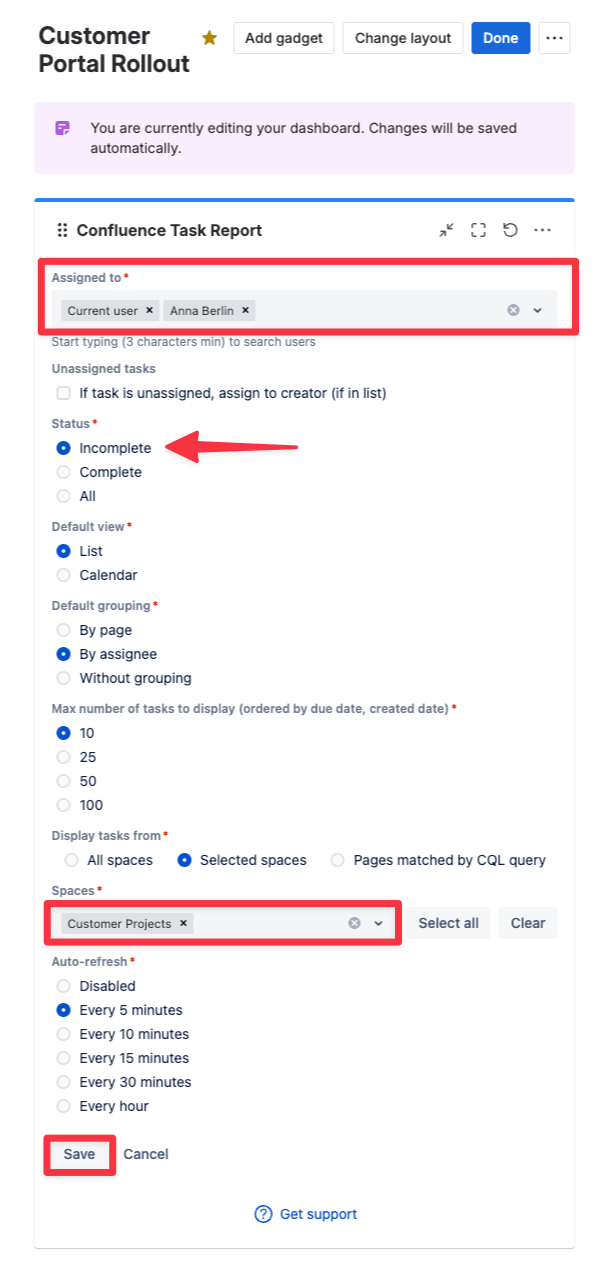
Choose the users whose tasks should appear.
-
Choose the Confluence space or search for a specific page with CQL.
-
Click Save.
3. Use the dashboard in your project workflow
-
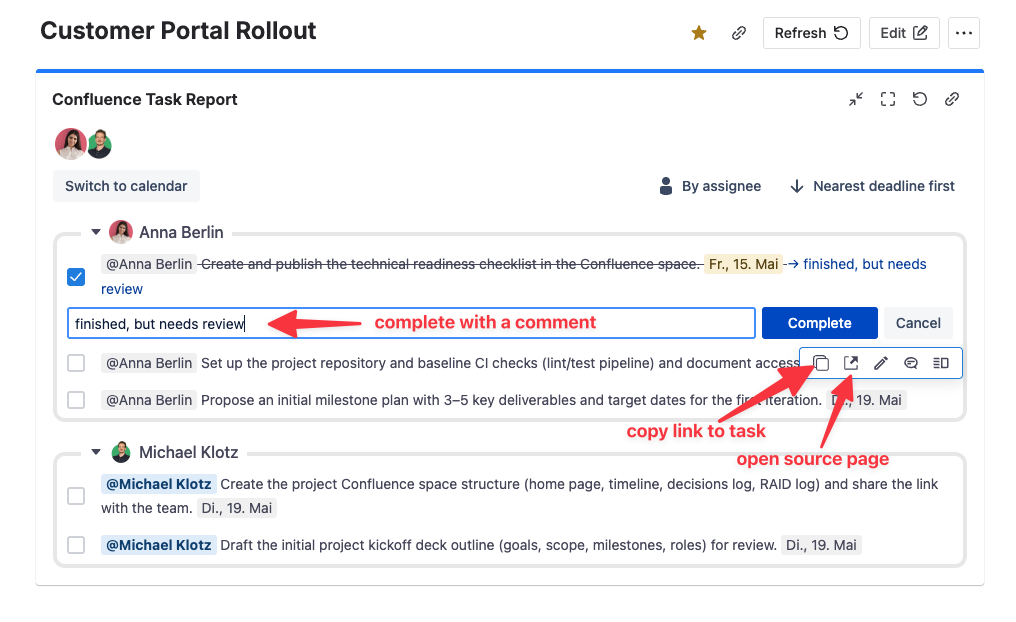
Use the dashboard to see all confluence tasks in one place.
-
The task report is interactive:
-
Complete tasks, optionally with a comment that gets written back to the original page.
-
Just comment on a task.
-
Copy the link to a task.
-
Open the source page.
-
-
Group the report by assignee, page or all tasks
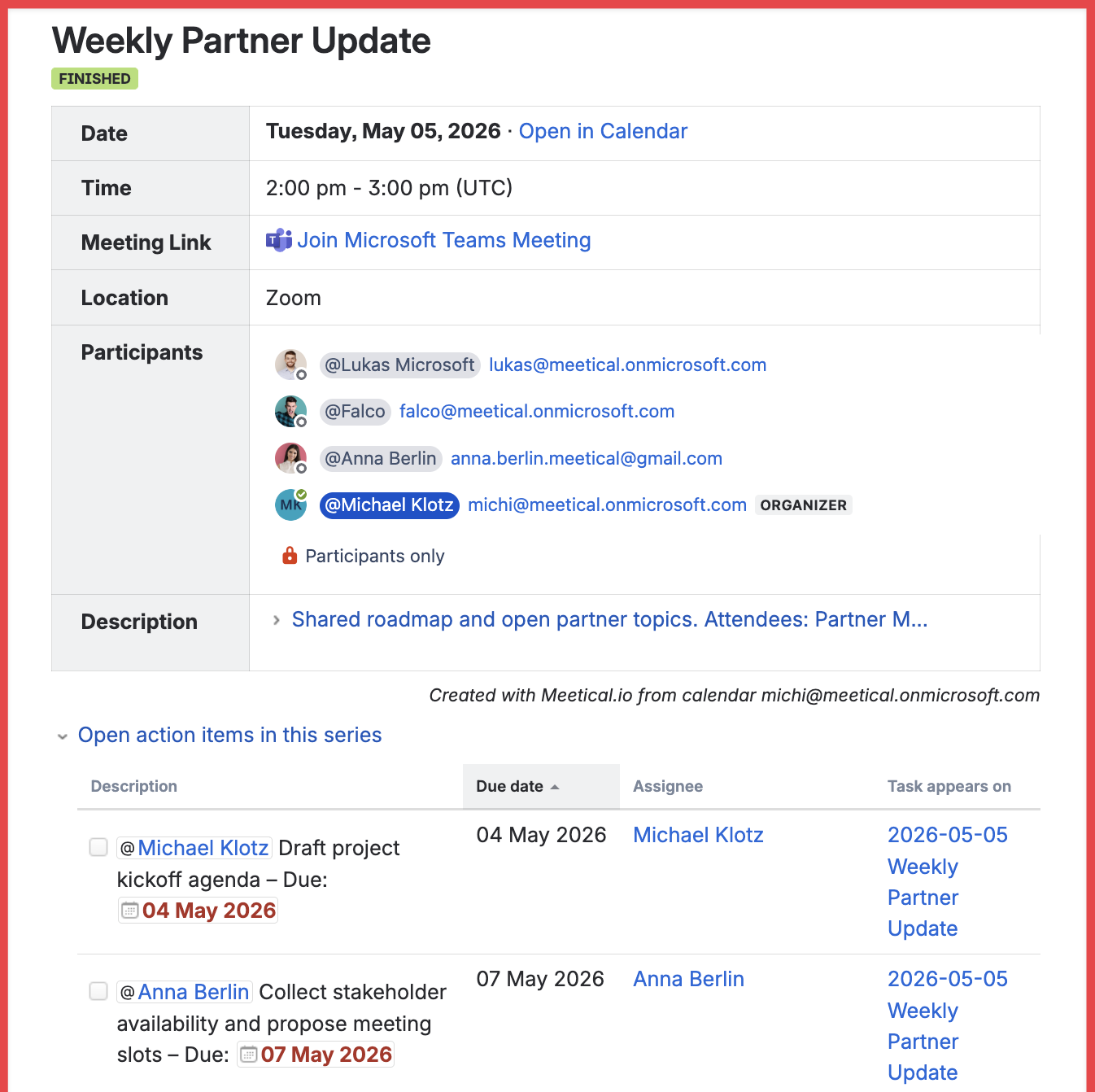
Optional: show open tasks inside a recurring meeting page
For recurring meetings, you can also add a Confluence Task Report below the Meetical meeting-series macro. This shows open tasks from the current meeting series directly on the parent page.