
Meetical AI can be started from any Confluence page, whether the page is linked to a calendar event or not.
For a general overview, see the introduction to Meetical AI.
If Meetical is installed on your Confluence site, a small Meetical icon appears below the page title. Similar to Notion AI Meeting Notes, you can start the note-taking flow directly from the page where your work already happens. Use it to add AI-generated meeting notes to a blank page, a Live Page, or an existing project page in Confluence.
Step 1 - Open any Confluence page
Open the page where you want to add the meeting notes. This can be an empty page, a Live Doc, or any existing Confluence page.
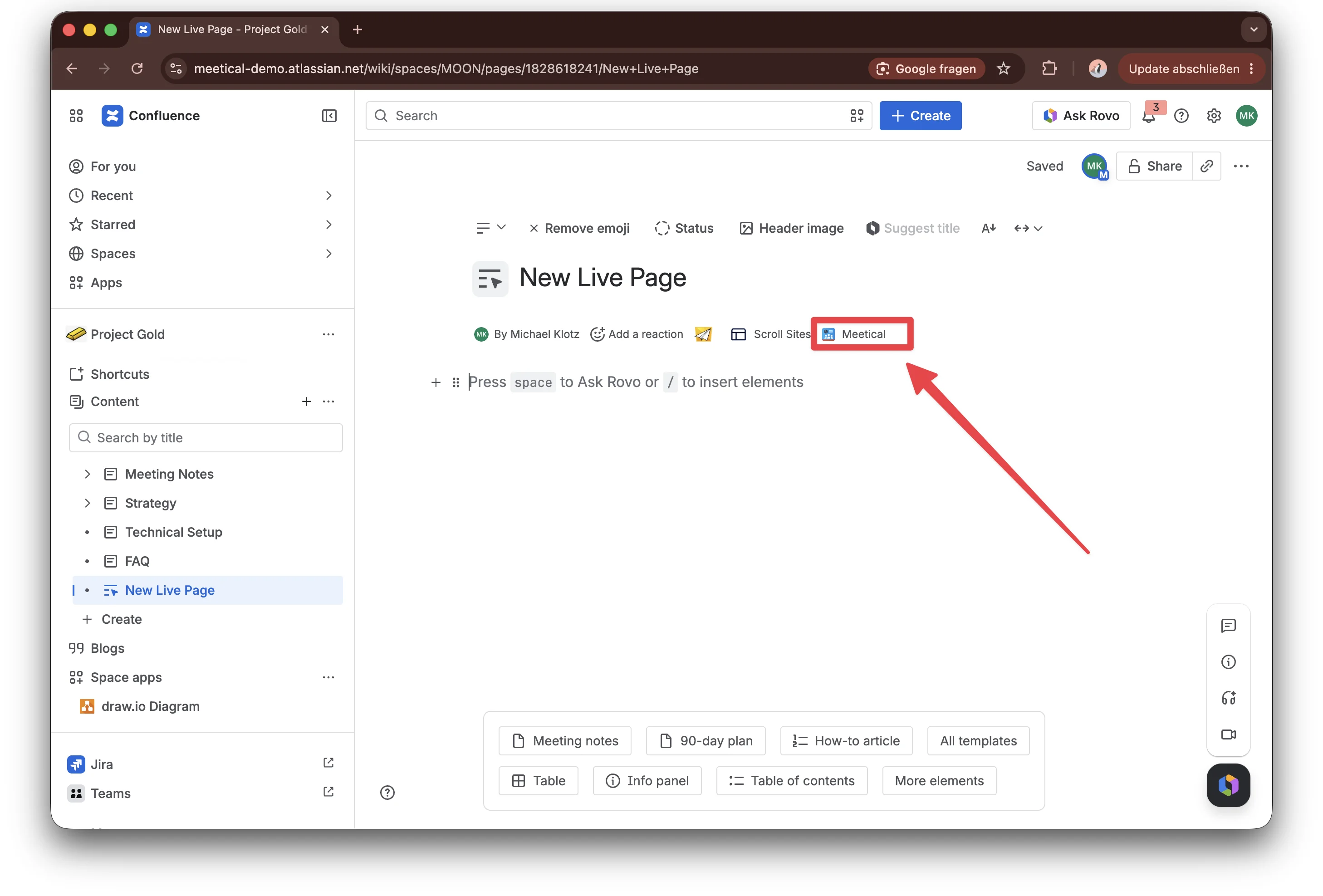
Step 2 - Invite the bot
Click the Meetical icon to open the Meetical AI window. Add the conference URL, then invite the bot to the meeting.
Find your conference URL in Zoom, Google Meet, or Microsoft Teams by clicking the meeting’s share option.
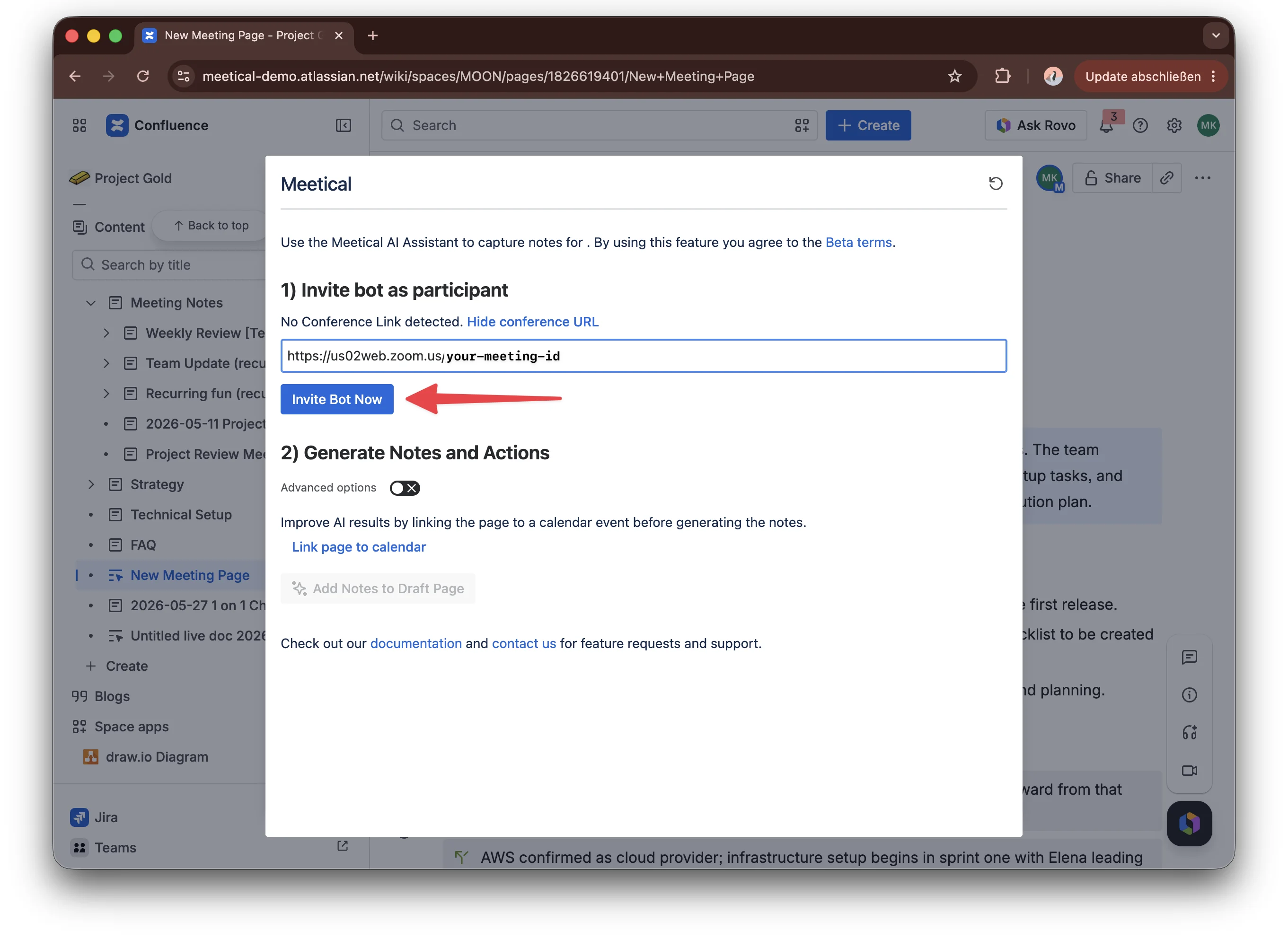
Step 3 - Add Notes to the Page
Start the meeting as usual. After the meeting, click Add notes to Draft Page. Meetical AI adds the generated notes, decisions, and action items to the page.
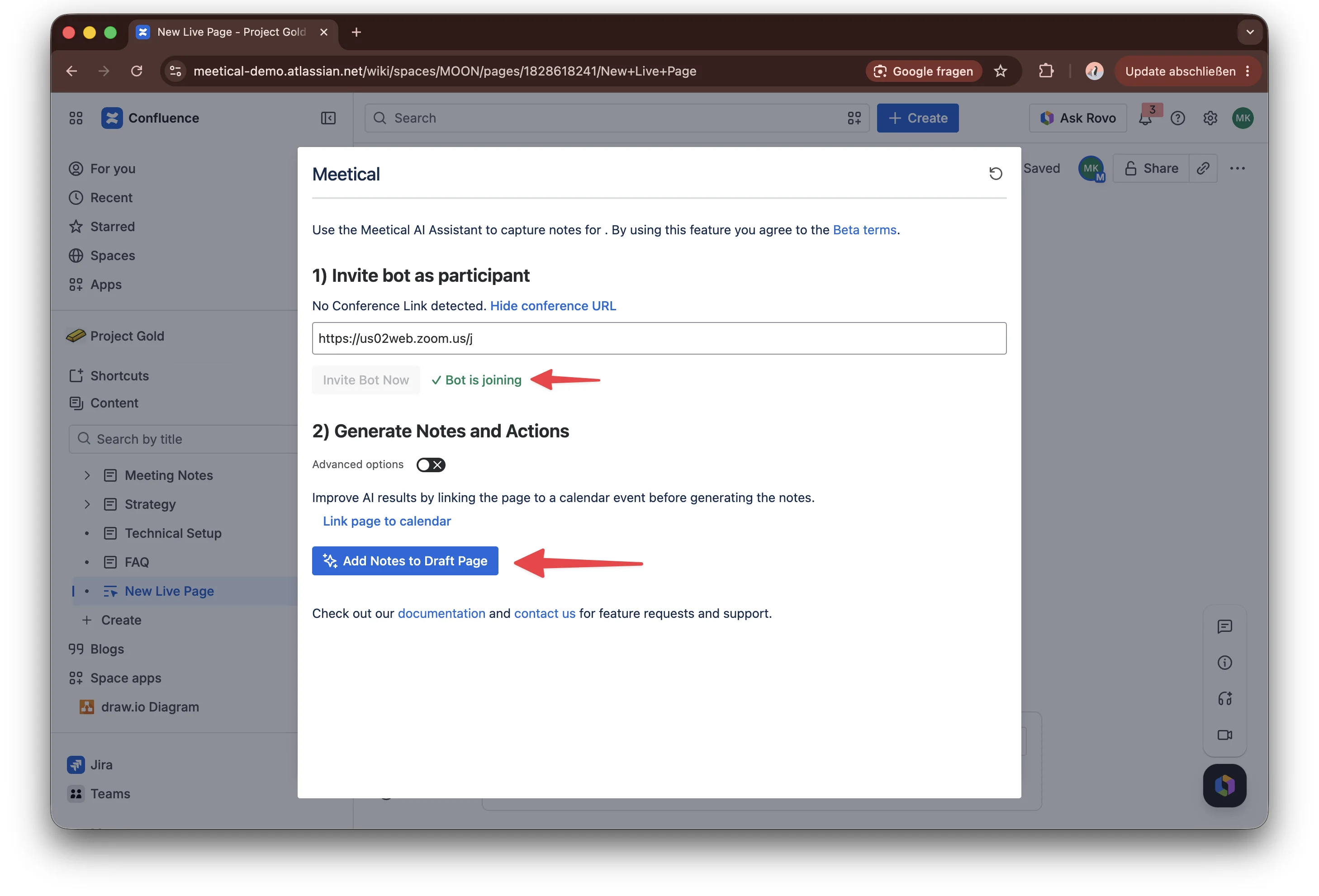
Step 4 - Review notes
Review the generated notes on the page. You can edit the summary, decisions, and action items before sharing them with your team.
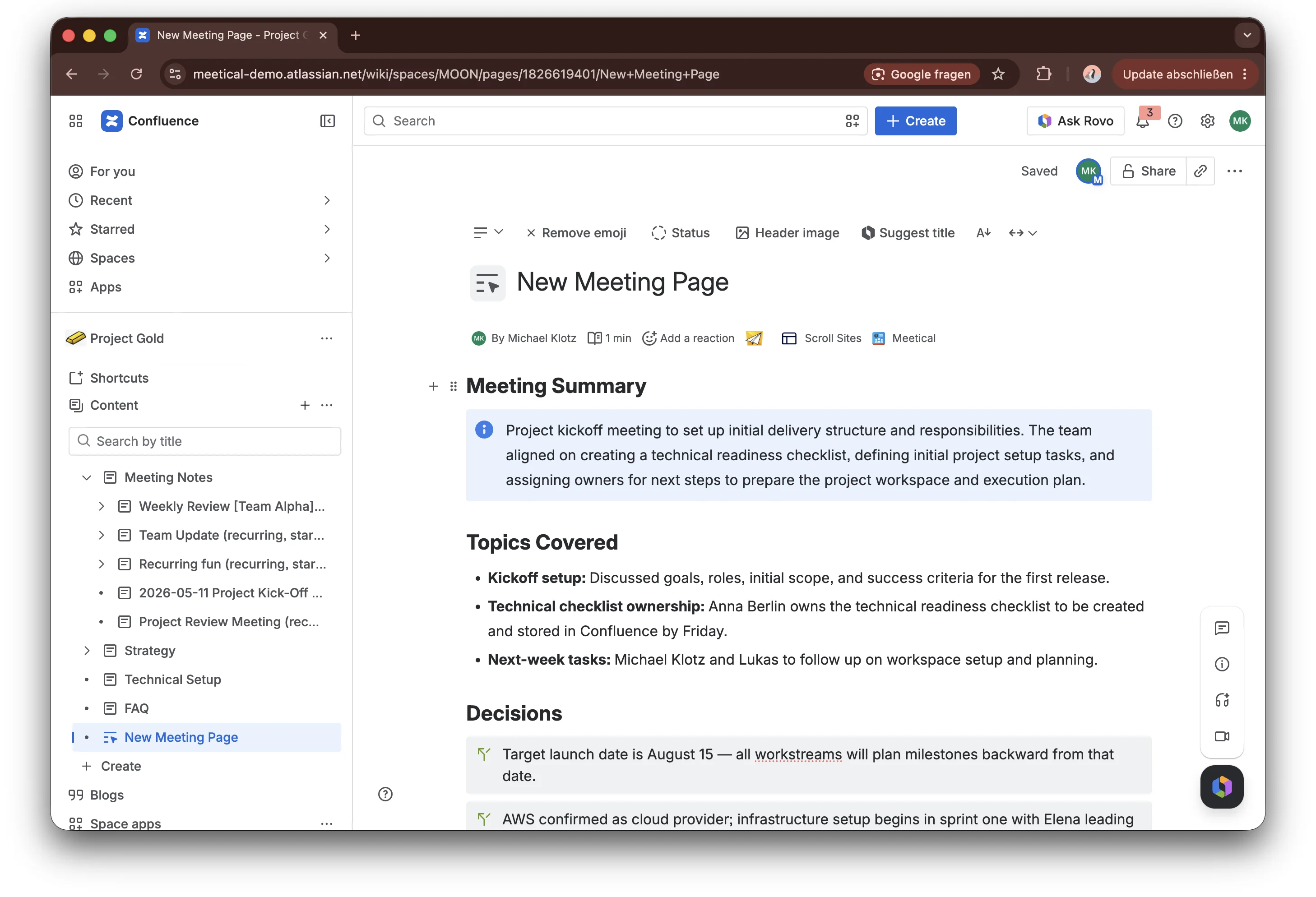
Step 5 - Publish the page
When the notes are ready, publish the page or update the existing page. This also works with Live Pages, where you don’t have to update the page.
When you mention someone on a Confluence live page using @, Confluence usually sends a notification immediately or shortly after the mention has been added to the page.
Tip: Improve AI Notes by linking the page to a meeting on your calendar
After you invited the bot to a meeting, you can still link the page to a corresponding calendar event. This gives Meetical AI more context, such as meeting metadata and participant information, so it can generate better notes and assign action items for the people in the call.
If the page is already linked to a calendar event and the event has a conference link, Meetical detects the link automatically.
If the page is not linked yet, click “Link page to calendar” in the Meetical AI window. Meetical redirects you to Meetical Calendar, where you can choose the event you want to link.
For more details, see our guide on how to link an existing event to a page here.