Documentation for the Task Report Gadget. A Dashboard item for Jira to show tasks / action items on from Confluence on a Jira Dashboard.
📘 Adding the Gadget
Before you start, create a new Dashboard in Jira (or edit an existing one).
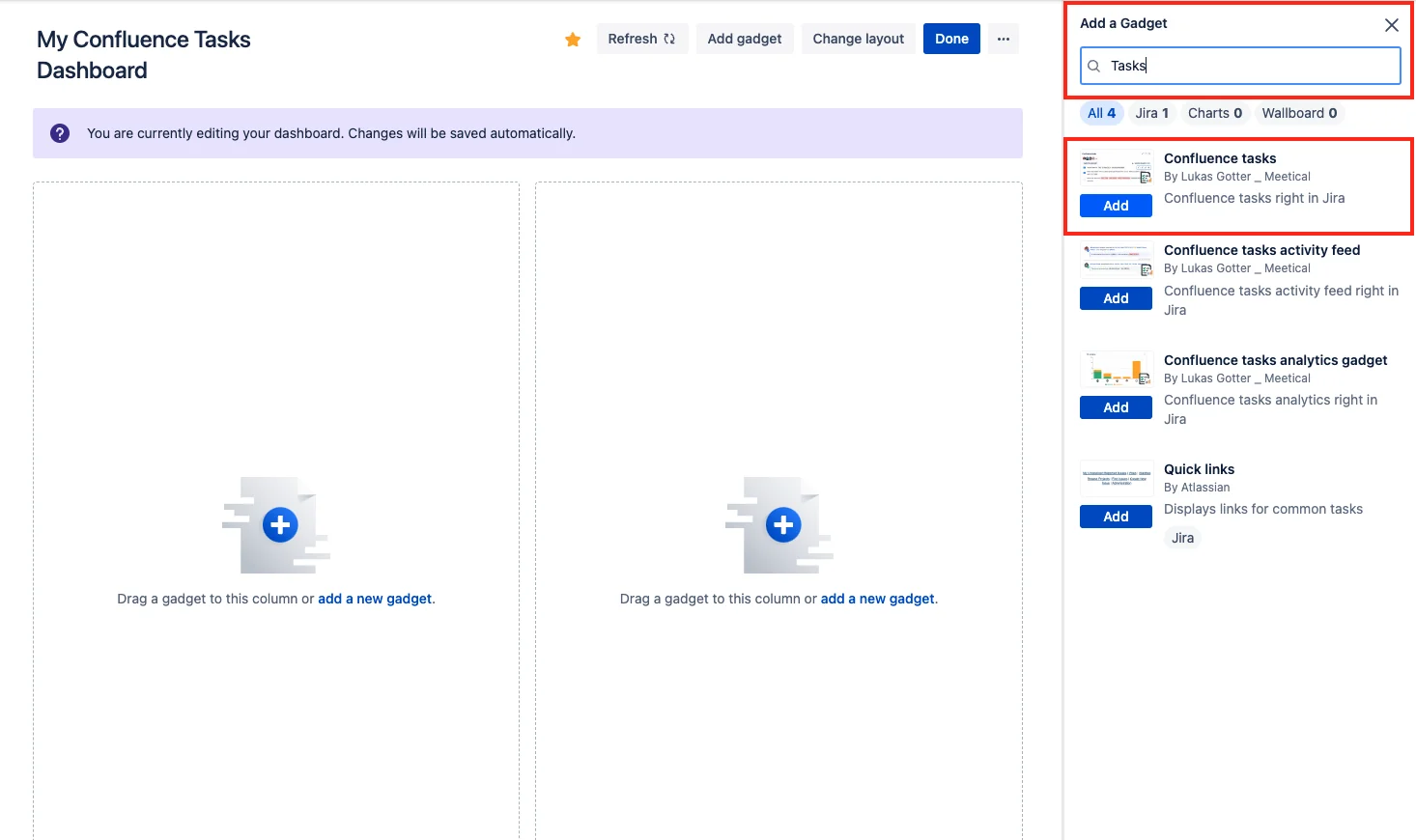
1) Type “Task Report” in the Gadgets search and find the Confluence Tasks Gadget.
2) Configure the Task Report
-
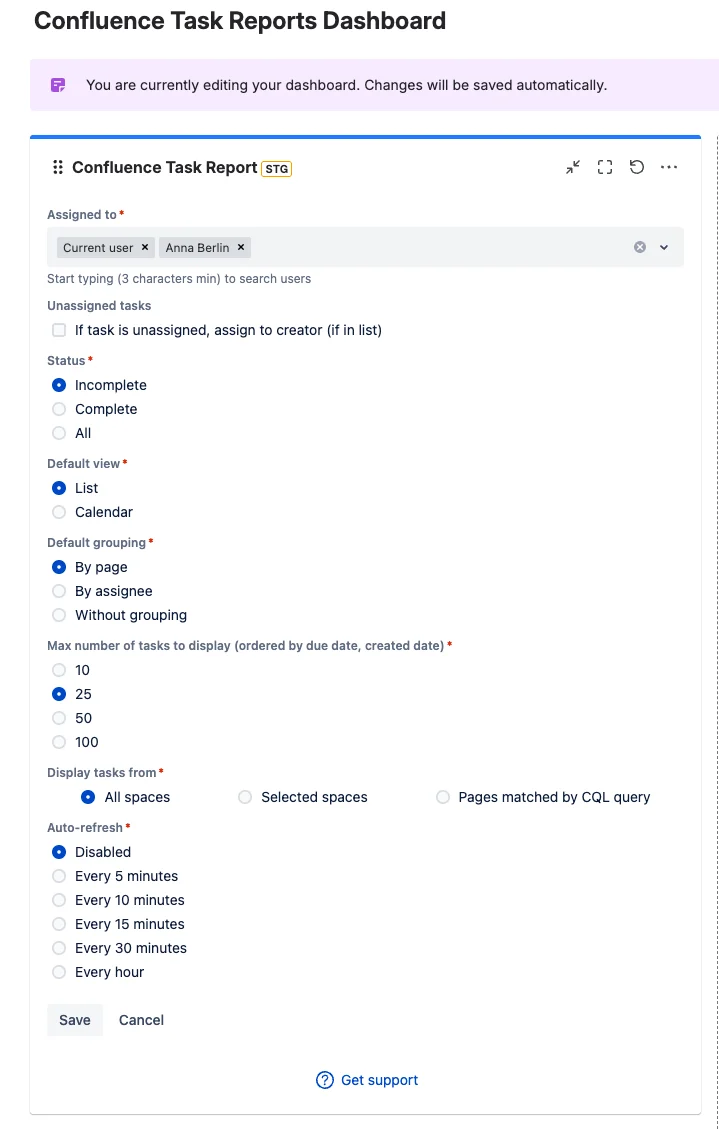
Choose the Users you want the task report to create for
-
Filter the result by complete / incomplete or both status
-
Choose your default view (List or Calendar). You can switch between the two from the frontend too
-
Choose the spaces you want to create the report for
-
Or alternatively use a CQL Statement to filter the tasks
-
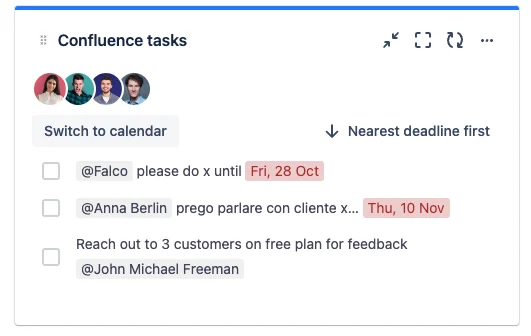
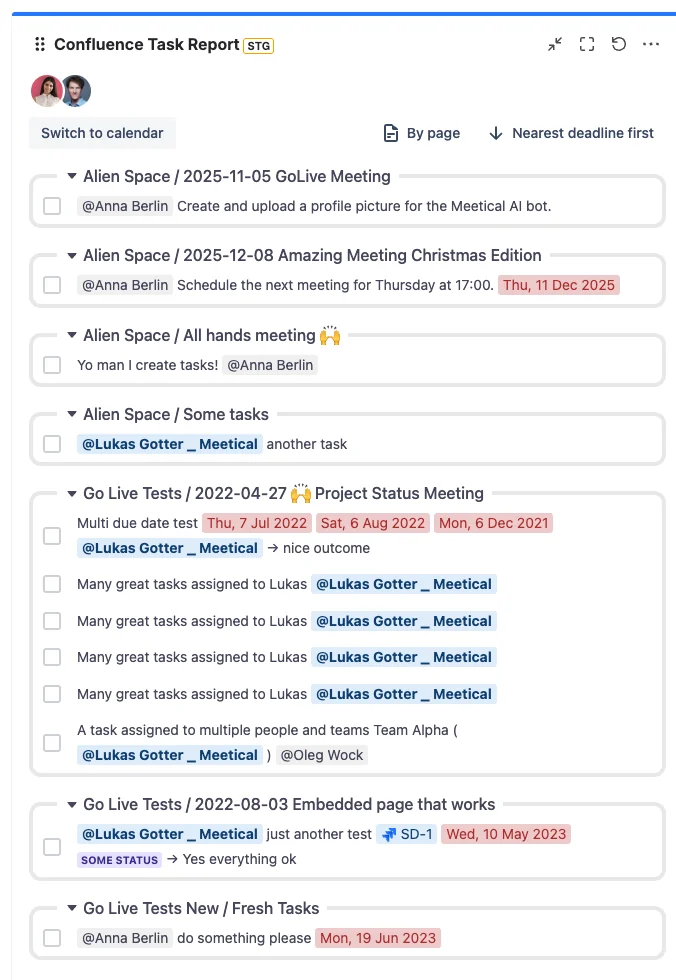
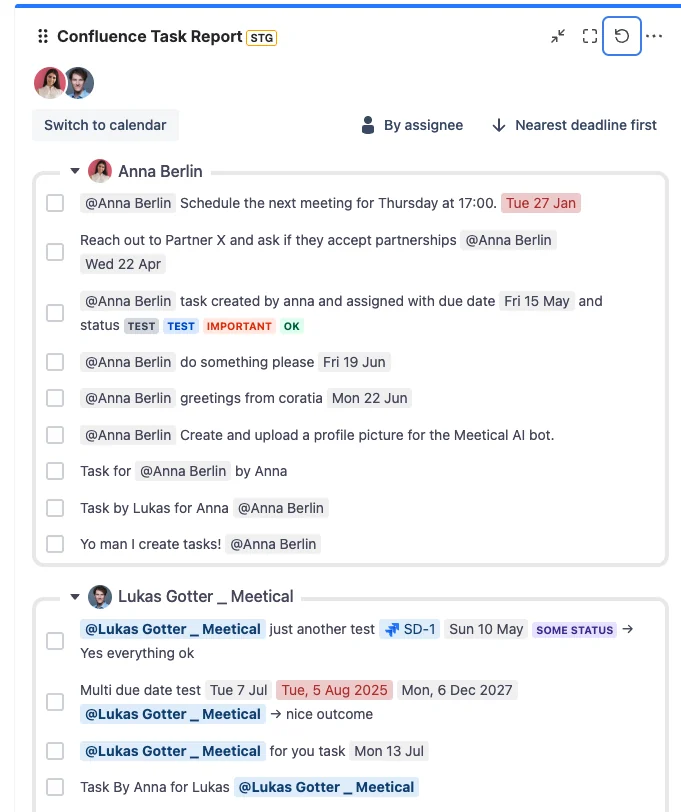
3) Show the report
-
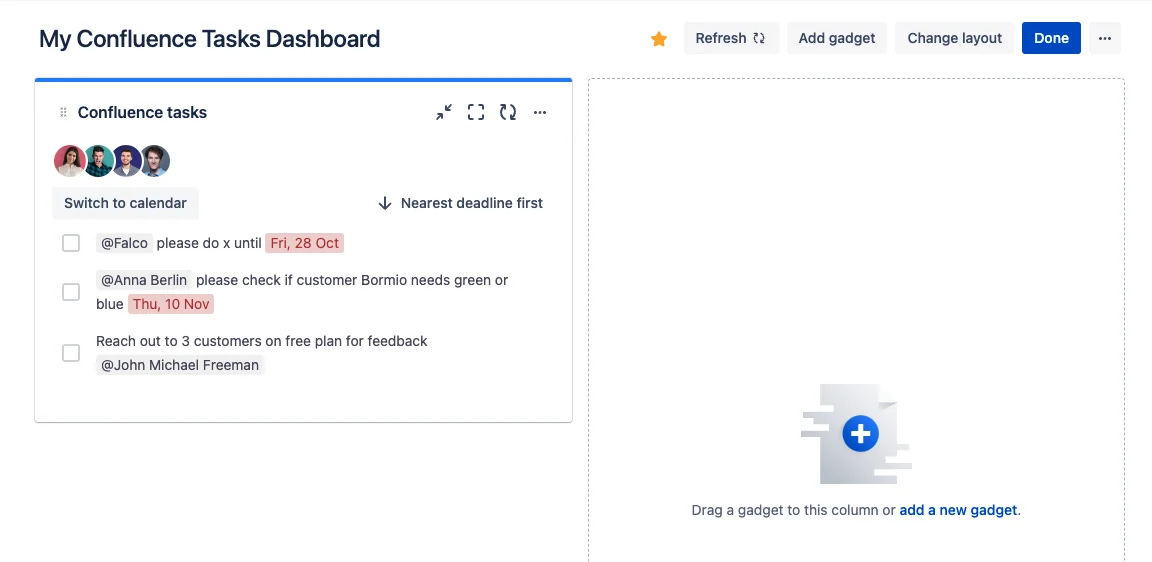
Task report shows all tasks assigned to the specified users
-
If no due date is present on the task, then the task will show up at the end of the list
-
You can order the task list by both nearest and furthest deadline
4) Task quick actions
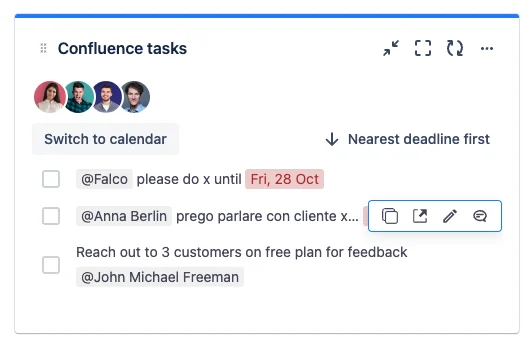
By hovering over any task you can show the quick action toolbar with these options:
-
Copy task and link: Will copy the task with a deep link to the page/task.
-
Open page where the task appears
-
Edit page where task appears
-
Provide Update: This option allows you to add a blue formatted text next to the task similar to “Complete with outcome”
5) Complete with outcome
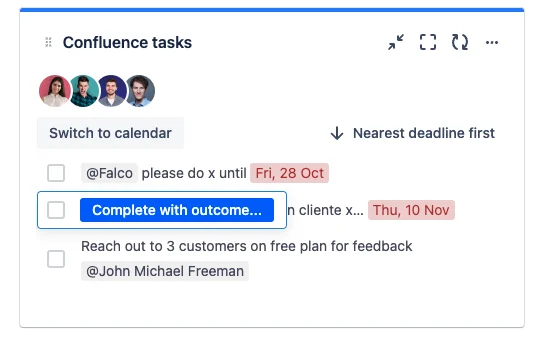
Hover over the checkbox next to any task. You can simply check off and complete the task or provide an outcome.
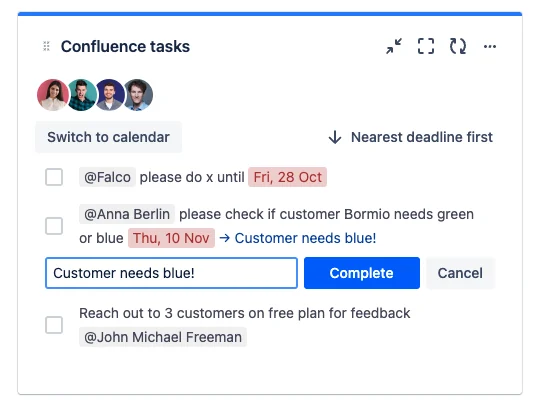
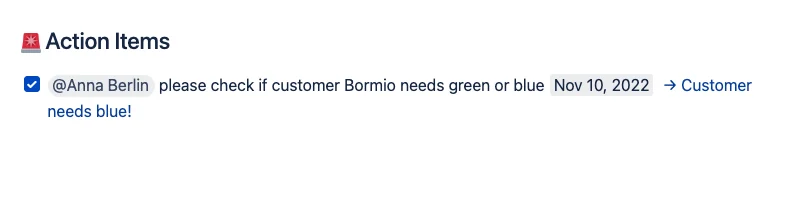
After completing the task, the optional outcome will appear on the related page: