
Use this page to identify common Meetical issues and collect the information Meetical Support needs to investigate them quickly.
Start with the issue you see
Most Meetical issues fall into one of these areas: setup and login, calendar connection, browser or Outlook add-in / Chrome extension behaviour, recurring meeting automation, page permissions, or Meetical AI. Start with the symptom you see, then collect the details listed below before contacting support.
Common issues
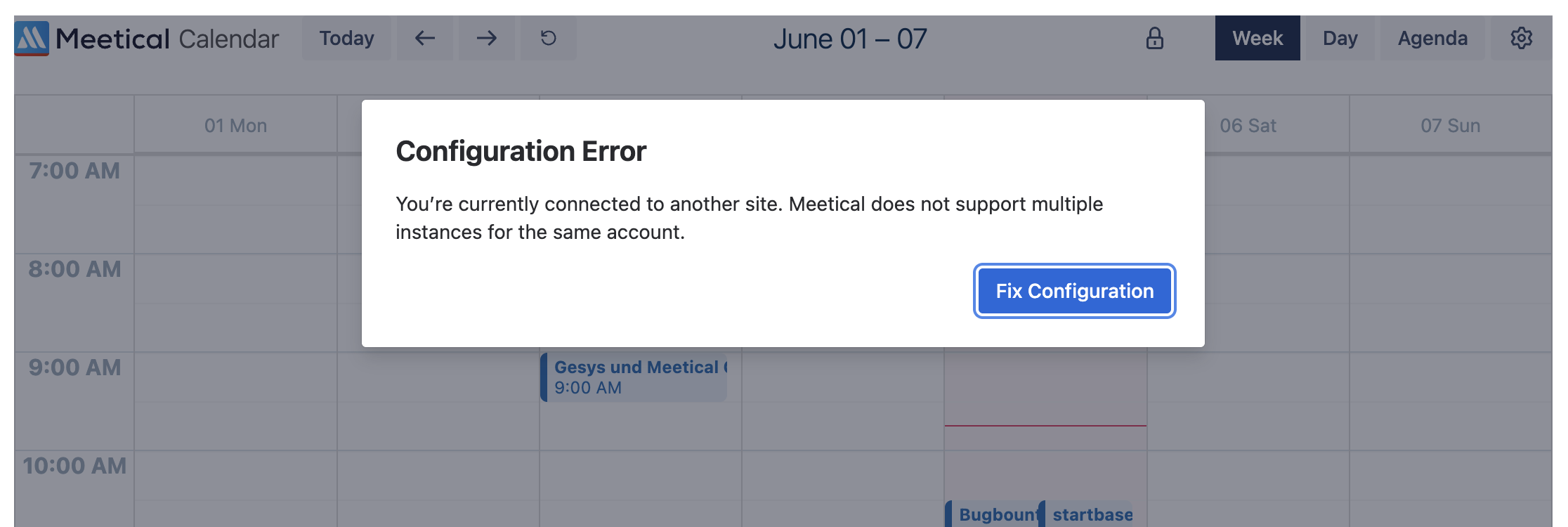
Configuration Error
This error can appear when Meetical is connected to the wrong Atlassian site or when the app cannot decide which site should be used, because Meetical does not support a connection with multiple sites.
Click the button in the popup, or open https://app.meetical.io/configure, and select the Atlassian site you want to use with Meetical.
Select the Atlassian site during initial setup
During the first login, you may need to select your Atlassian site in the Login with Atlassian window and again in the Meetical standalone app at app.meetical.io.
This is required because the standalone app does not always know which Atlassian site you want to connect during the first login.
Calendar or automation issues
If meeting pages are not created, automations do not run, or calendar data looks outdated, first check that your calendar connection is still active and that the correct Atlassian site is selected. Also check whether the issue happens for one meeting only or for all meetings.
Add-in or extension issues
If the Outlook add-in or browser extension does not load, a button does not react, or a popup shows an error, collect the add-in logs or frontend logs as described below.
How to provide Information to Meetical Support
When you contact Meetical Support, include enough context so we can reproduce and locate the issue quickly.
1. Basic information
Please include the following information in every support request:
-
Confluence site URL, for example,
https://your-company.atlassian.net/wiki. -
User email address of the affected user.
-
Timestamp of the event, including the timezone.
-
Page URL, Bot ID, or app screen where the issue happened.
-
Screenshot of the problem.
-
Exact error message, if one is shown.
-
Short description of what you clicked or expected to happen.
2. Outlook Add-in issues
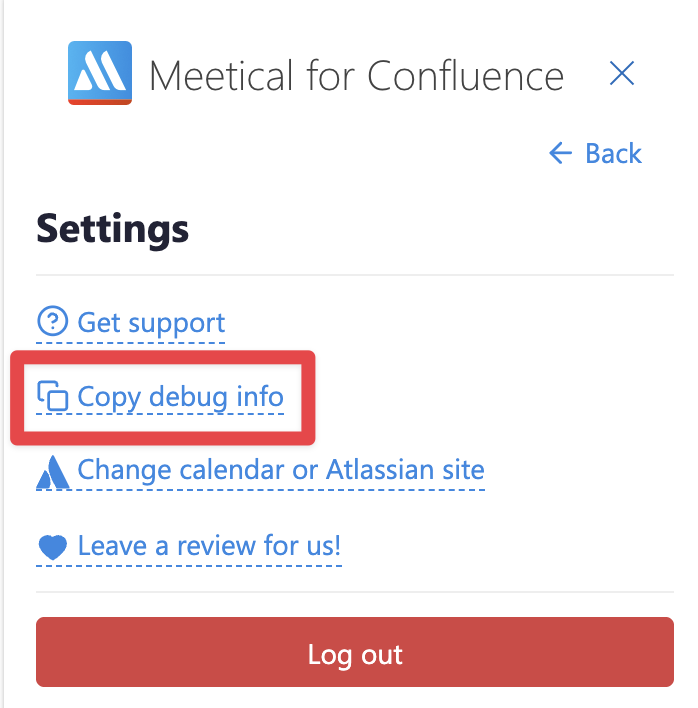
For Outlook add-in issues, use the built-in debug log option if available.
-
Open the Meetical Outlook add-in where the issue happens.
-
Open the add-in settings.
-
Use the copy debug logs option.
-
Paste the copied logs into your support request, or attach them as a text file.
-
Also include a screenshot of the Outlook add-in and the affected calendar event.
3. Frontend debug logs
Frontend logs are useful when a button does not react, a dialogue does not open, or an error appears in the Meetical app. Example: capture the log while you click the Meetical AI Notes button.
-
Open the Confluence page or Meetical app screen where the issue happens.
-
Open the browser developer tools. In Chrome or Edge, right-click on the page and select Inspect, then open the Console tab.
-
Enable 'Preserve log' in the console settings.
-
Clear the console so the log only contains the current test.
-
Reproduce the issue.
-
Right-click inside the Console and select Save as... to save the log file.
-
Attach the .log file to your support request.
4. HAR files
Only send a HAR file if Meetical Support explicitly asks for it. HAR files can contain sensitive request data and are harder for normal users to create correctly.
If we need a HAR file, we will ask for it explicitly. In most cases, the site URL, affected user, timestamp, screenshot, error message, and debug logs are enough.
Check out this guide on how to create a HAR file https://confluence.atlassian.com/kb/generate-har-files-and-analyze-web-requests-for-atlassian-support-720420612.html.
Contact support
If you still need help, please contact Meetical Support.