
This overview explains the different functions and use cases of all Meetical macros you can add to a page or a template.
You can add macros to any Confluence page or template by typing / followed by the macro name.
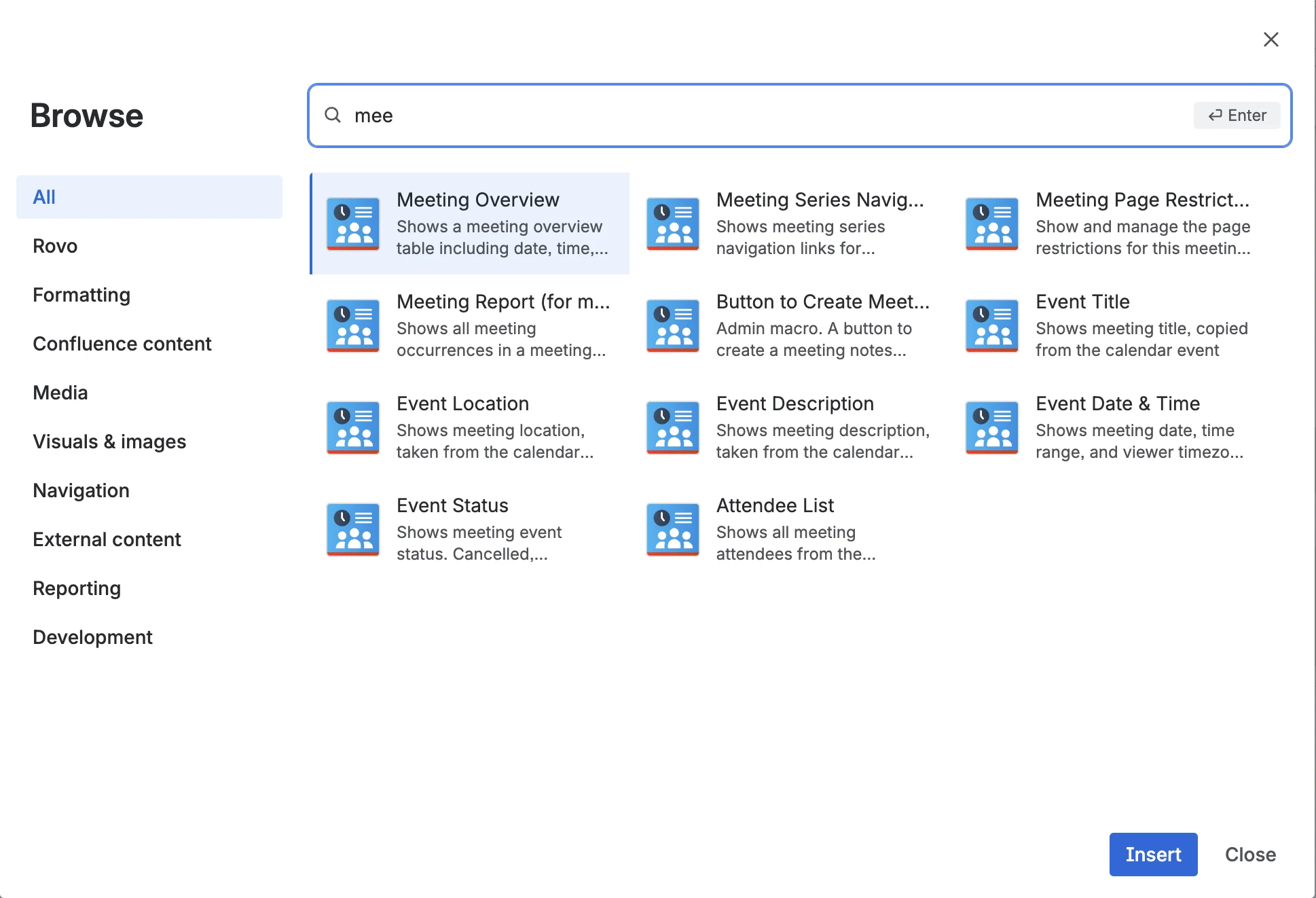
To browse all available macros, type / and click View more.
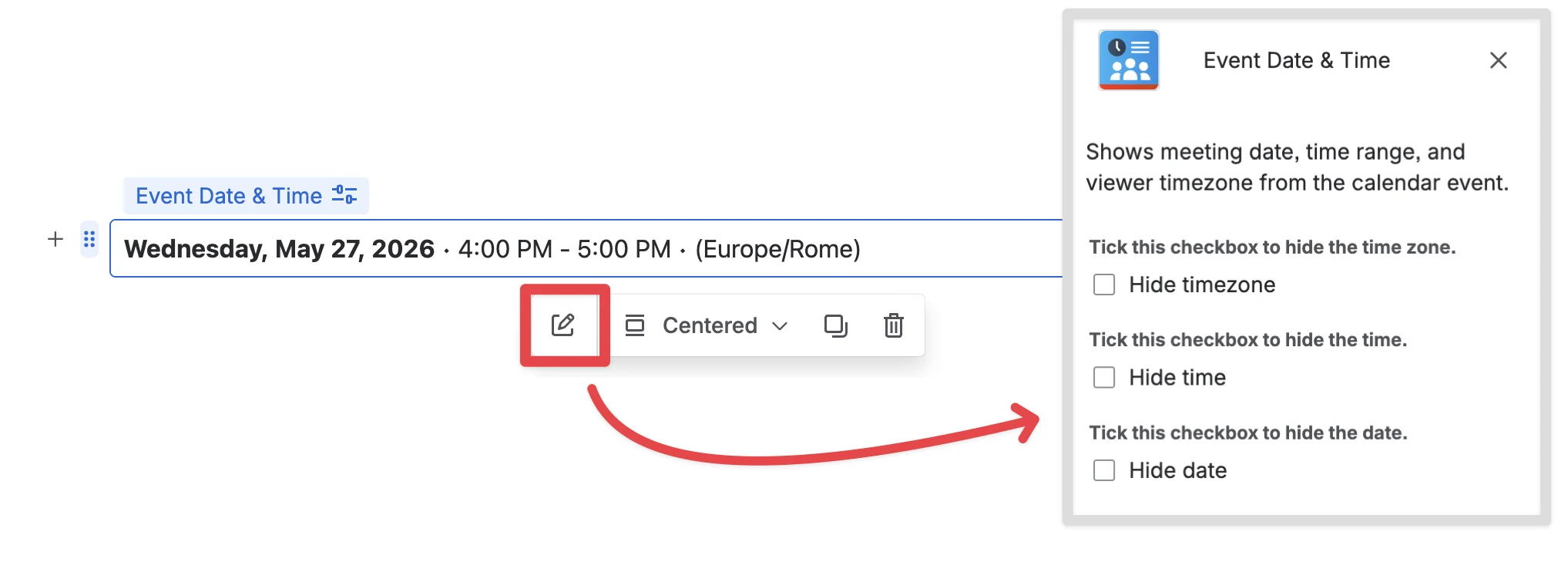
After you add a macro to a page, you can edit some macros in page edit mode by clicking the macro and selecting the edit icon. Some macros do not have editable settings, and the available options depend on the macro:
All Meetical macros explained
What follows is a short explanation of each Meetical macro and what it is used for.
1. The Meeting Overview
Insert this macro on a page with /Meeting Overview.
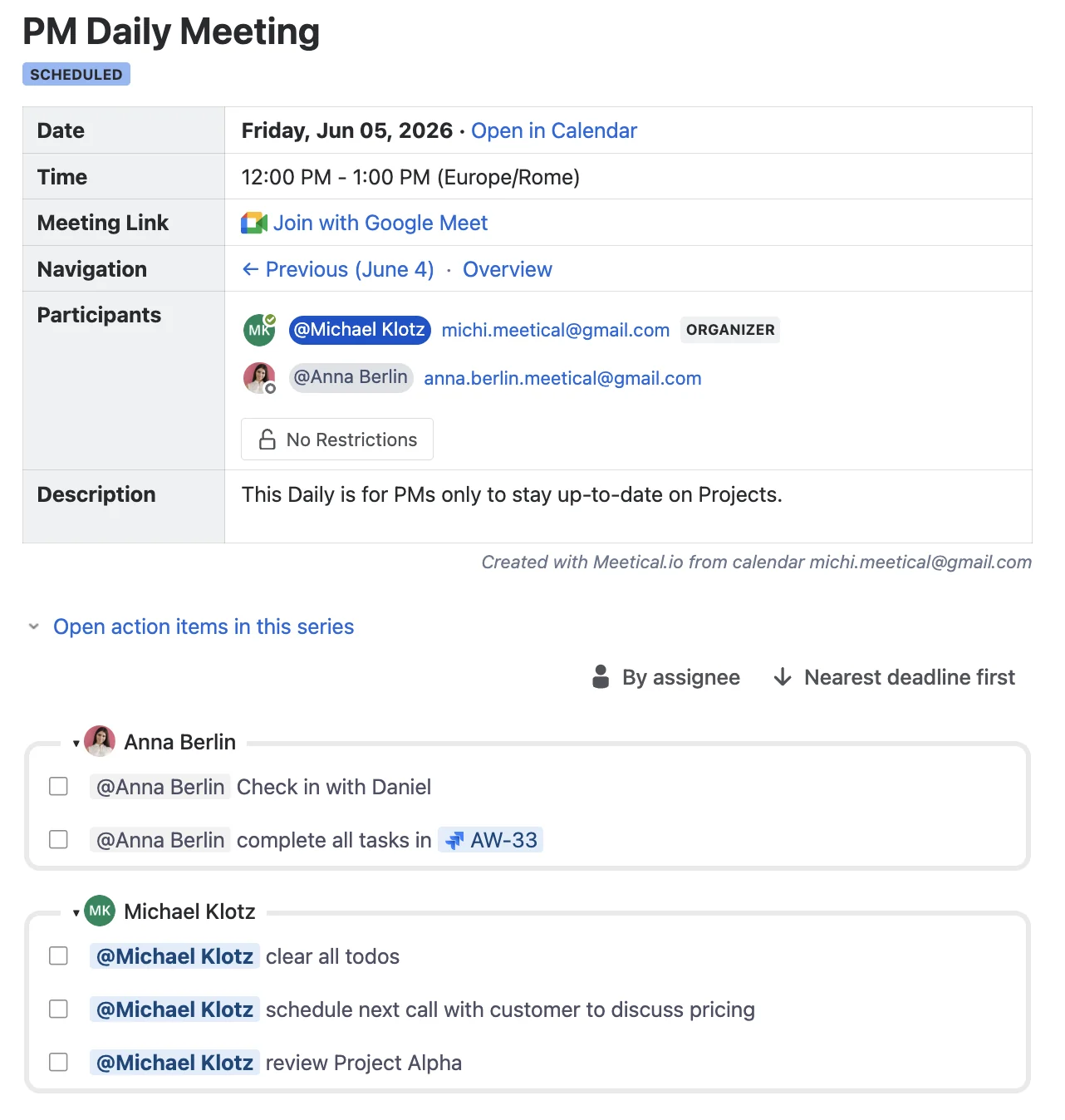
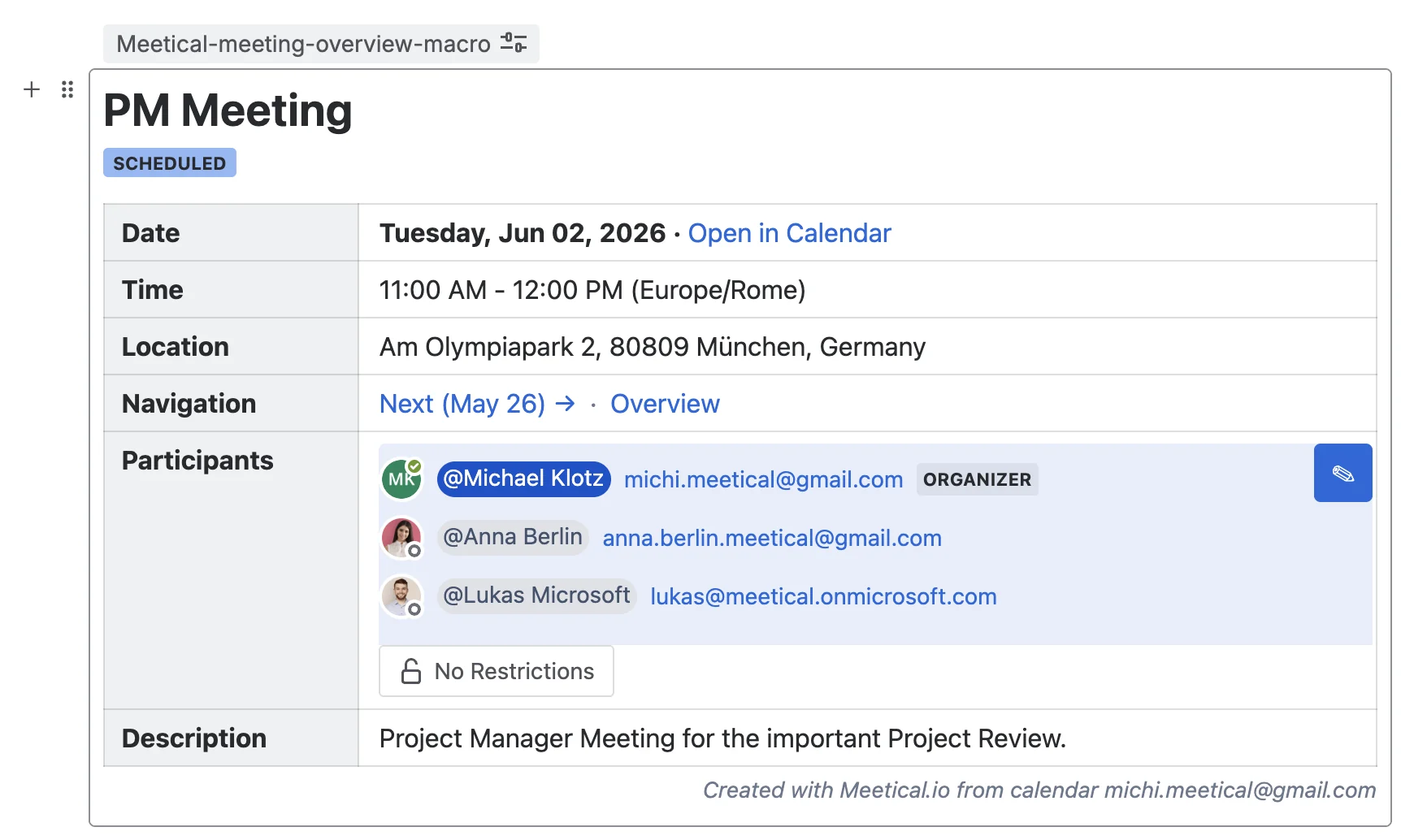
The Meeting Overview is the main Meetical macro. It is shown by default at the top of pages created with Meetical. It displays key meeting details, such as date and time, location, participants, and navigation to the previous or next meeting page.
This macro looks slightly different for recurring and single meeting pages:
For a recurring meeting:
An Advanced Task Report is added below the Meeting Overview to show all open tasks in the series.
Read more in the Meeting Series Task Report guide on how to use this feature.
For a single meeting:
You can also add the individual functions of this macro as separate macros. See the sections below.
2. The Attendee List
/Attendee List
The Attendee List displays all attendees from your calendar event to this Confluence macro. If an attendee email matches a Confluence user, Meetical shows that user in the macro as in a normal Confluence page. For external contacts, only the email address is shown.

Hover over the macro and click the edit symbol on top right to edit the attendee list:
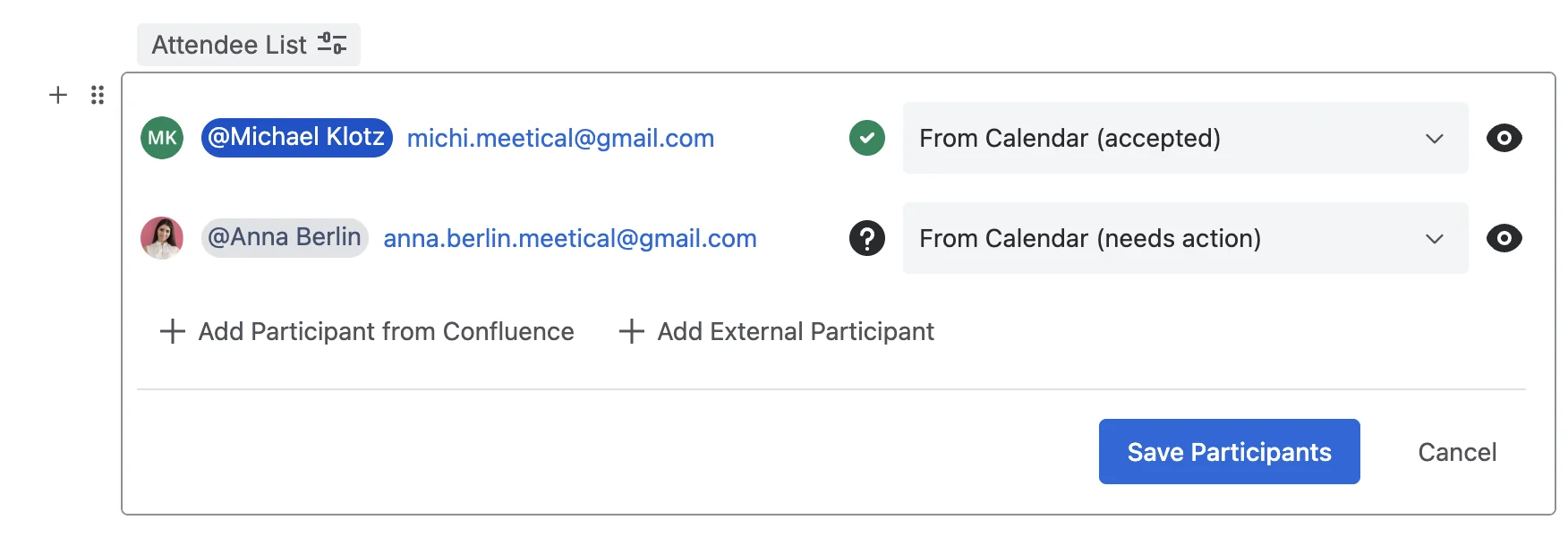
Read more on how to use the Attendee List Macro in Track attendees and generate a participant list.
3. Event Description
/Event Description
The Event Description macro syncs the description from your calendar event.

4. Event Date & Time
/Event Date & Time
This macro shows the event date, time, and time zone from your calendar event.

5. Meeting Series Navigation
/Meeting Series Navigation
Use this macro to navigate between meeting pages in Confluence. For recurring meetings, it links to the previous and next meeting in the series. For single meetings, it links to the previous or next single meeting page in the Confluence space.

6. Event Status
/Event Status
This macro checks the event time and shows whether the meeting is Scheduled , in progress , Finished or Cancelled .

7. Event Title
/Event Title
Shows the event title displayed from your calendar event, which is updated when it changes on the calendar.

8. Meeting Page Restrictions
/Meeting Page Restrictions (Permissions)
Use this button to configure page restrictions for the meeting page. You can restrict the page to participants only or remove restrictions.

9. Advanced Task Report
/Advanced Task Report
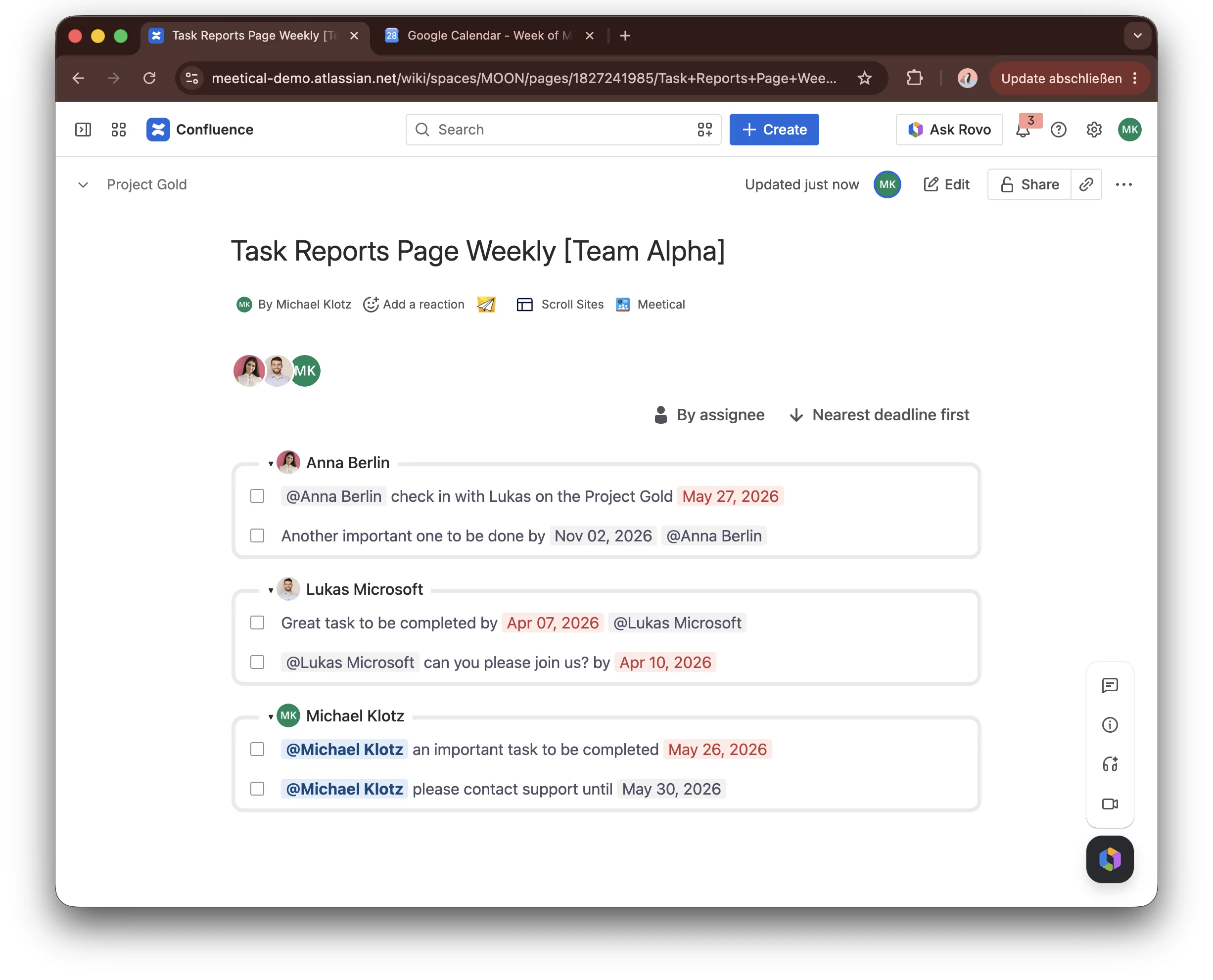
With the Advanced Task Report macro, you can create a task report directly in Confluence. For example, you can show all open tasks in a space for the currently logged-in user.
Read more in the Advanced Task Report guide on how to use this feature.
10. Event Location
/Event Location
Shows the meeting location from the calendar event.

11. Event Link
/Event Link
Shows a link to the original calendar event.

Meetical Admin Macros
These macros are intended for admins and power users who manage recurring meeting series, automation settings, and meeting templates.
1. Detach the current master page from the calendar
This macro detaches the current meeting series master page from the linked calendar event.
/Detach the current master page from the calendar

2. Automation Settings
/Recurring Automation Macro
This macro adds a button to configure automation settings for the meeting series. It only works on the master page of a recurring series.

3. Meeting report
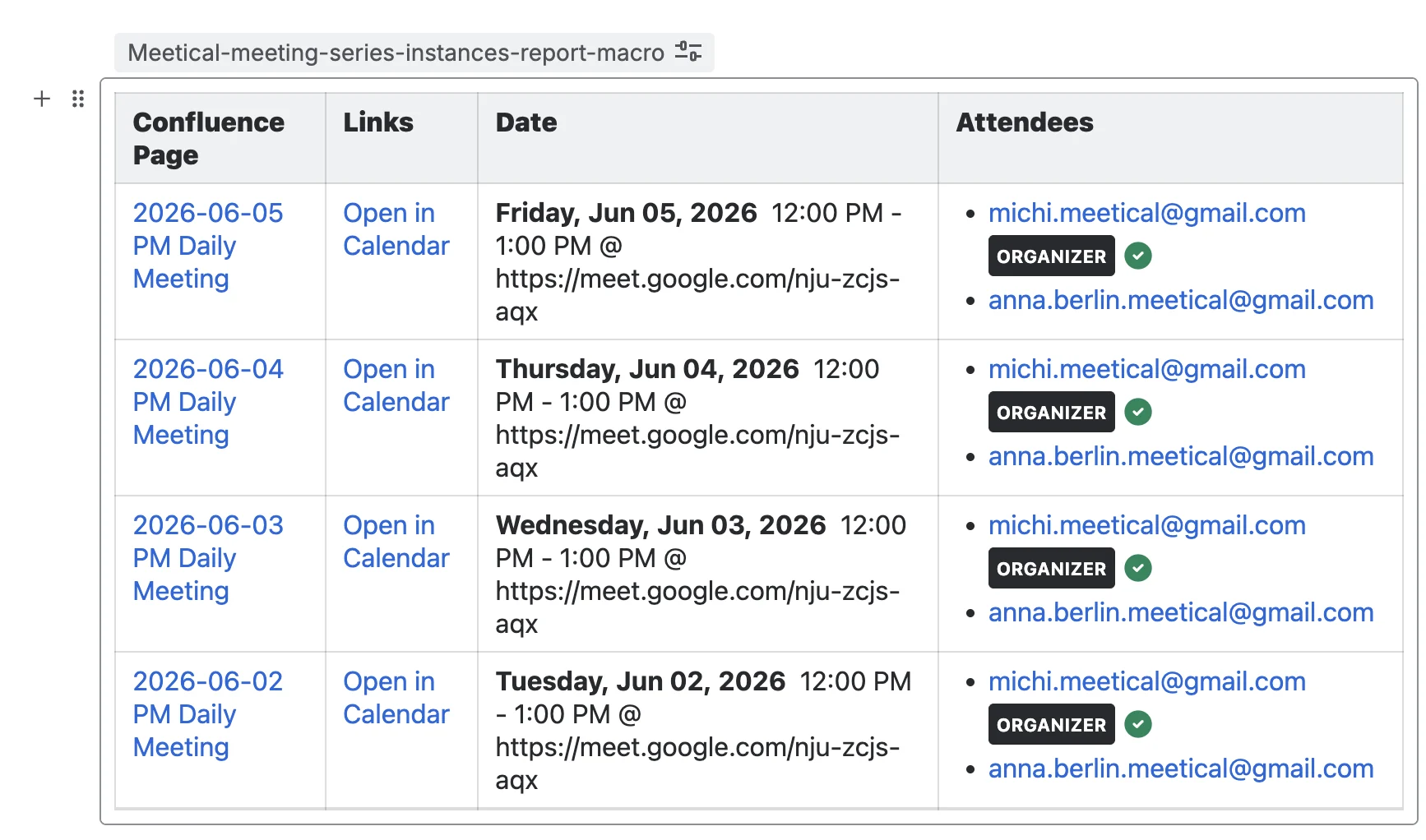
/Meeting Report (for meeting series and parent pages)
This macro shows an overview of the child pages created in the meeting series and is intended for meeting series parent/master pages only.
4. Change subpage template
/Change Sub Page Template
Admin macro. Shows the current sub-page template for a recurring meeting series and lets you change it.

5. Participant List Macro
/Generated Participant List
Use this macro on templates only. It creates a real table with one row for each participant and an @mention. By default, the table has two columns: 'Participant' and 'Input'. To customise the columns, add a table inside the macro and define the columns and default values in the first row.
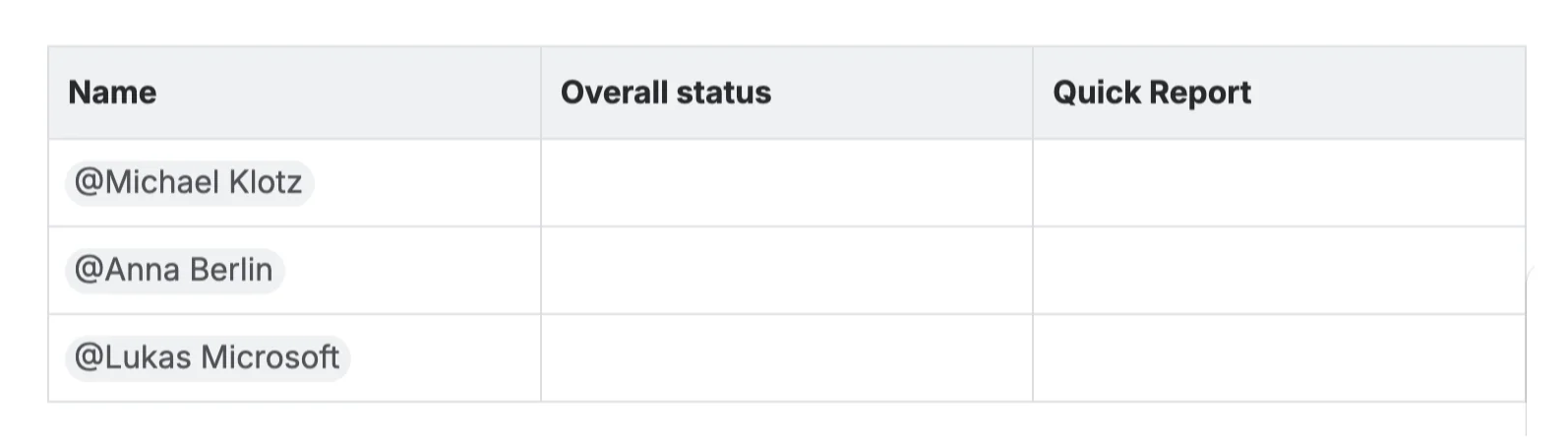
Read more on how to use the Generated Participant List Macro in Track attendees and generate a participant list.
6. Button to Create Meeting Notes with Meetical Calendar
/Button to Create Meeting Notes with Meetical Calendar
This macro adds a button that opens the Meetical Calendar in Confluence.
