
Learn how to automate Confluence and automatically create and populate meeting pages for recurring meetings from your calendar
Automatically create meeting pages for recurring meetings
In this guide you will learn how to automatically create meeting notes pages in Confluence. You can use Meetical Meetings to automate meeting notes creation for recurring meetings.
A common example is a recurring Weekly Review meeting. You can activate automation immediately for the meeting series, for example to create the weekly agenda and meeting notes 5 days before the event. If your meeting takes place on Friday, the page can be created automatically on Monday.
All pages created by Meetical pull related information from your calendar and stay up-to-date. Changes to the calendar are synced to the meeting pages usually in a few seconds. Changes to the Confluence page do not get synced back to the calendar.
Similar to creating the page yourself, you have a few options available when auto-creating a page:
-
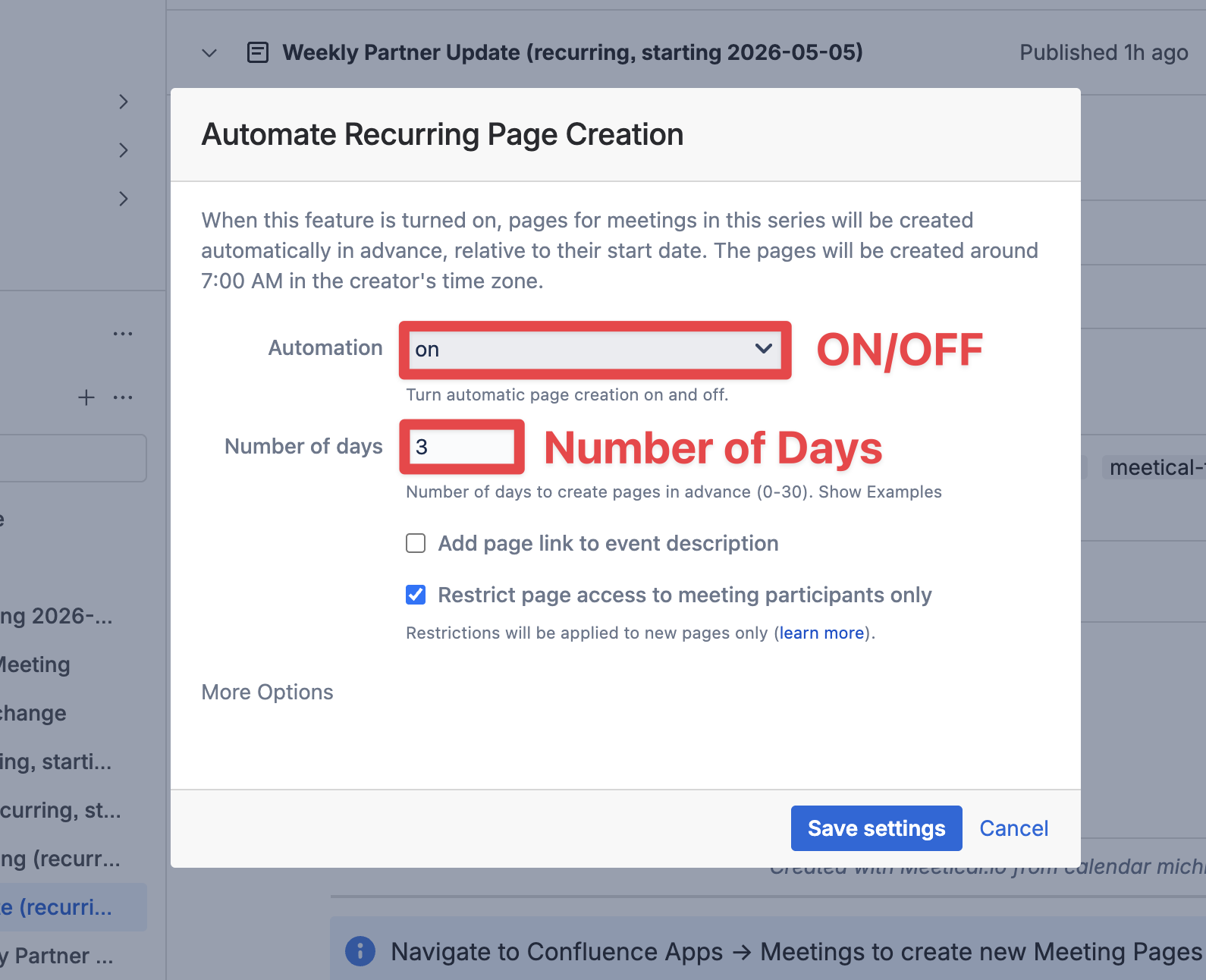
Add a page link to the event description when the page gets created
-
Restrict the newly created page to participants only (check the Page Restrictions and Permissions docs for details)
Instead of using automations, you can also opt to use one single “large” page for your recurring meeting and agendas. This can be a good option for 1-on-1 meetings where only a few action items and discussion points are recorded in each meeting. Check the Series Pagination Mode docs for details.
You can control automation settings from these locations:
-
On any Meeting Series Parent Page in Confluence
-
From the Internal Confluence Calendar (Apps → Meetical Calendar)
-
Directly from the Chrome Extension (recommended for Google Workspace)
-
From the Outlook Add-in (recommended for Microsoft 365)
Simply open any meeting occurrence in your calendar and configure the automation.
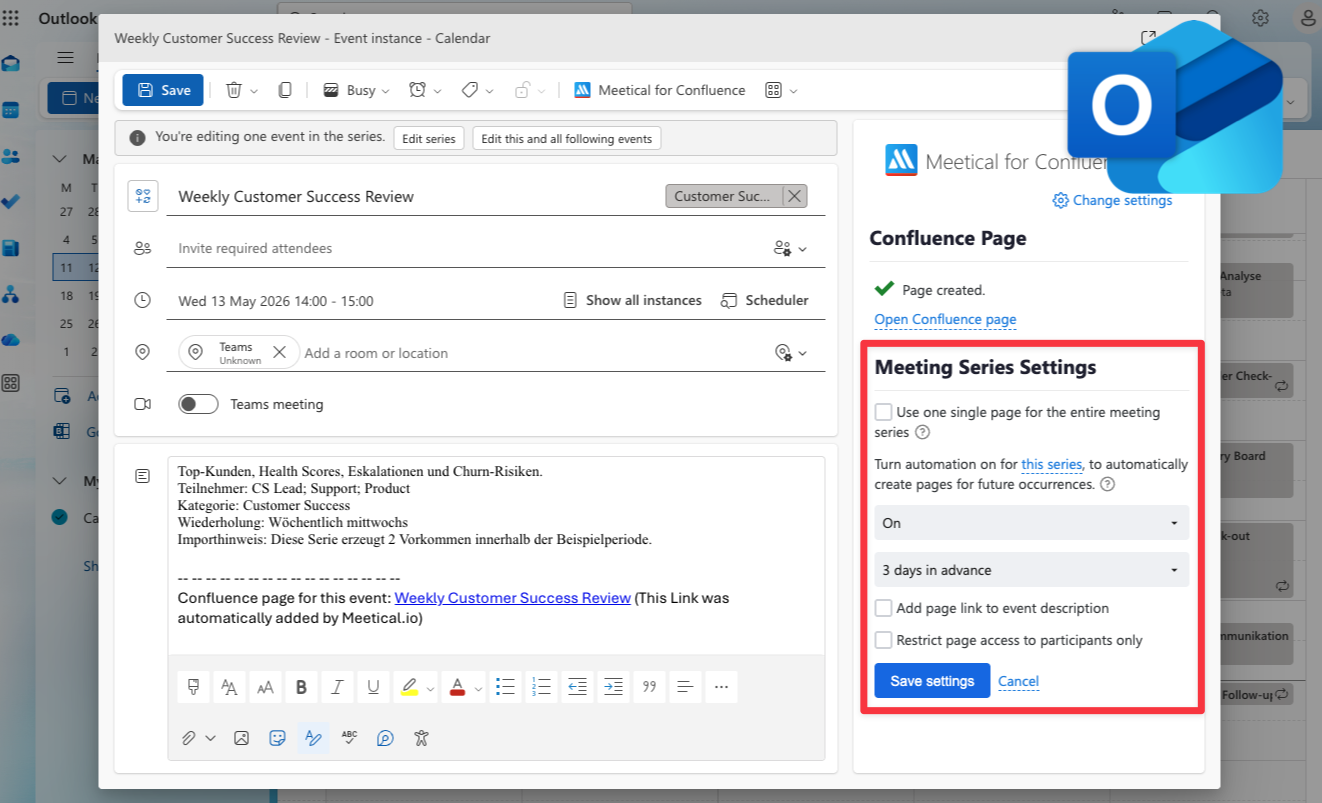
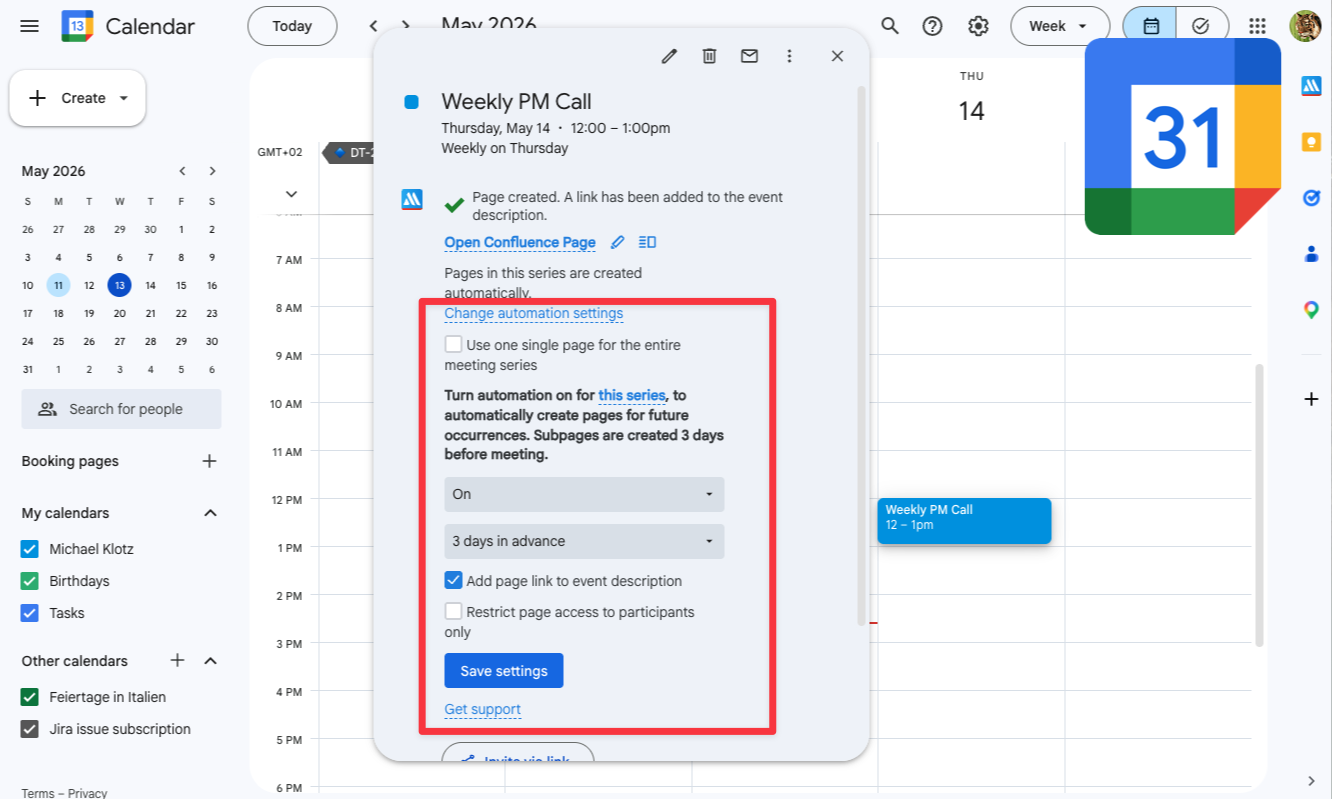
Here is a detailed guide on how to do this from the Meeting Series Parent Page.
1. In the calendar, create the first page for a recurring meeting
In Meetical, go to your calendar, pick your Weekly Review meeting and create the first Confluence page for the recurring meeting.
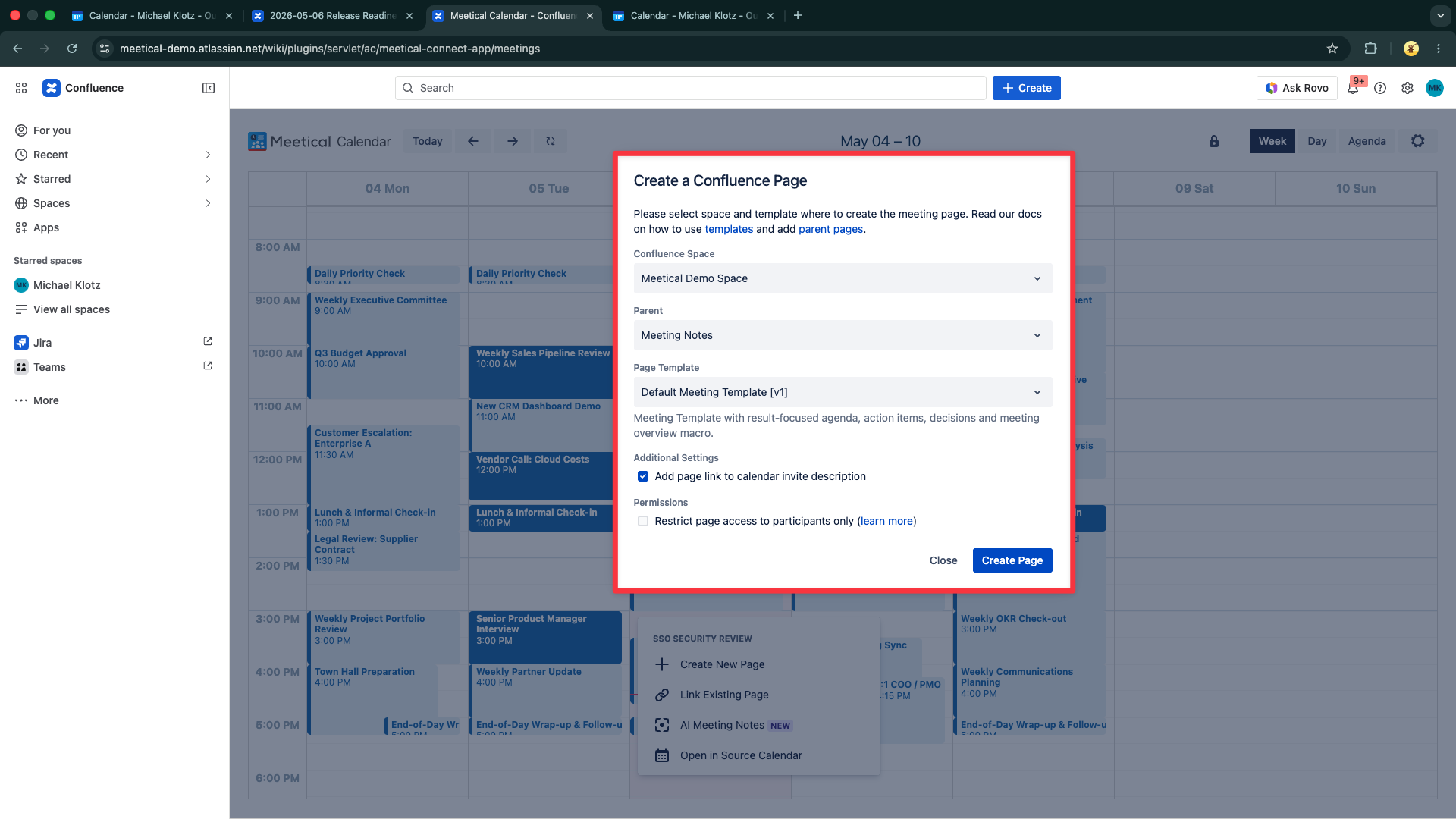
2. Navigate to the meeting series parent page
After the first page has been created, open the meeting series parent page in Confluence. From there, open Automate Page Creation.
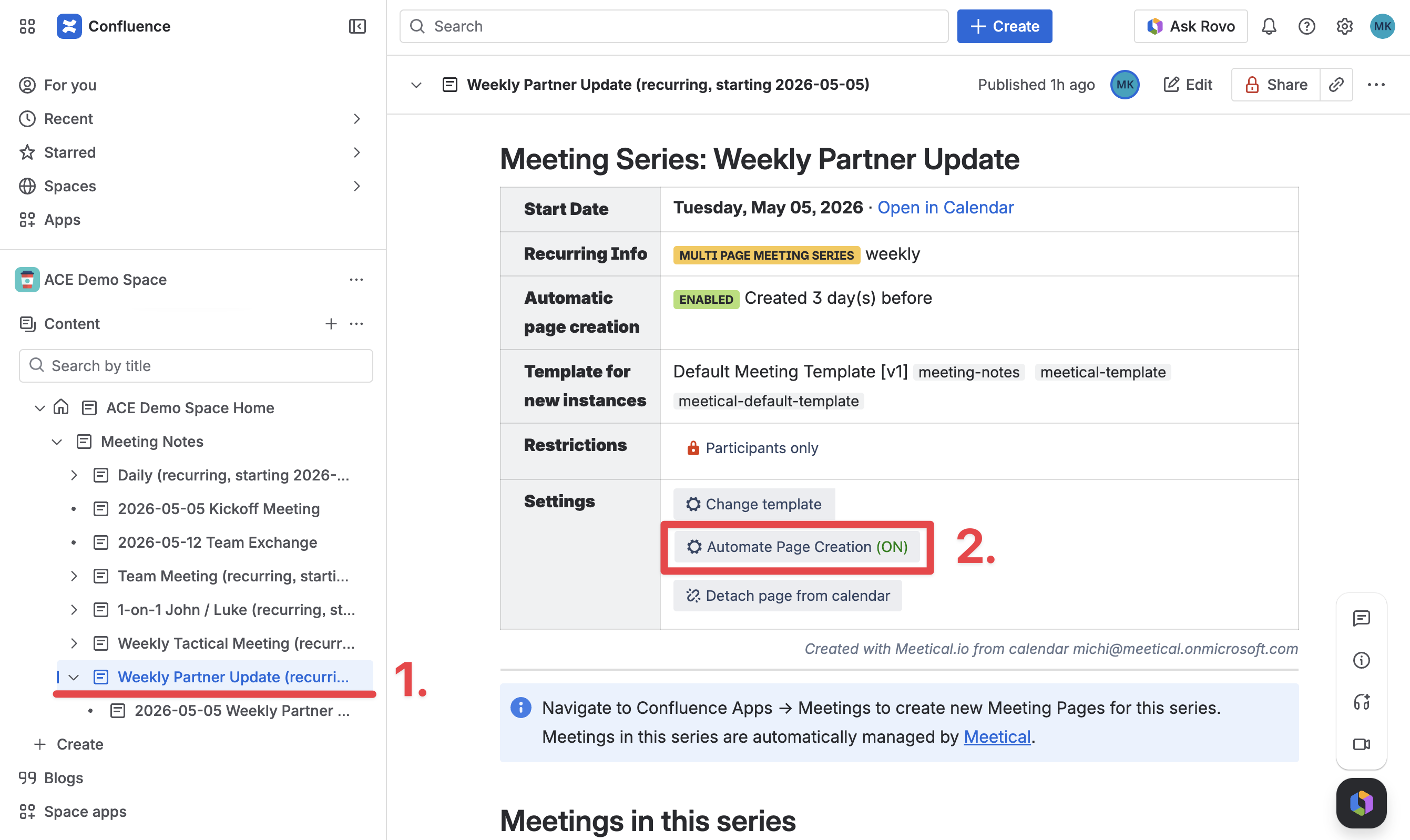
3. Enable automatic page creation and set the number of days
In the Automate Recurring Page Creation menu, set the automation to ON and choose how many days before the meeting the next page should be created.
-
Use 0 to create the page on the day of the event at the beginning of the day.
-
Use 1 to create the page one day before the event.
-
Use 7 to create the next page for a weekly event on the day of the current event.
4. Change automation settings later
You can change automation settings at any time from the internal Meetical Calendar. Open any occurrence of the recurring meeting, adjust the automation settings, and save. The updated settings apply to upcoming pages in the series.
The same workflow is also available from the calendar add-ins. Google Workspace users can use the Chrome extension, and Microsoft 365 users can use the Outlook add-in. The result is the same: Meetical creates future meeting pages automatically and links them to the recurring calendar event.
5. Upcoming meetings will get created and linked automatically
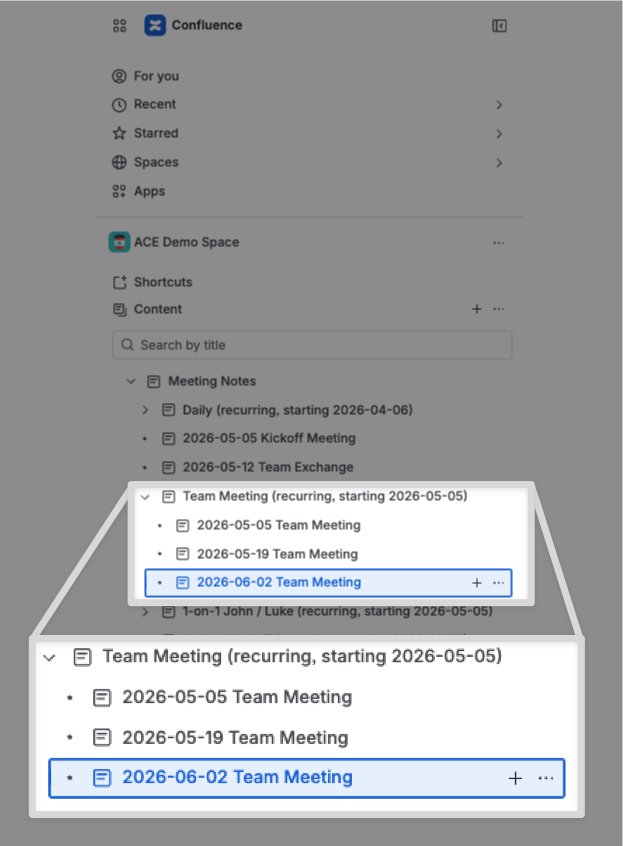
Your recurring meeting pages will now get created and linked automatically. Meeting pages are available in the calendar and in your Confluence space under the meeting series parent page.
Thank you for reading. Reach out to support@meetical.io for questions and feedback.