
Do you want to restrict access to certain meetings to "participants only"? In IT companies, confidential meetings on topics like personal development, HR issues, security protocols, certification processes, and strategic planning should have their notes restricted to participants only to safeguard sensitive information and maintain trust.
Making Confluence meeting notes confidential is possible using the Confluence native features, but it's even easier by using Meetical's new meeting page restrictions feature!
The feature also allows you to create confidential meeting pages and apply restrictions immediately without the risk of forgetting to apply restrictions manually or temporarily exposing any unwanted information.
Confluence manages access for meeting notes and pages through three levels of permissions: global permissions, space permissions, and page restrictions.
Confluence Basics: Permissions vs. Restrictions
It's important to know that permissions are defined by admins, while restrictions are an extra layer of control every user can potentially set and control.
-
Global Permissions: These are site-wide permissions set by Confluence administrators. They are broad in scope and generally don't interact with the more specific space permissions or page restrictions. They include the overall access and management rights within the Confluence site.
-
Space Permissions: Each space in Confluence has its own set of permissions, controlled by the space administrators. These permissions determine access for different users and groups within that specific space. They can allow or restrict actions like viewing, adding, editing, or deleting content. These permissions can be complicated by users belonging to multiple groups with different access rights. If there's uncertainty or a desired permission setup isn't achieved, it's advised to consult with a Confluence administrator.
-
Page Restrictions: These apply to individual pages within a space and can restrict viewing or editing rights to certain users or groups. By default, pages are open for viewing and editing, but restrictions can be applied as needed. It's important to note that these restrictions are subject to the overarching space permissions. For instance, a space admin, even if restricted on a page, can still see and alter the list of restricted pages.
Interaction of Permissions and Restrictions: The interaction between these levels of permissions is significant. For instance, a user might have 'view' permission for a space but could be restricted from viewing certain pages or meeting notes within that space. Space admins, despite having broad rights within a space, may be restricted from viewing certain pages, although they can see and modify the list of restricted pages.
Meetical Meetings for Confluence allows you to control page restrictions directly from the Google / Microsoft 365 calendar extensions and via some additional macros.
The app allows you to restrict a page to "participants only" when you 1) create a page, 2) use the "page restrictions" macro on an existing page, and 3) when you change your automation options for recurring meetings.
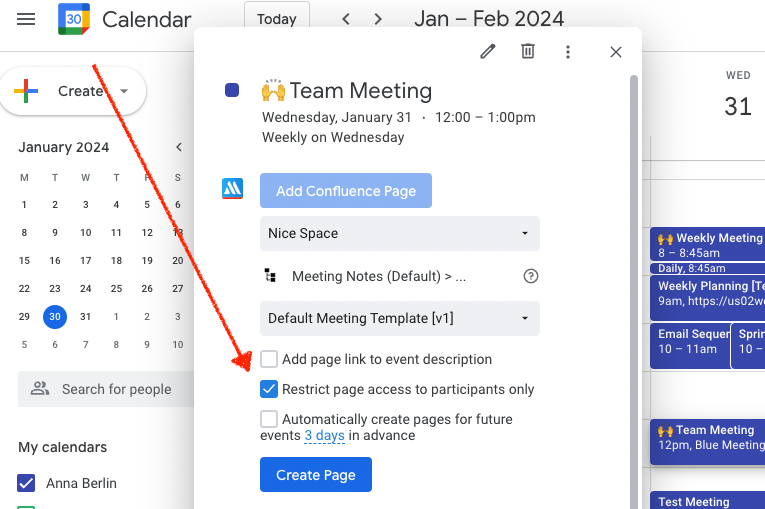
Restrict page access to participants only
The feature is available in the internal calendar and also in the Meetical Chrome extension for Confluence. Coming soon for the Outlook add-in.
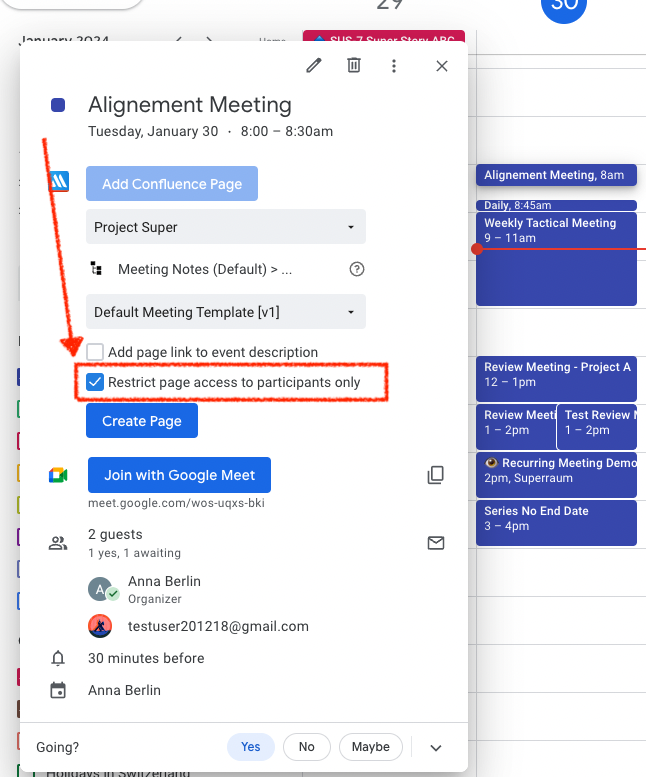
Simply use the new checkbox "Restriction of page access to participants only.”
All meeting participants with a valid Confluence User Account will be added to the page restrictions. No external participants will be invited or get any access. Public pages and Guest Access might be an option for you to cover this, but this is beyond the scope of this article (see FAQs below).
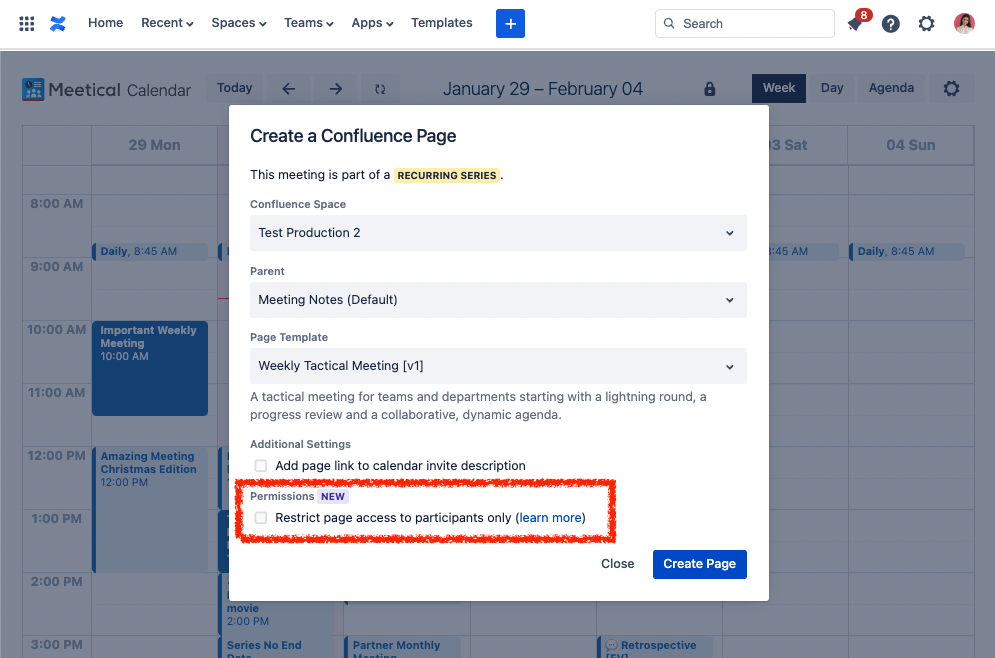
After you create the page, you will see a macro to control the page restrictions:
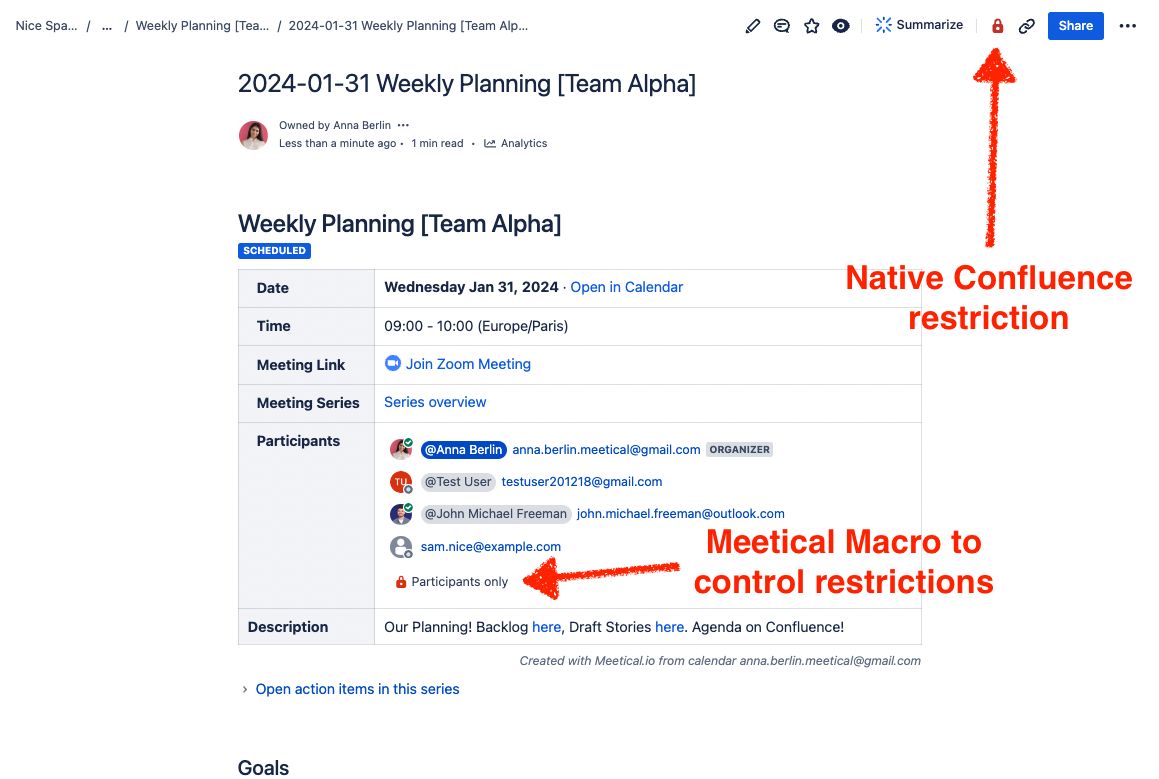
In the above example there are four participants; three of them have an internal Confluence account.
That means that @Anna Berlin, @Test User, and @John Michael Freeman will be added to the Restriction List. External users like sam.nice@example.com will be ignored.
Users will get both view and edit access.
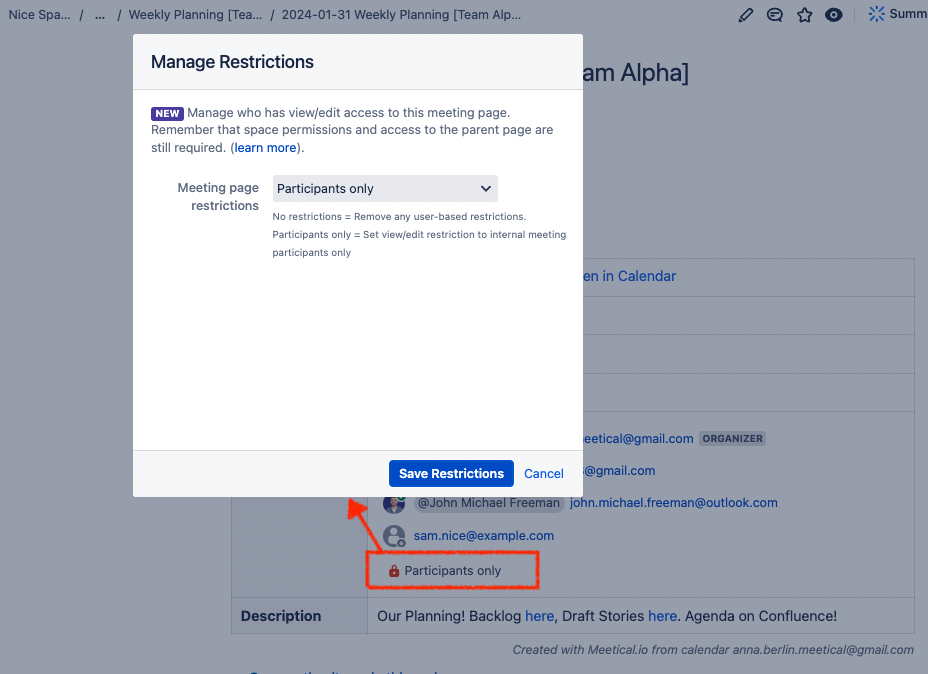
Using page restrictions with Meeting Series
Page restrictions can certainly also be applied for meeting series too!
The restrictions are applied to both the parent/master page of the series and the sub-pages. This prevents a page from becoming unrestricted when moved to a different place/parent. The master page restrictions will include all participants, even if they are present only on a single occurrence of the series.
Automations and page restrictions
If you use the automation for recurring meetings, you can configure the automation settings to control if page restrictions should be applied.
1) When you create the first page, simply choose to set restrictions to "participants only.” The automation will continue to use that initial setting.
2) If you want to change the automation setting for future pages, open the meeting in the internal calendar (or in the browser/Outlook extension). Then find the checkbox "Restrict page access to meeting participants only" and turn the setting on/off as needed.
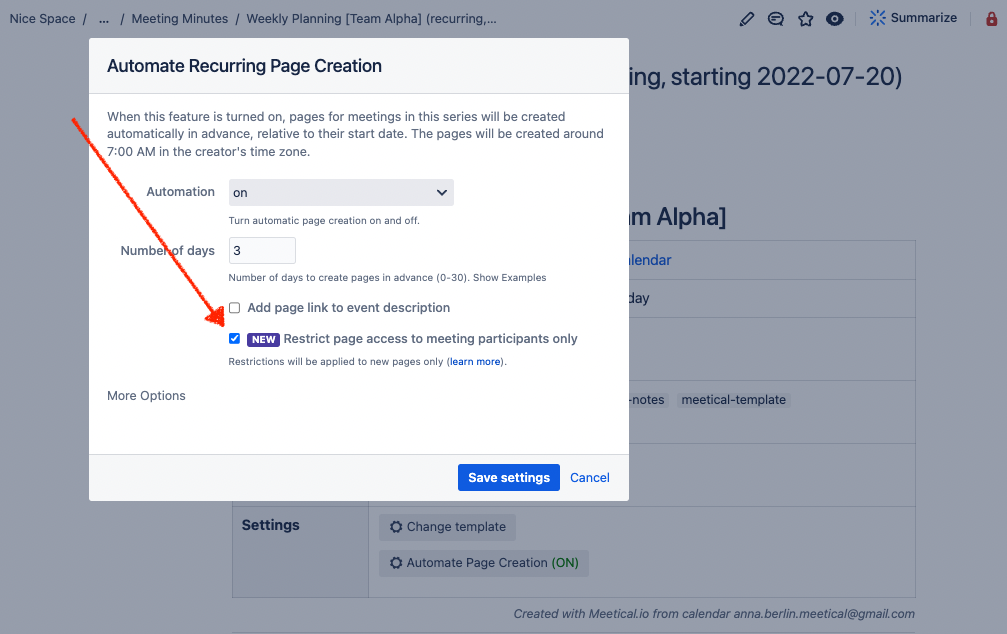
3) If you want to restrict an existing meeting series to "participants only,” navigate to the meeting series parent page ("master page") and open the macro that says "No Restrictions,” then apply restrictions. Remember to also activate the option in the automation settings as described in point 2.
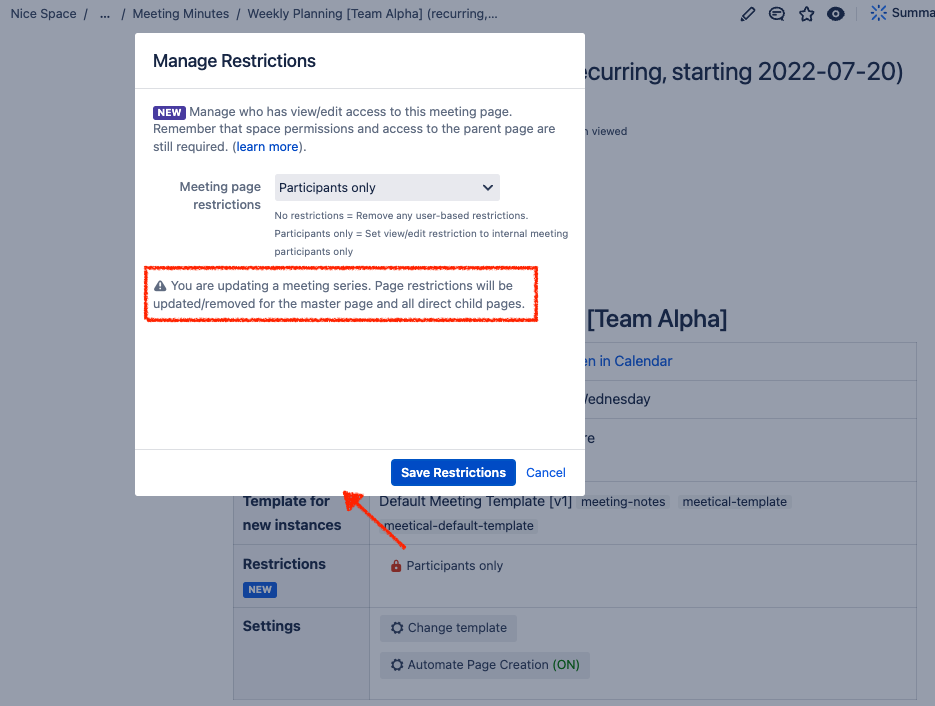
Only the event owner or a permanent participant of the meeting series can reset the restrictions for an entire meeting series.
Using the Chrome Extension to control restrictions
You can also use the browser extension to control restrictions! The concept is always the same.
Using the Outlook Add-in
Also available now for the Outlook add-in.
Summary
In summary, Confluence's permissions system is layered and allows for both broad and granular control over content access, with global permissions setting site-wide rights, space permissions controlling access within specific areas, and page restrictions managing individual page access.
With Meetical Meeting for Confluence, you can control page restrictions for meeting notes in a simple and transparent way and easily restrict visibility for confidential meetings.
We hope you enjoy this guide. Let us know any questions and feedback via our support portal! Thank you, have great meetings! 🙌