
Meetical AI has been released as the early access version! Learn more
Meetical Documentation

Meetical Calendar Automations FAQ

On this page we're going to address some of the most common FAQs around Meetical's create-page automations for Confluence.

To enable an automation for any meeting series, open any occurrence of the meeting and follow the instructions. You can use the calendar extensions for Google/Outlook or Meetical's Confluence Calendar app. Check out further documentation here.

1. My automation is not triggered. What can I do?

Here are some steps to verify automations are setup correctly:

  • First of all, log in to https://app.meetical.io with your Atlassian account and verify your setup is complete and your calendar is still connected.

  • On the page, check for any temporary API errors, which are reported at the bottom.

  • Note that temporary API errors should be automatically recovered but can delay automations up to 24 hours in the worst case.

  • On the Meeting Series parent page, verify that you are the creator/owner of the Meeting Automation. By default, the page creator is the owner of the automation. (see How to change owner section for details).

If you still face issues, contact support.

2. How to change the automation owner?

By default the automation owner is the user who created the first meeting page in the series. Here are the steps to change the automation owner:

  • To change the automation owner, you need to use the internal Confluence calendar (Note: this feature is not yet available in the Google Calendar extension or Outlook add-in).
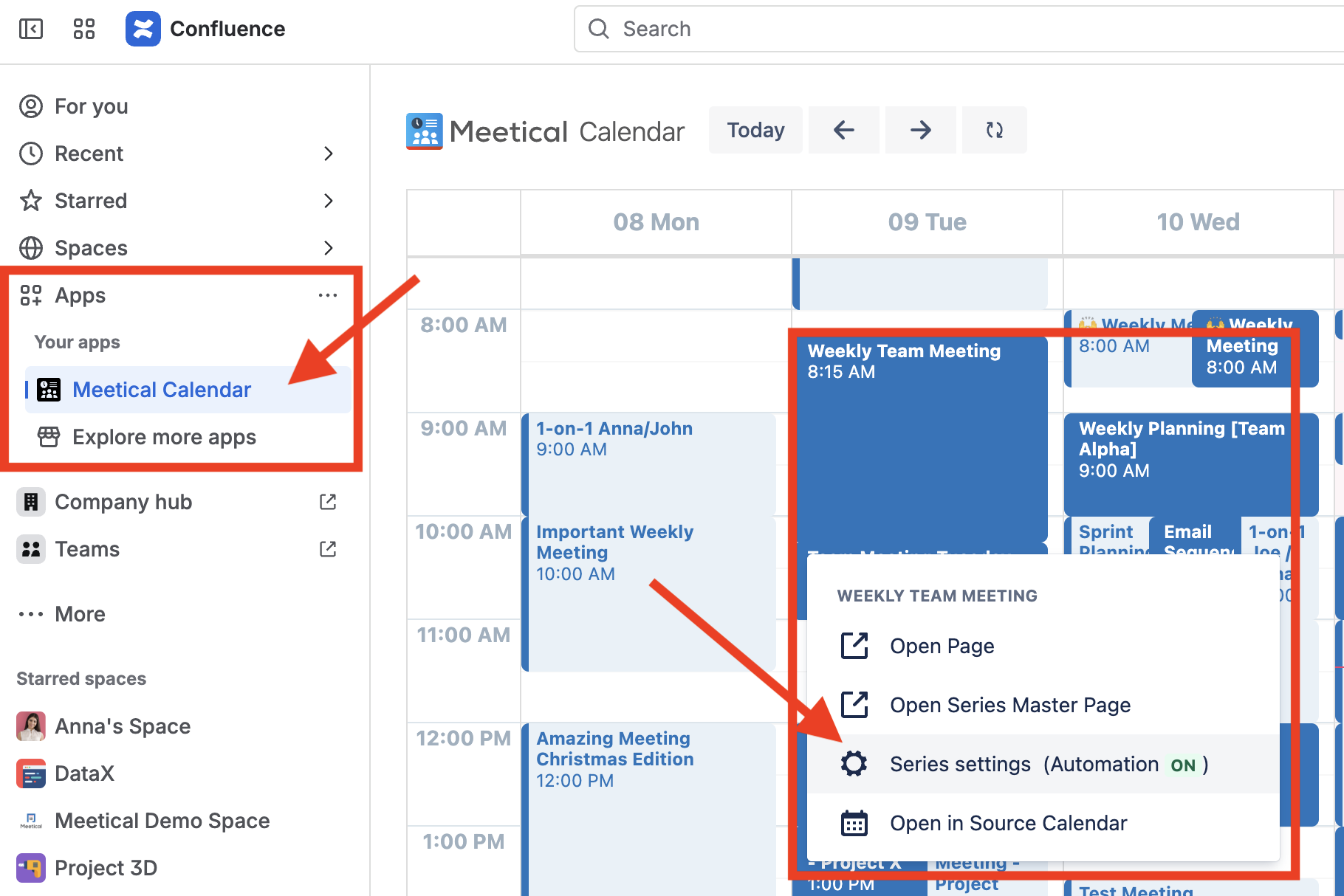
https://cdn.prod.website-files.com/60e563cc1eead845d638e0d1/68c296df553412c3768e3439_Screenshot%202025-09-11%20at%2011.27.14.png
https://cdn.prod.website-files.com/60e563cc1eead845d638e0d1/68c29726e7823e92d9fc61bc_Screenshot%202025-09-11%20at%2011.28.03.png

After you save the settings, as the last step, verify on the Meeting Series parent page that the new automation owner is set correctly.

https://cdn.prod.website-files.com/60e563cc1eead845d638e0d1/68c297d1cb47ae57b0972e07_Screenshot%202025-09-11%20at%2011.34.17.png
3. How often are the automations triggered?

Automations usually run within a 4-hour time window, within the number of days in advance you set for the automation.

If you set your meeting series automation to "3 days in advance,” the automations are triggered within a 4-hour time window within the 3 x 24 hours before the meeting starts.

  • If you need the page earlier, you can trigger the page creation any time from the internal calendar or the Google/Microsoft calendar extension we provide.

  • Note that automations will only run between 6am and 7pm in the automation owner's timezone to avoid unwanted notifications during quiet hours.

4. Troubleshooting Automations

⚠️ If you have no automations activated for several weeks, your user's automation pool can be paused to save resources. Once you activate an automation, we attempt to fill your pool immediately, but under certain circumstances, it can take up to 24 hours to fill your automation pool again.

⚠️ If there are temporary API errors on either Google’s or Atlassian’s side, we try to recover these automatically. However, this could delay automations significantly. Check https://meetical.statuspage.io https://status.atlassian.com.

Support: If your automations still seem not to trigger on time, please reach out to Meetical Support.