
Learn how to install and customize the included custom meeting templates.
This guide is for Confluence Cloud. See here for options on Confluence .
How to install Meeting Templates for Confluence.
In this step-by-step guide, you will learn how to install meeting templates for Confluence included in Meetical.
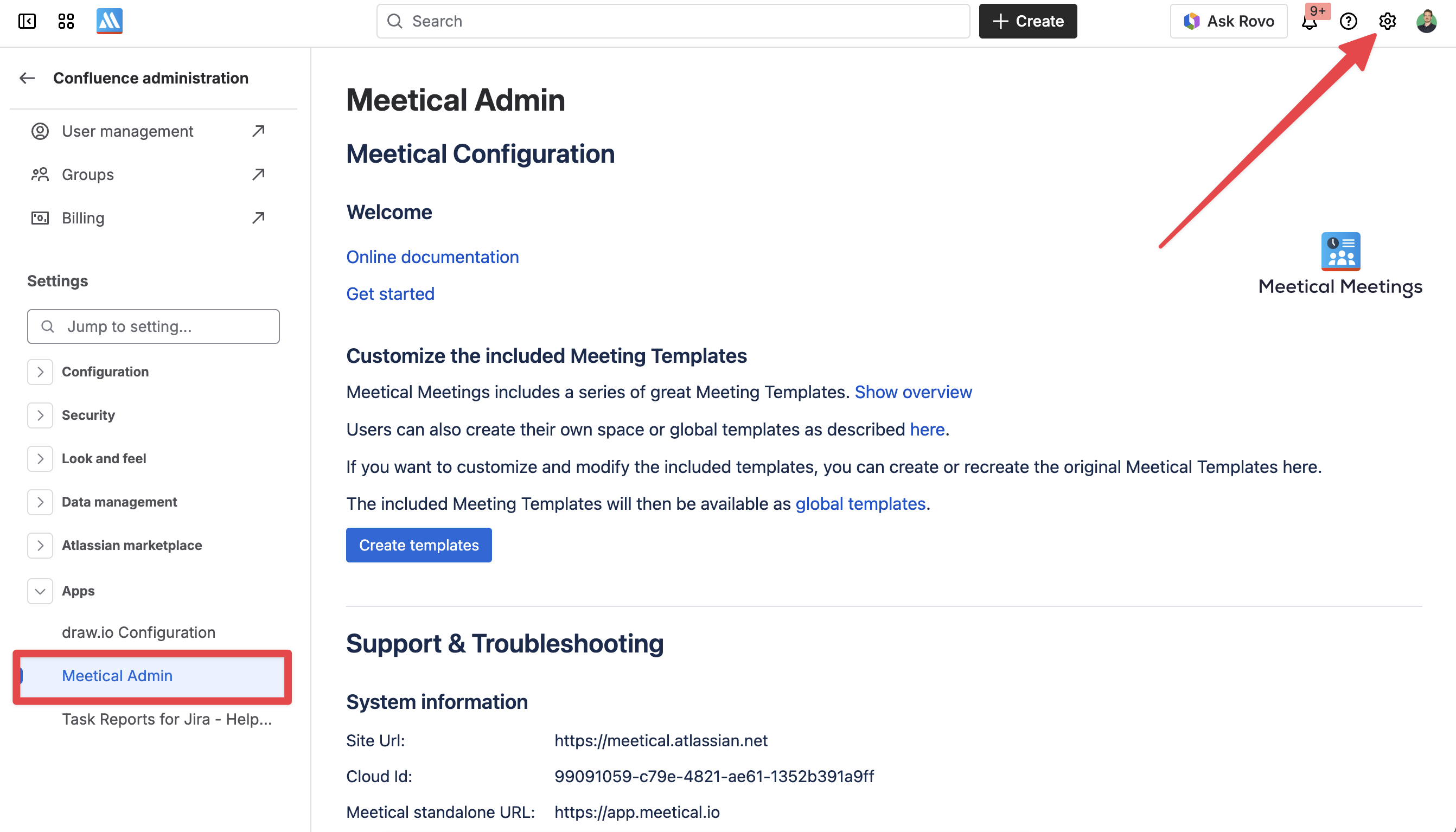
1. In the menu bar click the gear icon, then in the left side bar search for “Meetical Admin”
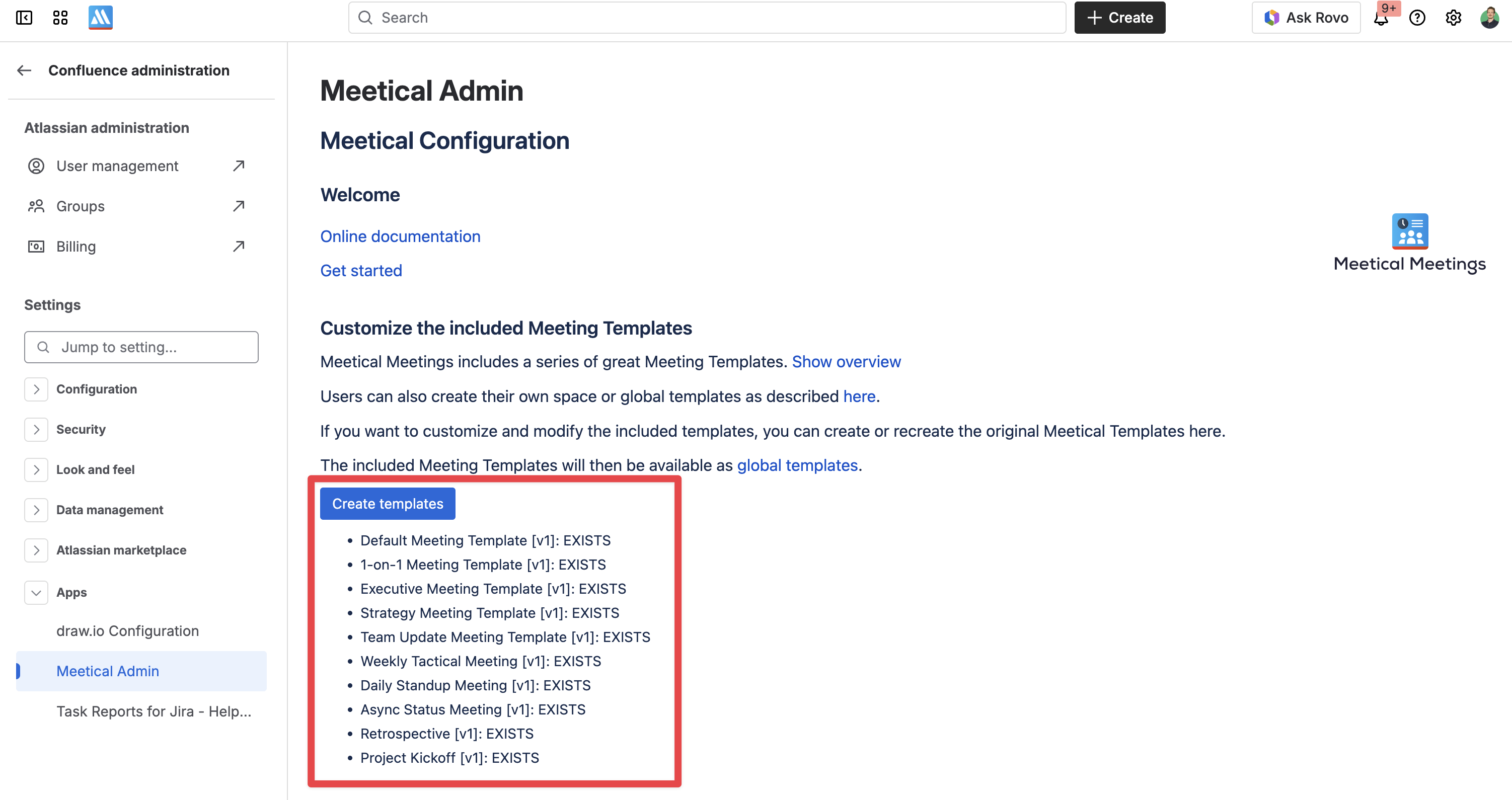
2. Click on “Create Templates” to add all Meetical Templates to your global templates in your Confluence.
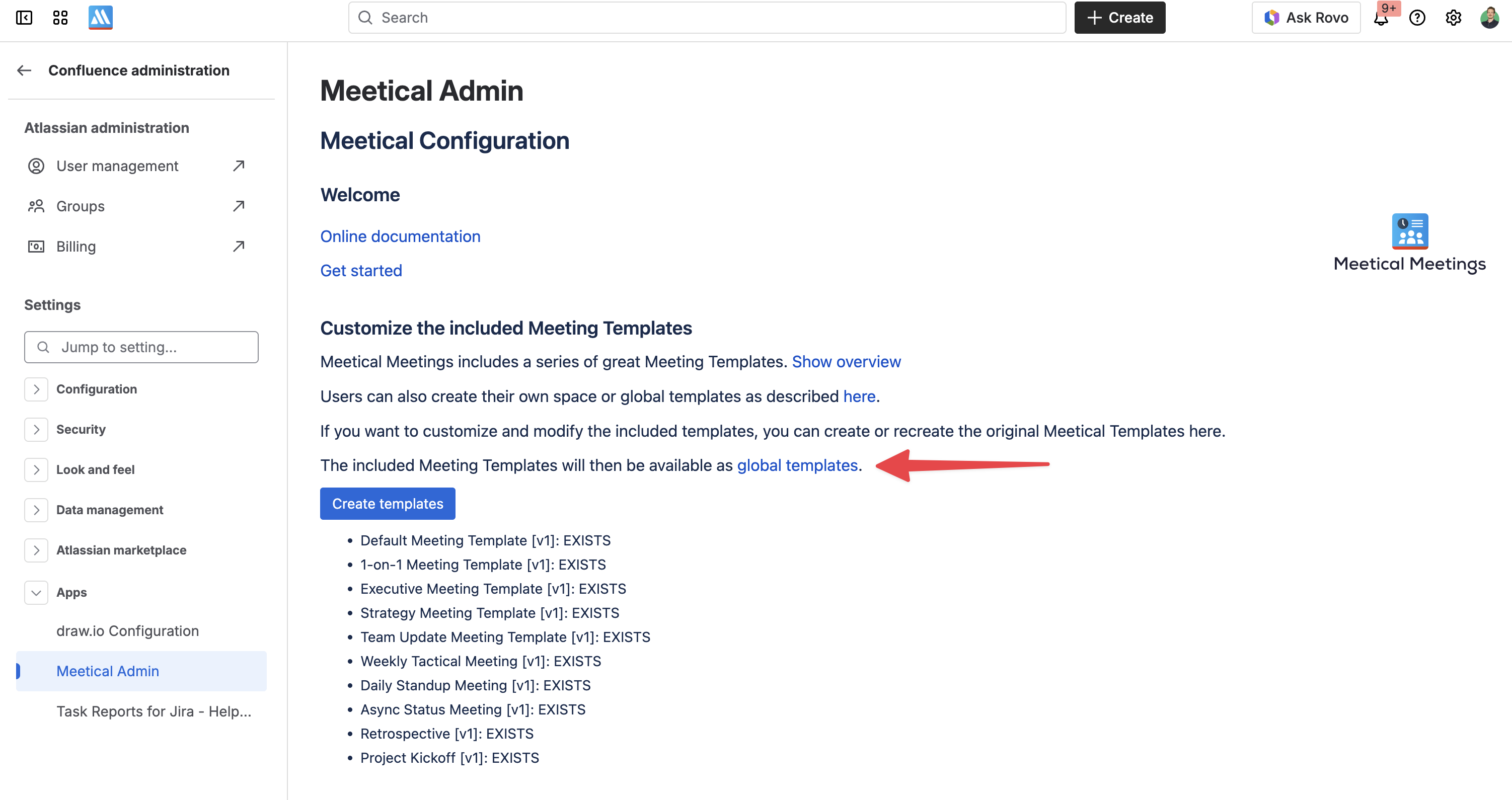
3. Access the templates
After creating the templates, we can edit any of them by navigating to the Global Templates.
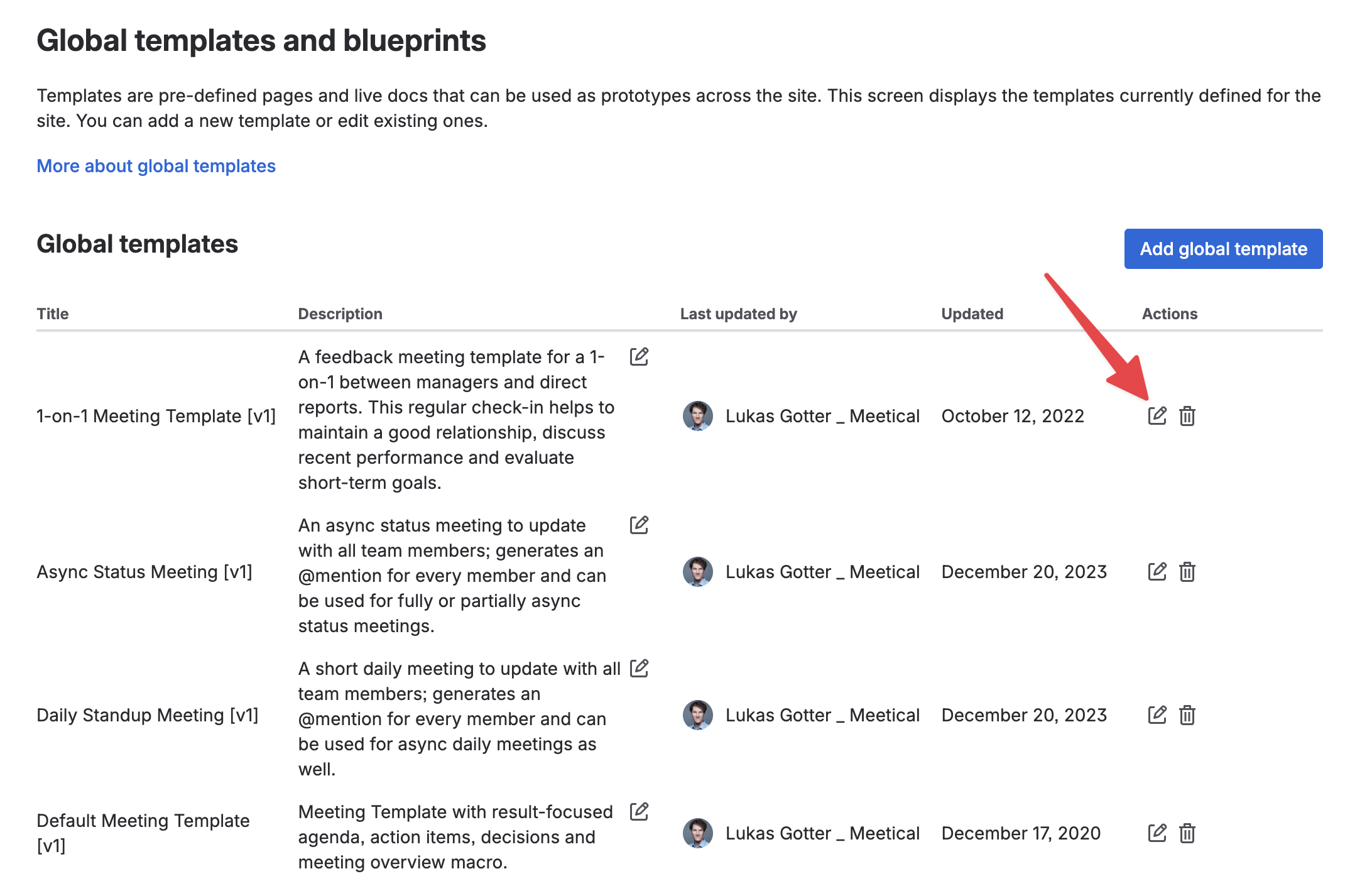
4. Edit Templates
Once there, to edit a template, we need to click "Edit” on the right side of the chosen template.
5. Use macros to show meeting details on your template
Once in the template editor you can use macros. Macros are super useful and can be used for anything from charts and project statuses to specific Meetical functionality.
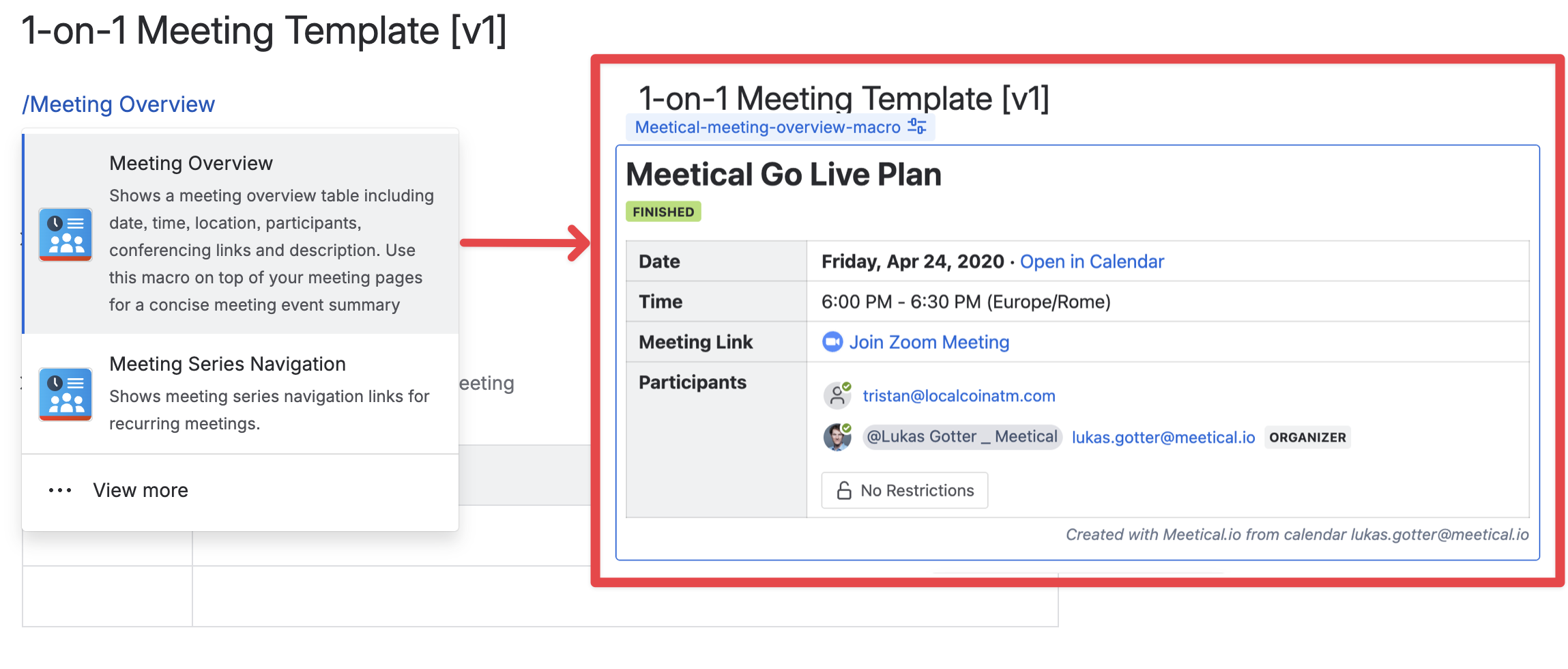
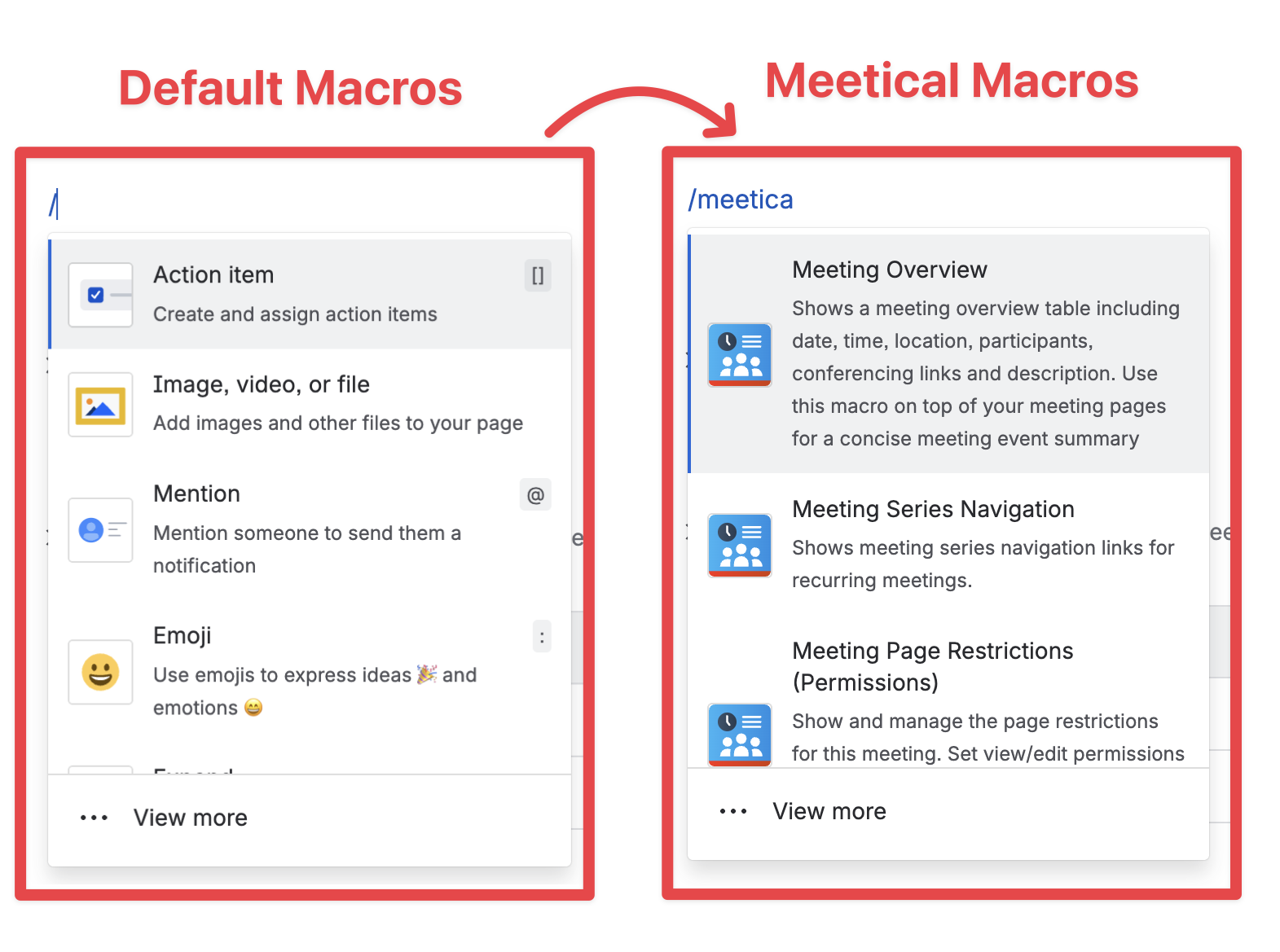
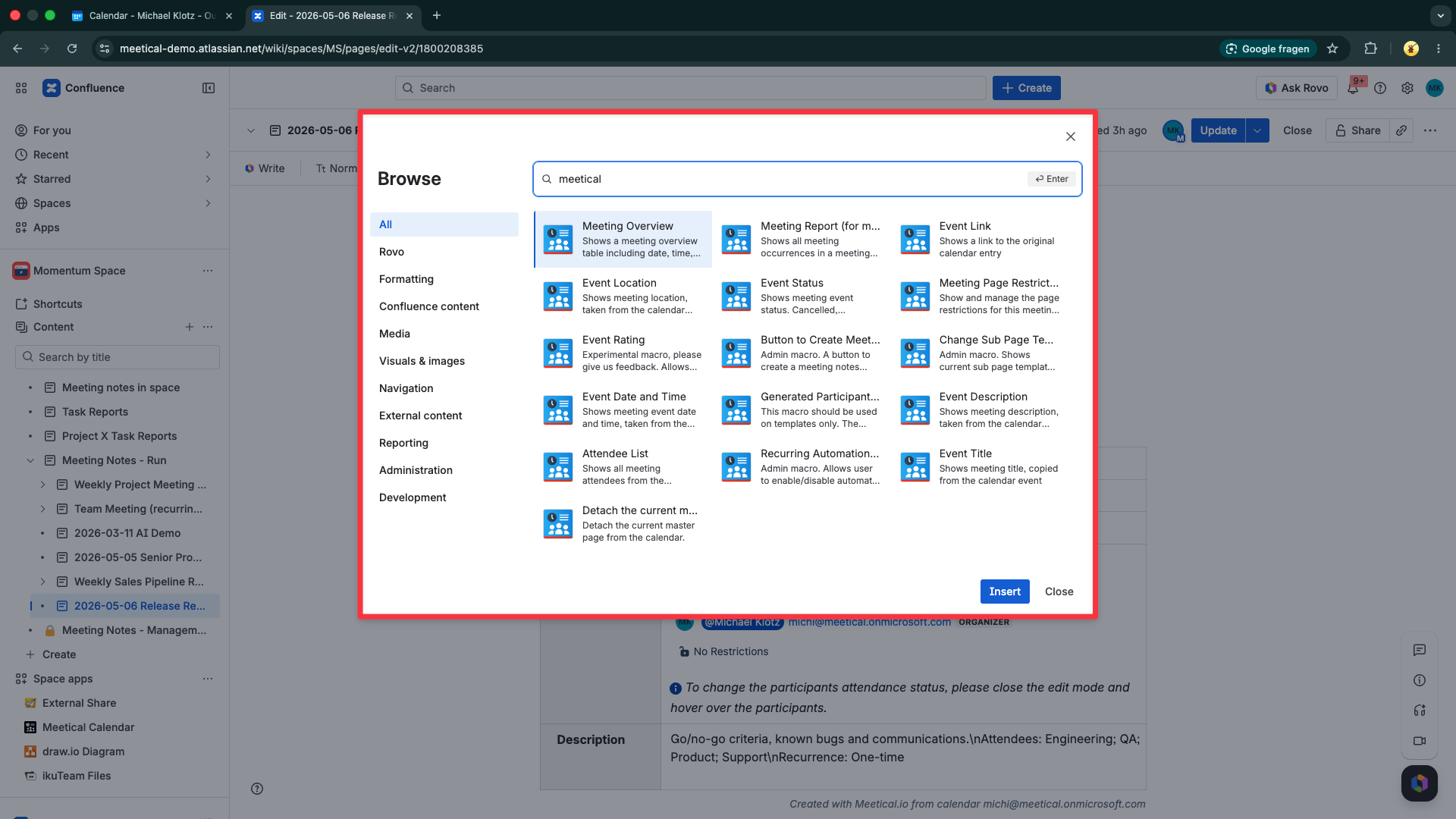
You can add macros by writing "/" or "/meetical"(for Meetical functionality macros) at any point on the page or by accessing the macro menu.
We recommend you start with the Meeting Overview Table macro, which already contains all essential meeting information like date, time, location and the participants.
6. Add text, images and more
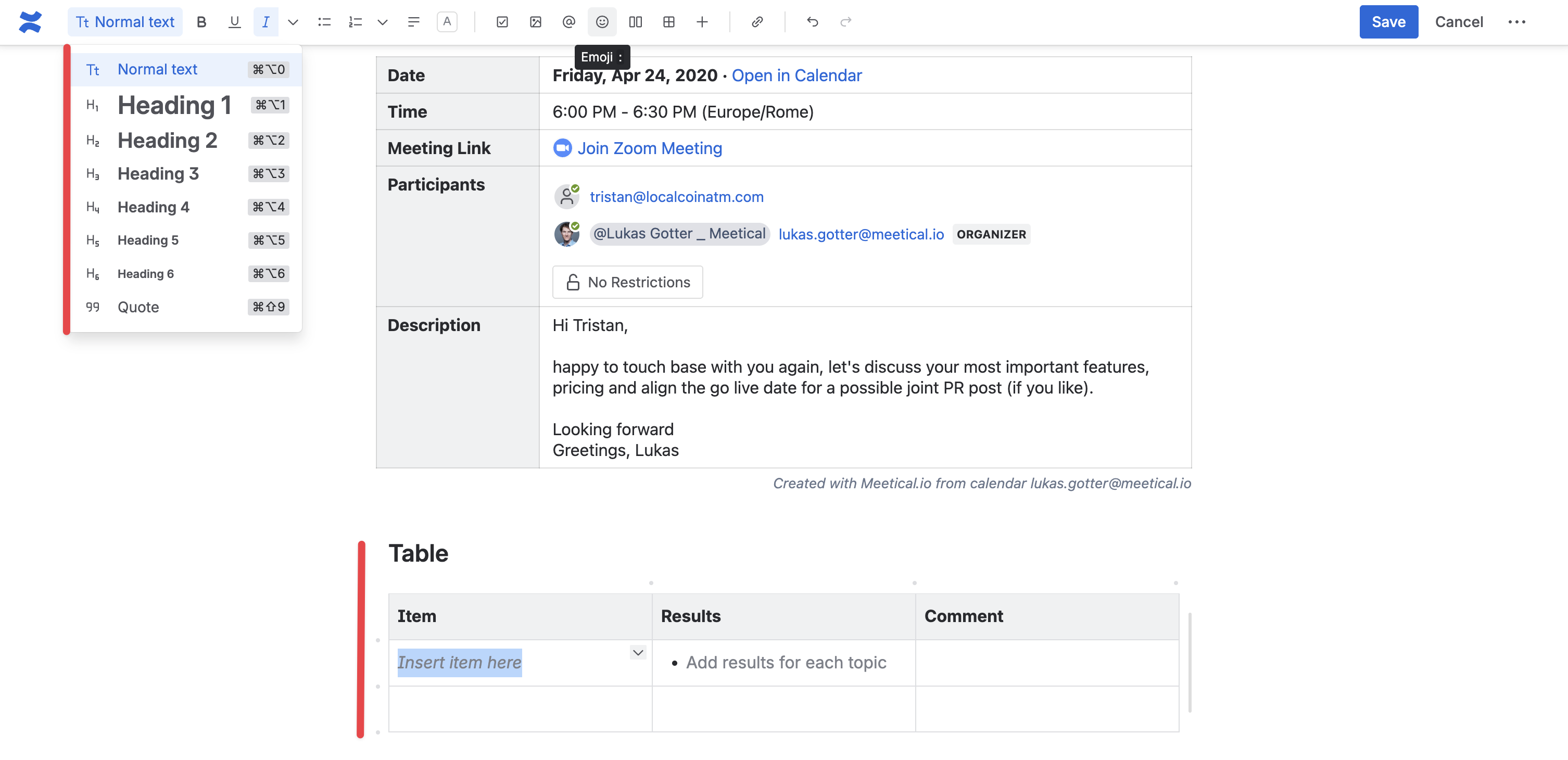
Editing is simple and straightforward. To add or remove information and fields just click on the information you'd like to change or any field you'd like to add information to and edit.
7. Use your edited meeting template from the list
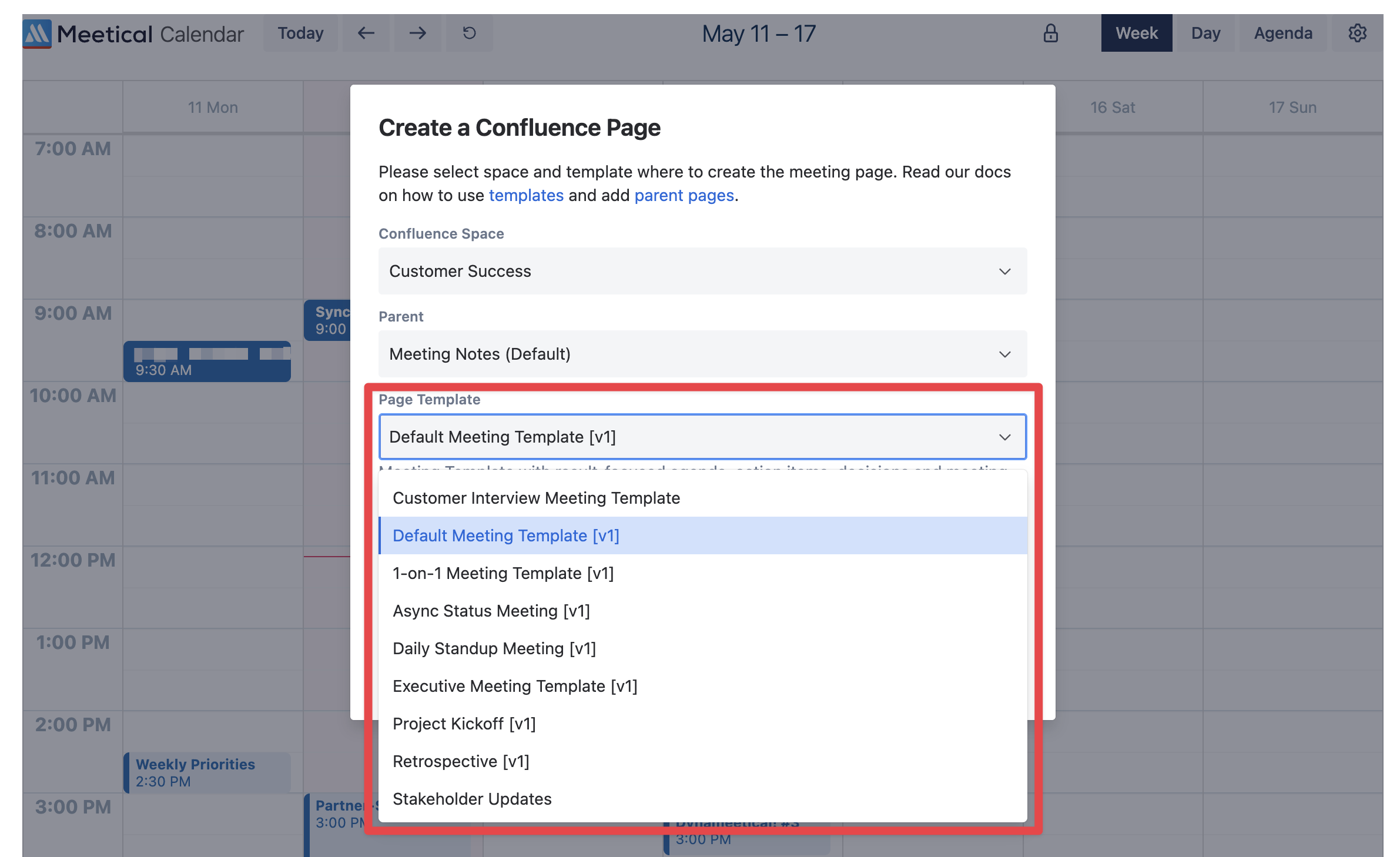
After saving the template, it is ready to use. Just pick the template from the list when you create a new meeting.
Thank you. Feedback and questions are very welcome. Reach us at support@meetical.io.