
Task Report is now PAID
Major upgrades to Task Reports or any other Forge app require your manual approval.
Long-term users are eligible for discounts up to 100% for the first year (please reach out).
Important upgrades made:
-
Performance improvements of up to 10x.
-
Enhanced data security and compliance with Runs on Atlassian. No data leaves your instance.
-
Support for restricted pages. Since users are now correctly impersonated when using the app, restricted pages will be included in the reports (if the user has access, of course)
-
Removed feature: Note that the iCal sync has been removed for now because it would violate the Runs on Atlassian requirements.
Update App via Atlassian Admin (Connect Apps)
Here is how to update the app:
-
Open Jira, click on the top-right settings gear → Marketplace Apps
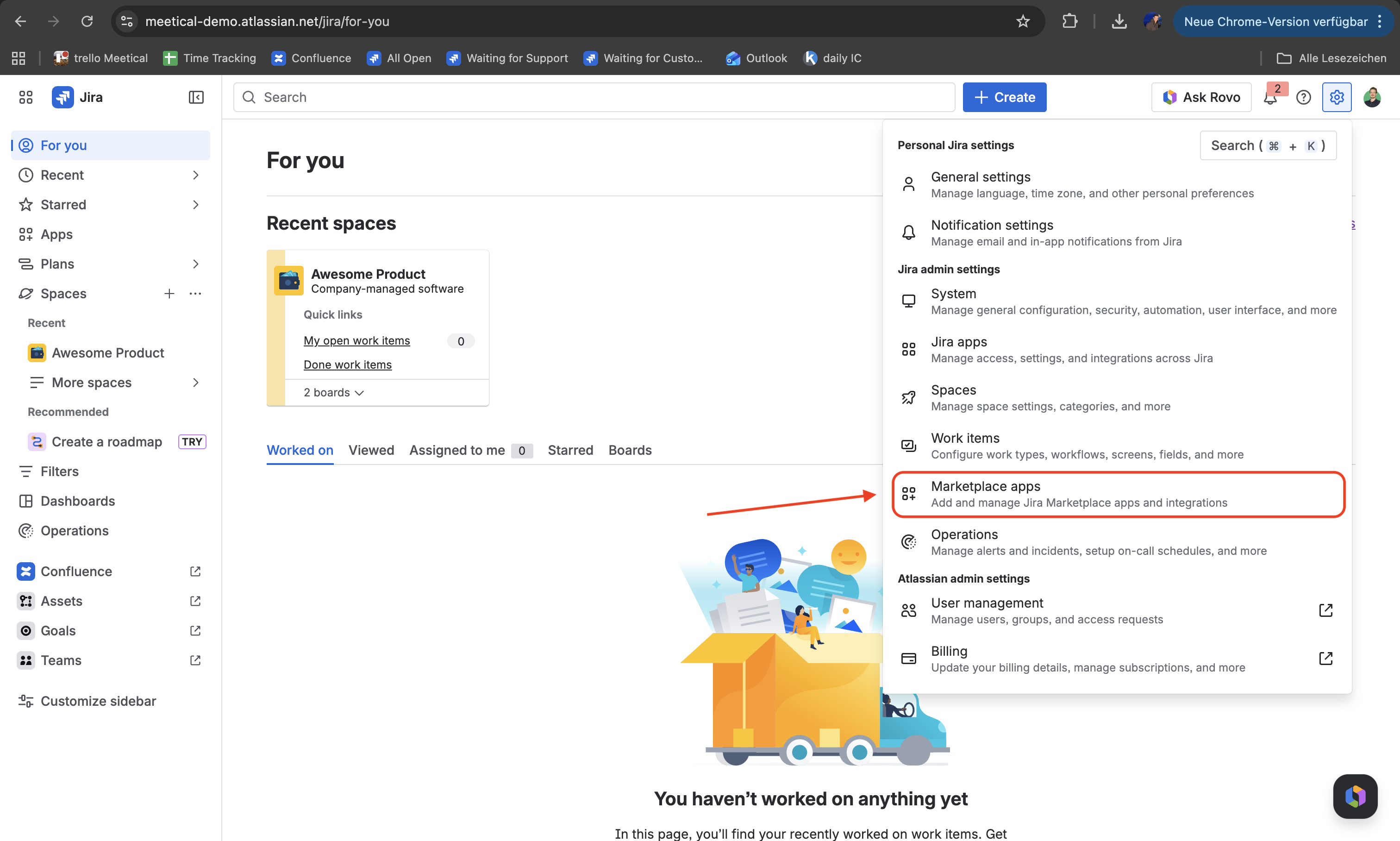
Alternatively navigate to https://your-site-name.atlassian.net/plugins/servlet/upm
-
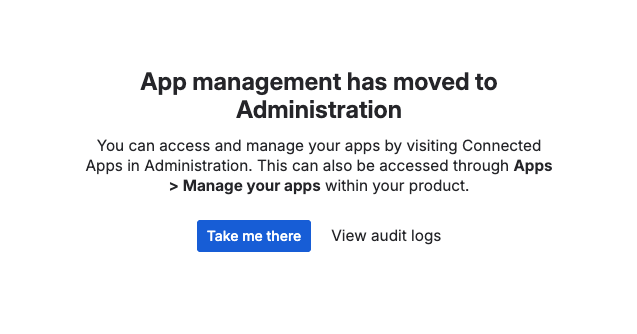
Next to your site, click “Take me there”
-
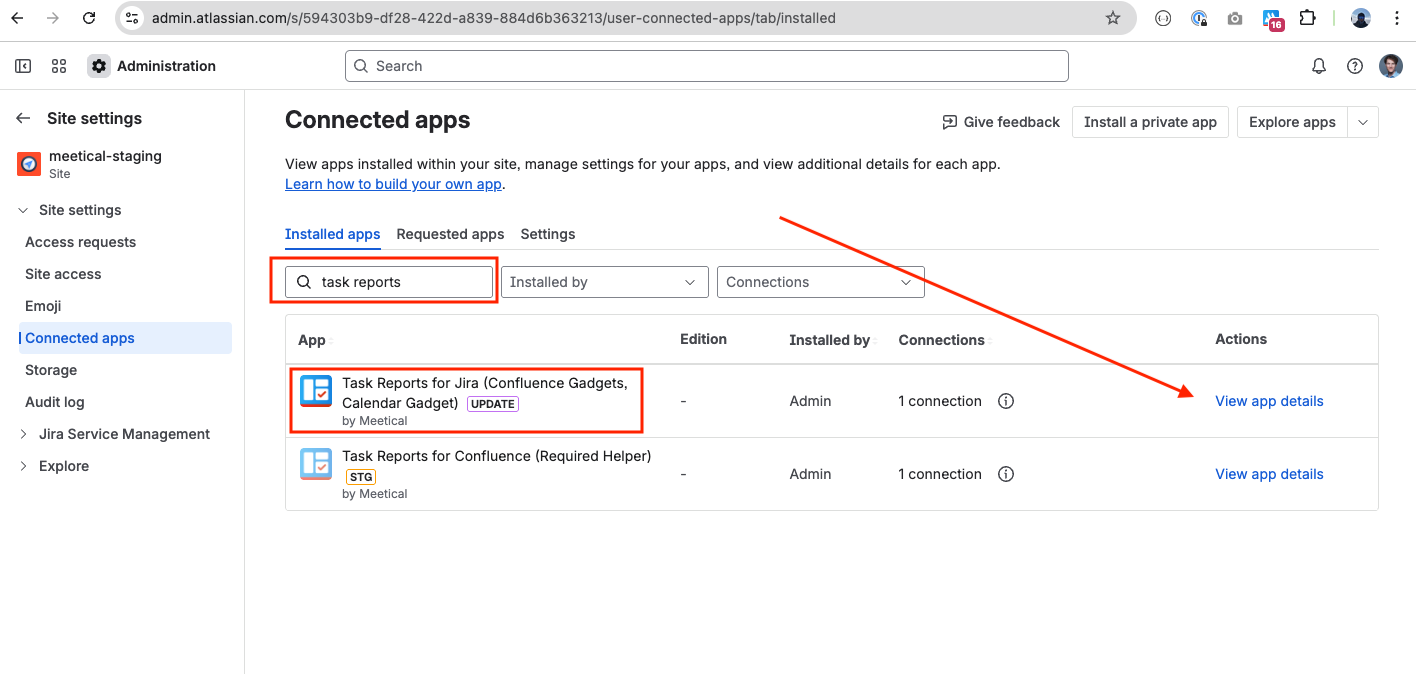
Navigate to “Connected apps” in the left menu
-
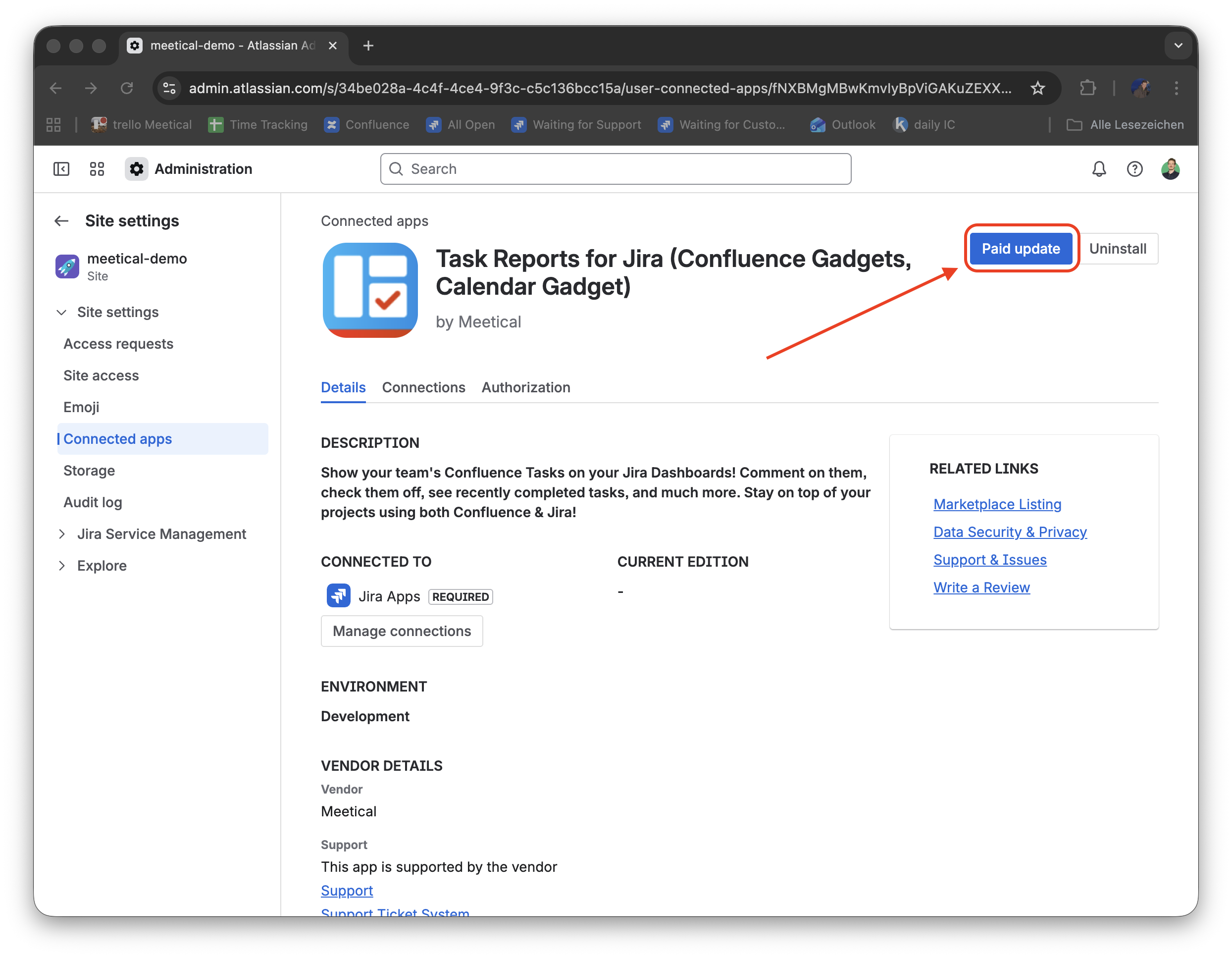
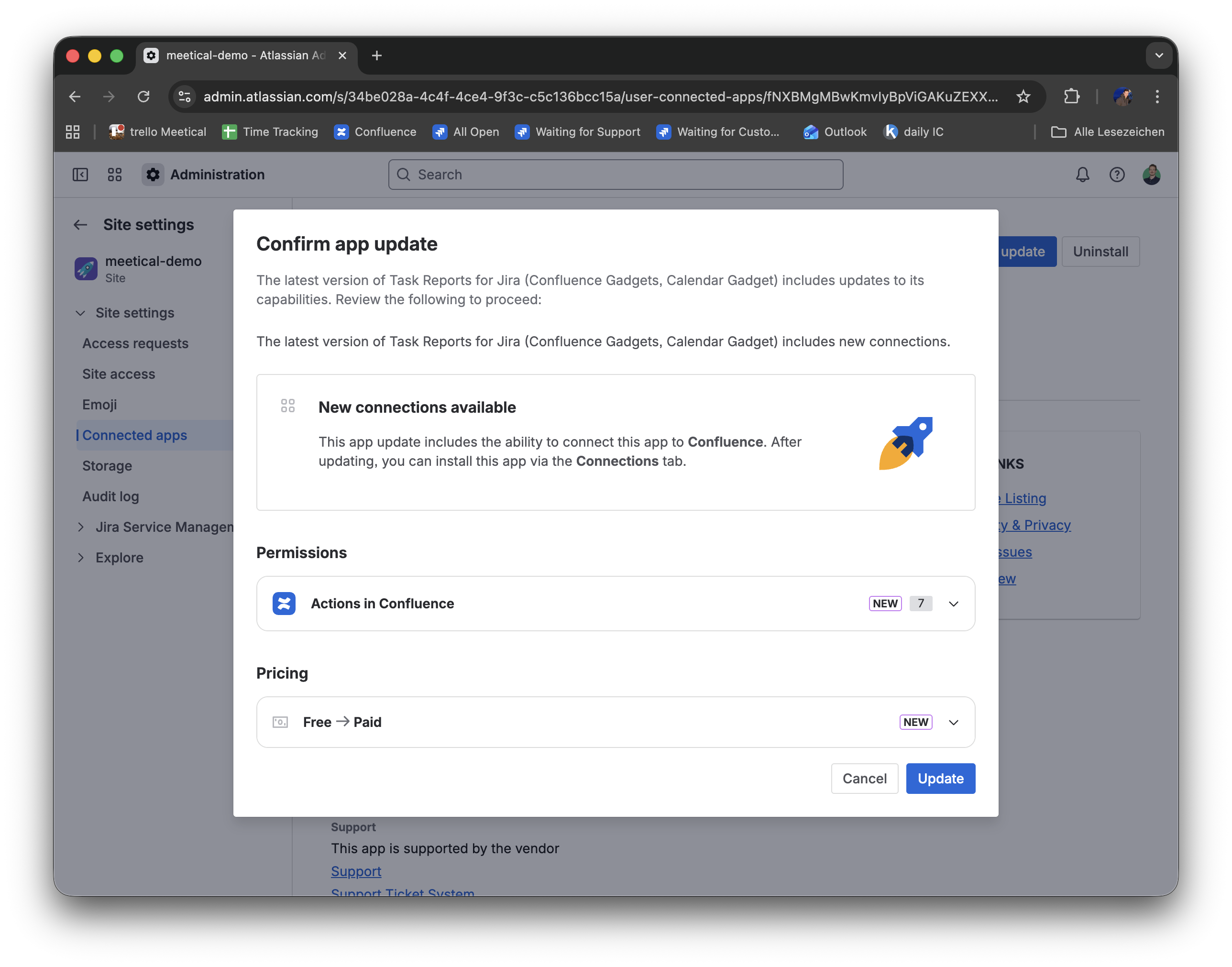
Update the app “Task Reports for Jira”, click on “Paid update”
-
Confirm the app update
-
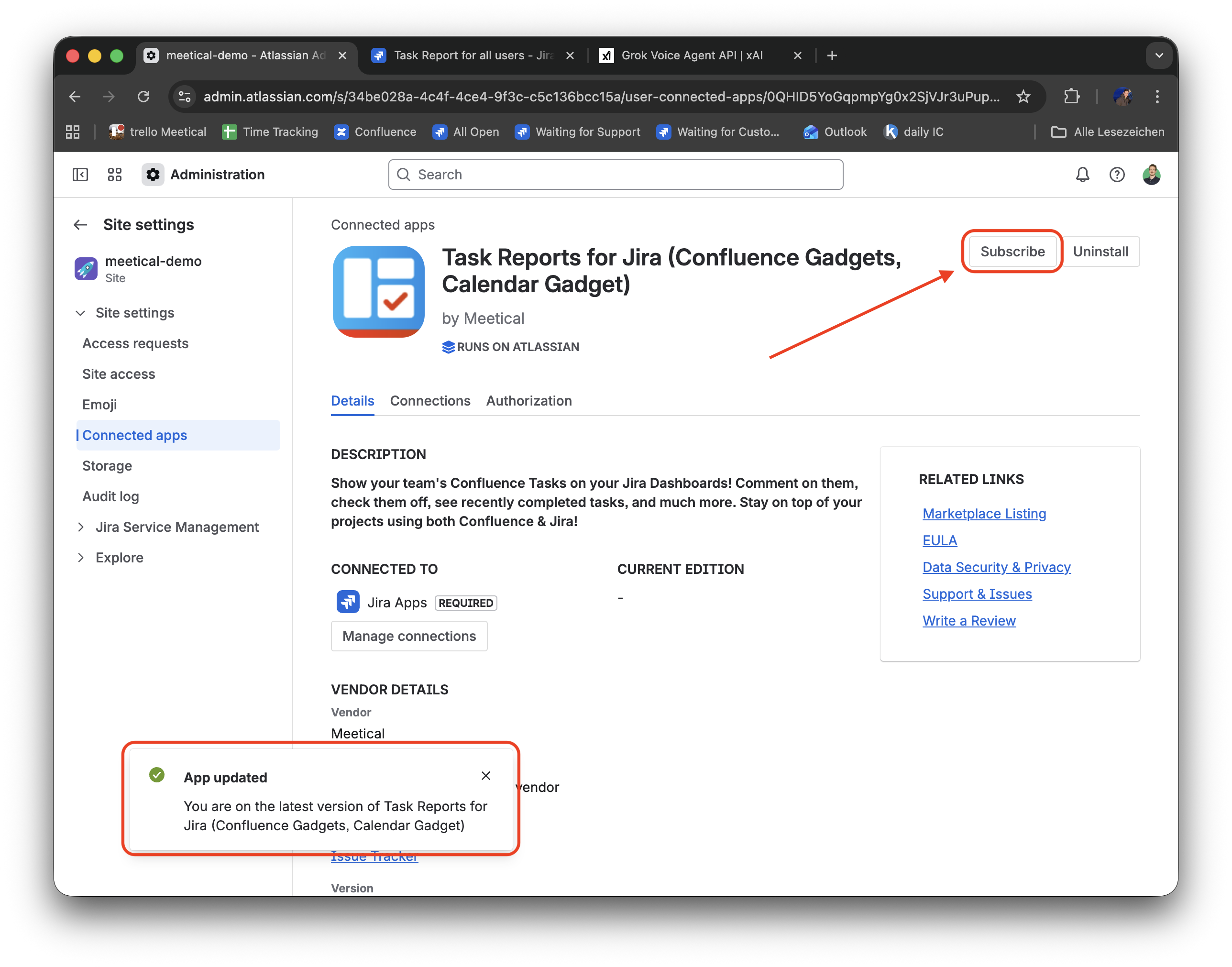
A notification appears in the bottom left corner when the app is updated successfully.
Start a new subscription by clicking “Subscribe”
-
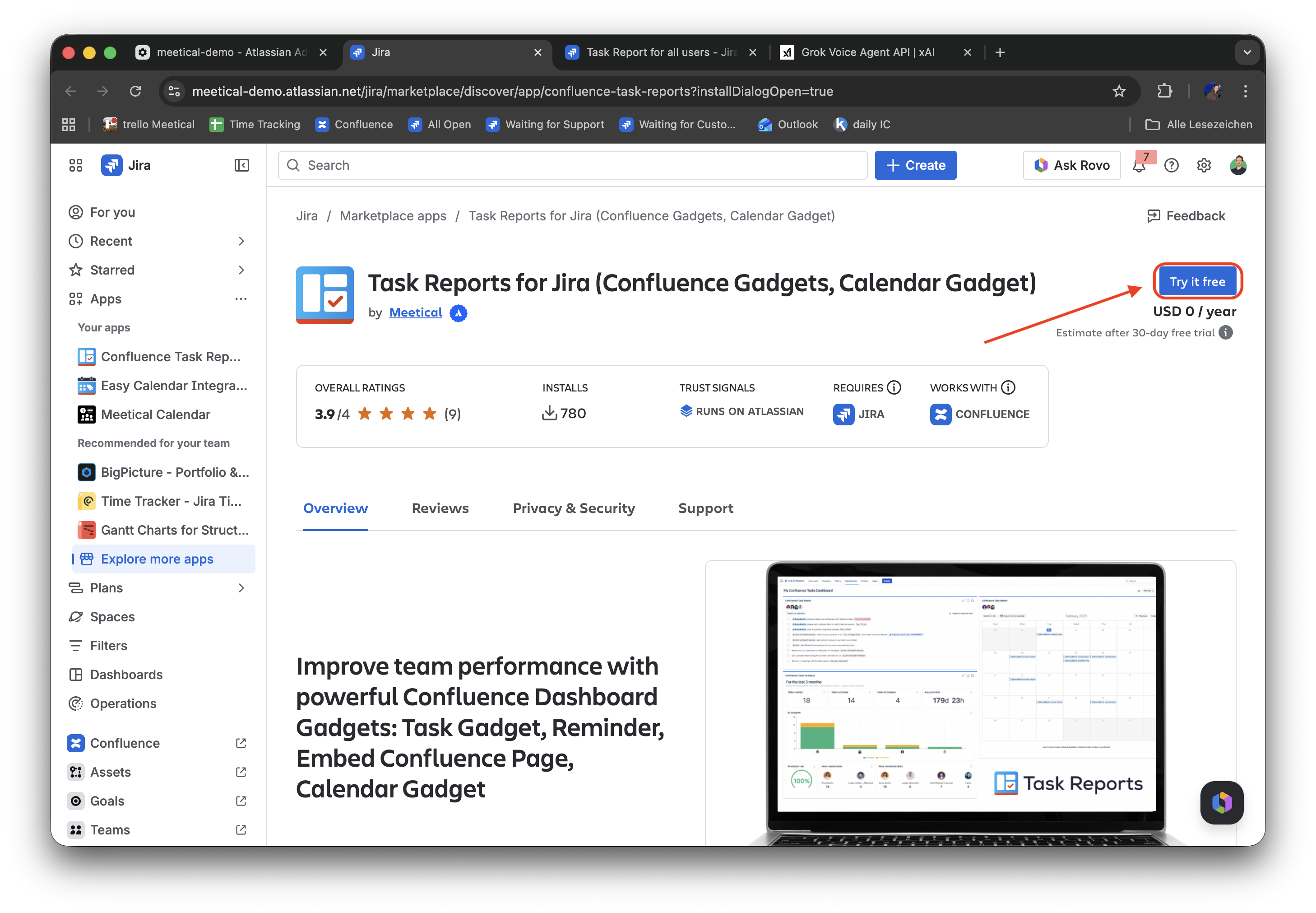
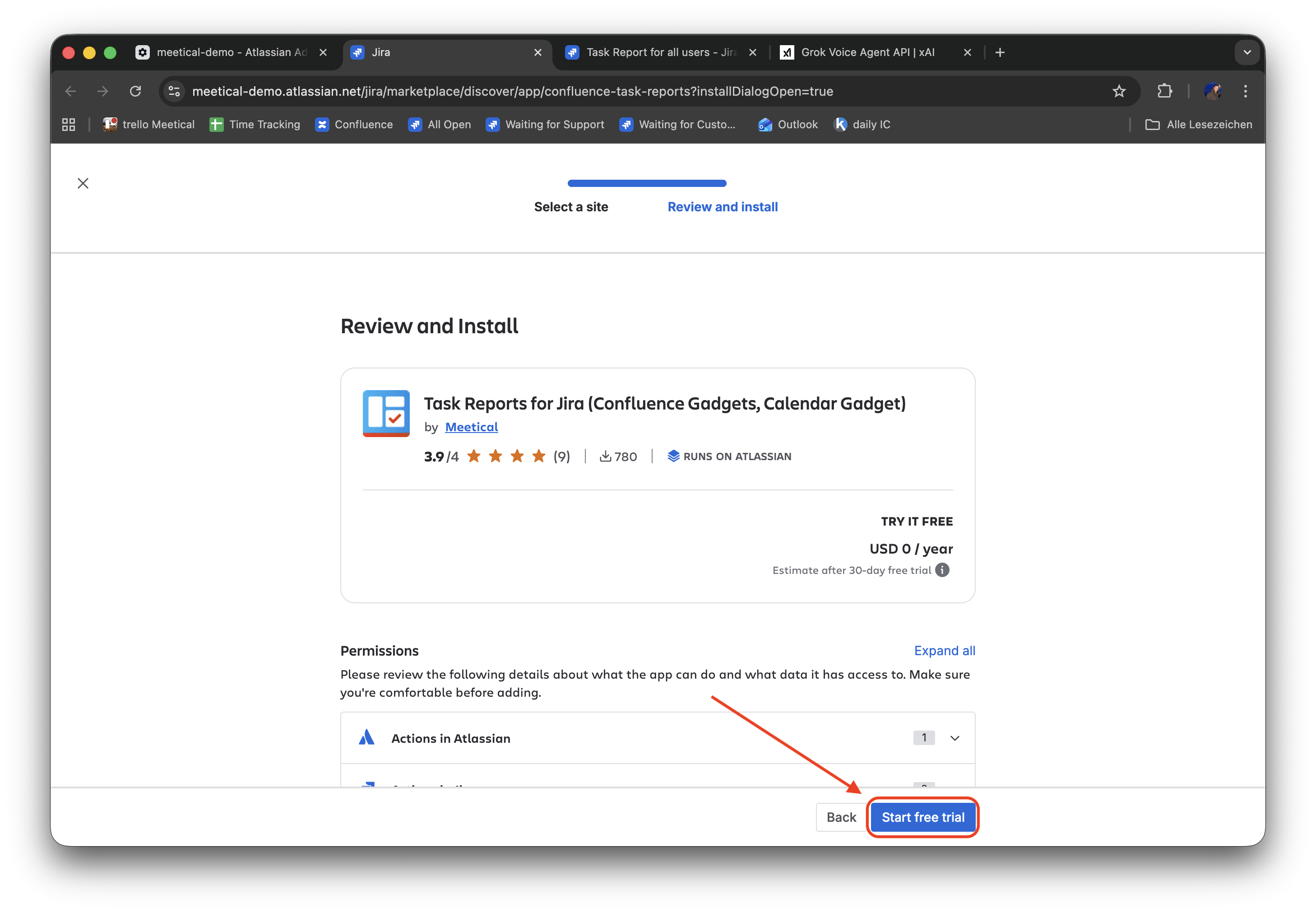
Click on “Try it free” and follow the standard process to start a new free trial
-
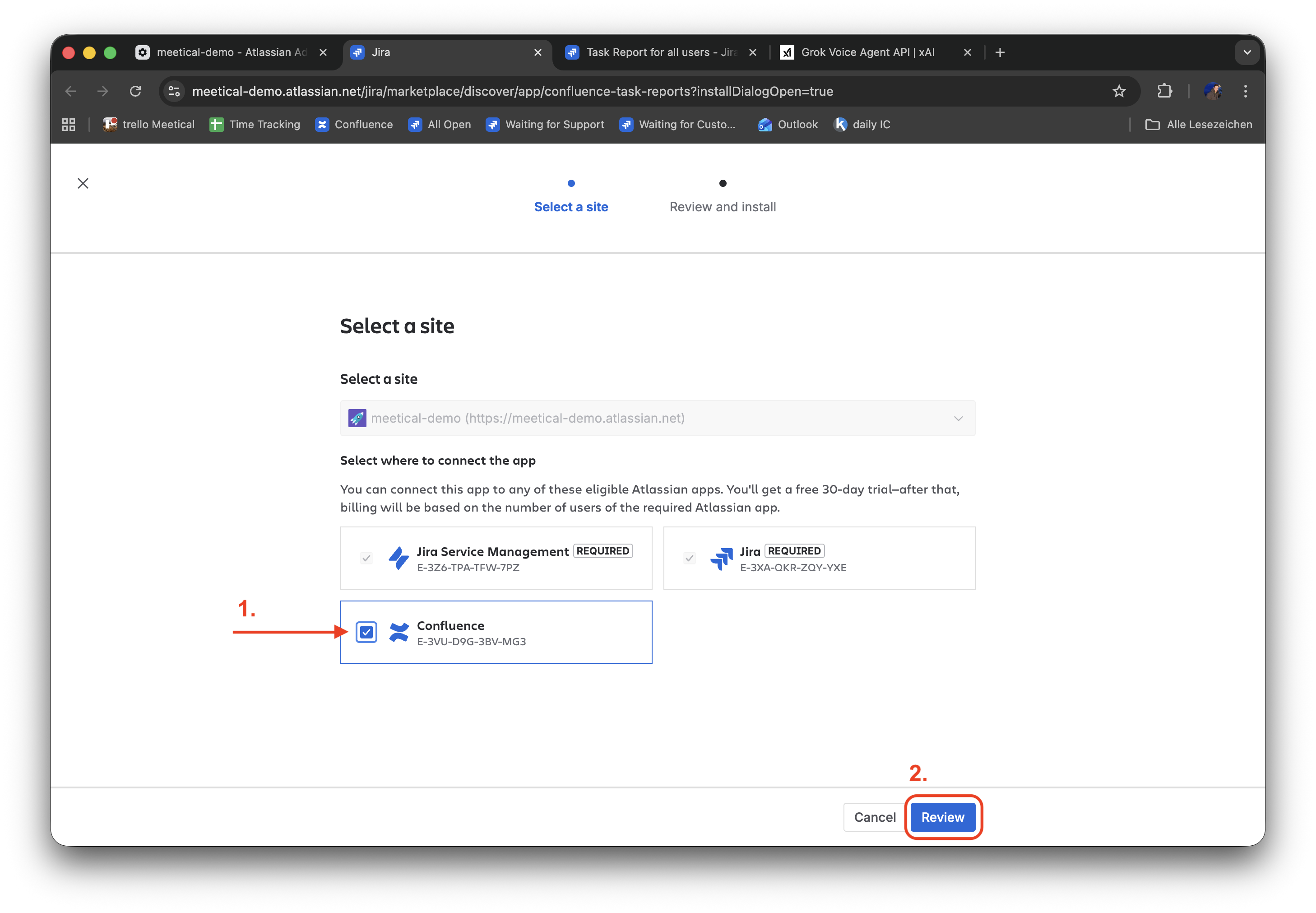
Select a site and make sure to connect Confluence (1) to the app, then proceed with Review (2)
-
Click on “Start free trial”
-
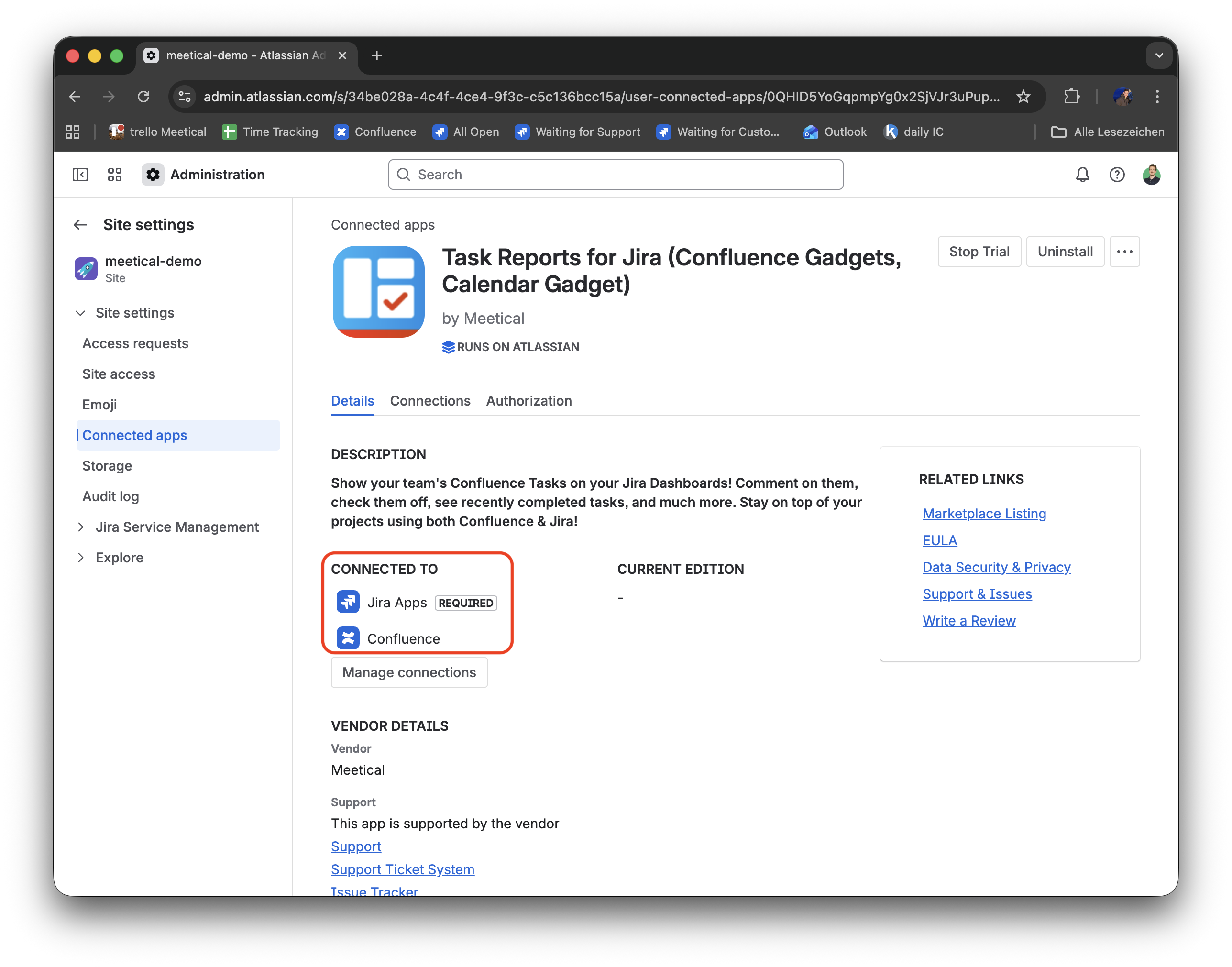
Your app is now on the new version, make sure you see connected to Jira Apps and Confluence
-
If you forgot to connect Confluence to the app, click “Manage connections” and connect Confluence

-
Recommended: Uninstall the Helper App from Confluence
-
In the same section under connected apps, find “Task Reports for Confluence (required Helper)” and delete the app