
Learn how to install, set up, and use the Meetical Outlook add-in to create Confluence meeting pages directly from the Microsoft Outlook Calendar.
Already installed? Then, use the Outlook add-in to create a meeting page.
Meetical provides a Calendar Add-In to create and manage Confluence Meeting Notes directly in Microsoft Outlook
Supported Outlook Versions (Web and Desktop):
-
Outlook 2013 or later
-
Outlook 2016 or later
-
Outlook 2016 or later for Mac (now supported!)
-
Outlook on the Web
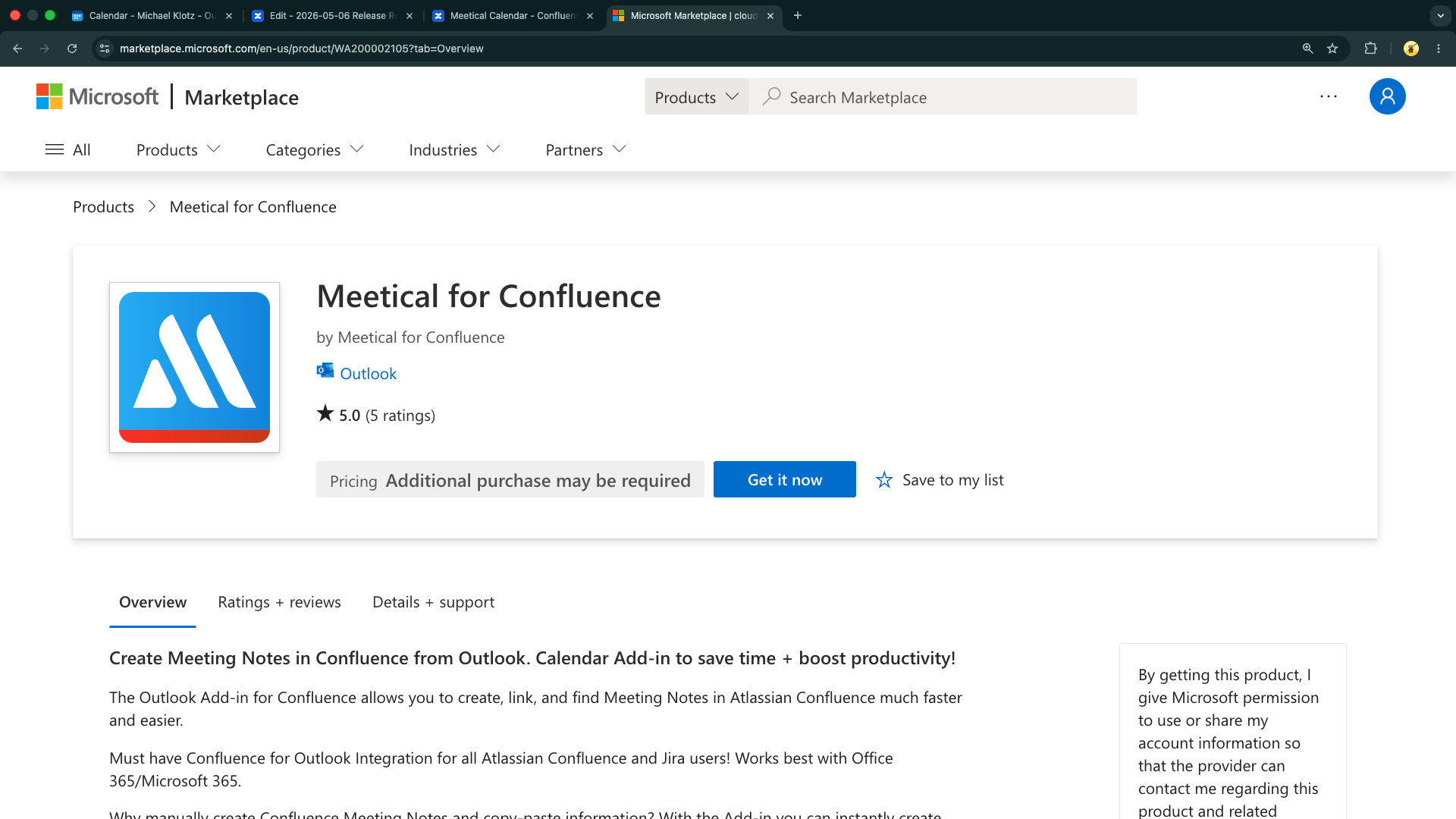
New: The Outlook Add-In was published to the Microsoft AppSource App Store.
Get the Outlook Add-in on the Microsoft Store -> Confluence Meeting Notes Outlook Add-in
Please note: As an alternative to the official Microsoft AppSource store, you can install the add-in as a custom add-in. Please reach out to support.
After you install the calendar add-in to the web calendar, it will also appear on Outlook desktop (and vice versa).
1. Start by opening your Outlook Calendar on the web or desktop.
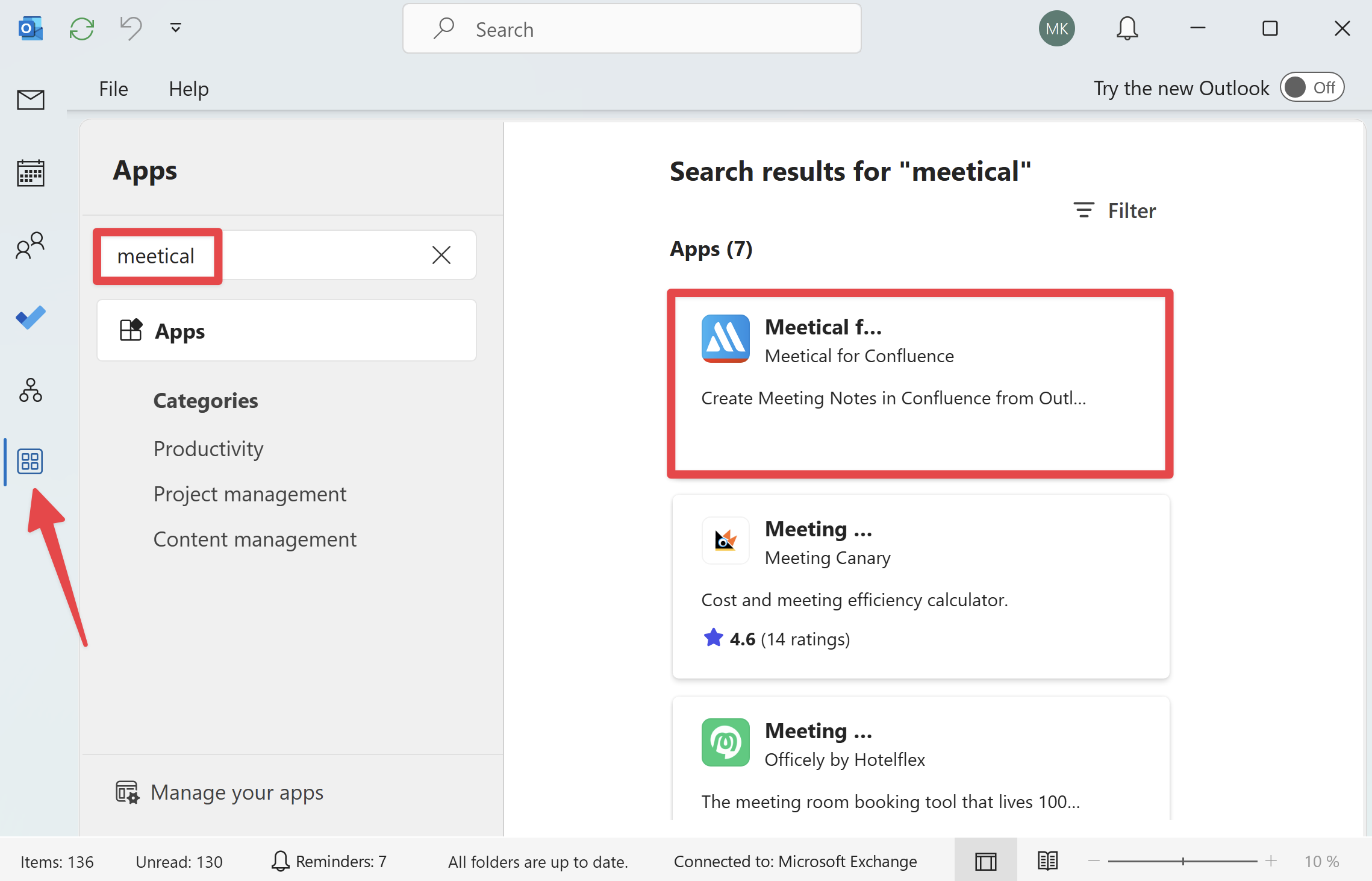
In this guide we use the Outlook Web Calendar. On Outlook Desktop, switch to your email inbox and find the "GET ADD-INS” menu item.
-
Click the management icon and search for “Meetical”
2. Or Install the Calendar Add-in from Microsoft AppSource Store
-
Search for 'Meetical' in the integrated Add-in Store
-
You can also find the add-in here: https://appsource.microsoft.com/en-us/product/office/WA200002105
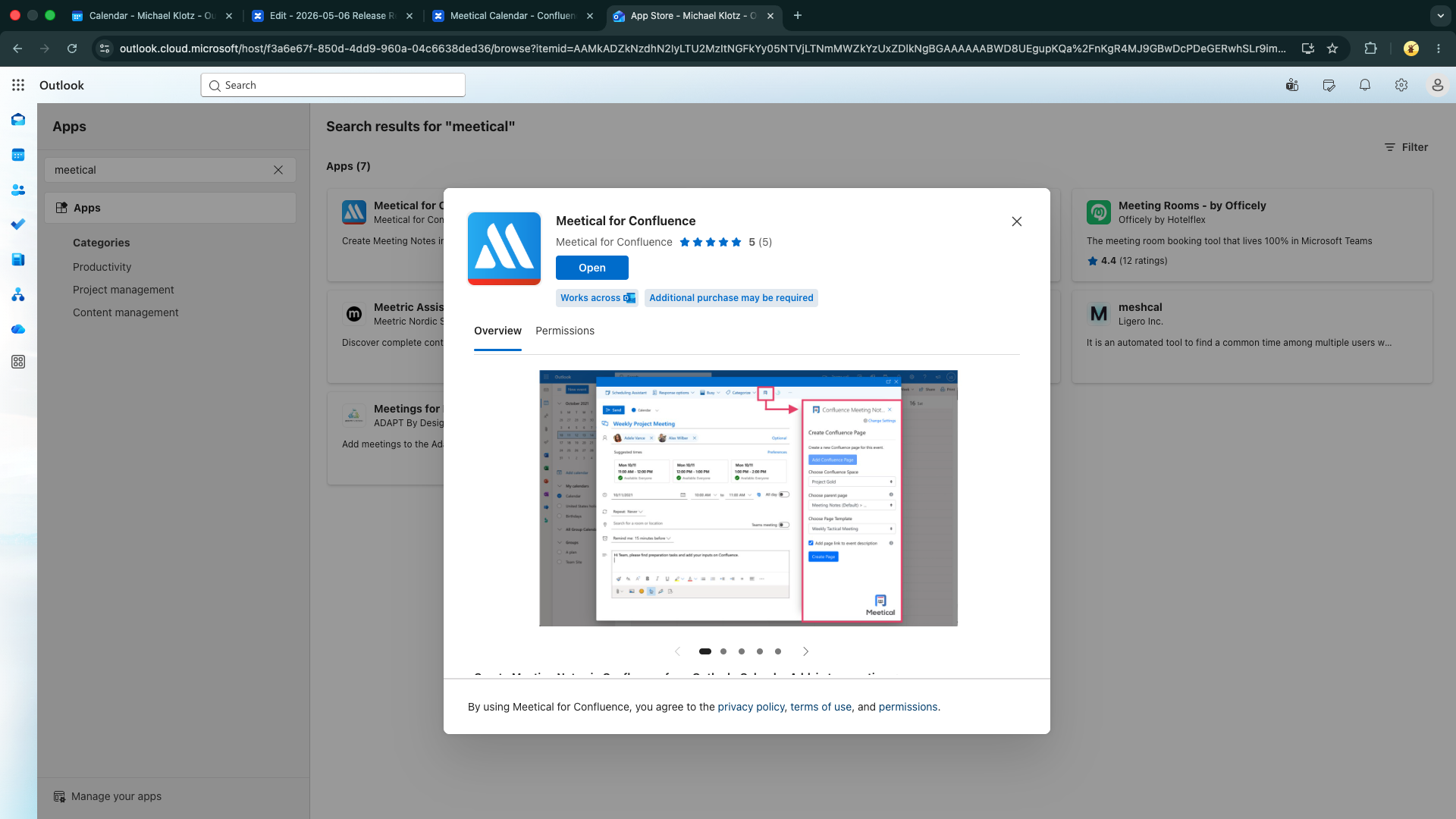
3. The Outlook Calendar add-in was successfully installed.
4. Login to Meetical through the add-in
-
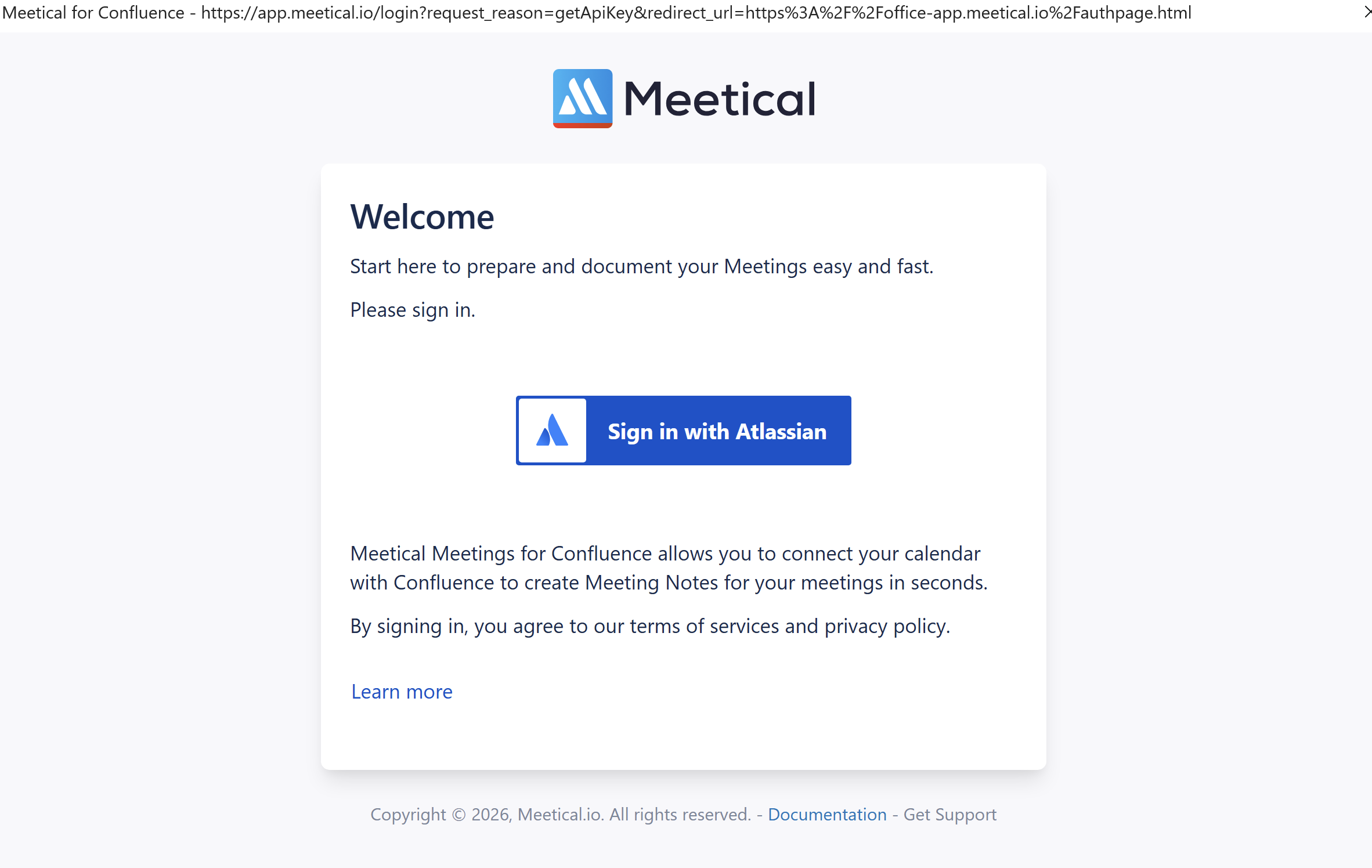
Click the Meetical add-in on any event editor and click on “Log in”.
Make sure you have completed your first-time setup in Confluence before proceeding.

-
Sign in to your Atlassian Account
-
Choose your instance and click on “Accept”
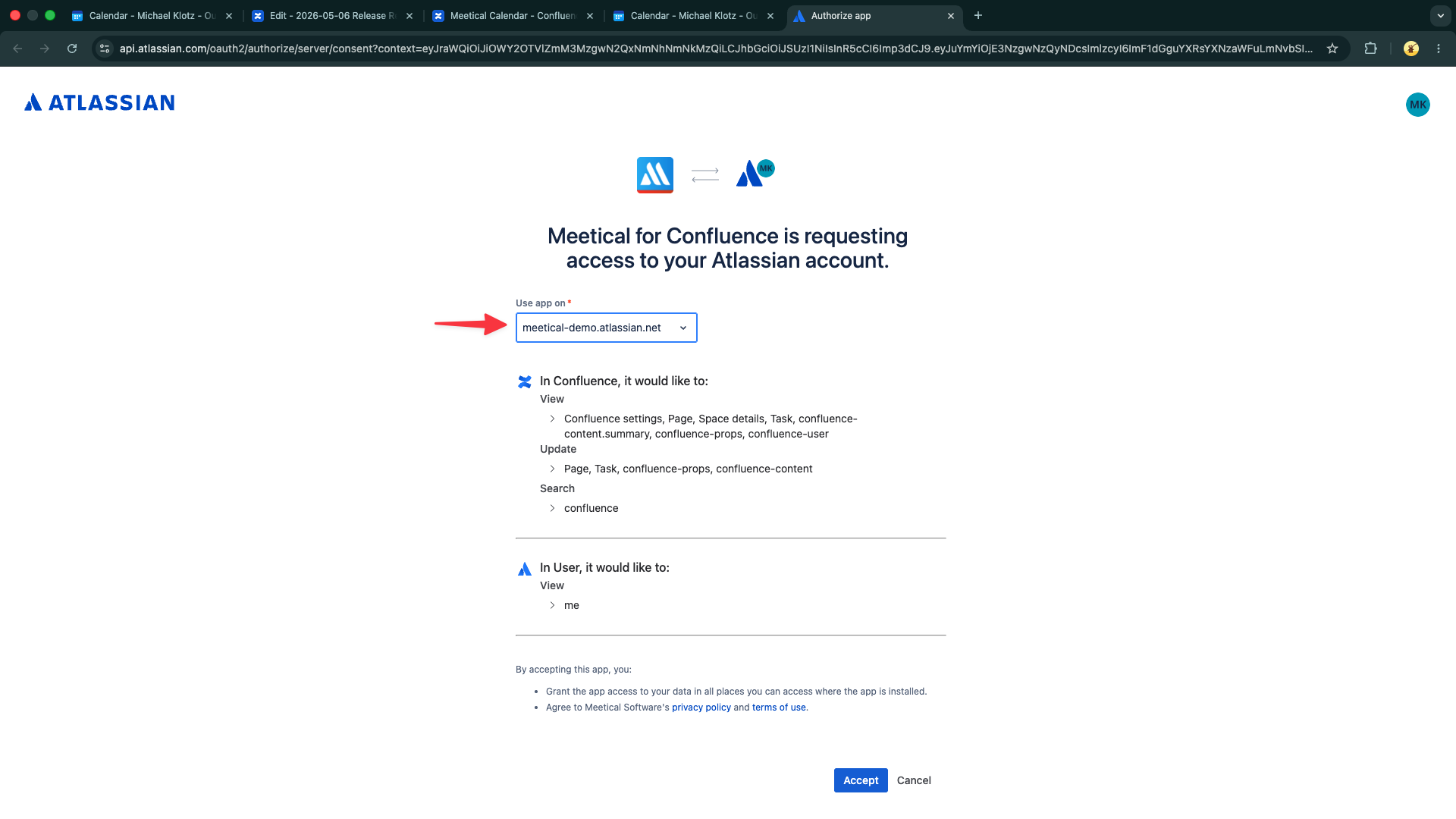
6. Congrats! You’ve successfully installed and set up the Meetical Outlook Calendar Add-in.
The calendar add-in should now show the "Add Confluence Page" section and be ready to use.
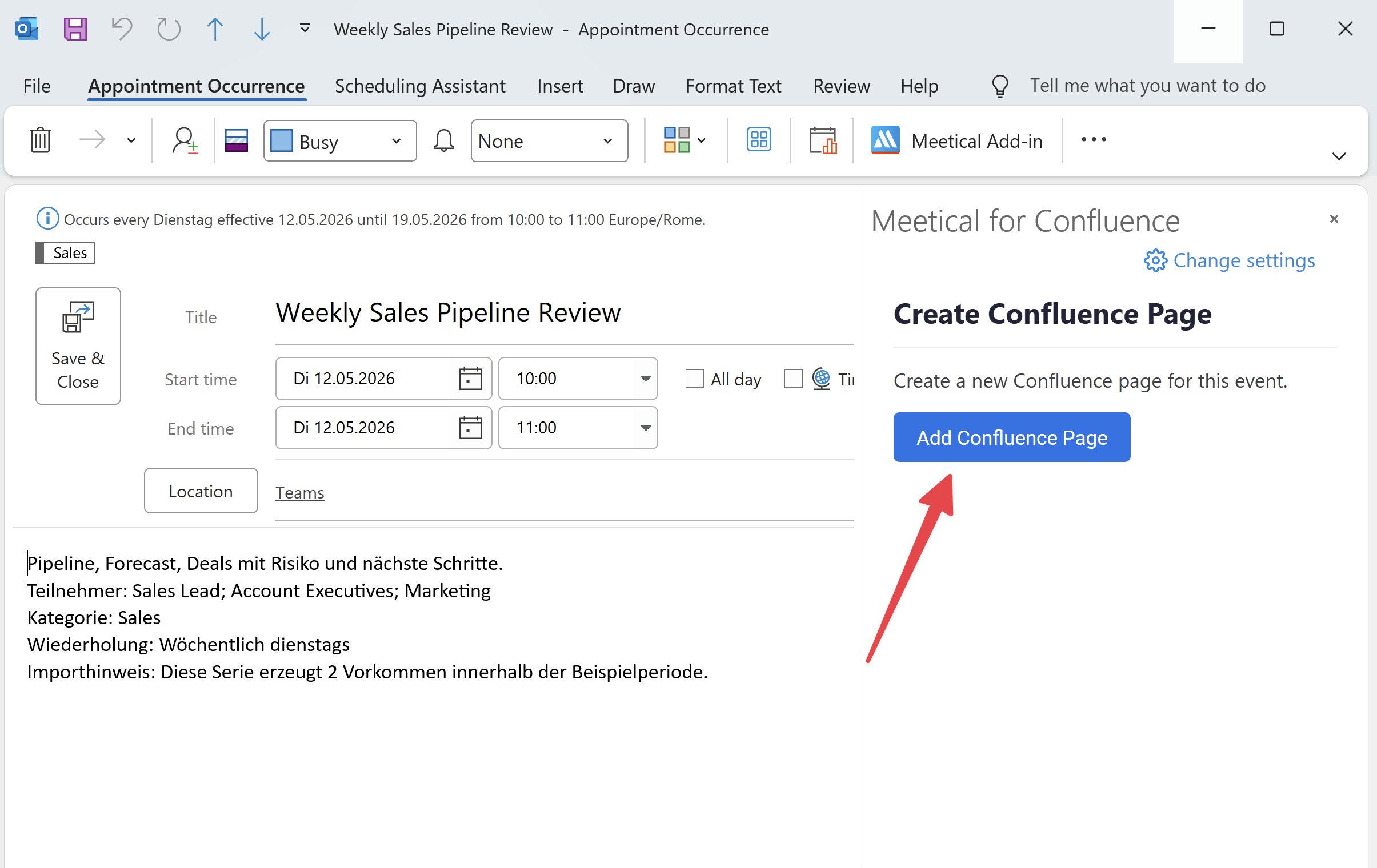
Now go ahead and create a page for a meeting event.
-
Use the Outlook Add-in to create a Confluence meeting page from Outlook.
For questions and feedback, please contact support.