
Learn how to setup the Confluence Chrome Extension and create Confluence Meeting Pages directly from Google Calendar in this 3-minute guide.
First, please download and install the Confluence Chrome Extension here.
Before starting, you should have successfully installed the Meetical for Confluence App before following this guide.
1. Visit the Chrome Extension installation page on the Chrome Web Store.
Click here to visit the page.
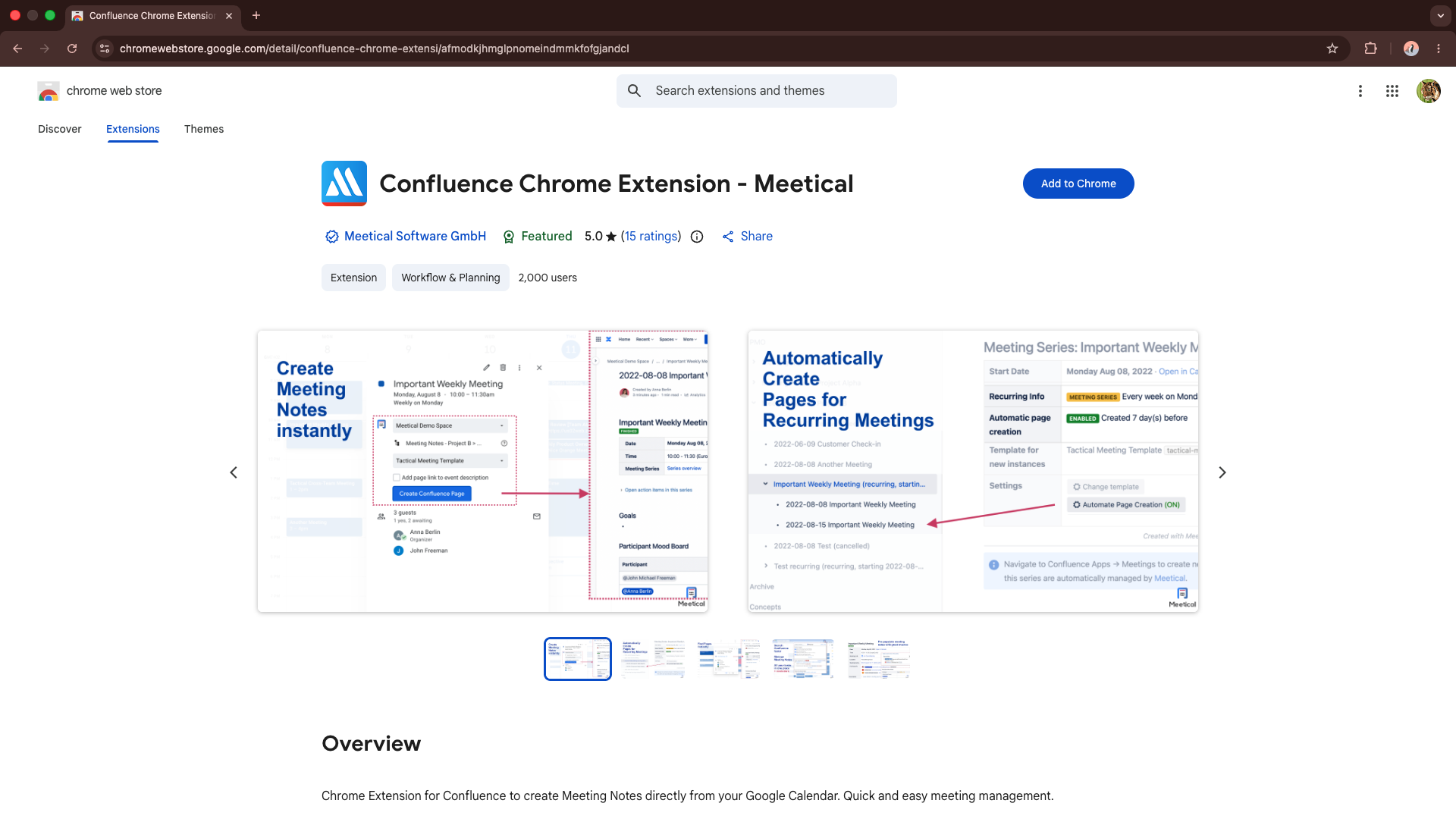
2. Click 'Add to Chrome' to start the installation.
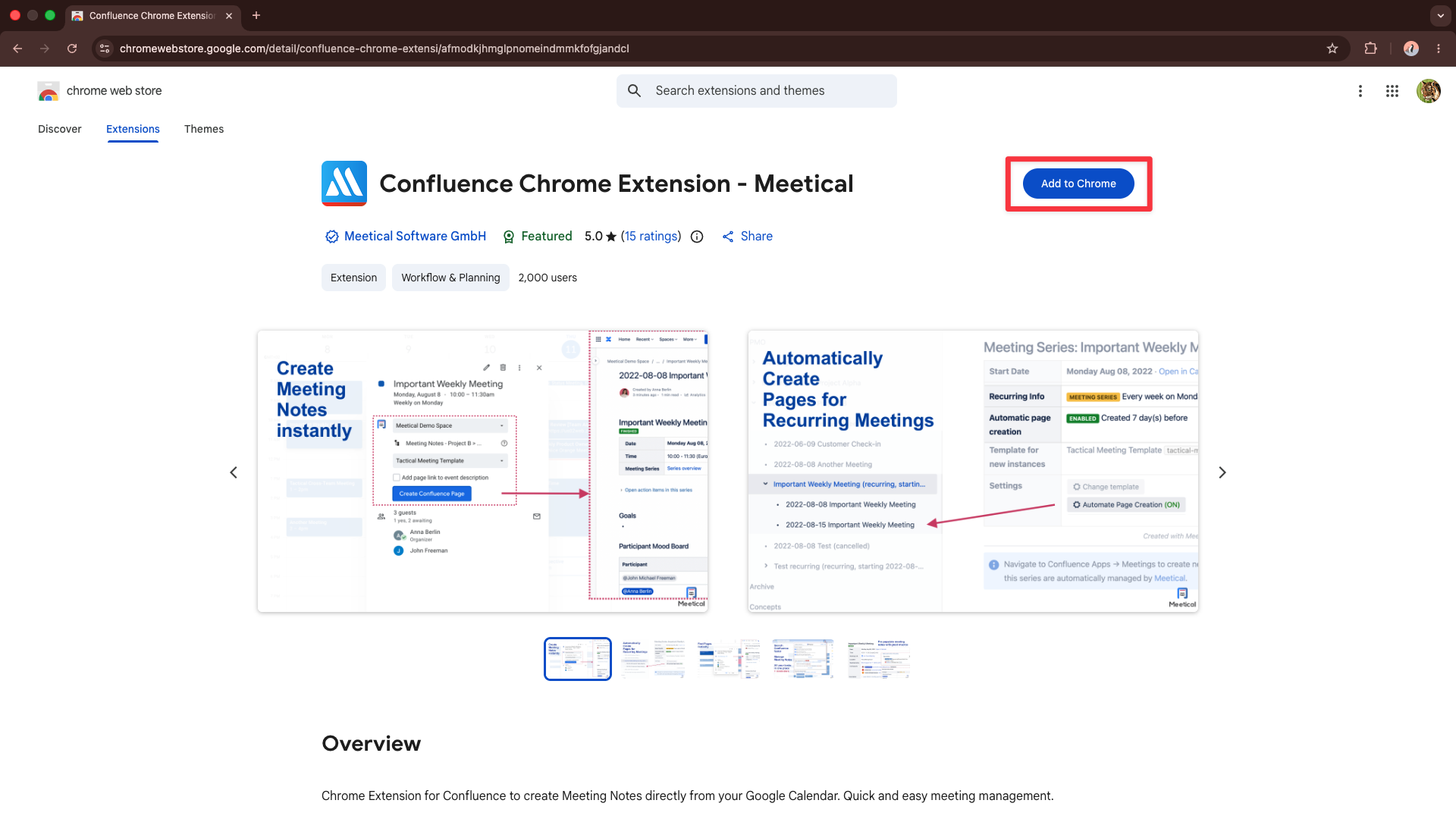
3. Click 'Add extension'.
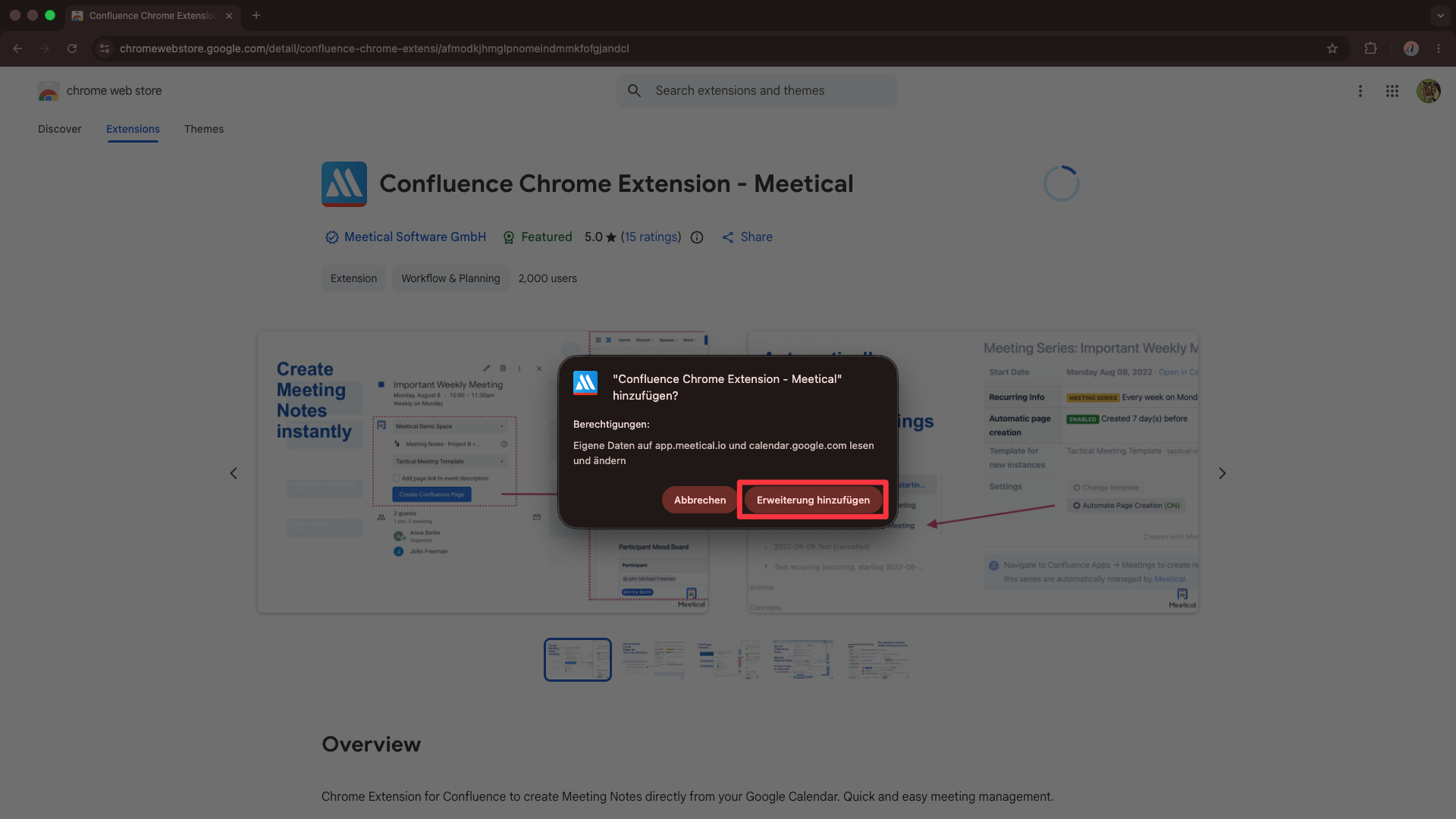
4. Confluence Chrome Extension has been installed.
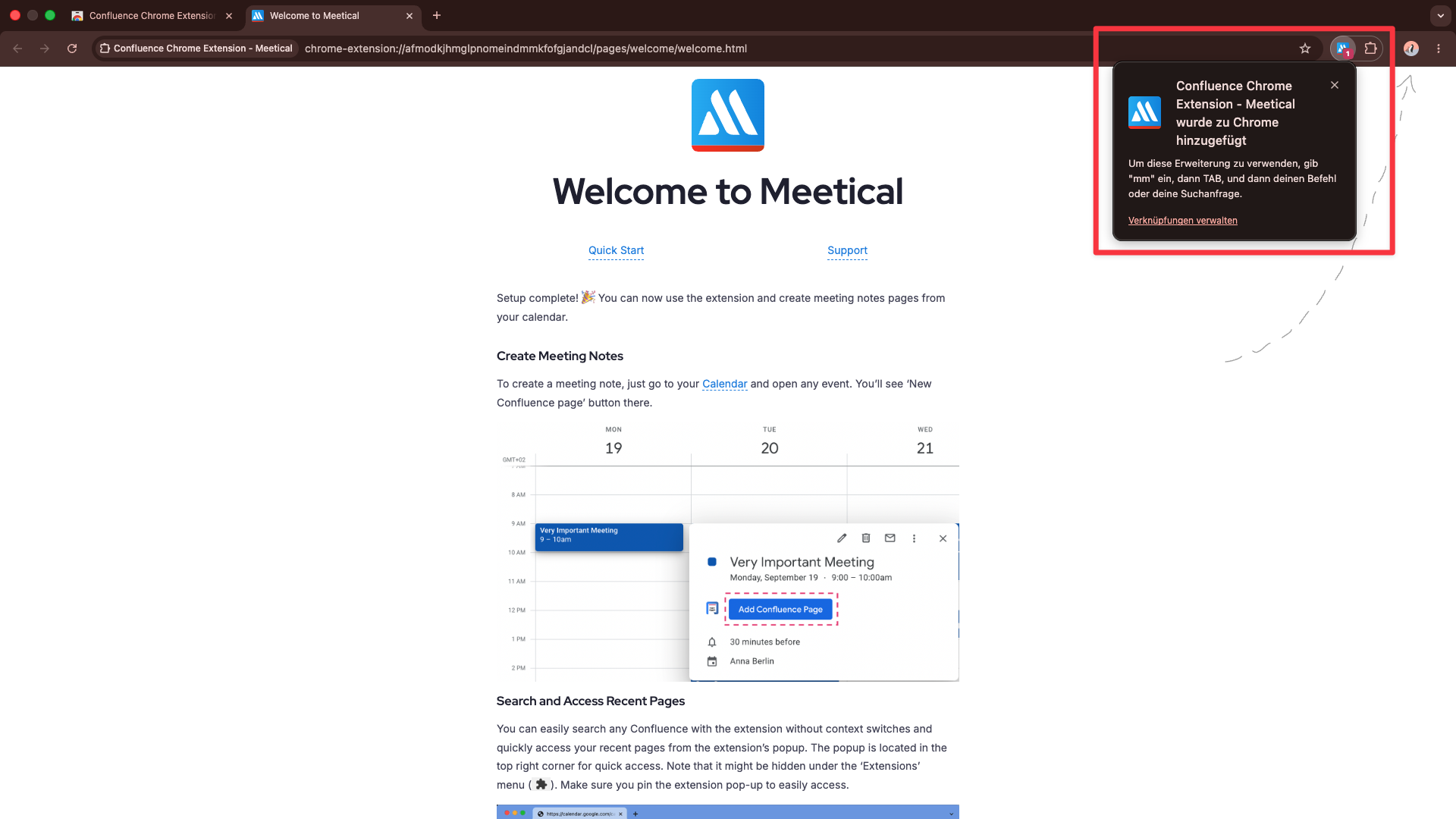
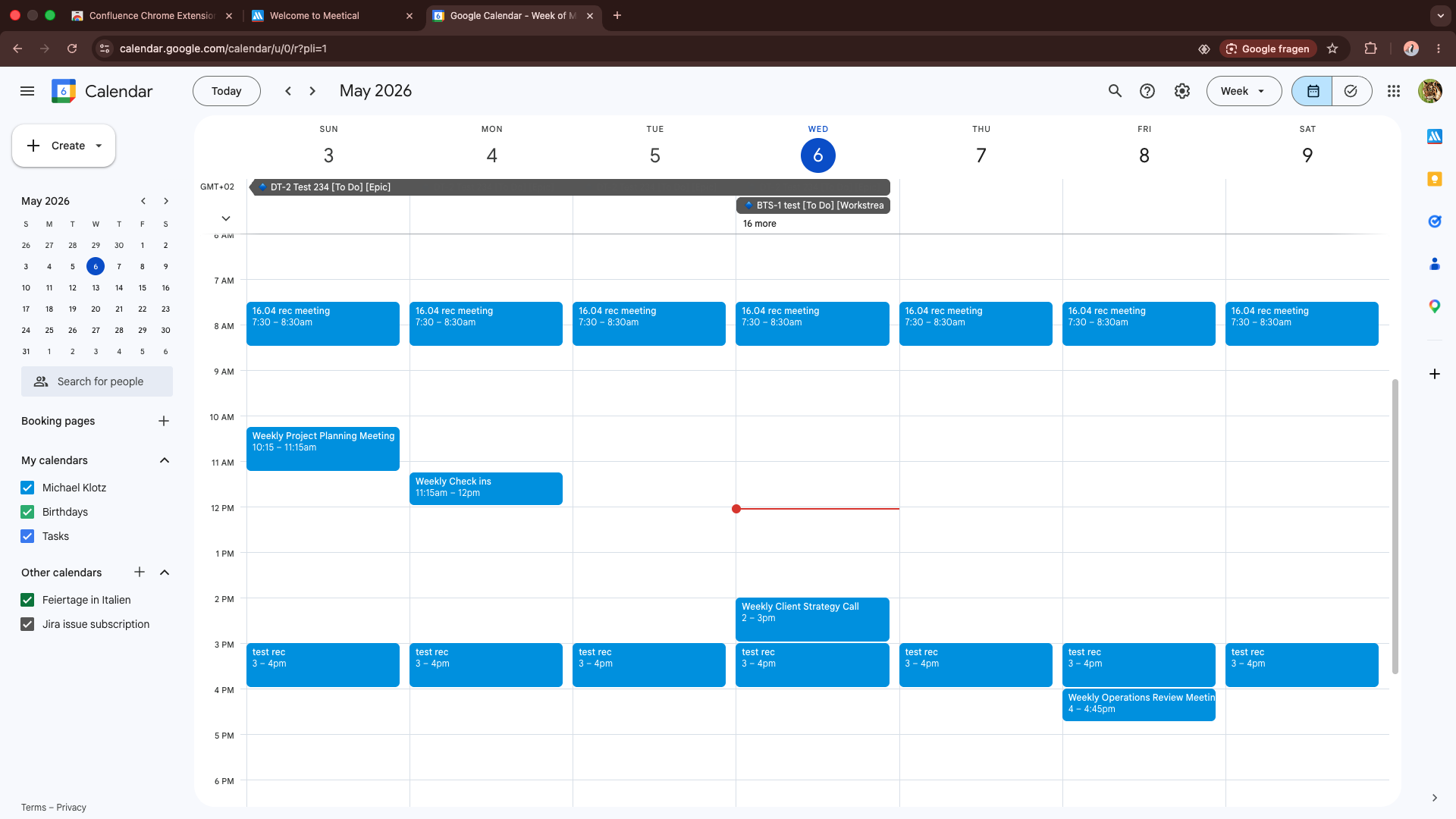
5. Navigate to your Google Calendar and log in with your Google Account.
Click here to visit the google calendar page.
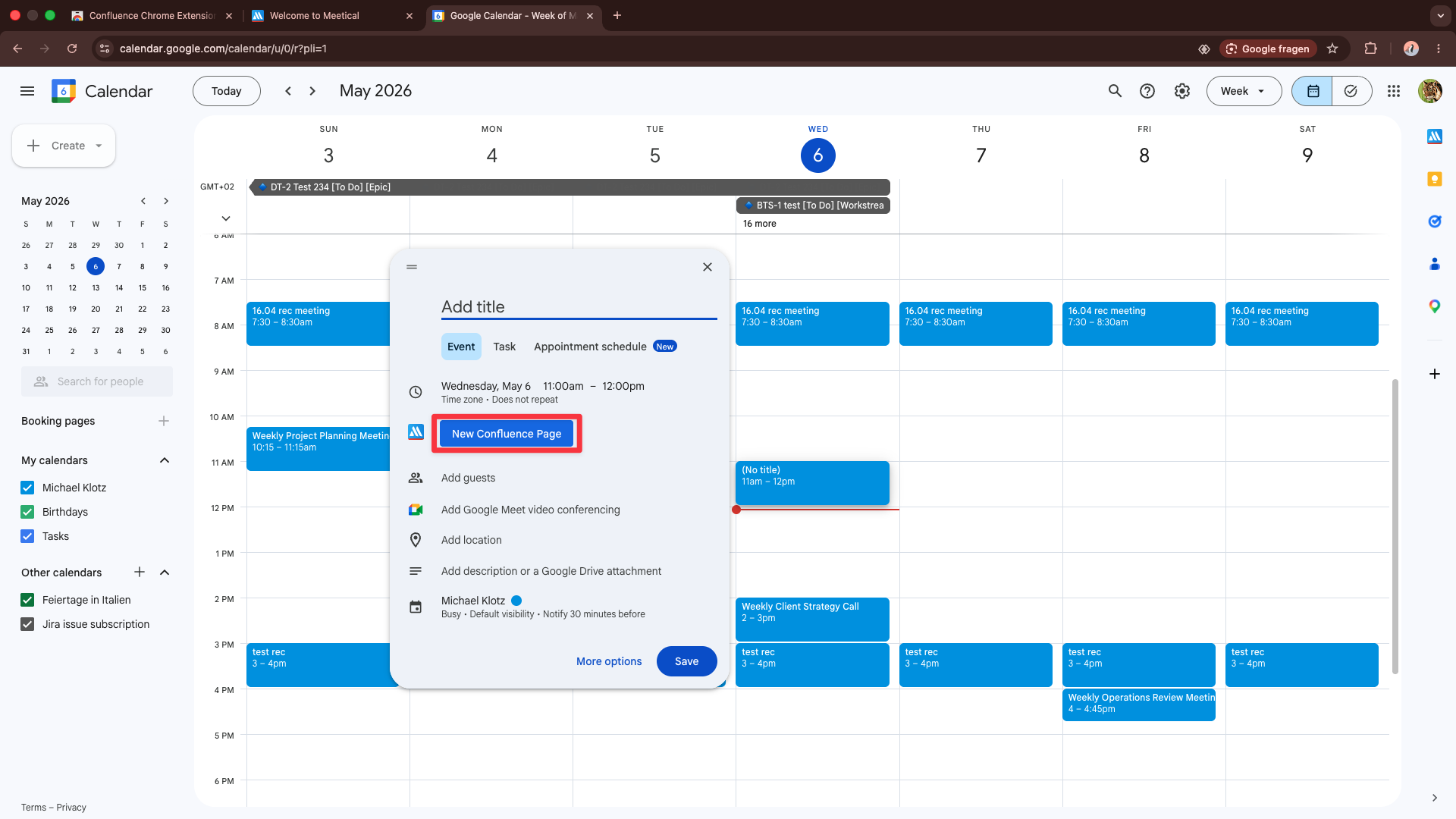
6. Create a new calendar event & click 'Login' to connect the Chrome Extension with the Meetical Confluence App
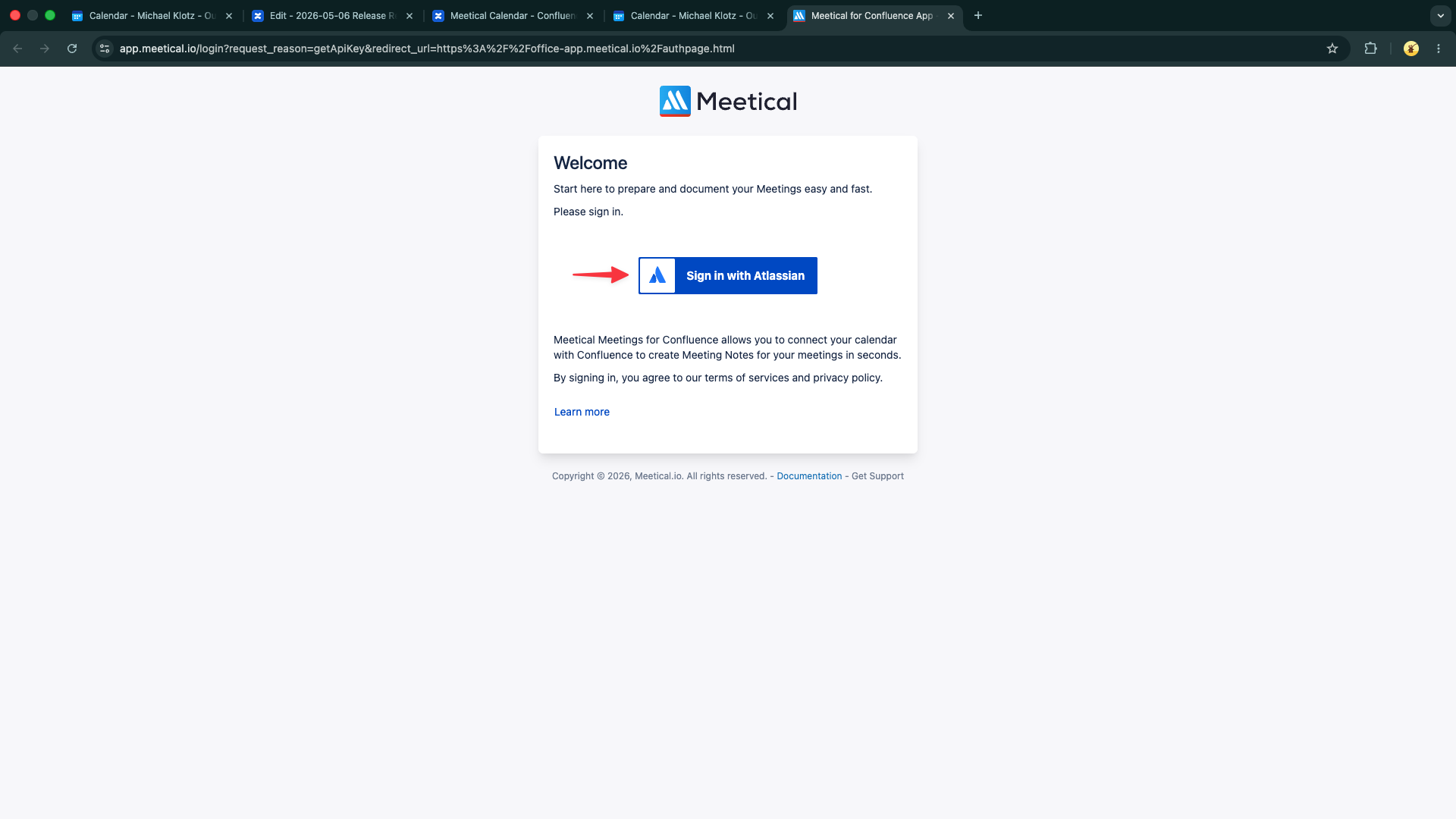
7. Sign in to your Confluence account
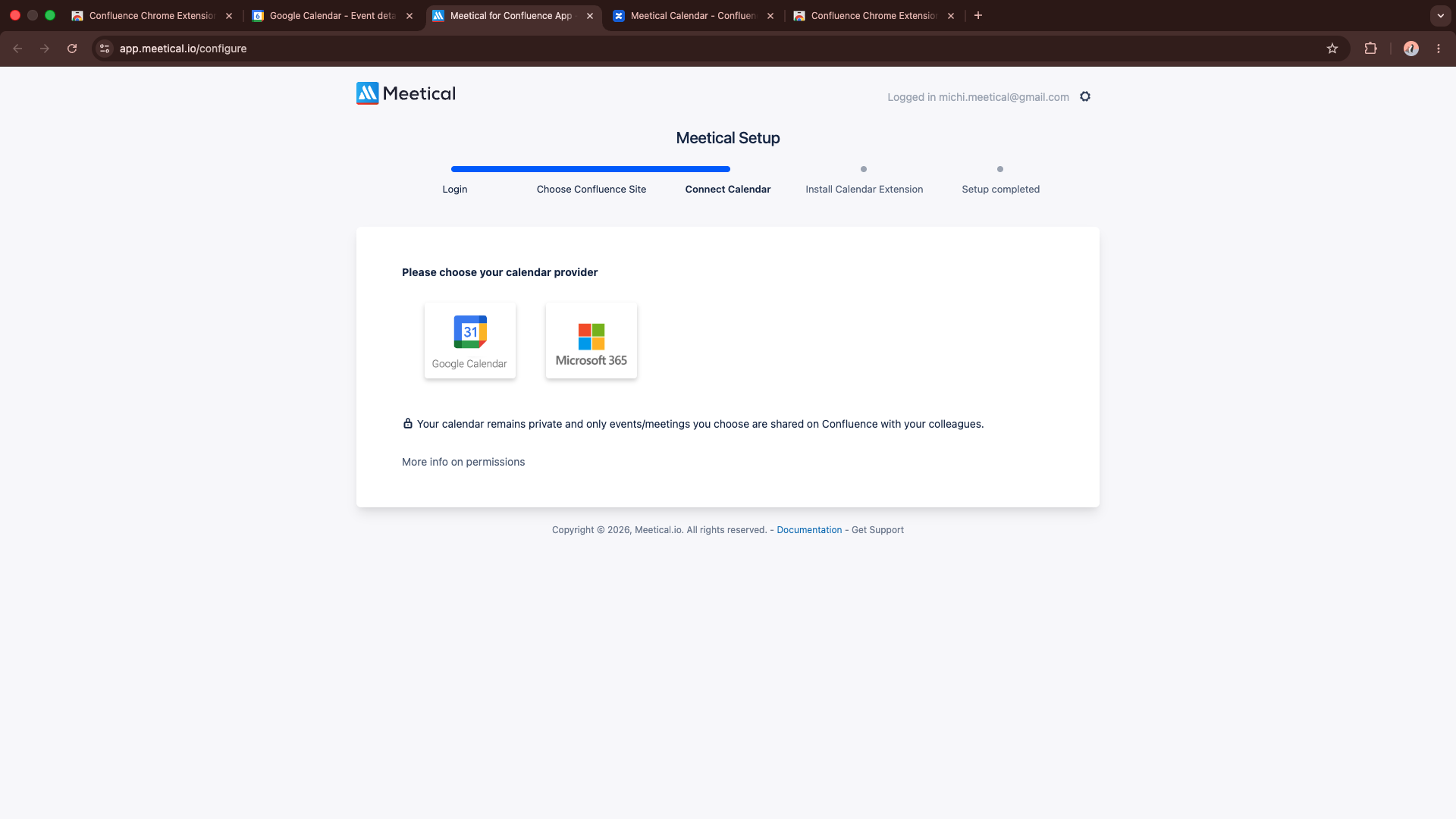
7a. Follow the steps in the Meetical onboarding process to complete your setup.
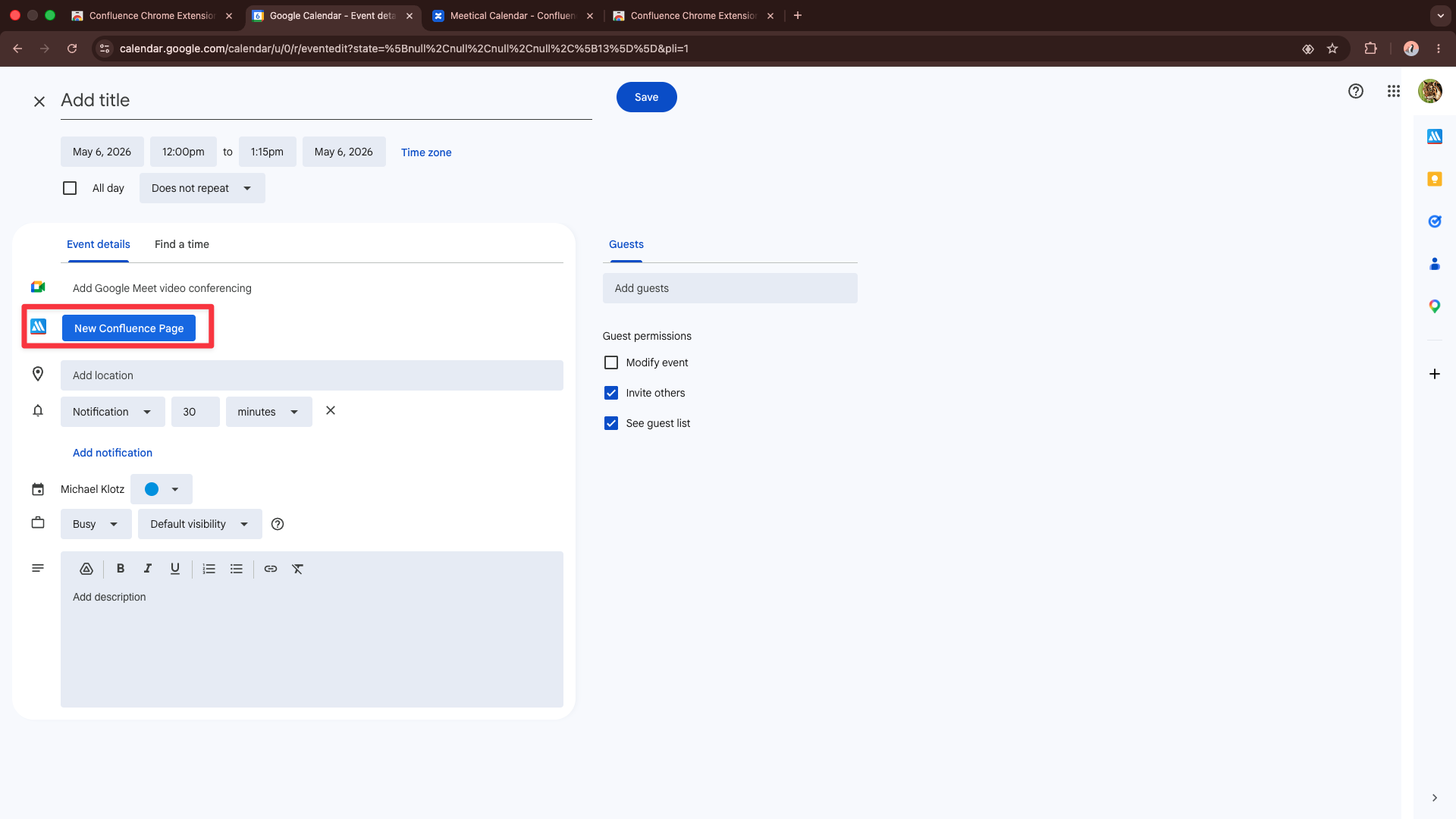
8. Once the setup is complete, you can now create a “New Confluence Page”
🎉 Congratulations 🎉
You successfully set up the Confluence Chrome Extension
You've completed the Chrome Extension installation.
Check out this tutorial next:
Thank you for reading this guide. If you have any questions, please contact us at support@meetical.io.