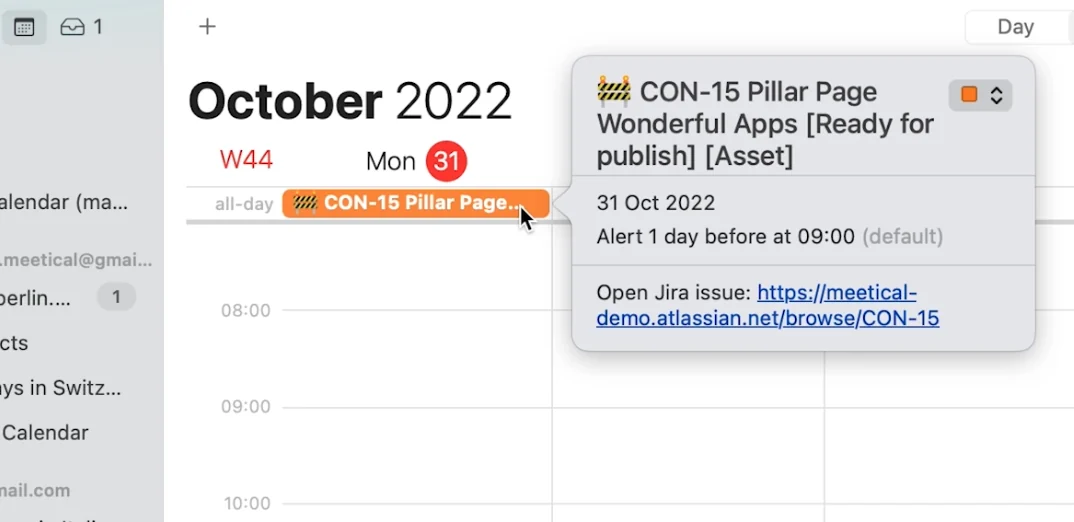
The Easy Calendar App adds a side panel to each issue to quickly bring additional Jira issues to your calendar. You can use a ICS subscription, ICS export, or a templated-link to create events for your issues.
Using the Side Panel
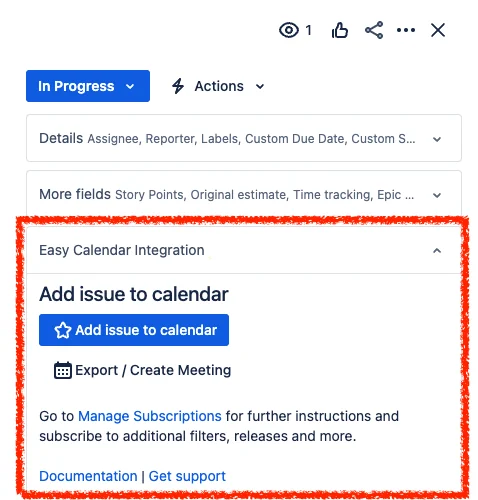
To choose which issues should show up you have these options:
-
Starring single issues to sync them to your calendar
-
Use a pre-defined filter such as “assigned to me” or “reported by me” to sync these issues to your calendar
-
Use your own, user-defined filter
Sync a single issue to your calendar
To subscribe to individual issues, navigate to the issue and find the right issue side panel
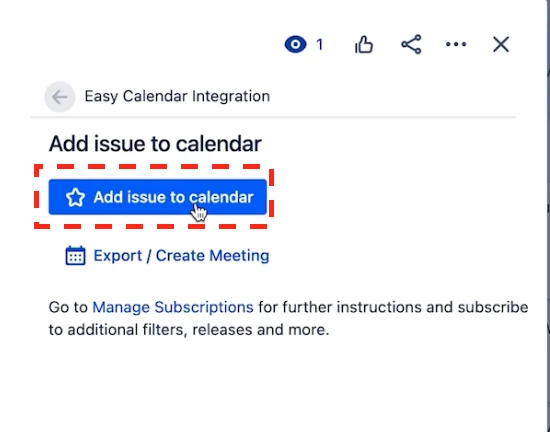
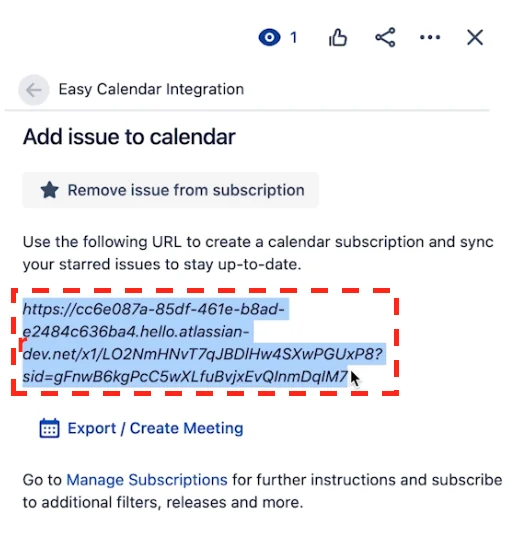
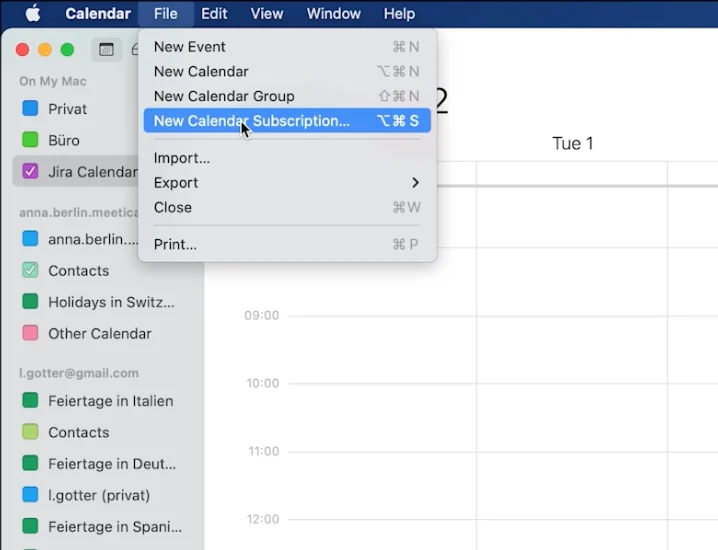
Subscribe by pasting the Subscription URL to Google Calendar, Microsoft 365, Apple Calendar, or any other Calendar supporting iCal/ICS subscriptions.
🔒️ Your subscriptions are private and related to your user account and should not be shared with other users. To share your subscription, use Shared Subscriptions.
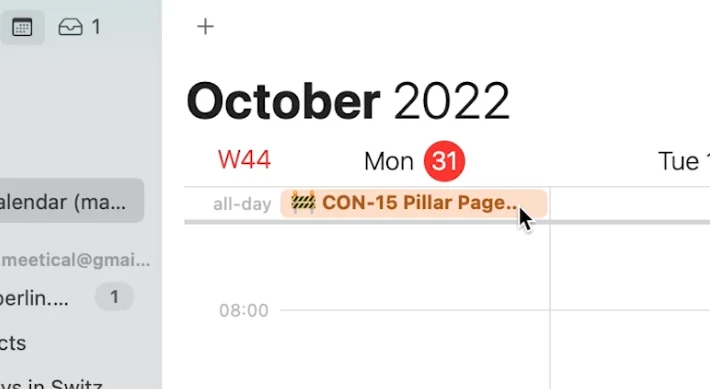
The subscribe issues have an emoji status: 🚧 = in progress, ✅ = done, 🔹= to do, 🚩= flagged issue